Table of Contents
Phone Numbers Enricher pricing can be confusing when the number of Google Maps results, the Phones Enricher usage, and the phone details shown in your final file do not match.
For example, a Google Maps Scraper task may return 200 business records, while the task details show 190 Phones Enricher usage. This can happen because Phone Numbers Enricher only checks entries that already have phone numbers. Rows without listed phone numbers are not enriched by this service.
The final CSV can also show different phone fields across rows. Some checked phones may return carrier type, some may return carrier name, and others may not return every phone enrichment field because the result depends on data availability.
Quick answer:
- Google Maps Scraper results and Phones Enricher usage are separate counts.
- When used inside Google Maps Scraper, Phone Numbers Enricher checks entries that already have phone numbers.
- Phones Enricher usage is best understood as phone lookups attempted, or phones checked, not phone numbers found.
- If a phone number is checked but no extra phone data is returned, the lookup can still count as usage.
- The final CSV may show fewer enriched phone fields than the usage count because not every checked phone returns every field.
This guide explains how Phone Numbers Enricher usage works, why the counts can look different, and what to check before running a large enrichment task.
How Phone Numbers Enricher Works
Phone Numbers Enricher can be used in two ways.
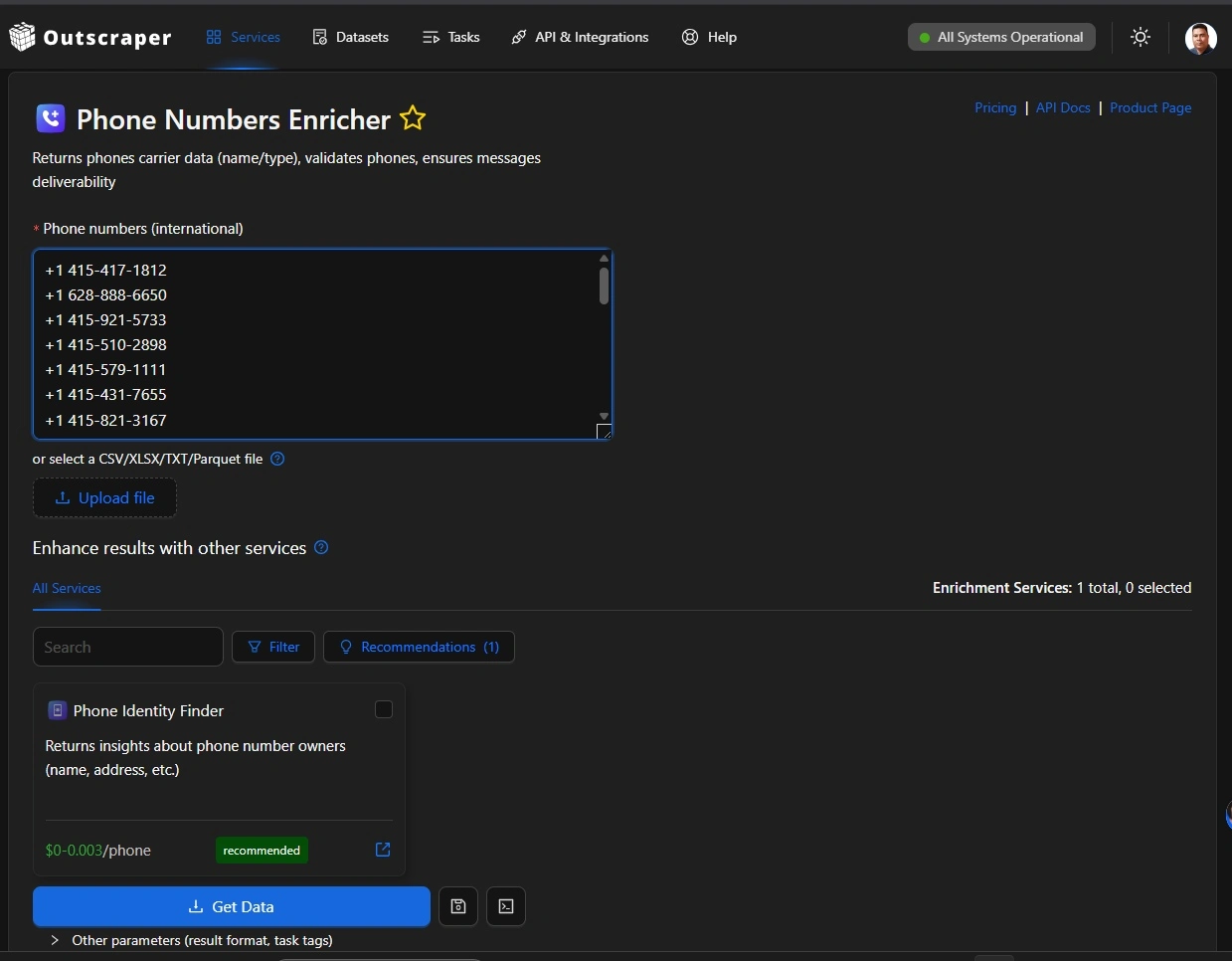
You can open Phone Numbers Enricher as a standalone app and enter phone numbers directly. In this workflow, you paste phone numbers into the input field or upload a CSV, XLSX, TXT, or Parquet file.
On the website, this standalone phone-checking workflow is explained on the Phone Number Lookup page, where users can review carrier data, phone type, validation, and deliverability-related details.
You can also select Phone Numbers Enricher as an enrichment service inside Google Maps Scraper. In this workflow, Google Maps Scraper first collects business records based on your category, location, filters, and result limit.
Start with Google Maps Scraper to collect business names, addresses, websites, ratings, reviews, categories, and listed phone numbers before adding phone enrichment.
When selected inside Google Maps Scraper, Phone Numbers Enricher does not search for new phone numbers for rows without phones. It checks phone-related data for entries that already have phone numbers.
The dashboard describes Phone Numbers Enricher as a service that returns phone carrier data, including carrier name and type, validates phones, and helps check message deliverability.
This difference matters because the standalone app starts with phone numbers you provide, while the Google Maps Scraper workflow starts with business records that may include phone-related data. Before running a task, check whether you are using Phone Numbers Enricher directly or selecting it as an enrichment add-on inside another scraper.
For a broader overview of available add-ons, see the guide to enrichment services.
Phone Numbers Enricher Pricing: Why Results, Usage, and Output Fields Can Differ
Google Maps results, Phones Enricher usage, and enriched phone fields are different counts.
Google Maps results show the number of business records returned by the scraper. Phones Enricher usage shows the number of phone numbers checked or processed under the enrichment step. CSV phone fields show the phone data returned when available.
A simple way to understand it is:
| Count Type | What It Means | Example From a Task | What to Remember |
|---|---|---|---|
| Google Maps results | Business records returned by Google Maps Scraper | 200 results | This is the main scraper output, not the enrichment usage. |
| Phones Enricher usage | Phone lookups attempted, or phone numbers checked by Phones Enricher | 190 usage | This is the billed phone enrichment count. A lookup can count even if no extra phone data is returned. |
| CSV phone fields | Phone details returned in the downloaded file when data is available | 177 carrier type rows, 94 carrier name rows | These fields can be lower than usage because not every checked phone returns every detail. |
| Phone-related columns | Phone values that may appear across more than one CSV column | 193 rows with phone numbers | Check all phone-related columns, not only the main phone column. |
The main point is that these numbers describe different parts of the task. Do not compare them as if they should always match.
When Phone Numbers Enricher is used inside Google Maps Scraper, it checks entries that already have phone numbers. It does not search for new phone numbers for rows without listed phone numbers.
Phones Enricher usage means phone lookups attempted or phones checked. If a phone number is checked but no extra phone data is returned, the lookup can still count as 1 usage because the tool attempted to verify the phone number.
Carrier type, carrier name, validation, and other phone fields depend on data availability, so these fields may be lower than the usage count.
Also, check all phone-related columns in the CSV, not only the main phone column. Some exports can include more than one phone field, especially when other enrichment services are selected.
Example: 200 Google Maps Results and 190 Phones Enricher Usage
Here is a small example from a Google Maps Scraper task with Phone Numbers Enricher selected.
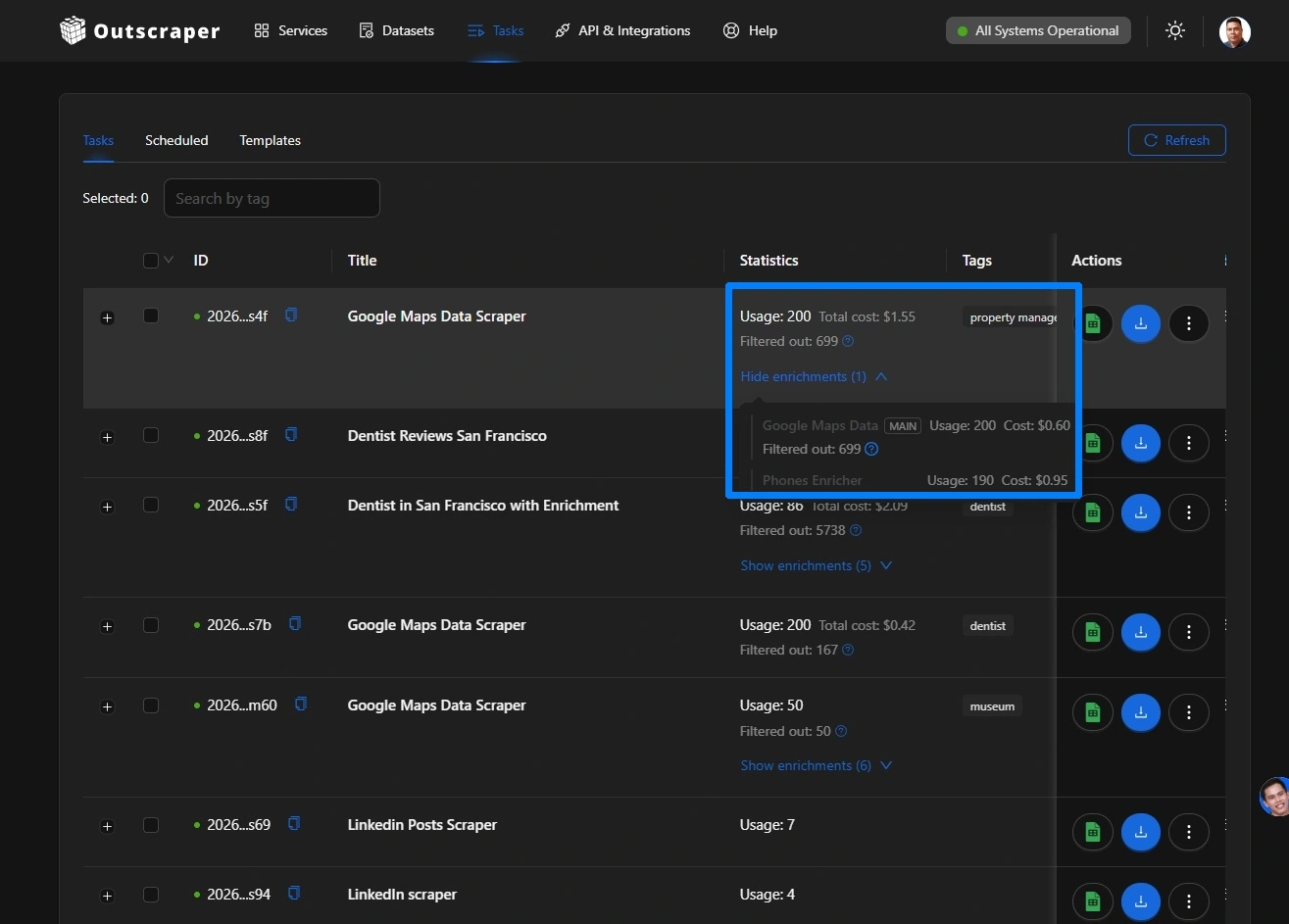
The task returned 200 Google Maps results. In the task details, the main Google Maps usage also showed 200. Under the enrichment details, Phones Enricher showed 190 usage.
This means Google Maps Scraper returned 200 business records, while Phones Enricher checked or processed 190 phone numbers from the task.
The cost was also separated in the task details:
- Google Maps Data: 200 usage, $0.60
- Phones Enricher: 190 usage, $0.95
- Total task cost: $1.55
The Phones Enricher cost follows the usage count:
190 Phones Enricher usage × $0.005 per phone = $0.95. For current rates, check the Outscraper pricing page before running a larger task.
This means the billed unit is the phone lookup attempted, not only rows that returned carrier type or carrier name.
In the downloaded CSV, the counts were also different. The file had 200 rows, 193 rows with phone numbers, 177 rows with carrier type, and 94 rows with carrier name.
This does not mean the enrichment result is wrong. It means each count refers to a different part of the task:
- Google Maps results show the business records returned by the scraper.
- Phones Enricher usage shows the phone numbers checked or processed.
- CSV phone fields show the phone data returned when available.
Carrier type, carrier name, validation, and other phone fields depend on data availability. If Phone Numbers Enricher checks a phone number but no extra data is found, the check can still count as 1 usage because the tool attempted to verify the phone number.
Also, check all phone-related columns in the CSV, not only the main phone column. Some exports can include more than one phone field, especially when other enrichment services are selected.
Before comparing counts, open the task details and review the main scraper usage and Phones Enricher usage separately. Then review the phone-related columns in the downloaded file, not only the main phone column.
How to Check Phone Numbers Enricher Before Running a Large Task
Before running a large task, check whether Phone Numbers Enricher is selected.
If you are using the standalone Phone Numbers Enricher app, review the phone numbers you are about to submit. Remove duplicates, check the file size, and make sure the list only includes phone numbers you actually want to enrich.
If you are using Phone Numbers Enricher inside Google Maps Scraper, check the enrichment area before starting the task. In the dashboard, Phone Numbers Enricher appears under “Enhance results with other services.” If it is selected, your task may include phone enrichment usage in addition to the base Google Maps Scraper results.
For the breakdown of base scraper costs and enrichment add-ons, read our Google Maps scraper enrichment pricing guide.
Use this quick check before scaling:
- Am I using the standalone Phone Numbers Enricher app or Google Maps Scraper enrichment?
- Is Phone Numbers Enricher selected?
- How many phone values may be checked or looked up?
- Do I need phone enrichment for the full list?
- Can I test a smaller sample first?
- Did I check all phone-related columns in the CSV, not only the main phone column?
A small test helps you compare the number of records processed, the phone data returned, and the usage shown in your account before running a larger task.
Open the task details and expand the enrichment line. Check the main Google Maps usage separately from the Phones Enricher usage and cost.
Phone Numbers Enricher pricing check before scaling:
- Run a small sample first.
- Open the task details.
- Compare Google Maps usage and Phones Enricher usage.
- Review all phone-related columns in the CSV.
- Scale only after the usage count, cost, and output fields are clear.
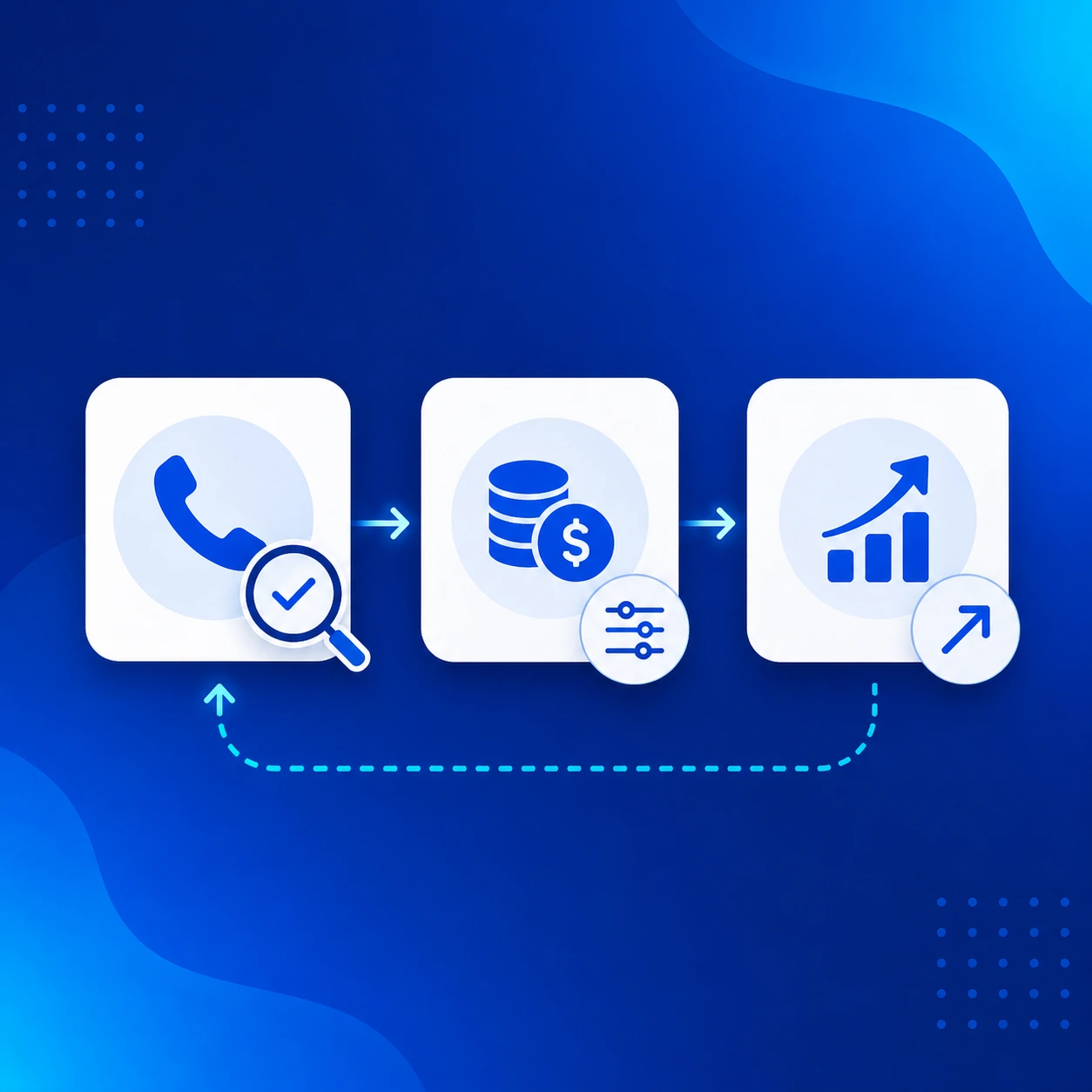
Test a small sample and review the task details. Check Google Maps usage, the Phones Enricher usage, and the final output before scaling the full job.
When to Use Phone Numbers Enricher
Use Phone Numbers Enricher when phone data is important to your workflow.
For example, it can help when you need to check phone carrier data, phone type, phone validation, or deliverability-related details before using the numbers for outreach, CRM cleanup, or lead review.
It is useful for:
- Checking phone numbers before call campaigns
- Reviewing whether numbers are mobile, landline, or another type
- Cleaning phone data before uploading it to a CRM
- Adding phone-related details to Google Maps lead lists
- Checking phone data from an existing file
You may not need Phone Numbers Enricher if you only want basic Google Maps business records, such as business name, address, website, rating, reviews, category, or the phone number already shown in the base result.
If your goal is to find emails, social links, or extra contact details from business websites, use Leads & Contacts Enrichment instead.
A simple rule is:
Use Google Maps Scraper when you need business records.
Use Phone Numbers Enricher when you need to check or add phone-related details.
Before selecting Phone Numbers Enricher, ask whether the extra phone data is needed for your next step. If the answer is no, run the base scrape first and add enrichment later, only for the records that need it.
If your Phone Numbers Enricher usage does not match what you expected, send your task details to Outscraper support. The team can review the main scraper usage, enrichment usage, and final output with you.
FAQ
Most frequent questions and answers
Google Maps results show how many business records were returned by the scraper. Phones Enricher usage shows how many phone numbers were checked or processed under the enrichment step. When used inside Google Maps Scraper, Phone Numbers Enricher checks entries that already have phone numbers, so the usage count can be different from the total Google Maps result count.
Phones Enricher usage shows how many phone lookups were attempted, or how many phone numbers were checked. Carrier name, carrier type, validation, and other phone fields depend on data availability. If no extra phone data is returned, the lookup can still count as 1 usage because the tool attempted to verify the phone number.
No. Phone Numbers Enricher is an optional enrichment service. It runs with Google Maps Scraper only when it is selected under “Enhance results with other services.”
Open the task details and check the cost breakdown. The main Google Maps Scraper usage and Phones Enricher usage can appear as separate lines, each with its own usage count and cost.
Run a small test first, check whether Phone Numbers Enricher is selected, remove duplicate phone values when possible, and enrich only the phone values that need phone-related details. If you only need basic Google Maps business data, run the base Google Maps Scraper task without phone enrichment.
Check all phone-related columns, not only the main phone column. Some exports can include multiple phone fields, especially if you also selected email, contact, or other enrichment services. A phone number may appear in another phone-related column, depending on which services were used.