विषयसूची
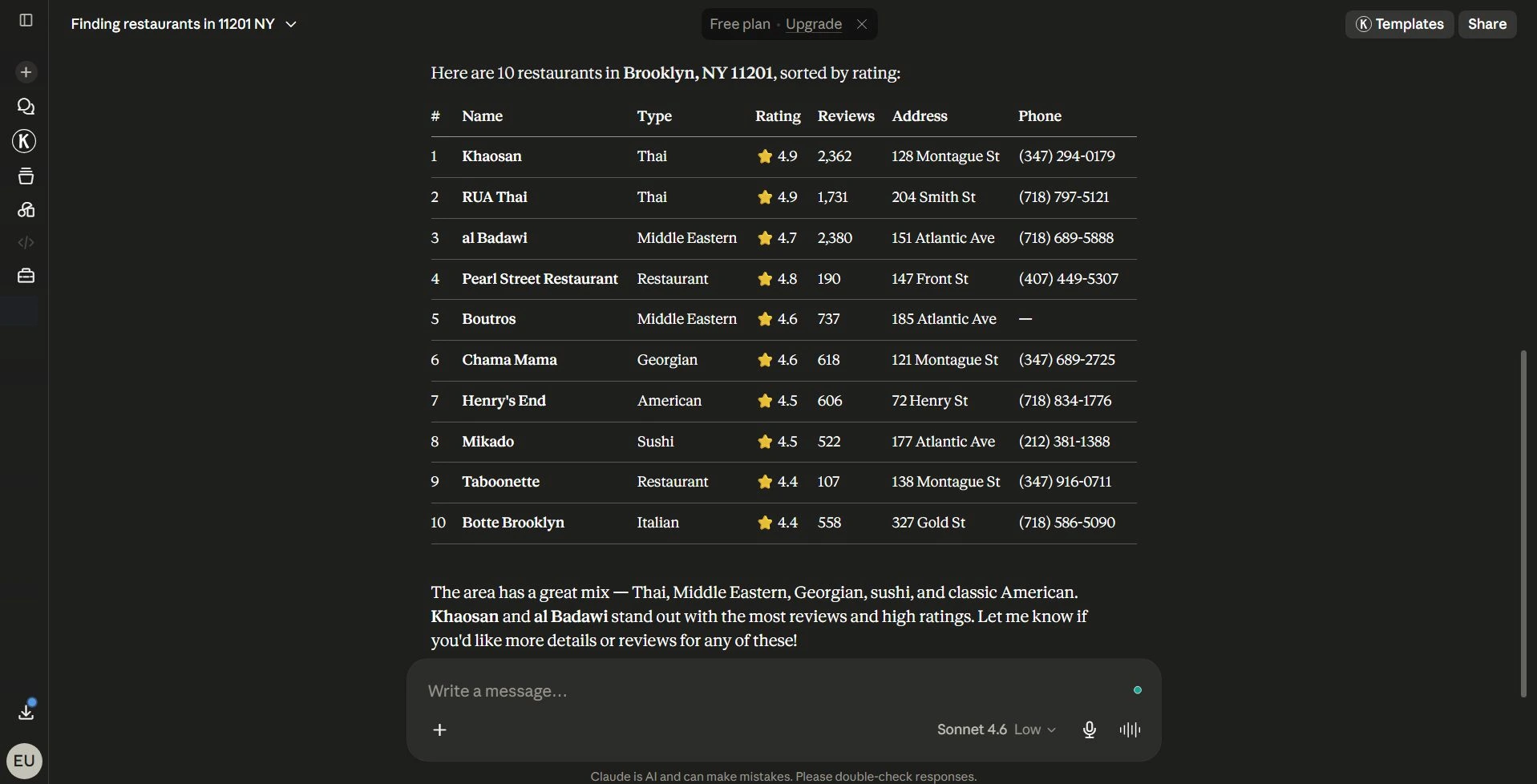
You type a business search into Claude, Outscraper runs the request, and Claude returns a map preview plus a table of business details.
That is the basic idea behind using Outscraper in Claude. Instead of switching between Claude, Google Maps, spreadsheets, and manual searches, you can connect आउटस्क्रैपर through a custom connector and ask for business data directly inside a chat.
Finding, checking, and organizing business data can take time before outreach even starts. A Claude workflow that requests Outscraper data and organizes the results in one place can make early lead research faster.
This is helpful for sales teams, agencies, researchers, and data teams that need faster lead research without copying business details manually. In this guide, you’ll learn how to add the Outscraper connector in Claude, copy your Outscraper API key, add the Remote MCP server URL, and run a small test prompt to confirm that the connection works.
Quick Answer: How to Connect Outscraper in Claude
- Open Claude in the web or desktop app, then go to Settings > Connectors > Customize.
- Click the + icon and choose Add custom connector.
- Name the connector आउटस्क्रैपर.
- Copy your API token from Outscraper Dashboard > API & Integrations > एपीआई कुंजी.
- Add it to the Remote MCP server URL:
https://mcp.outscraper.com/v1/mcp/YOUR_API_KEY. - Click Add, wait for Claude to check the connection, then run a small Outscraper test prompt.
What You Need Before Using Outscraper in Claude
Before connecting Outscraper in Claude, make sure you are signed in to Claude and can access the Connectors settings. You also need an Outscraper account because the setup uses your Outscraper API token to create the Remote MCP server URL.
Prepare these before you start:
- Access to Claude Connectors
- An Outscraper account
- Your Outscraper API token
- The Remote MCP server URL format:
https://mcp.outscraper.com/v1/mcp/YOUR_API_KEY - Available Outscraper credits or funds for running requests
You can also review the Outscraper API Docs if you want to check available API options before connecting Outscraper in Claude.
Do not share or publish your real API token. If you add screenshots to this tutorial, hide or blur the token before uploading the image.
Before adding the connector in Claude, open your Outscraper dashboard and make sure your API token is ready. You will use this token to create the Remote MCP server URL in the next step.
Step 1: Add the Outscraper Connector
After confirming that you can access Claude Connectors, the next step is to add Outscraper as a custom connector.
In Claude, open the profile or settings menu and go to Settings. From the settings sidebar, select Connectors. Then click Customize to open the connector management panel.
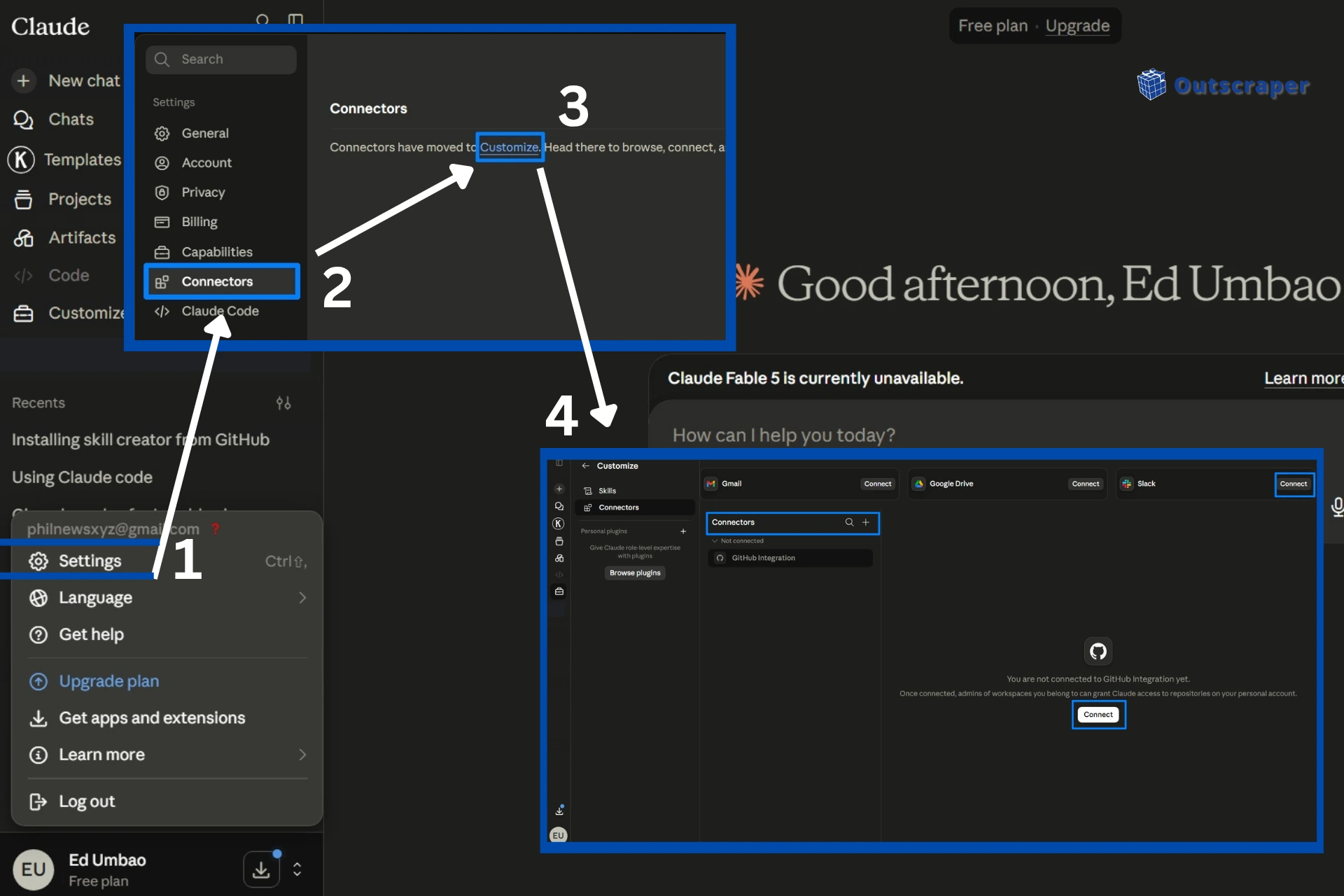
Inside the Connectors section, click the + icon near the search bar and select Add custom connector.
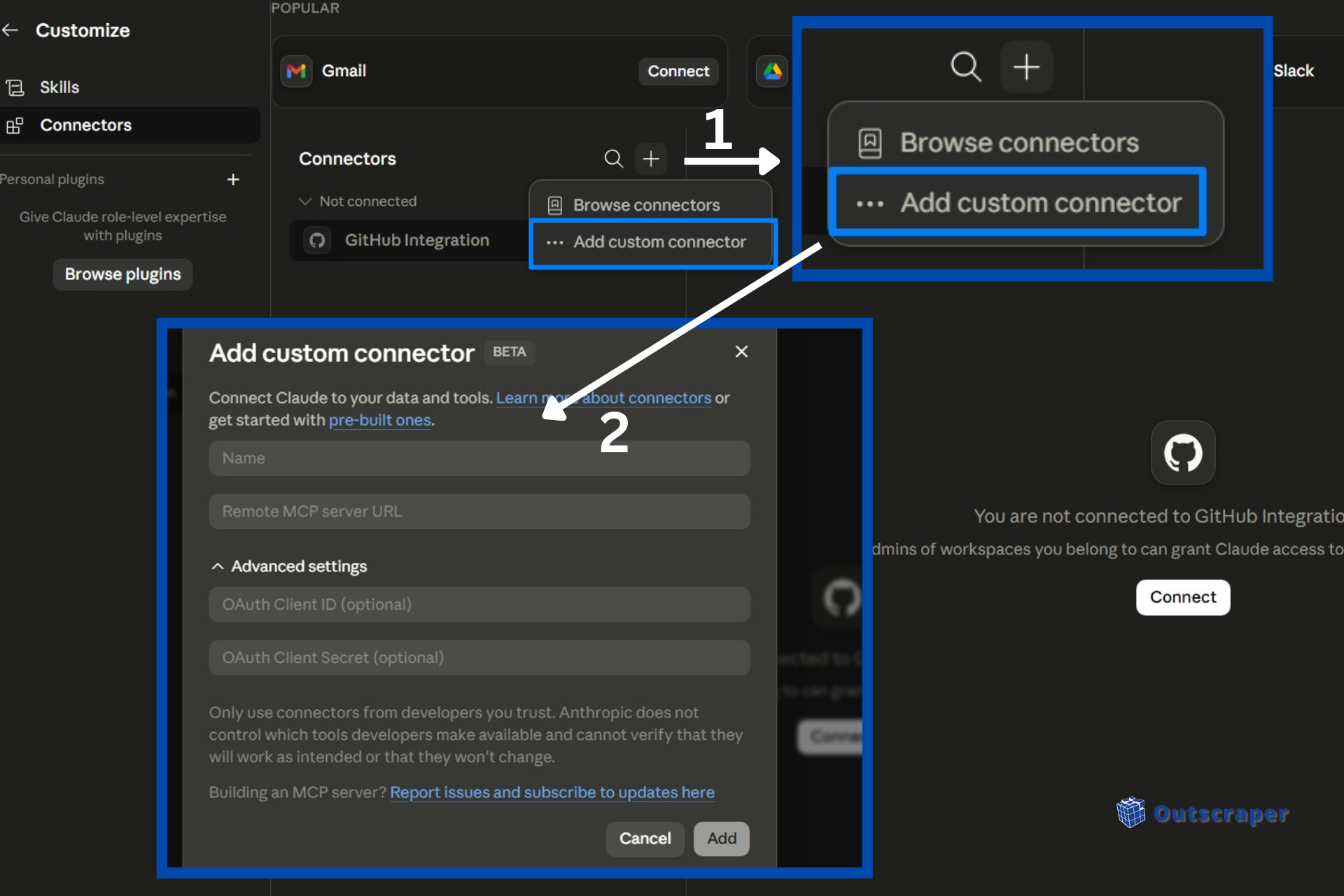
Claude will open a setup window where you can add the connector name and Remote MCP server URL. For the connector name, use:
आउटस्क्रैपर
Using a simple name makes it easier to find the connector later when you test it inside a Claude chat.
Step 2: Add Your Outscraper API Key
After opening the custom connector setup window in Claude, you need to add your Outscraper API key to the Remote MCP server URL.
Open your Outscraper dashboard in your browser. In the top navigation menu, click API & Integrations, then select एपीआई कुंजी from the dropdown menu.
Find your API token and click Copy.
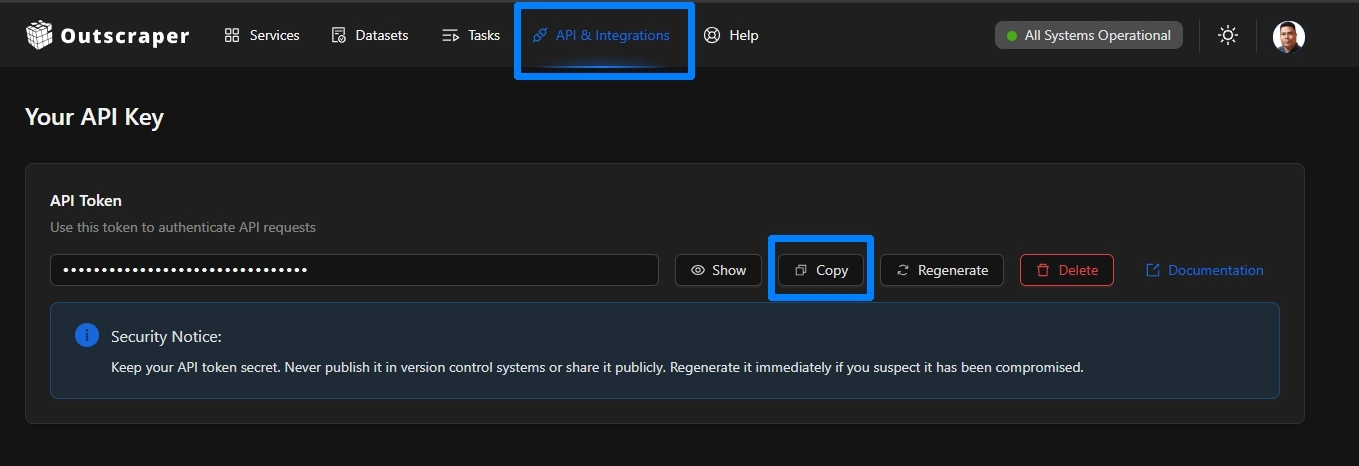
Go back to Claude and paste your API token at the end of this Remote MCP server URL.
https://mcp.outscraper.com/v1/mcp/YOUR_API_KEY
Replace YOUR_API_KEY with the token you copied from your Outscraper dashboard.
In the custom connector window, use these settings:
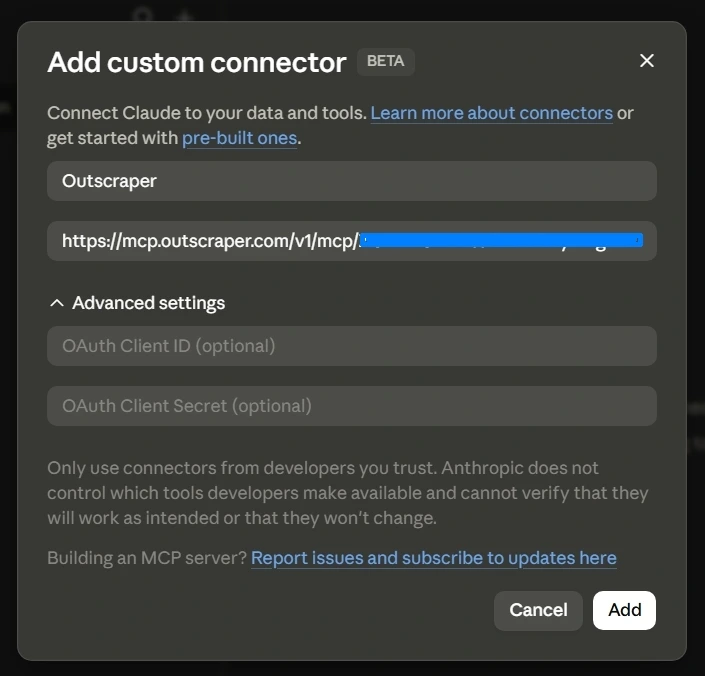
Name: Outscraper
Remote MCP server URL: https://mcp.outscraper.com/v1/mcp/YOUR_API_KEY
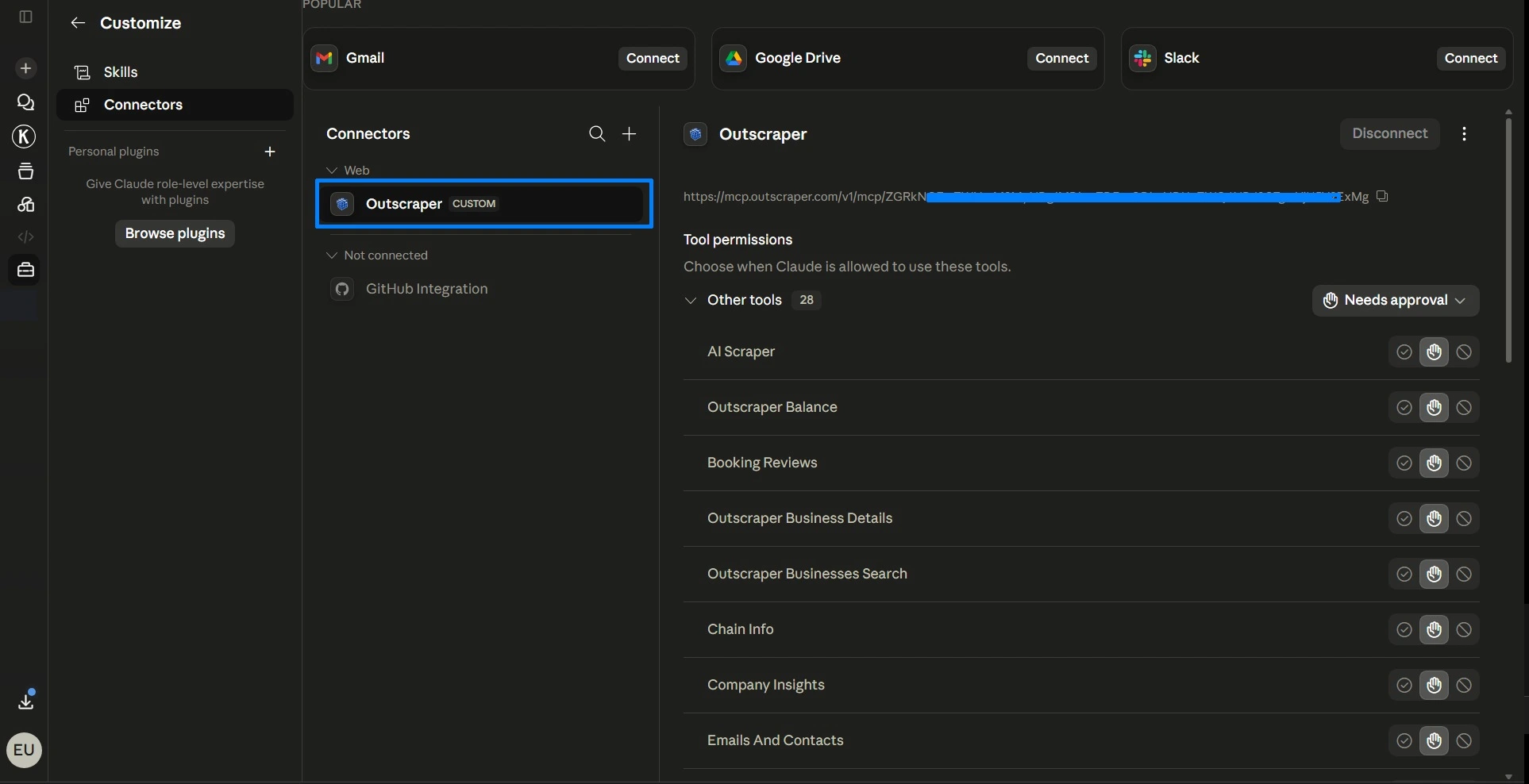
Then click Add. Claude will check the connection. If the connection works, Claude should show available tool permissions for the Outscraper connector.
Once verified you can see a list of available tool permission, confirming a successful connection. You can also select the settings for the tool permission (e.g., Always allow, Needs Approval, Blocked, तथा Custom).
Finally, proceed to the next step, testing Outscraper in Claude.
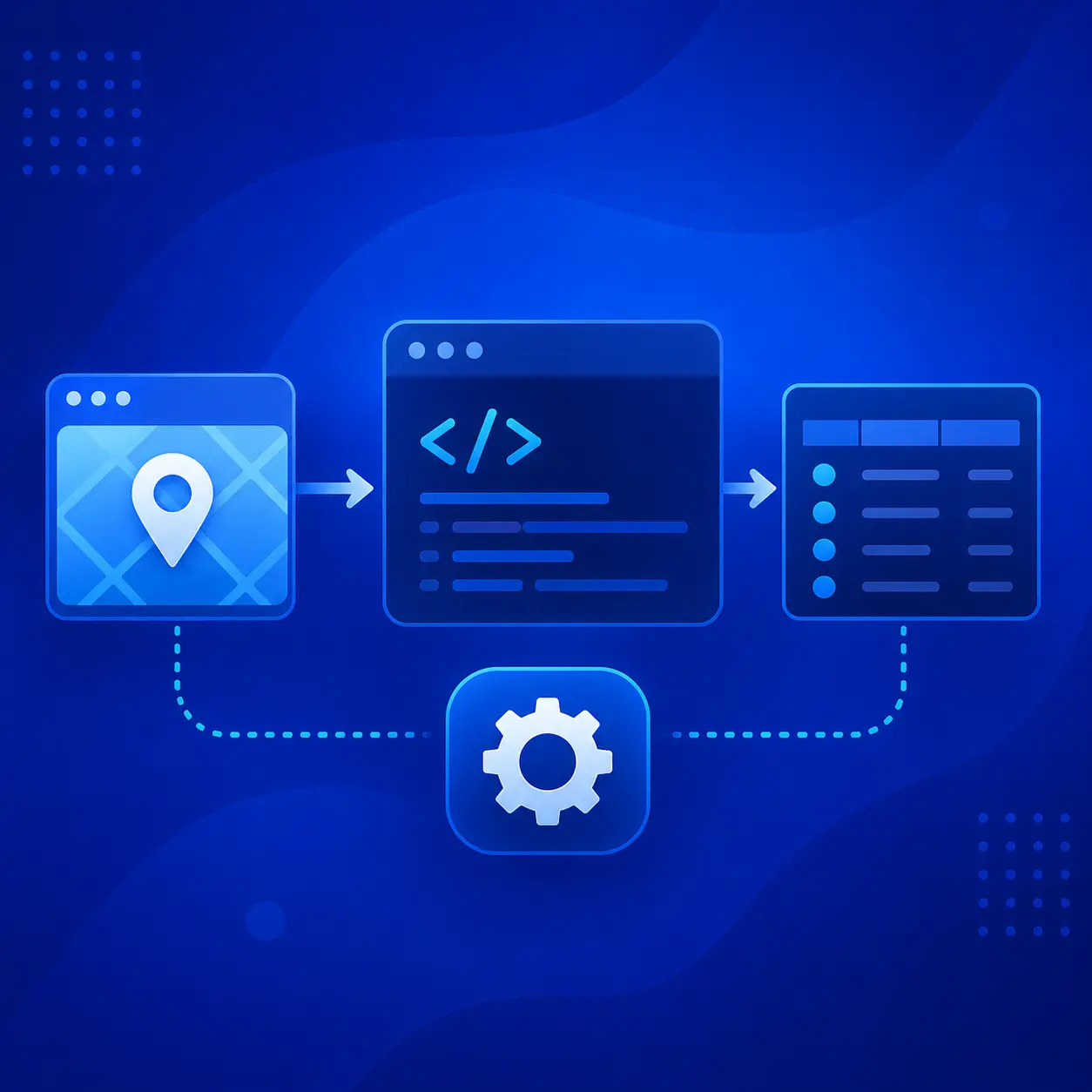
You can test a small Outscraper request in the API Playground before running the connector inside Claude. This helps you check the returned data before using a custom connector workflow.
Step 3: Test Outscraper in Claude
After Claude checks the connection, close the settings window and return to the main chat.
Start with a small test prompt so you can confirm that the connector works before running a larger search.
You can use the following example:
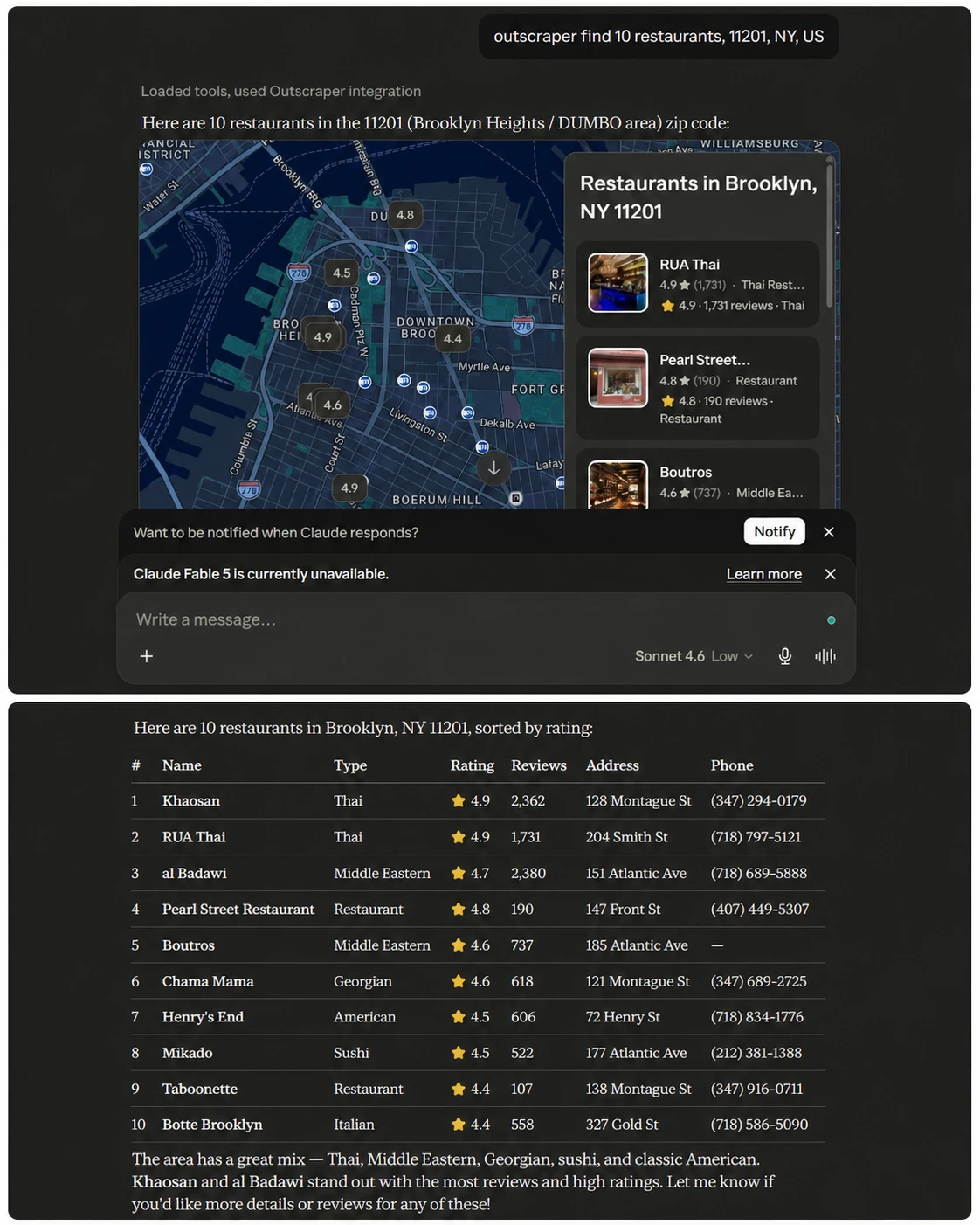
outscraper find 10 restaurants, 11201, NY, US
Outscraper find 10 coffee shops, 90210, CA, US
Outscraper find 10 dentists, Miami, FL, US
Claude should activate the Outscraper connector and return business results from Google Maps. In the video walkthrough, the test returned a map preview and a table with restaurant details such as business names, ratings, reviews, prices, addresses, and phone numbers.
For your first test, keep the request simple. Use one business category, one location, and a small number of results. This makes it easier to check whether the connector, API key, and Remote MCP server URL are working correctly.
This test uses local business data similar to what you can collect with the गूगल मैप्स स्क्रैपर.
If you also use ChatGPT, see the related guide on how to use the Outscraper custom connector in ChatGPT.
Troubleshooting and Setup Checklist
If Outscraper does not work in Claude right away, check the setup details before changing the whole workflow.
The custom connector option does not appear
Check that you are signed in to Claude and that your account has access to Connectors. If you are using a team or company account, your workspace settings may affect whether you can add custom connectors.
If the option does not appear, check Claude’s official custom connector documentation because connector access and workspace settings may vary by account.
Claude cannot check the connection
Make sure the Remote MCP server URL is correct and includes your Outscraper API key after the last slash:
https://mcp.outscraper.com/v1/mcp/YOUR_API_KEY
Also check that there are no extra spaces before or after the URL.
The connector appears, but the test prompt does not return results
Try a smaller prompt first. Use one business category, one location, and a small number of results. You should also check that your Outscraper account has available credits or funds for running the request.
You can also check the Outscraper pricing page to review credits, usage, and account options before running larger requests.
Outscraper in Claude Final Setup Checklist
- Claude Connectors is open and a custom connector named आउटस्क्रैपर is added.
- Your Outscraper API token is included in the Remote MCP server URL.
- Claude checks the connection and shows available Outscraper tools.
- A small test prompt runs successfully in Claude.
- Claude returns Outscraper business results in the chat
जुडिये Outscraper in Claude, run a small test search, and turn business data into organized results inside your chat.
सामान्य प्रश्न
अक्सर पूछे जाने वाले प्रश्न और उत्तर
Yes. You need an Outscraper API key because the setup uses your token inside the Remote MCP server URL.
Use this format:
https://mcp.outscraper.com/v1/mcp/YOUR_API_TOKEN
Replace YOUR_API_KEY with the API token from your Outscraper dashboard.
Yes, if your Claude account has access to Connectors. In this walkthrough, I tested the setup using the Claude web app. If you use Claude Desktop, the connector settings may look similar, but the exact menu location may vary.
Start with a small prompt, such as:
outscraper find 10 restaurants, 11201, NY, US
A small test makes it easier to confirm that the connector, API key, and Remote MCP server URL are working.
Check that the connector was added successfully, the Remote MCP server URL is correct, and your Outscraper account has available credits or funds. Also try a smaller prompt with one business category and one location.