Daftar Isi
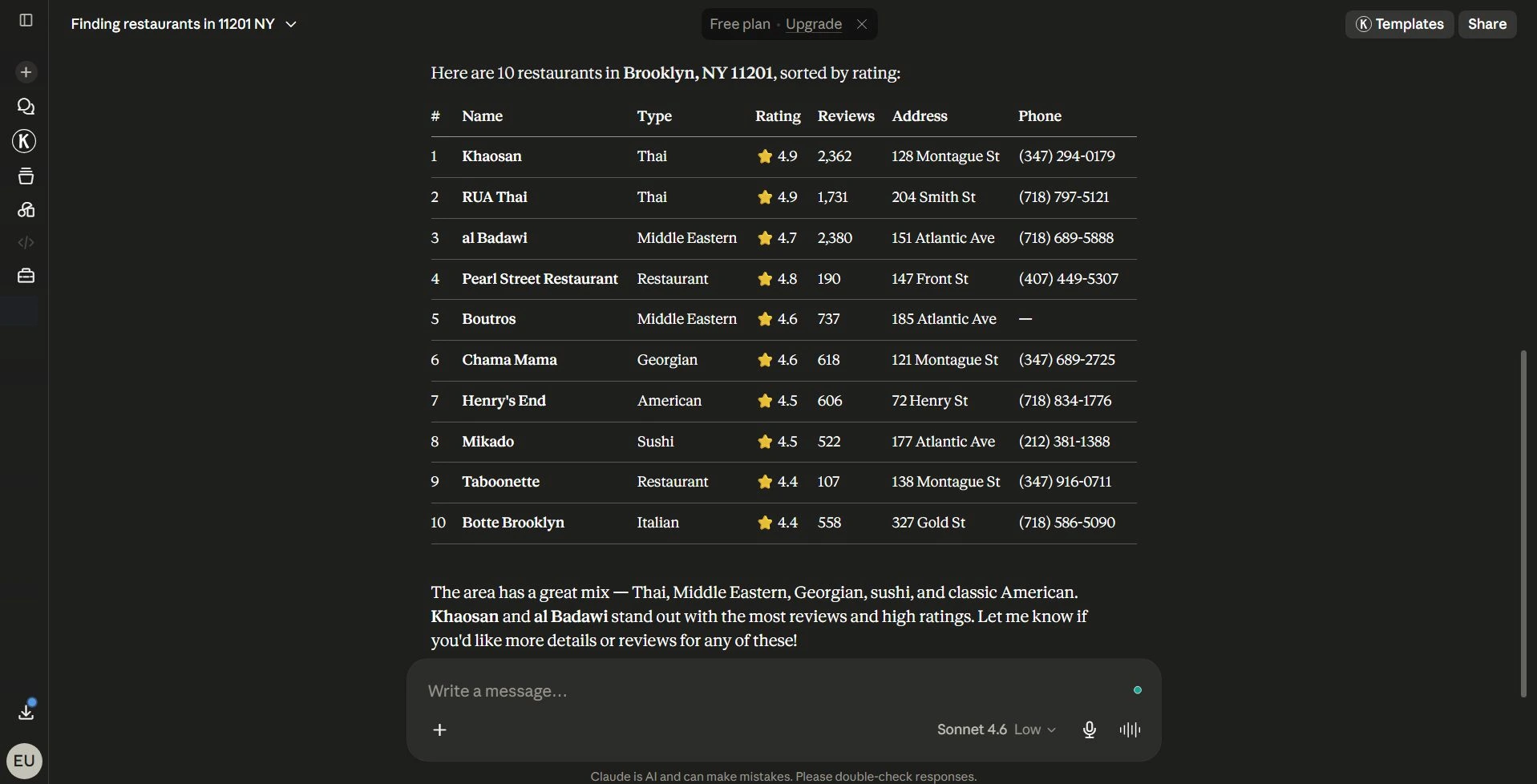
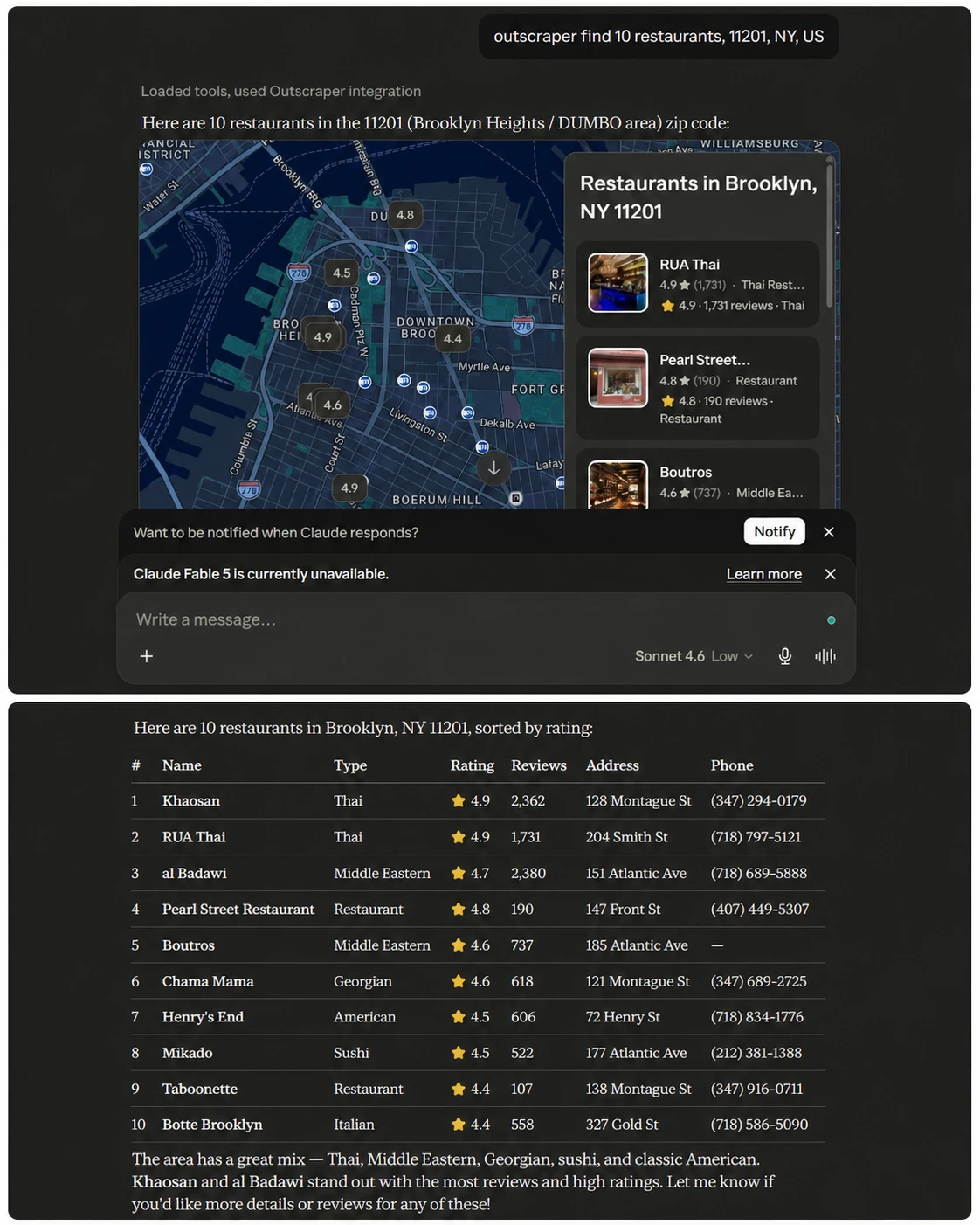
Anda mengetikkan kata kunci pencarian bisnis ke dalam Claude, Outscraper memproses permintaan tersebut, dan Claude menampilkan pratinjau peta serta tabel rincian bisnis.
Itulah gagasan dasar di balik penggunaan Outscraper di Claude. Daripada bolak-balik antara Claude, Google Maps, lembar kerja, dan pencarian manual, Anda bisa menghubungkan Outscraper melalui konektor khusus dan meminta data bisnis secara langsung di dalam obrolan.
Mencari, memeriksa, dan mengatur data bisnis bisa memakan waktu sebelum upaya penjangkauan bahkan dimulai. Alur kerja Claude yang meminta data Outscraper dan mengatur hasilnya di satu tempat dapat mempercepat proses penelitian prospek awal.
Hal ini sangat membantu bagi tim penjualan, agensi, peneliti, dan tim data yang membutuhkan riset prospek yang lebih cepat tanpa harus menyalin detail bisnis secara manual. Dalam panduan ini, Anda akan mempelajari cara menambahkan konektor Outscraper di Claude, menyalin kunci API Outscraper Anda, menambahkan URL server Remote MCP, dan menjalankan prompt uji coba kecil untuk memastikan bahwa koneksi berfungsi.
Jawaban Singkat: Cara Menghubungkan Outscraper di Claude
- Buka Claude di aplikasi web atau desktop, lalu buka Pengaturan > Konektor > Sesuaikan.
- Klik tombol + ikon dan pilih Tambahkan konektor khusus.
- Beri nama konektor tersebut Outscraper.
- Salin token API Anda dari Dasbor Outscraper > API & Integrasi > Kunci API.
- Tambahkan ke URL server MCP jarak jauh:
https://mcp.outscraper.com/v1/mcp/YOUR_API_KEY. - Klik Tambahkan, tunggu sampai Claude memeriksa koneksinya, lalu jalankan perintah uji Outscraper singkat.
Hal-Hal yang Perlu Anda Persiapkan Sebelum Menggunakan Outscraper di Claude
Sebelum menghubungkan Outscraper di Claude, pastikan Anda sudah masuk ke akun Claude dan dapat mengakses pengaturan Connectors. Anda juga memerlukan akun Outscraper karena proses pengaturan ini menggunakan token API Outscraper Anda untuk membuat URL server Remote MCP.
Siapkan hal-hal berikut ini sebelum Anda mulai:
- Akses ke Konektor Claude
- Akun Outscraper
- Token API Outscraper Anda
- Format URL server MCP jarak jauh:
https://mcp.outscraper.com/v1/mcp/YOUR_API_KEY - Kredit atau dana Outscraper yang tersedia untuk permintaan pengoperasian
Anda juga dapat melihat Dokumentasi API Outscraper jika Anda ingin memeriksa opsi API yang tersedia sebelum menghubungkan Outscraper di Claude.
Jangan membagikan atau mempublikasikan token API asli Anda. Jika Anda menambahkan tangkapan layar ke tutorial ini, sembunyikan atau buramkan token tersebut sebelum mengunggah gambar.
Sebelum menambahkan konektor di Claude, buka dasbor Outscraper Anda dan pastikan token API Anda sudah siap. Anda akan menggunakan token ini untuk membuat URL server Remote MCP pada langkah berikutnya.
Langkah 1: Pasang Konektor Outscraper
Setelah memastikan bahwa Anda dapat mengakses Claude Connectors, langkah selanjutnya adalah menambahkan Outscraper sebagai konektor khusus.
Di Claude, buka menu profil atau pengaturan, lalu pilih Pengaturan. Dari bilah samping pengaturan, pilih Konektor. Kemudian klik Sesuaikan untuk membuka panel pengelolaan konektor.
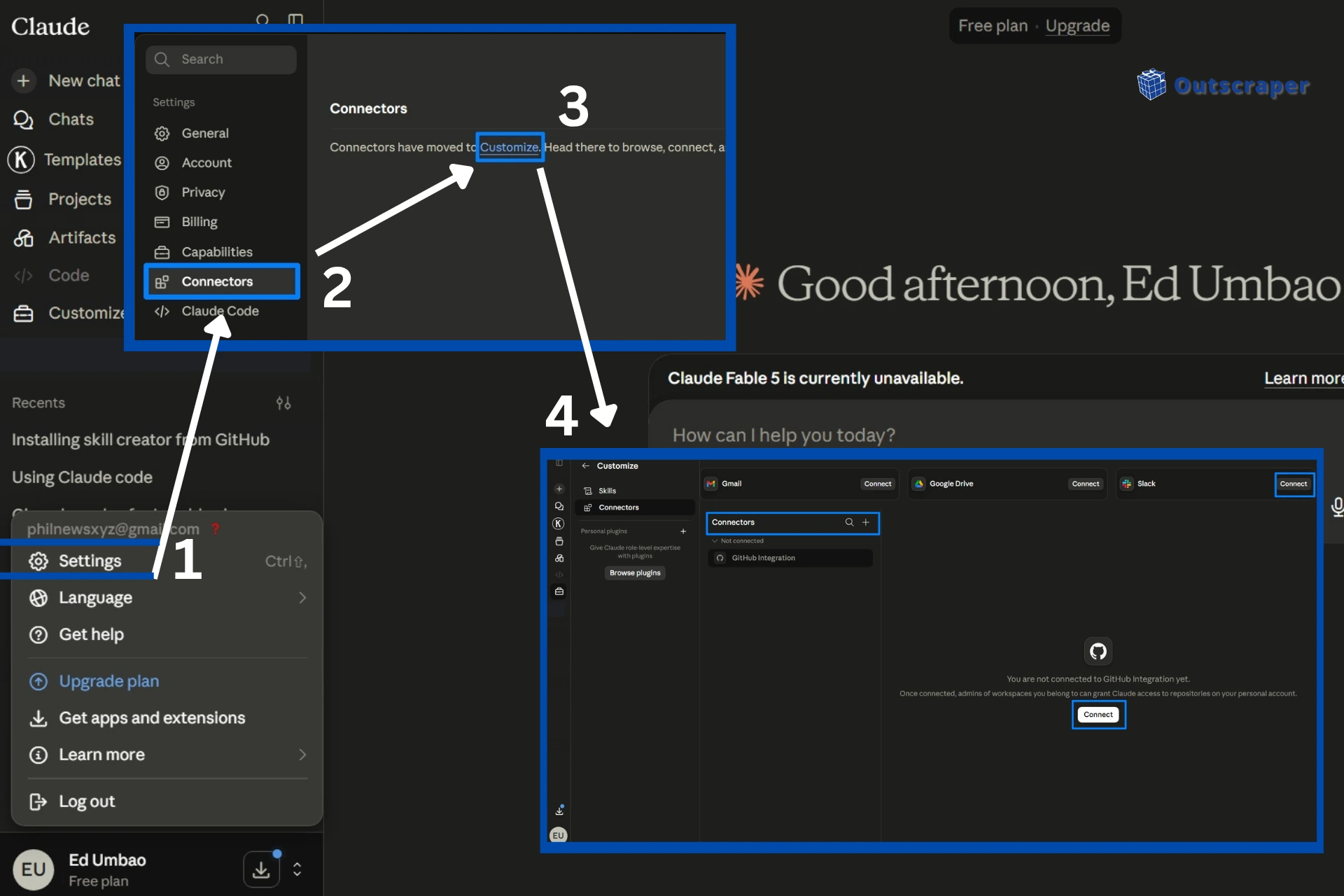
Di dalam Konektor section, click the + icon near the search bar and select Tambahkan konektor khusus.
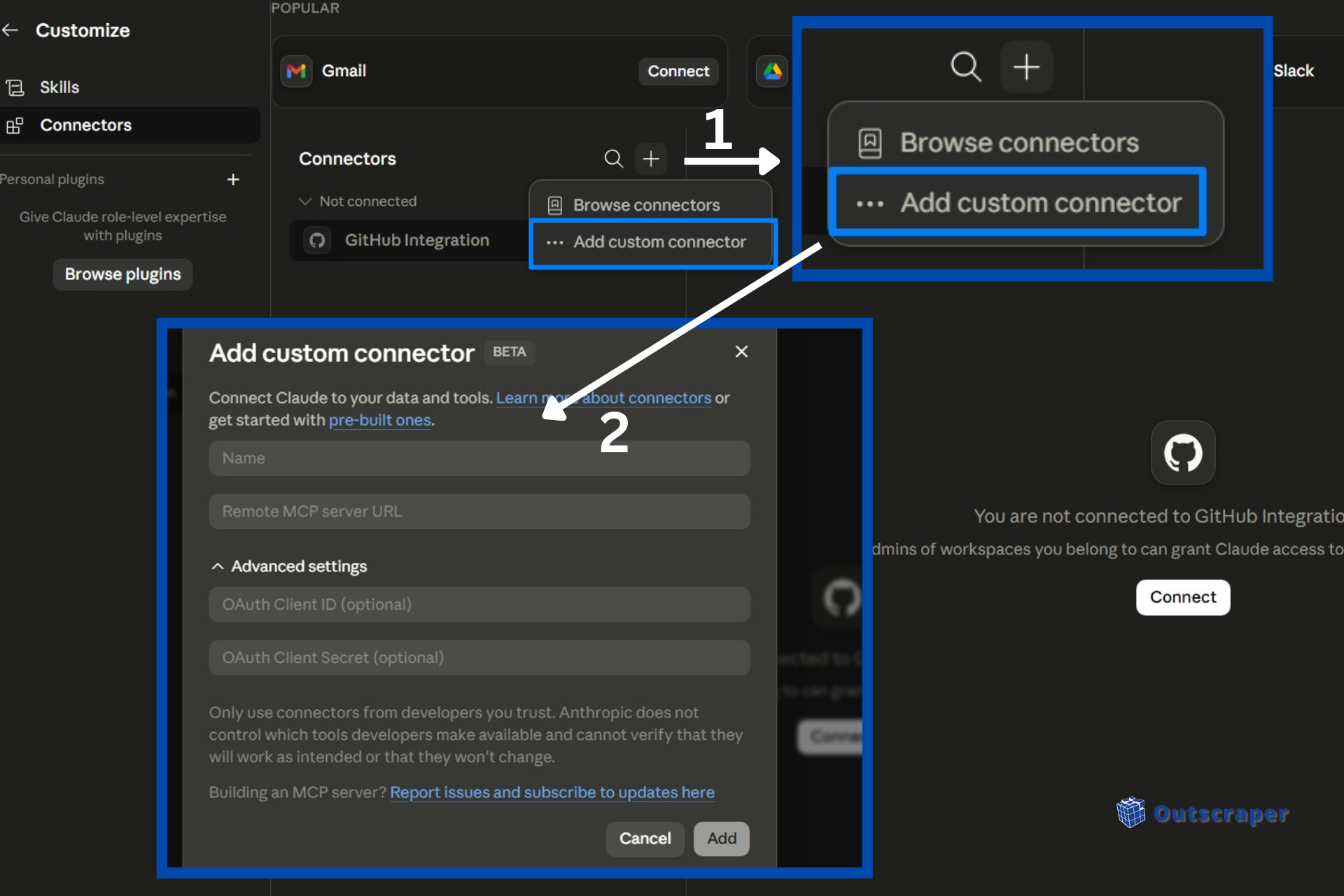
Claude will open a setup window where you can add the connector name and Remote MCP server URL. For the connector name, use:
Outscraper
Using a simple name makes it easier to find the connector later when you test it inside a Claude chat.
Step 2: Add Your Outscraper API Key
After opening the custom connector setup window in Claude, you need to add your Outscraper API key to the Remote MCP server URL.
Open your Outscraper dashboard in your browser. In the top navigation menu, click API & Integrations, then select Kunci API from the dropdown menu.
Find your API token and click Salin.
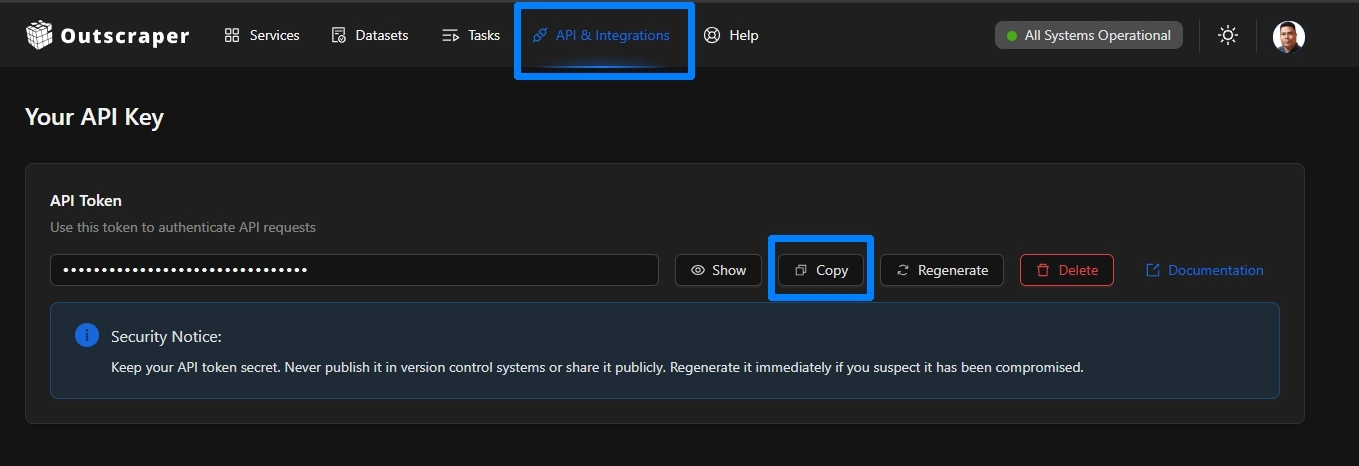
Go back to Claude and paste your API token at the end of this Remote MCP server URL.
https://mcp.outscraper.com/v1/mcp/YOUR_API_KEY
Ganti KUNCI_API_ANDA with the token you copied from your Outscraper dashboard.
In the custom connector window, use these settings:
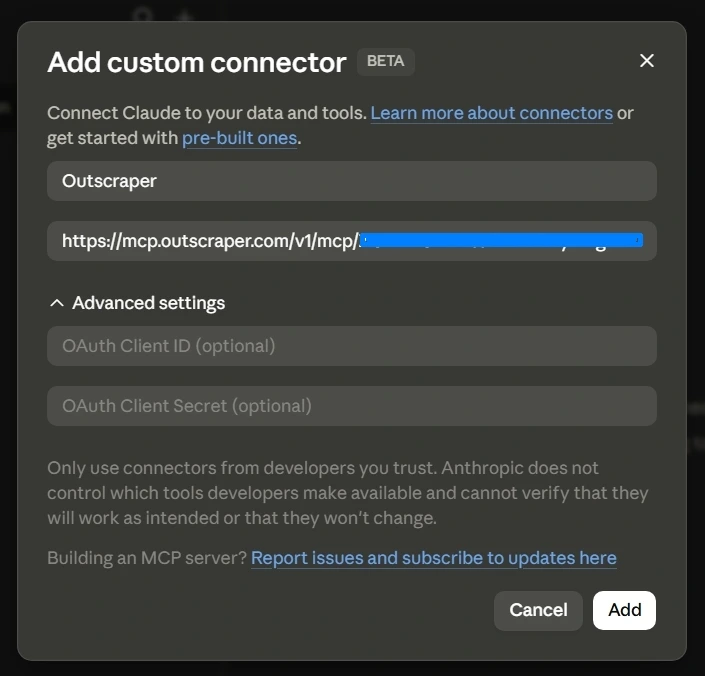
Nama: Outscraper
URL server MCP jarak jauh: https://mcp.outscraper.com/v1/mcp/YOUR_API_KEY
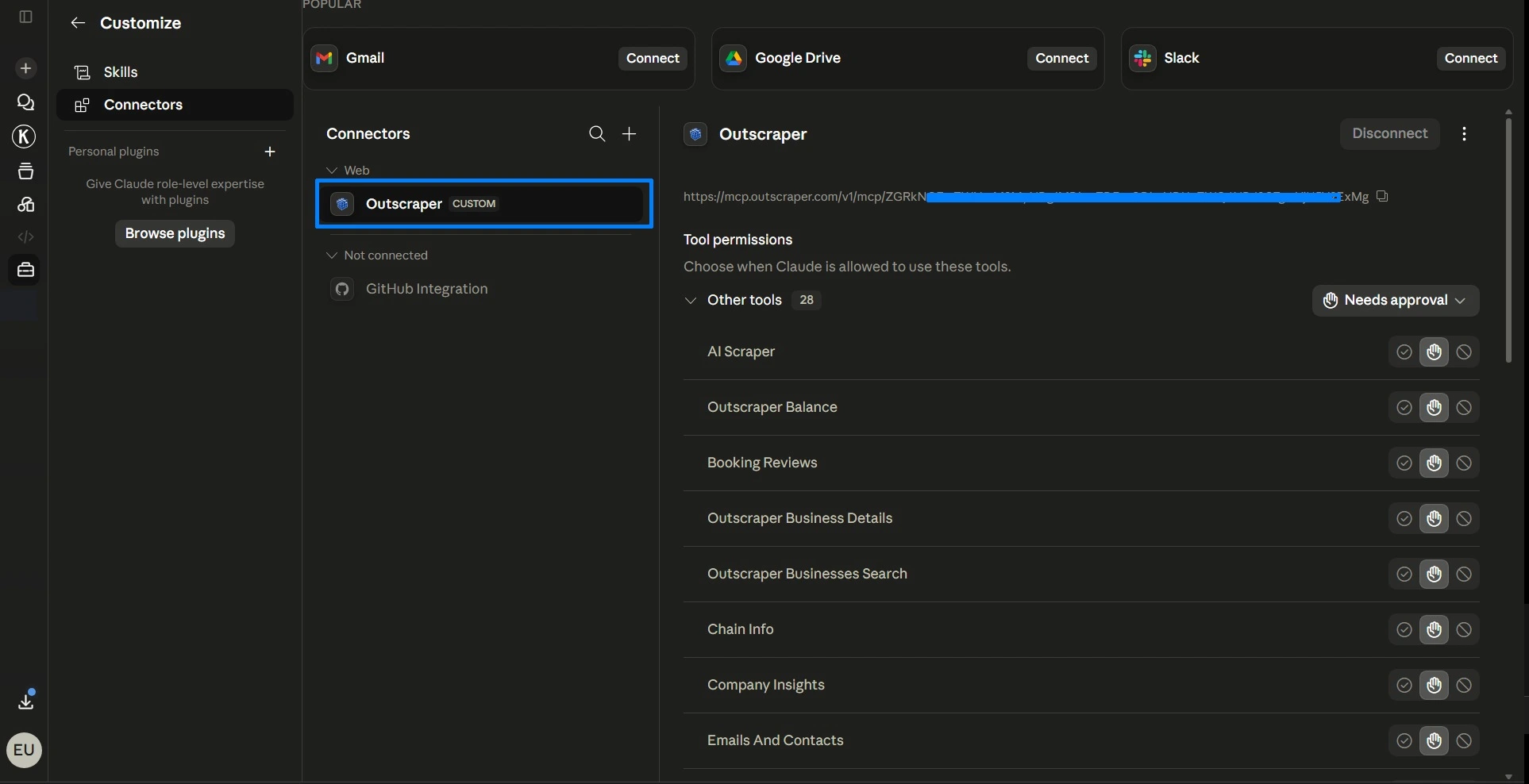
Then click Tambahkan. Claude will check the connection. If the connection works, Claude should show available tool permissions for the Outscraper connector.
Once verified you can see a list of available tool permission, confirming a successful connection. You can also select the settings for the tool permission (e.g., Always allow, Needs Approval, Blocked, dan Custom).
Finally, proceed to the next step, testing Outscraper in Claude.
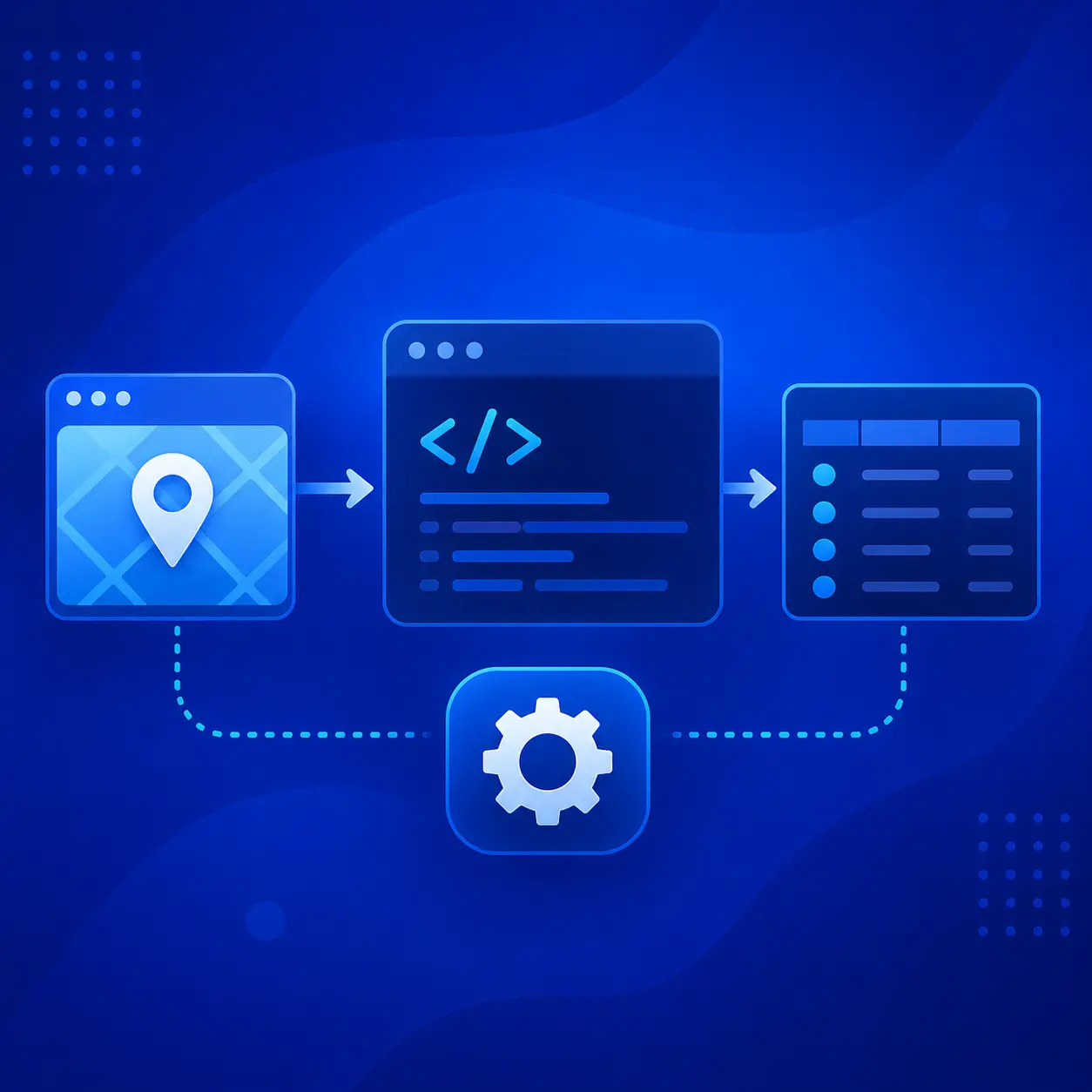
You can test a small Outscraper request in the API Playground before running the connector inside Claude. This helps you check the returned data before using a custom connector workflow.
Step 3: Test Outscraper in Claude
After Claude checks the connection, close the settings window and return to the main chat.
Start with a small test prompt so you can confirm that the connector works before running a larger search.
You can use the following example:
Outscraper menemukan 10 restoran, 11201, NY, AS
Outscraper: temukan 10 kedai kopi, 90210, CA, AS
Outscraper: Cari 10 dokter gigi, Miami, FL, AS
Claude should activate the Outscraper connector and return business results from Google Maps. In the video walkthrough, the test returned a map preview and a table with restaurant details such as business names, ratings, reviews, prices, addresses, and phone numbers.
For your first test, keep the request simple. Use one business category, one location, and a small number of results. This makes it easier to check whether the connector, API key, and Remote MCP server URL are working correctly.
This test uses local business data similar to what you can collect with the Pengikis Google Maps.
If you also use ChatGPT, see the related guide on how to use the Outscraper custom connector in ChatGPT.
Troubleshooting and Setup Checklist
If Outscraper does not work in Claude right away, check the setup details before changing the whole workflow.
The custom connector option does not appear
Check that you are signed in to Claude and that your account has access to Connectors. If you are using a team or company account, your workspace settings may affect whether you can add custom connectors.
If the option does not appear, check Claude’s official custom connector documentation because connector access and workspace settings may vary by account.
Claude cannot check the connection
Make sure the Remote MCP server URL is correct and includes your Outscraper API key after the last slash:
https://mcp.outscraper.com/v1/mcp/YOUR_API_KEY
Also check that there are no extra spaces before or after the URL.
The connector appears, but the test prompt does not return results
Try a smaller prompt first. Use one business category, one location, and a small number of results. You should also check that your Outscraper account has available credits or funds for running the request.
You can also check the Outscraper pricing page to review credits, usage, and account options before running larger requests.
Outscraper in Claude Final Setup Checklist
- Claude Connectors is open and a custom connector named Outscraper is added.
- Your Outscraper API token is included in the Remote MCP server URL.
- Claude checks the connection and shows available Outscraper tools.
- A small test prompt runs successfully in Claude.
- Claude returns Outscraper business results in the chat
Menghubung Outscraper di Claude, run a small test search, and turn business data into organized results inside your chat.
FAQ
Pertanyaan dan jawaban paling sering
Ya. Anda memerlukan kunci API Outscraper karena proses pengaturan tersebut menggunakan token Anda di dalam URL server Remote MCP.
Gunakan format ini:
https://mcp.outscraper.com/v1/mcp/YOUR_API_TOKEN
Ganti KUNCI_API_ANDA dengan token API dari dasbor Outscraper Anda.
Ya, asalkan akun Claude Anda memiliki akses ke Connectors. Dalam panduan ini, saya telah menguji pengaturannya menggunakan aplikasi web Claude. Jika Anda menggunakan Claude Desktop, pengaturan konektornya mungkin terlihat serupa, tetapi lokasi menu yang tepat mungkin berbeda.
Mulailah dengan prompt singkat, seperti:
Outscraper menemukan 10 restoran, 11201, NY, AS
Sebuah pengujian sederhana akan memudahkan Anda memastikan bahwa konektor, kunci API, dan URL server Remote MCP berfungsi dengan baik.
Pastikan konektor telah ditambahkan dengan sukses, URL server Remote MCP sudah benar, dan akun Outscraper Anda memiliki kredit atau saldo yang tersedia. Cobalah juga menggunakan prompt yang lebih sederhana dengan satu kategori bisnis dan satu lokasi.