Inhoudsopgave
Aan enrich CRM records with Google Maps data safely, you need more than a file of new business details. The real task is matching each CRM company or location record to the correct Google Maps listing, deciding which fields can be updated, and protecting the sales history your team already owns. A careless import can create duplicate companies, replace useful values with blanks, or attach one branch’s address to an entire chain. This guide shows a controlled workflow for exporting CRM records with their unique IDs, enriching them through Outscraper, reviewing uncertain matches, and updating only the fields that improve the database.
Start with a small enrichment batch
Before updating the full CRM, export a test batch of 20–50 company or location records with their CRM IDs. Use that sample to verify the matching logic, field mapping, and import rules.
Kort antwoord
Enriching a CRM with Google Maps data works best when the CRM’s own Record ID remains the update key. Export company or location records with identifying fields, match them to Google Maps listings, append only approved business data, send ambiguous matches to review, and import the results using the original CRM ID. Never overwrite protected sales, consent, or activity fields automatically.
What Google Maps Data Can and Cannot Add to a CRM
Google Maps data is most useful at the company or business-location level.
It can add public information about how a business appears on Google Maps, including its listed name, category, address, phone, website, operating status, opening hours, rating, review count, coordinates, Place ID, and Google Maps URL.
Outscraper can organize these details into structured rows and columns. Its current Enrich File workflow can also add Google Maps data to an existing business or point-of-interest file rather than requiring teams to build an entirely new list.
| Data group | Examples | Appropriate CRM use |
|---|---|---|
| Business identity | Google Maps business name, category, subtypes | Support company or location classification |
| Location details | Listed address, city, postal code, coordinates | Improve branch and service-area records |
| Public contact details | Listed phone and website | Fill missing business-contact fields |
| Reputation data | Aantal beoordelingen en recensies | Add public reputation context |
| Operating information | Business status and listed hours | Flag records that may need review |
| Source identifiers | Place ID, Google ID, Maps URL | Preserve the source relationship |
| Optional enrichment | Public emails, social links, additional phones | Add only when the relevant enrichment is selected |
The wording matters.
Use field labels such as:
- Google Maps-listed phone
- Google Maps-listed address
- Google Maps business status
- Google Maps-listed website
- Google Maps rating
Do not automatically label these fields as legally verified, definitively current, or proof of company ownership.
Google Maps data also does not replace the information that belongs to the CRM itself. It should not overwrite:
- account ownership;
- lifecycle or deal stage;
- sales notes;
- customer activity;
- purchase and contract history;
- manually verified information;
- consent records;
- do-not-contact or suppression status.
If full review text is needed, that is a separate collection step from adding a rating and review count.
Outscraper’s existing enrichment workflow distinguishes the Google-kaarten business fields from the separate Google Maps Reviews Scraper.
Outscraper can also search company websites for public emails, social links, and additional contact details through optional enrichment. Email discovery and email validation should remain separate concepts: a discovered email should only be called validated when an email-validation step has also been applied.

Start with the Google Maps fields required for the workflow. Add contact or company enrichment only when it serves a defined sales, research, or data quality need.
Decide Whether Your CRM Stores Companies or Individual Locations
Before matching anything, determine what each CRM row represents.
A CRM can contain several different record types:
| CRM object | What it represents | Correct enrichment approach |
|---|---|---|
| Contact | A person | Do not match directly to a Google Maps place |
| Company or account | An organization | Add company-level fields carefully |
| Branch or location | A physical business location | Match to one relevant Google Maps listing |
| Parent account | A brand or company with several locations | Keep separate from individual branches |
| Service-area business | A business serving an area without a conventional storefront | Review address and location fields carefully |
This distinction prevents one of the most damaging enrichment mistakes: attaching one branch’s public address, phone, or operating hours to an entire company.
Consider a hotel group with one corporate account and 40 hotel locations.
Google Maps normally represents the individual hotels as separate place records. If the CRM stores only one corporate account, selecting a single hotel listing and using it to overwrite the parent account would produce misleading data.
A cleaner CRM structure is:
Parent company or brand account
connected to:
individual location or branch records
Each branch can then have its own:
- Place ID;
- address;
- phone;
- rating;
- review count;
- opening hours;
- Google Maps URL.
The same principle applies to restaurant chains, retail brands, clinics, franchise systems, and multi-location service companies.
When chains are involved, preserve each physical location rather than deleting branches as duplicates. The distinction between a place, chain membership, brand grouping, and legal ownership is covered in Outscraper’s guide to identifying chain businesses in Google Maps data.
Export CRM Records With Their Unique Identifiers
For a practical example, imagine a local marketing agency has 1,000 HVAC, plumbing, and electrical-company records in its CRM.
Some records contain:
- a company name;
- a website;
- a city;
- an old phone number.
The agency wants to add:
- Google Maps business status;
- listed address;
- category;
- listed phone;
- rating;
- review count;
- Place ID;
- Google Maps URL.
It does niet want to replace:
- the account owner;
- sales notes;
- lifecycle stage;
- opportunity history;
- communication preferences;
- opt-out status.
The agency should first export only the fields needed for matching and updating.
| CRM Record ID | Company name | Website | Telefoon | Adres | City | Postal code | Record level |
|---|---|---|---|---|---|---|---|
| 10831 | Sample Heating LLC | sampleheating.example | Existing value | 123 Main St | Denver | 80202 | Bedrijf |
| 10832 | Sample Plumbing North | sampleplumbing.example | Blank | 85 Lake Rd | Denver | 80216 | Locatie |
| 10833 | Sample Electric | Blank | Existing value | 42 West Ave | Aurora | 80012 | Bedrijf |
The most important column is the CRM’s own unique identifier.
Do not remove, rename unpredictably, or regenerate that value while the file is being enriched. It is what allows the finished rows to update the correct records later.
A useful export normally includes:
- CRM Record ID;
- account or company name;
- website or domain;
- phone;
- full address;
- city;
- state or region;
- postal code;
- country;
- record level;
- any existing source identifier.
Before running the full file, test a small batch. The test should include:
- an obvious exact match;
- an incomplete record;
- a similar business name;
- a multi-location company;
- a record that should remain unmatched.
That sample is more useful than testing only the easiest records.

Match the Records With Google Maps Business Listings
Outscraper’s Enrich File workflow allows users to upload an existing business or POI file and add matching Google Maps data.
The current workflow supports CSV, XLSX, TXT, and Parquet files. Recognizable headers can include google_id, place_id, company or business name, address, city, state, ZIP code, and country. Outscraper uses the available values as references when looking for the corresponding Google Maps place.
A practical workflow is:
- Open Outscraper Google Maps Scraper.
- Choose the file-enrichment option.
- Upload the CRM export.
- Confirm that the identifying columns have clear headers.
- Select the Google Maps and optional enrichment fields required.
- Run a small test batch.
- Download and review the enriched file.
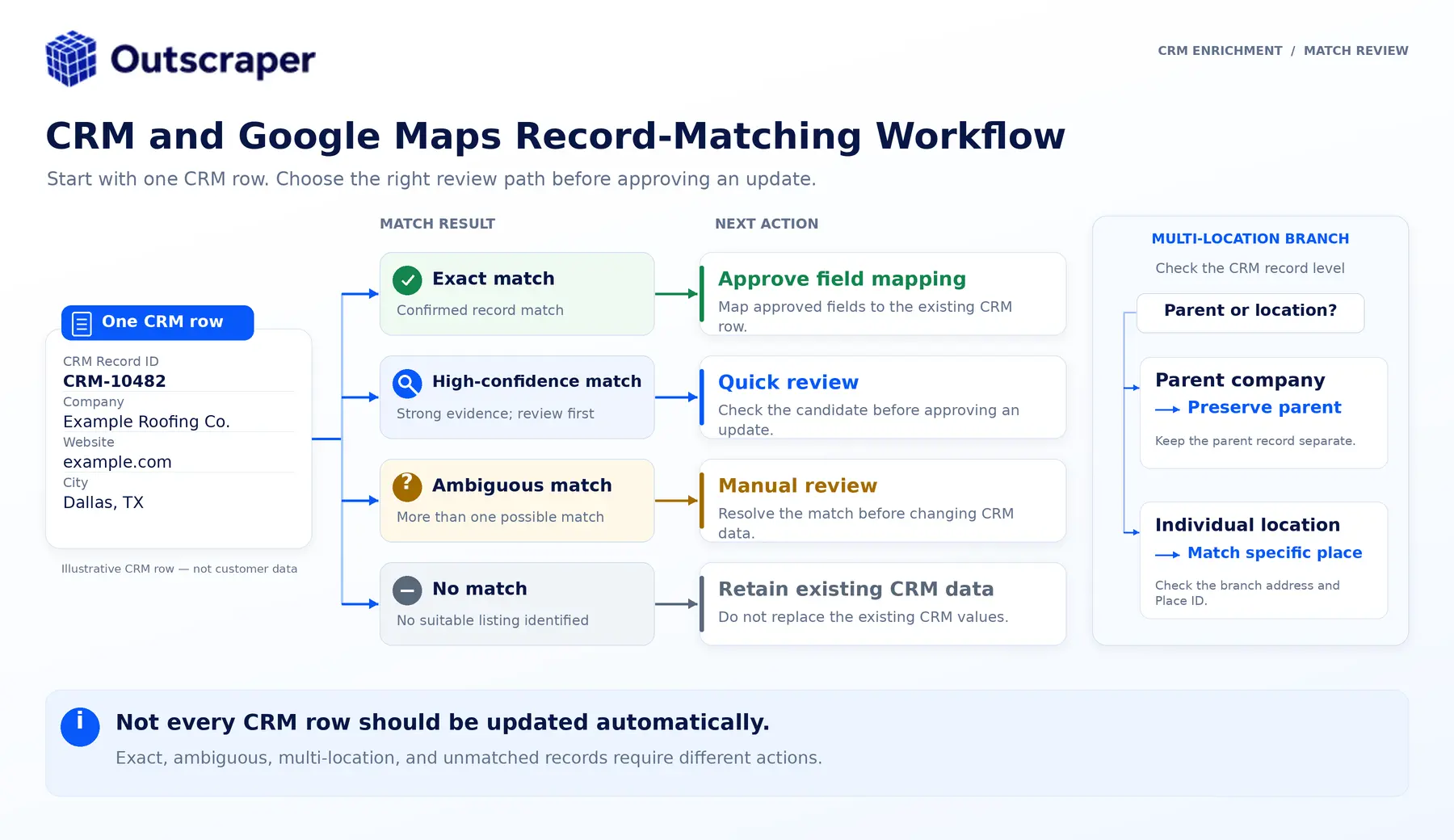
- Assign a match-review status before importing anything back into the CRM.
Outscraper returns the enriched data, but the following confidence labels are an editorial QA framework, not a claim that Outscraper automatically assigns these exact scores.
Exact and High-Confidence Matches
An exact or high-confidence match may have:
- the same website domain;
- the same phone number;
- a matching or strongly similar business name;
- a matching address or city;
- a compatible category;
- no major conflicts between the CRM and Google Maps listing.
A domain or phone match combined with location agreement is stronger than company-name similarity alone.
Ambiguous Matches
Move a result into manual review when:
- several businesses share a similar name;
- the domain conflicts;
- the phone belongs to another location;
- the address is different;
- the category is inconsistent;
- several plausible listings are returned;
- the CRM record contains too little information.
Do not force every row into a match.
Leaving one record unchanged is safer than attaching the wrong place to a live account.
Multi-Location Businesses
A multi-location company may produce several valid Google Maps listings.
The correct action depends on the CRM structure:
- If the CRM row represents one branch, match it to that branch.
- If it represents a parent company, do not select one branch arbitrarily.
- If the CRM supports parent-child relationships, preserve the company record and associate separate location records.
- If the structure is unclear, route the record to review.
Use a review table like this:
| Match status | Typical evidence | Action |
|---|---|---|
| Exact | Domain or phone match plus address agreement | Approve selected fields |
| High confidence | Strong name, address, city, and category agreement | Review sample, then approve |
| Ambiguous | Similar name with conflicting contact or location data | Manual review |
| Multi-location | Several valid branches found | Match at the correct record level |
| No match | No credible listing found | Leave CRM record unchanged |
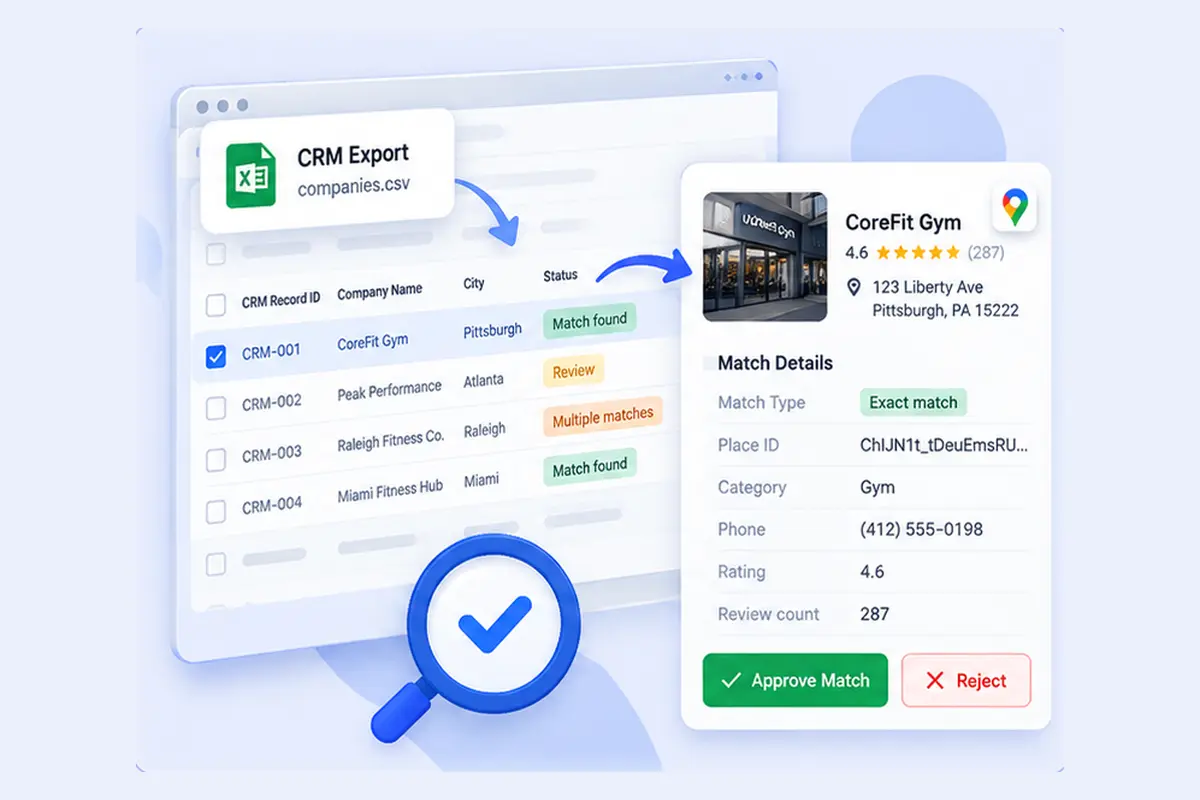
Run a small file through the enrichment workflow, inspect the selected listings, and document the rules used to approve or reject matches.
Choose Which Fields to Add, Update, or Protect
The safest approach is to divide fields into three groups before the CRM import.
| Field group | Examples | Rule |
|---|---|---|
| Protected CRM fields | Record ID, account owner, lifecycle stage, notes, deal history, consent, opt-out status | Never overwrite automatically |
| Google Maps enrichment fields | Listed name, status, address, category, phone, website, rating, review count, hours, coordinates, Place ID, Maps URL | Add or update under documented rules |
| Optional enrichment fields | Public emails, social profiles, additional phones, company insights, chain status | Add only when selected and relevant |
Create a field map before importing.
| Field situation Recommended | d action |
|---|---|
| CRM field is blank, and enrichment has a value | Fill the blank field |
| CRM field and enrichment agree | Keep the CRM value and record the validation |
| Values conflict | Flag for review |
| Enrichment value is blank | Do not erase the CRM value |
| Google Maps indicates the business may be closed | Flag urgently; do not delete the account automatically |
| Record has a previously approved Place ID match | Update only approved enrichment fields |
| Match is ambiguous | Do not update automatically |
For important fields, consider keeping the enrichment value in a dedicated property rather than overwriting the CRM’s original value immediately.
Voorbeelden hiervan zijn:
google_maps_business_namegoogle_maps_listed_phonegoogle_maps_listed_addressgoogle_business_statusgoogle_ratinggoogle_review_countgoogle_place_idgoogle_maps_urlgoogle_match_statusgoogle_data_last_refreshedenrichment_source
This preserves provenance. A user can see where the value came from and when it was collected.
Store Place ID as a Source Identifier
Google allows Place IDs to be stored, but it also warns that they can change or become obsolete. Google recommends refreshing stored Place IDs that are more than 12 months old.
Use Place ID as the Google Maps source identifier.
Do not use it as:
- the CRM’s permanent Record ID;
- proof of legal company identity;
- a substitute for the company’s own account structure.
The CRM Record ID remains the update key. Place ID documents for the Google Maps place that was matched.

Update Existing CRM Records and Review Exceptions
Once the matches and field map are approved, update the CRM using the system’s own unique identifier.
For HubSpot, the official import guidance says a unique identifier is needed to update existing records and avoid creating duplicates. Company domain name can be used for companies, while Record ID can update an existing record and supersedes other mapped unique identifiers when included.
For Zoho CRM, teams can use Record ID or another supported matching field to find existing records. Zoho also provides an option to skip updating empty values, which helps prevent blank import cells from erasing populated CRM fields.
Use this controlled import sequence:
- Save an untouched copy of the original CRM export.
- Save the reviewed enriched file as a separate version.
- Test the import with a small batch.
- Selecteer update existing records only when that matches the project.
- Map the CRM Record ID to the CRM’s unique identifier.
- Map only approved enrichment fields.
- Prevent blank values from replacing populated fields.
- Inspect the updated test records.
- Review duplicates, conflicts, and failed imports.
- Expand the import only after the test passes.
Outscraper also provides separate HubSpot en Zoho CRM integration guides. These are useful integration paths, but teams should still verify how the destination CRM handles matching, new-record creation, duplicate prevention, and overwrites before applying the workflow to an established database.
After the import, review:
- a sample of exact matches;
- every ambiguous match;
- every closed-business flag;
- multi-location accounts;
- records with conflicting websites or phones;
- records where a blank value may have replaced data;
- unexpected duplicates.
Record the collection date and decide when the fields should be refreshed again. Highly changeable fields such as business status, phone, hours, and review count may need more frequent checks than stable fields such as category or coordinates.
The safest enrichment workflow is not the one that adds the most columns. It is the one that can explain:
- why a record was matched;
- which source supplied each value;
- which fields were changed;
- which fields were protected;
- when the information was last reviewed.
Good CRM enrichment should improve the record without making it harder to trust.
Use Google Maps data to fill useful business and location gaps, keep the CRM’s own identifiers and first-party history protected, and review uncertain matches before updating anything at scale.
The goal is not to add more fields. It is to keep the CRM accurate, useful, and easier to work with.
Veelgestelde vragen
Meest voorkomende vragen en antwoorden
Yes. Google Maps business data can be added to existing company or location records, but the update should use the CRM’s own unique identifier. The enriched file should preserve the original CRM Record ID so the destination system can update the correct record instead of creating a new one.
For a controlled update, use the CRM Record ID or another property that the CRM recognizes as unique. A website domain can also help identify companies, but it may not be sufficient when several locations or companies share a domain.
Not automatically. Blank CRM fields can often be filled safely after a confident match. Conflicting populated fields should be reviewed. Sales history, ownership, lifecycle stage, consent, opt-out status, and manually verified information should remain protected.
No. Place ID is useful as a Google Maps source identifier, but Google says Place IDs can change or become obsolete and recommends refreshing stored IDs older than 12 months. The CRM’s own Record ID should remain the permanent update key.
Outscraper can use optional enrichment to find public emails, social links, additional phones, and contact details from associated websites. Email discovery does not automatically mean the email has been validated; use the separate email-validation step when deliverability verification is required.
Export a small group of company or location records, keep their CRM IDs attached, enrich them with the business fields you need, and approve the mapping rules before scaling.