目次を見る
宛先: CRMレコードにGoogleマップのデータを追加する 安全に導入するには、新規取引先の詳細が記載されたファイルだけでは不十分です。 真の課題は、CRM上の各企業や拠点のレコードを正しいGoogleマップのリスティングと照合し、どのフィールドを更新できるかを判断し、チームがすでに保有している販売履歴を保護することです。不注意なインポートを行うと、企業の重複が発生したり、有用な値が空白に置き換えられたり、あるいは1つの支店の住所がチェーン全体に紐付けられたりすることがあります。 このガイドでは、CRMレコードを一意のID付きでエクスポートし、Outscraper を通じてデータを充実させ、不確かな照合を確認し、データベースの改善につながるフィールドのみを更新するという、管理されたワークフローを紹介します。
まずは少量のエンリッチメントバッチから始めましょう
CRM全体を更新する前に、20~50件の企業または拠点レコードを、それぞれのCRM IDとともにテスト用バッチとしてエクスポートしてください。そのサンプルを使用して、照合ロジック、フィールドのマッピング、およびインポートルールを確認してください。
簡単な回答
CRMにGoogleマップのデータを組み込む際は、CRM独自のレコードIDを更新キーとして維持することが最も効果的です。識別用フィールドを含む企業や場所のレコードをエクスポートし、Googleマップの掲載情報と照合して、承認済みのビジネスデータのみを追加し、一致が不明確なものは審査に回した後、元のCRM IDを使用して結果をインポートします。保護されている販売、同意、または活動に関するフィールドは、決して自動的に上書きしないでください。
Google マップのデータが CRM に追加できるものとできないもの
Google マップのデータは、特に 企業レベルまたは事業所レベル.
Google マップ上に表示される事業者の情報(登録名、カテゴリ、住所、電話番号、ウェブサイト、営業状況、営業時間、評価、レビュー数、座標、Place ID、Google マップの URL など)を追加することができます。
アウトスクレーパー これらの詳細情報を、体系的な行と列に整理することができます。また、現在の「Enrich File」ワークフローでは、チームがまったく新しいリストを作成する必要がなく、既存の企業やスポット情報ファイルにGoogleマップのデータを追加することも可能です。
| データグループ | 例 | CRMの適切な活用 |
|---|---|---|
| 企業のアイデンティティ | Google マップの店舗名、カテゴリ、サブカテゴリ | 会社または拠点の分類をサポートする |
| 場所の詳細 | 登録住所、都市名、郵便番号、座標 | 支店およびサービスエリアの記録を改善する |
| 一般向け連絡先 | 掲載されている電話番号とウェブサイト | 未入力のビジネス連絡先項目を入力してください |
| 評判データ | 評価とレビューの数 | 世間の評判に関する情報を追加する |
| 運行情報 | 営業状況および営業時間 | 確認が必要なフラグ付きレコード |
| ソース識別子 | 場所ID、Google ID、マップのURL | ソースとの関連性を維持する |
| 任意の充実策 | 公開メールアドレス、SNSのリンク、その他の電話番号 | 該当するエンリッチメントが選択されている場合にのみ追加する |
言葉の選び方は重要です。
次のようなフィールドラベルを使用してください:
- Googleマップに掲載されている電話番号
- Google マップに掲載されている住所
- Google マップの店舗状況
- Google マップに掲載されているウェブサイト
- Google マップの評価
これらの項目を、法的に検証済み、確実に最新、あるいは会社の所有権を証明するものとして自動的にみなさないでください。
また、Google マップのデータは、CRM 自体に属する情報の代わりにはなりません。上書きしてはなりません:
- アカウントの所有権;
- ライフサイクルまたは取引の段階;
- 販売メモ;
- 顧客の活動;
- 購入および契約履歴;
- 手動で確認された情報;
- 同意記録;
- 「連絡禁止」または「配信停止」ステータス。
レビュー全文が必要な場合は、評価やレビュー数の追加とは別の収集手順となります。
Outscraperの既存のリエンリッチメント・ワークフローでは、 グーグルマップ 独立した「Google Maps Reviews Scraper」からの事業分野。
Outscraper では、オプションのデータ充実機能を通じて、企業のウェブサイトから公開されているメールアドレス、ソーシャルメディアのリンク、その他の連絡先情報を検索することも可能です。メールアドレスの発見と検証は、別個の概念として扱う必要があります。つまり、発見されたメールアドレスは、メールアドレス検証の手順が適用された場合にのみ、「検証済み」と見なされるべきです。

まず、ワークフローに必要な Google マップのフィールドから始めましょう。連絡先や企業の情報補完は、営業、調査、またはデータ品質の面で明確なニーズがある場合にのみ追加してください。
CRMに「企業」を登録するか、「個別の事業所」を登録するかを決定する
何かを照合する前に、CRMの各行が何を表しているのかを明確にしておきましょう。
CRMには、いくつかの異なるレコードタイプが含まれることがあります:
| CRMオブジェクト | その意味 | 適切なエンリッチメント手法 |
|---|---|---|
| お問い合わせ | ある人 | Google マップの場所と直接照合しないでください |
| 会社またはアカウント | ある組織 | 会社レベルのフィールドは慎重に追加してください |
| 支店または事業所 | 実店舗 | 関連するGoogleマップのリスティング1件と一致する |
| 親アカウント | 複数の拠点を持つブランドや企業 | 個々のブランチとは区別して管理してください |
| サービスエリア型ビジネス | 実店舗を持たずに、ある地域にサービスを提供している事業 | 住所および場所の欄を注意深く確認してください |
この区別によって、最も深刻な情報拡散のミスの一つ、つまりある支店の住所、電話番号、営業時間を会社全体のものとして扱ってしまうことを防ぐことができます。
1つの法人アカウントと40か所のホテル施設を持つホテルグループを想定してください。
Google マップでは通常、個々のホテルが別々の場所レコードとして表示されます。CRM に企業アカウントが 1 つしか登録されていない場合、特定のホテルのリストを選択して親アカウントを上書きすると、誤解を招くデータになってしまう可能性があります。
より整理されたCRMの構造とは、次のようなものです:
親会社またはブランドアカウント
接続先:
個々の拠点または支店の記録
各支店は、それぞれ独自のものを設定できます:
- 場所ID;
- 住所;;
- 電話;
- 評価;
- レビュー数;
- 営業時間;;
- Google マップの URL。
この原則は、レストランチェーン、小売ブランド、クリニック、フランチャイズシステム、および複数の拠点を持つサービス企業にも当てはまります。
チェーンが関係する場合は、支店を重複として削除するのではなく、各実店舗を個別に維持してください。「場所」「チェーンへの所属」「ブランドグループ」「法的所有権」の違いについては、Outscraperのガイドで解説されています。 Google マップのデータからチェーン店を特定する.
一意の識別子付きでCRMレコードをエクスポートする
具体的な例を挙げると、ある地元のマーケティング代理店が、CRMにHVAC、配管、電気工事会社の顧客情報を1,000件保有していると想像してみてください。
Some records contain:
- a company name;
- a website;
- a city;
- an old phone number.
The agency wants to add:
- Google Maps business status;
- listed address;
- category;
- listed phone;
- 評価;
- レビュー数;
- 場所ID;
- Google マップの URL。
It does not want to replace:
- the account owner;
- 販売メモ;
- lifecycle stage;
- opportunity history;
- communication preferences;
- opt-out status.
The agency should first export only the fields needed for matching and updating.
| CRM Record ID | Company name | Webサイト | 電話 | 住所 | City | Postal code | Record level |
|---|---|---|---|---|---|---|---|
| 10831 | Sample Heating LLC | sampleheating.example | Existing value | 123 Main St | Denver | 80202 | 会社 |
| 10832 | Sample Plumbing North | sampleplumbing.example | Blank | 85 Lake Rd | Denver | 80216 | 所在地 |
| 10833 | Sample Electric | Blank | Existing value | 42 West Ave | Aurora | 80012 | 会社 |
The most important column is the CRM’s own unique identifier.
Do not remove, rename unpredictably, or regenerate that value while the file is being enriched. It is what allows the finished rows to update the correct records later.
A useful export normally includes:
- CRM Record ID;
- account or company name;
- website or domain;
- 電話;
- 完全な住所;;
- city;
- state or region;
- postal code;
- country;
- record level;
- any existing source identifier.
Before running the full file, test a small batch. The test should include:
- an obvious exact match;
- an incomplete record;
- a similar business name;
- a multi-location company;
- a record that should remain unmatched.
That sample is more useful than testing only the easiest records.

Match the Records With Google Maps Business Listings
Outscraper’s Enrich File workflow allows users to upload an existing business or POI file and add matching Google Maps data.
The current workflow supports CSV, XLSX, TXT, and Parquet files. Recognizable headers can include google_id, place_id, company or business name, address, city, state, ZIP code, and country. Outscraper uses the available values as references when looking for the corresponding Google Maps place.
A practical workflow is:
- Open Outscraper Google Maps Scraper.
- Choose the file-enrichment option.
- Upload the CRM export.
- Confirm that the identifying columns have clear headers.
- Select the Google Maps and optional enrichment fields required.
- Run a small test batch.
- Download and review the enriched file.
- Assign a match-review status before importing anything back into the CRM.
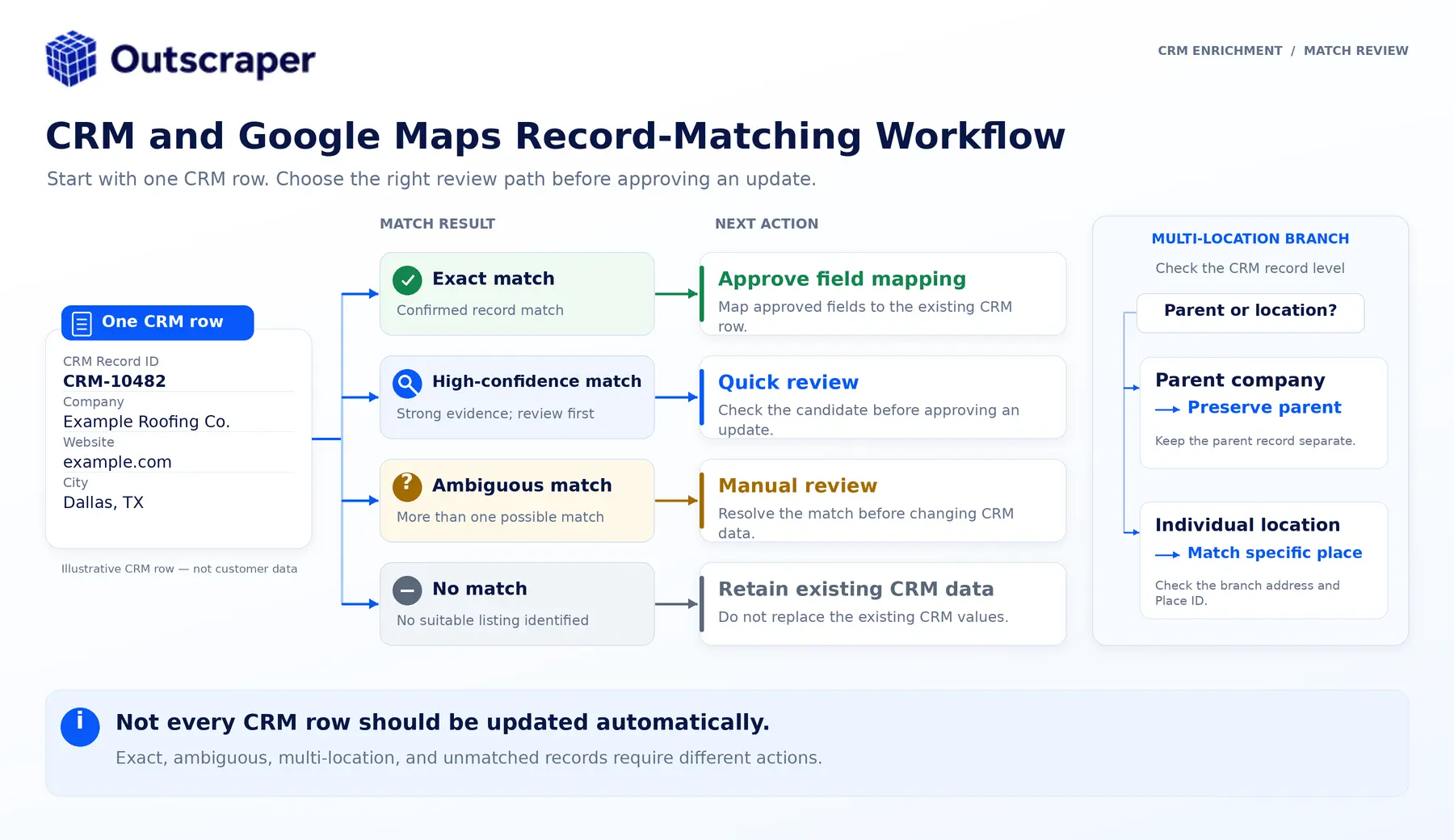
Outscraper returns the enriched data, but the following confidence labels are an editorial QA framework, not a claim that Outscraper automatically assigns these exact scores.
Exact and High-Confidence Matches
An exact or high-confidence match may have:
- the same website domain;
- the same phone number;
- a matching or strongly similar business name;
- a matching address or city;
- a compatible category;
- no major conflicts between the CRM and Google Maps listing.
A domain or phone match combined with location agreement is stronger than company-name similarity alone.
Ambiguous Matches
Move a result into manual review when:
- several businesses share a similar name;
- the domain conflicts;
- the phone belongs to another location;
- the address is different;
- the category is inconsistent;
- several plausible listings are returned;
- the CRM record contains too little information.
Do not force every row into a match.
Leaving one record unchanged is safer than attaching the wrong place to a live account.
Multi-Location Businesses
A multi-location company may produce several valid Google Maps listings.
The correct action depends on the CRM structure:
- If the CRM row represents one branch, match it to that branch.
- If it represents a parent company, do not select one branch arbitrarily.
- If the CRM supports parent-child relationships, preserve the company record and associate separate location records.
- If the structure is unclear, route the record to review.
Use a review table like this:
| Match status | Typical evidence | Action |
|---|---|---|
| Exact | Domain or phone match plus address agreement | Approve selected fields |
| High confidence | Strong name, address, city, and category agreement | Review sample, then approve |
| Ambiguous | Similar name with conflicting contact or location data | Manual review |
| Multi-location | Several valid branches found | Match at the correct record level |
| No match | No credible listing found | Leave CRM record unchanged |
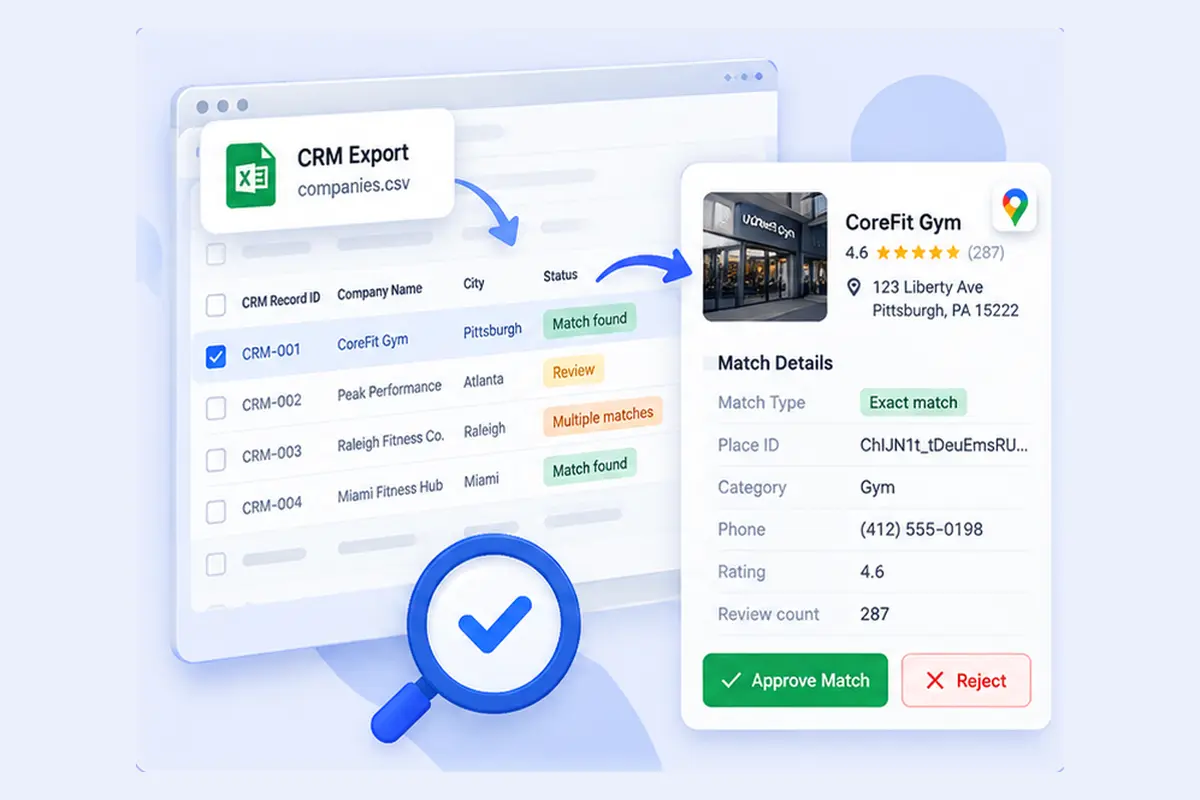
Run a small file through the enrichment workflow, inspect the selected listings, and document the rules used to approve or reject matches.
Choose Which Fields to Add, Update, or Protect
The safest approach is to divide fields into three groups before the CRM import.
| Field group | 例 | Rule |
|---|---|---|
| Protected CRM fields | Record ID, account owner, lifecycle stage, notes, deal history, consent, opt-out status | Never overwrite automatically |
| Google Maps enrichment fields | Listed name, status, address, category, phone, website, rating, review count, hours, coordinates, Place ID, Maps URL | Add or update under documented rules |
| Optional enrichment fields | Public emails, social profiles, additional phones, company insights, chain status | Add only when selected and relevant |
Create a field map before importing.
| Field situation Recommended | d action |
|---|---|
| CRM field is blank, and enrichment has a value | Fill the blank field |
| CRM field and enrichment agree | Keep the CRM value and record the validation |
| Values conflict | Flag for review |
| Enrichment value is blank | Do not erase the CRM value |
| Google Maps indicates the business may be closed | Flag urgently; do not delete the account automatically |
| Record has a previously approved Place ID match | Update only approved enrichment fields |
| Match is ambiguous | Do not update automatically |
For important fields, consider keeping the enrichment value in a dedicated property rather than overwriting the CRM’s original value immediately.
Examples include:
google_maps_business_namegoogle_maps_listed_phonegoogle_maps_listed_addressgoogle_business_statusgoogle_ratinggoogle_review_countgoogle_place_idgoogle_maps_urlgoogle_match_statusgoogle_data_last_refreshedenrichment_source
This preserves provenance. A user can see where the value came from and when it was collected.
Store Place ID as a Source Identifier
Google allows Place IDs to be stored, but it also warns that they can change or become obsolete. Google recommends refreshing stored Place IDs that are more than 12 months old.
Use Place ID as the Google Maps source identifier.
Do not use it as:
- the CRM’s permanent Record ID;
- proof of legal company identity;
- a substitute for the company’s own account structure.
The CRM Record ID remains the update key. Place ID documents for the Google Maps place that was matched.

Update Existing CRM Records and Review Exceptions
Once the matches and field map are approved, update the CRM using the system’s own unique identifier.
~について HubSpot, the official import guidance says a unique identifier is needed to update existing records and avoid creating duplicates. Company domain name can be used for companies, while Record ID can update an existing record and supersedes other mapped unique identifiers when included.
~について Zoho CRM, teams can use Record ID or another supported matching field to find existing records. Zoho also provides an option to skip updating empty values, which helps prevent blank import cells from erasing populated CRM fields.
Use this controlled import sequence:
- Save an untouched copy of the original CRM export.
- Save the reviewed enriched file as a separate version.
- Test the import with a small batch.
- 選択 update existing records only when that matches the project.
- Map the CRM Record ID to the CRM’s unique identifier.
- Map only approved enrichment fields.
- Prevent blank values from replacing populated fields.
- Inspect the updated test records.
- Review duplicates, conflicts, and failed imports.
- Expand the import only after the test passes.
Outscraper also provides separate HubSpot と Zoho CRM integration guides. These are useful integration paths, but teams should still verify how the destination CRM handles matching, new-record creation, duplicate prevention, and overwrites before applying the workflow to an established database.
After the import, review:
- a sample of exact matches;
- every ambiguous match;
- every closed-business flag;
- multi-location accounts;
- records with conflicting websites or phones;
- records where a blank value may have replaced data;
- unexpected duplicates.
Record the collection date and decide when the fields should be refreshed again. Highly changeable fields such as business status, phone, hours, and review count may need more frequent checks than stable fields such as category or coordinates.
The safest enrichment workflow is not the one that adds the most columns. It is the one that can explain:
- why a record was matched;
- which source supplied each value;
- which fields were changed;
- which fields were protected;
- when the information was last reviewed.
Good CRM enrichment should improve the record without making it harder to trust.
Use Google Maps data to fill useful business and location gaps, keep the CRM’s own identifiers and first-party history protected, and review uncertain matches before updating anything at scale.
The goal is not to add more fields. It is to keep the CRM accurate, useful, and easier to work with.
よくある質問
最も頻繁な質問と回答
はい。Google マップのビジネスデータは、既存の企業や拠点のレコードに追加できますが、更新の際には CRM 独自の識別子を使用する必要があります。データが充実されたファイルには、元の CRM レコード ID を保持しておく必要があります。そうすることで、宛先システムが新しいレコードを作成するのではなく、正しいレコードを更新できるようになります。
管理された更新を行うには、CRMレコードID、またはCRMが一意であると認識するその他のプロパティを使用してください。ウェブサイトのドメインも企業の特定に役立ちますが、複数の拠点や企業が同じドメインを共有している場合は、それだけでは不十分な場合があります。
必ずしもそうとは限りません。CRMの空欄は、確実に照合できた後に安全に入力できる場合が多くあります。入力済みの項目で矛盾がある場合は、確認する必要があります。販売履歴、所有権、ライフサイクルステージ、同意状況、オプトアウト状況、および手動で検証された情報は、引き続き保護される必要があります。
いいえ。Place IDはGoogleマップのソース識別子として有用ですが、Googleによると、Place IDは変更されたり廃止されたりする可能性があるため、保存から12ヶ月以上経過したIDは更新することを推奨しています。CRM独自のレコードIDを、恒久的な更新キーとして使用し続けるべきです。
Outscraper では、オプションのエンリッチメント機能を使用して、関連ウェブサイトから公開されているメールアドレス、ソーシャルメディアのリンク、その他の電話番号、および連絡先情報を検索することができます。メールアドレスが検出されたからといって、そのメールアドレスが自動的に検証済みであるとは限りません。配信可能性の確認が必要な場合は、別途、メールアドレスの検証手順を行ってください。
Export a small group of company or location records, keep their CRM IDs attached, enrich them with the business fields you need, and approve the mapping rules before scaling.