विषयसूची
साइन अप
खाता बनाना
Visit the Google Maps Traffic Scraper page to sign up now.
साइन अप करते समय, आपको केवल वह ईमेल पता दर्ज करना होता है जिसे आप अपने खाते के लिए उपयोग करना चाहते हैं। यदि चाहें, तो आप अपने Google, Facebook या LinkedIn खातों का उपयोग करके भी साइन अप कर सकते हैं।.

अपना ईमेल पुष्टि करें
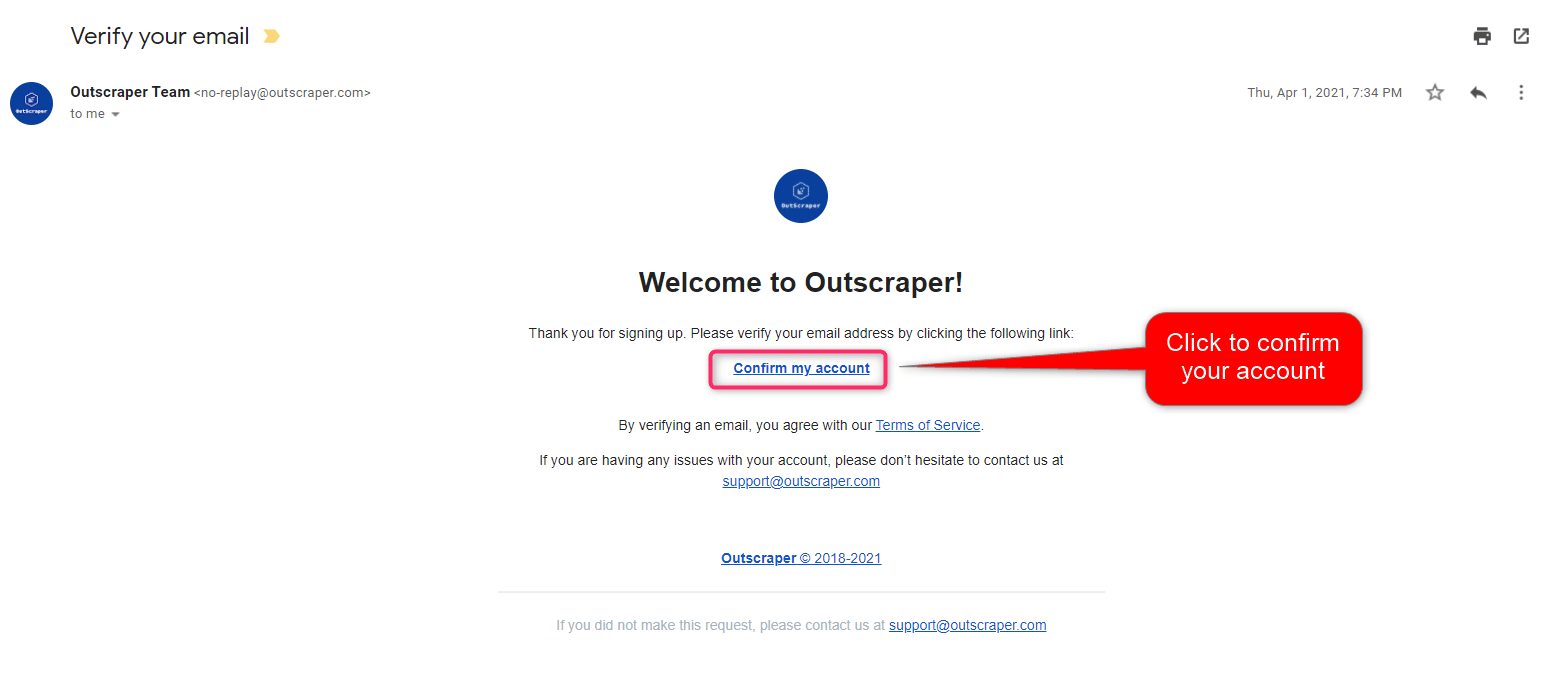
आपको Outscraper की वेबसाइट से आपके ईमेल पते की पुष्टि करने के लिए एक ईमेल भेजा जाएगा। पंजीकरण प्रक्रिया पूरी करने के लिए ईमेल में दिए गए लिंक पर क्लिक करें।.
CREATING TASKS AND PARAMETERS
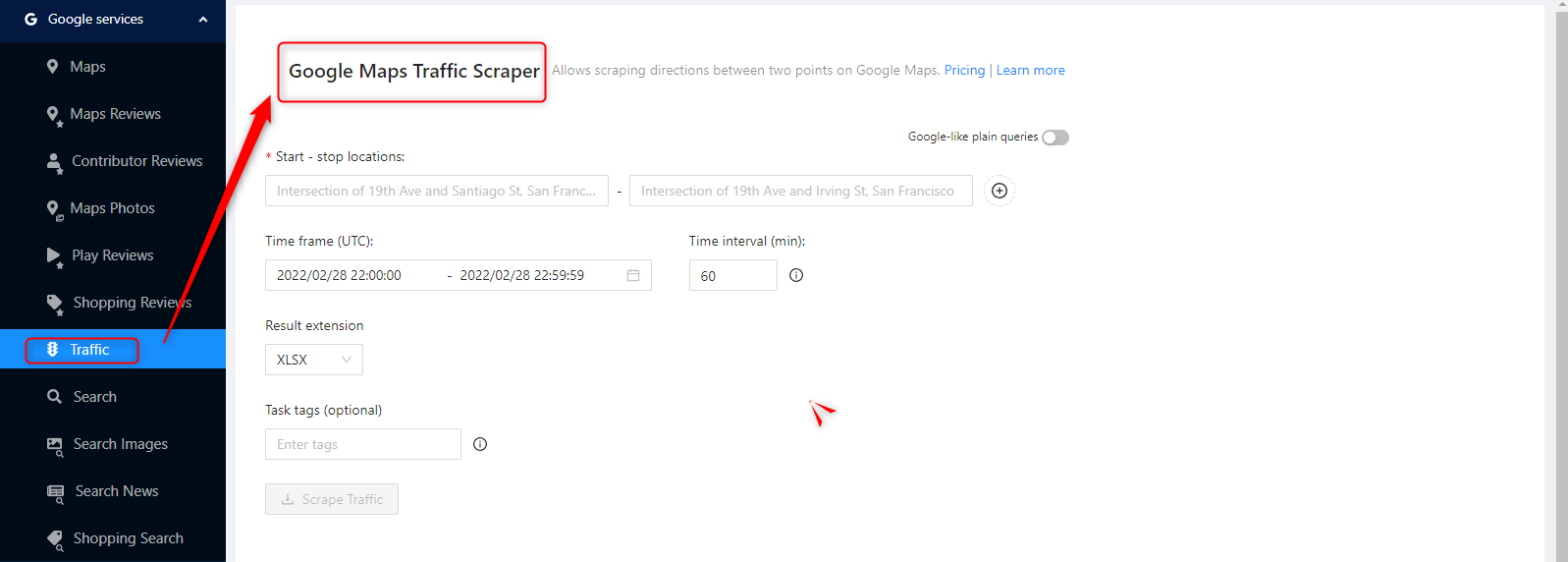
Start by selecting Google Services>Traffic service from the left panel and open the गूगल मैप्स ट्रैफ़िक स्क्रैपर सेवा।.
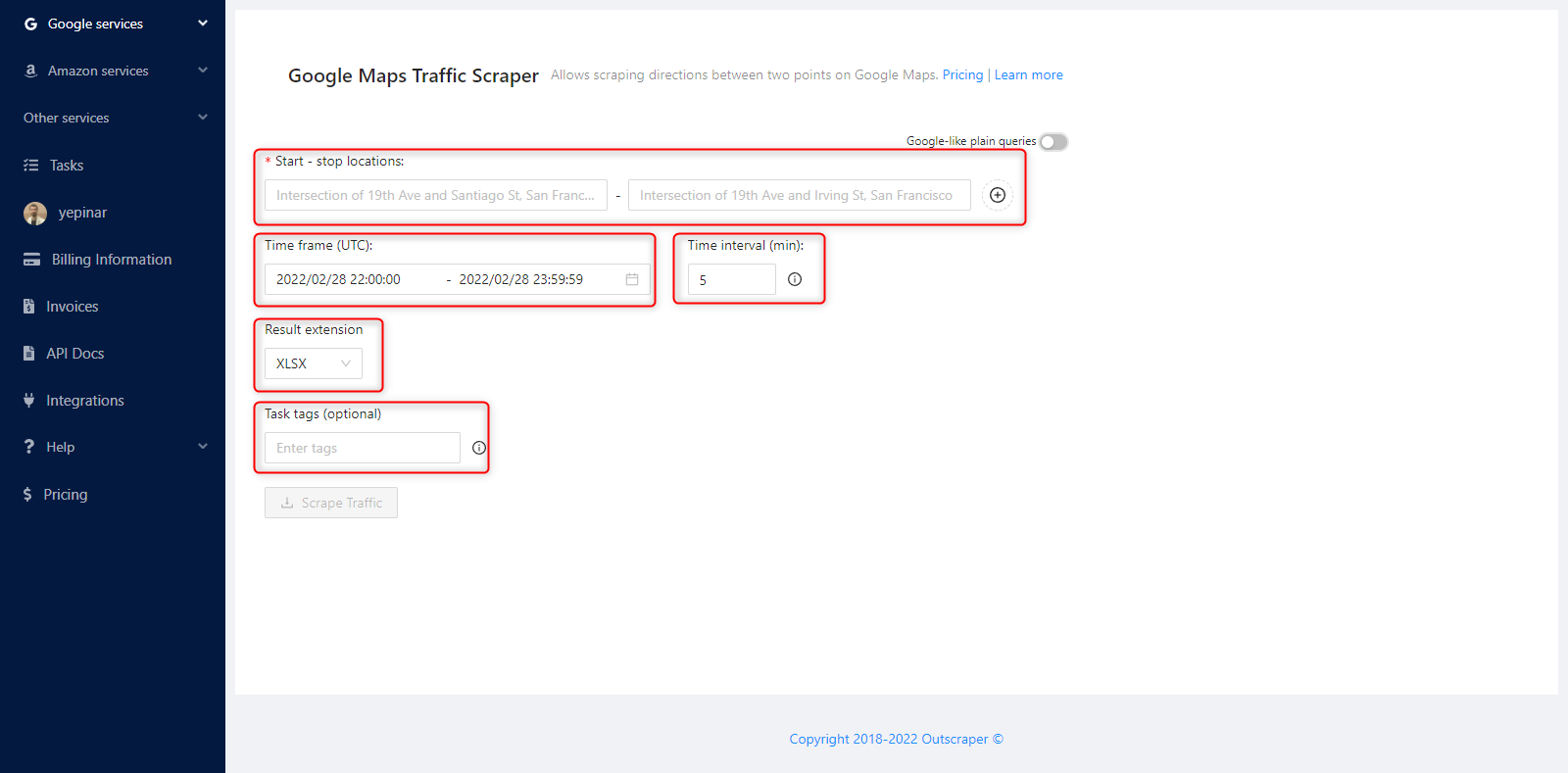
There are only 5 essential parameters that should be defined to create a task.
Determine the Start and End Points
Start - Stop Locations
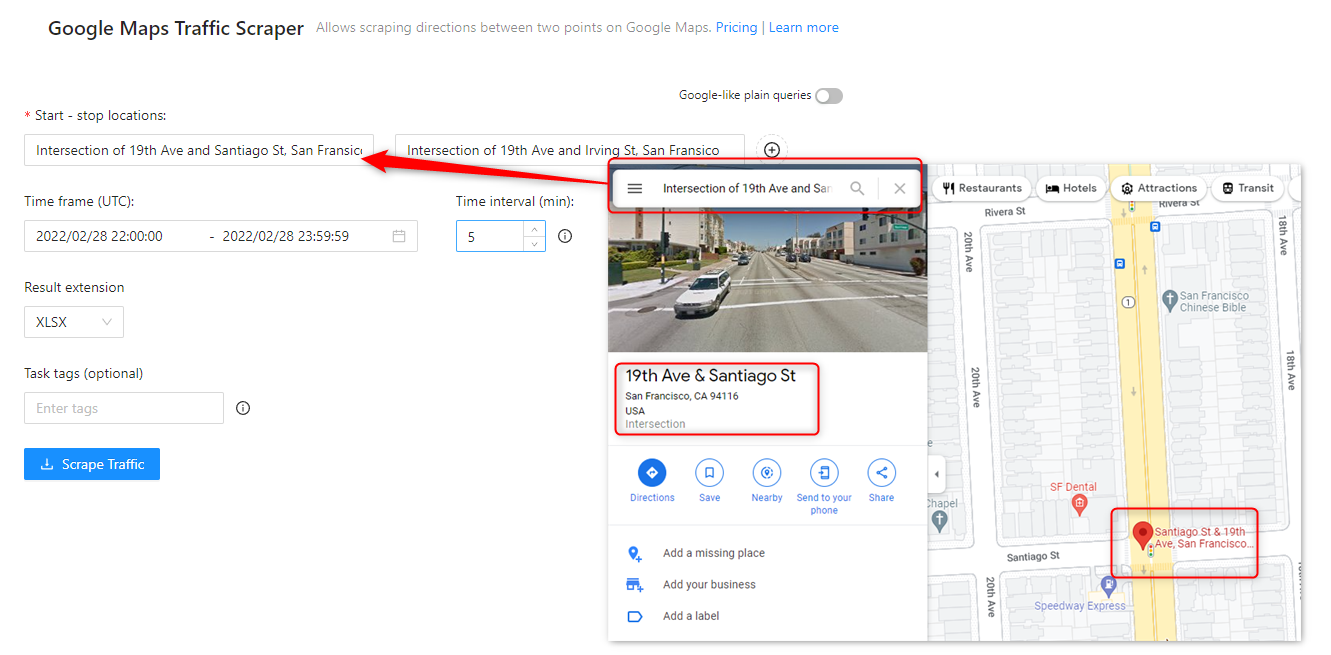
Google Maps Traffic Scraper needs a start and end point to work. You can use any expression that works in Google Maps to specify these start and end points. Coordinates can be used; textual descriptions can also be used.
Here’s an example of a textual description for start-stop locations:
And an example of coordinates usage for start-stop locations:
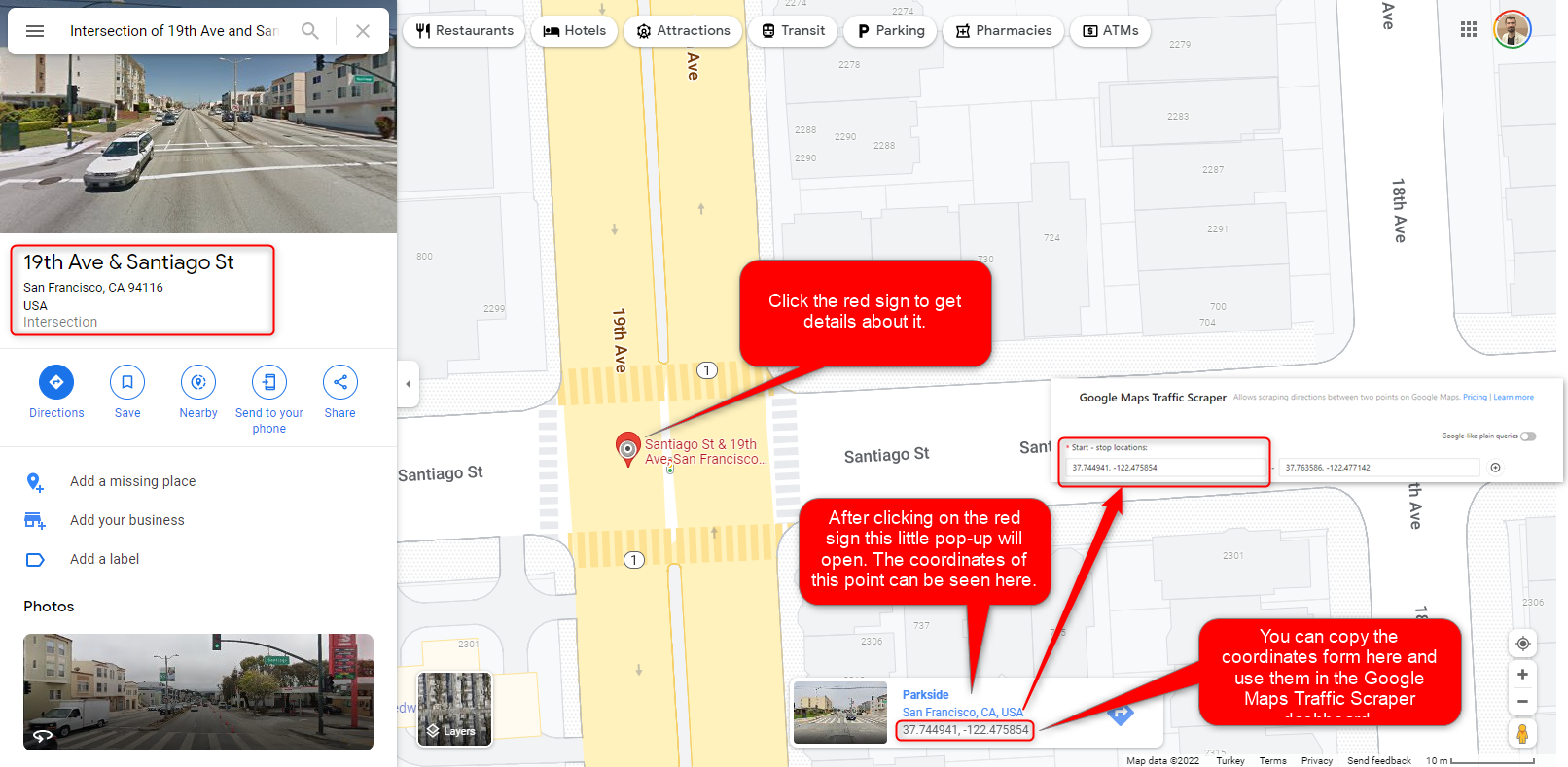
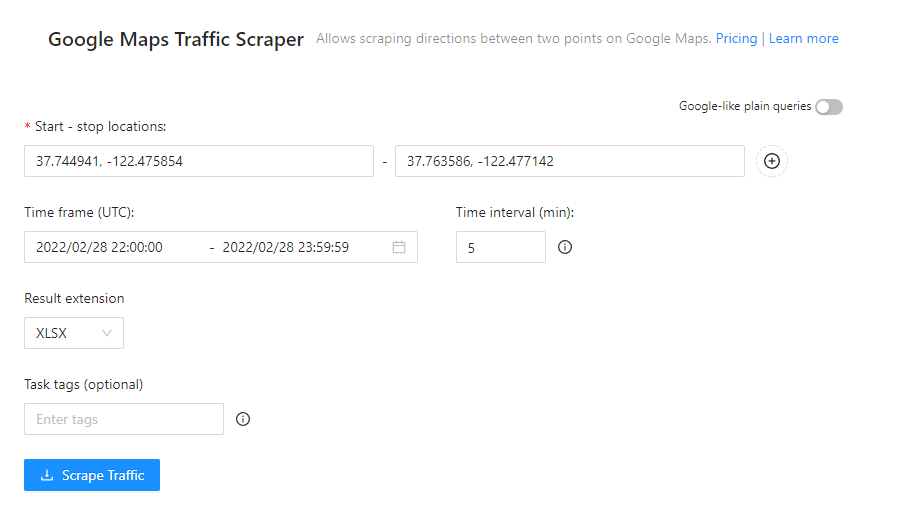
Traffic data can be extracted between two points, both as a textual expression and by entering the coordinates. You can crawl multiple points for the same parameters in the same task. In the same task, you can crawl multiple points for the same parameters.

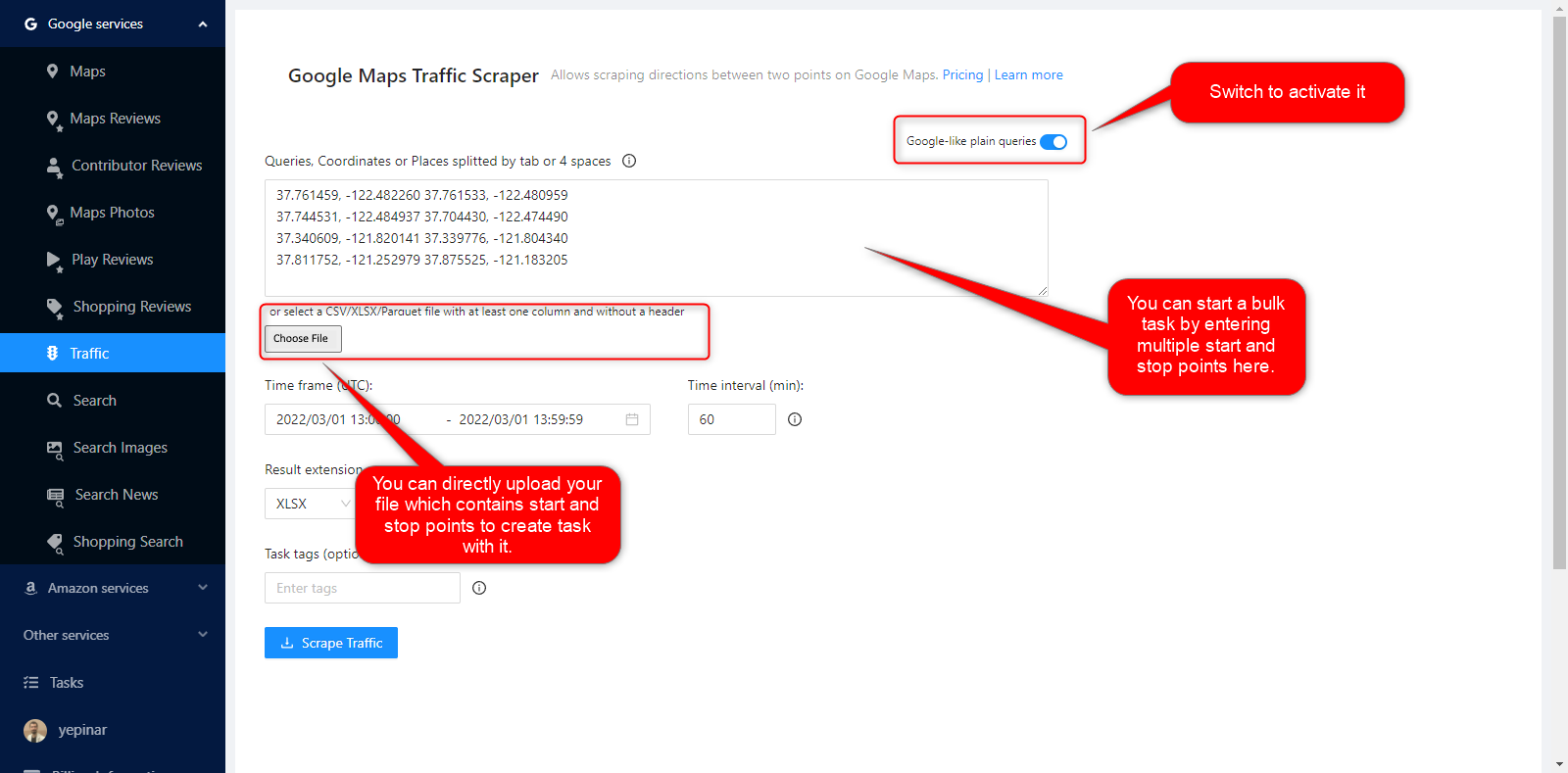
Google-like Plain Queries
You can use anything that will work on the Google Maps site, which also functions here. The most important aspect of using this feature is that it provides convenience when creating tasks with too many start-stop points. You can scrape all points by typing Queries, Coordinates, or Places under each other in one task.
समय-सीमा
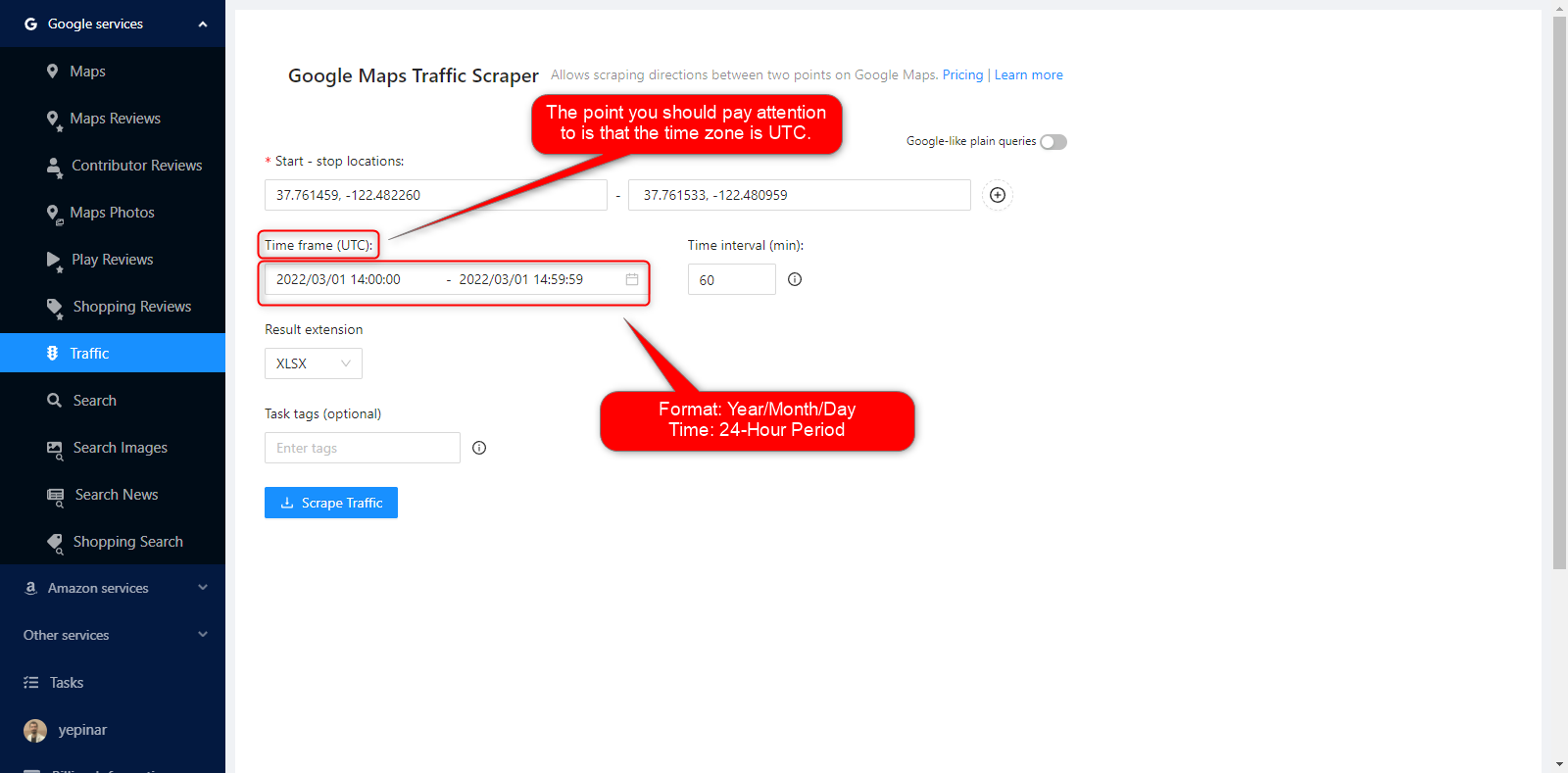
It is necessary to determine the time frame in which you will scrape your start – stop locations. The point you should pay attention to is that the time zone is UTC. If you are going to make an analysis according to your own time zone, you must keep this in mind. Here you may determine your time zone and UTC:
https://www.timeanddate.com/worldclock/timezone/utc
You can scrape historical Google Maps Traffic data up to 2005, as it varies from region to region.
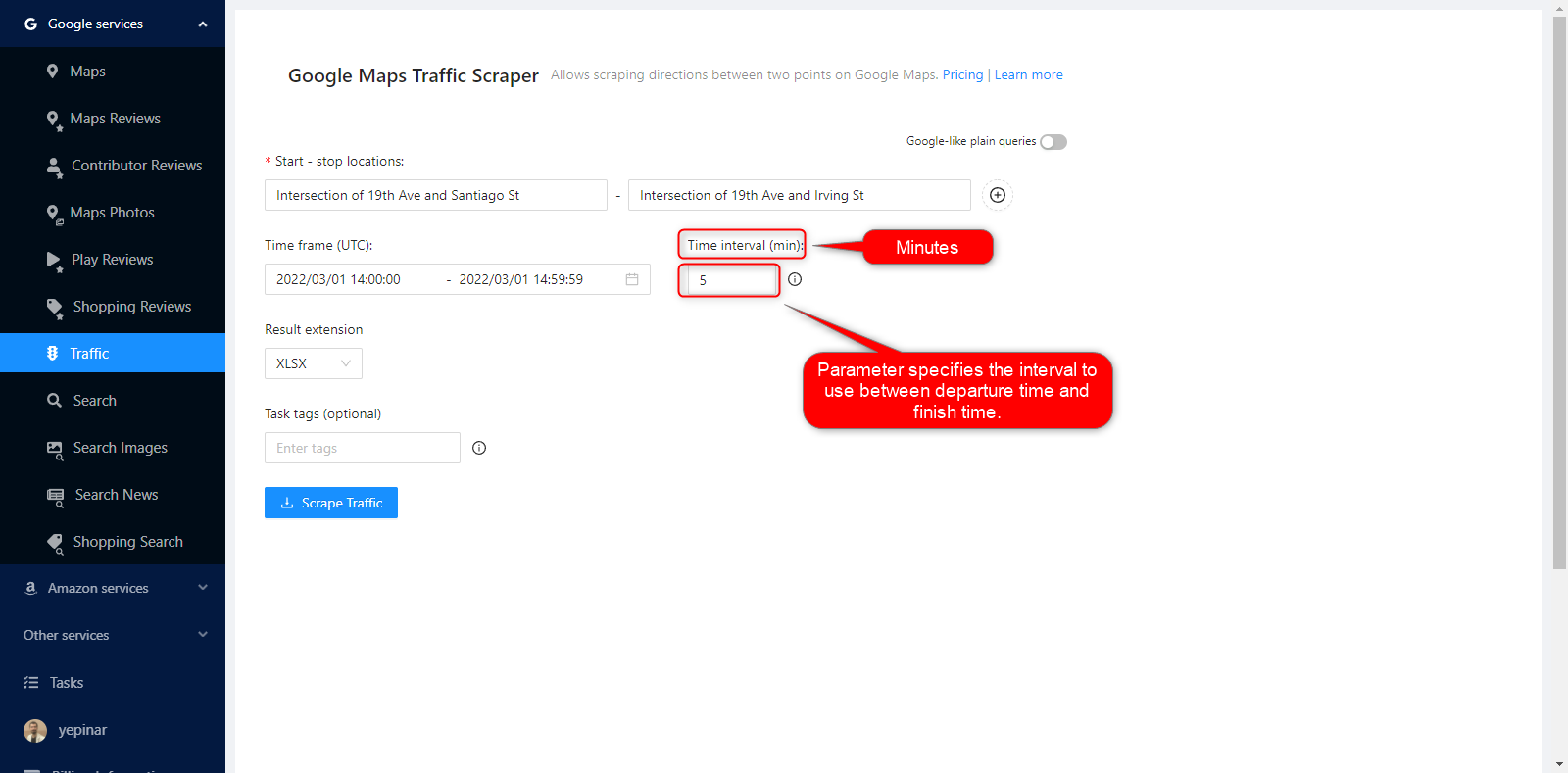
Time Interval (Min)
One request equals the data for a specific route at a specific time. For example, if you set the time interval to 5 minutes, the bot will make 12 requests to extract data from “Intersection of 19th Ave and Santiago St” to “Intersection of 19th Ave and Irving St” with a 5 minute interval during an hour.
परिणाम विस्तार
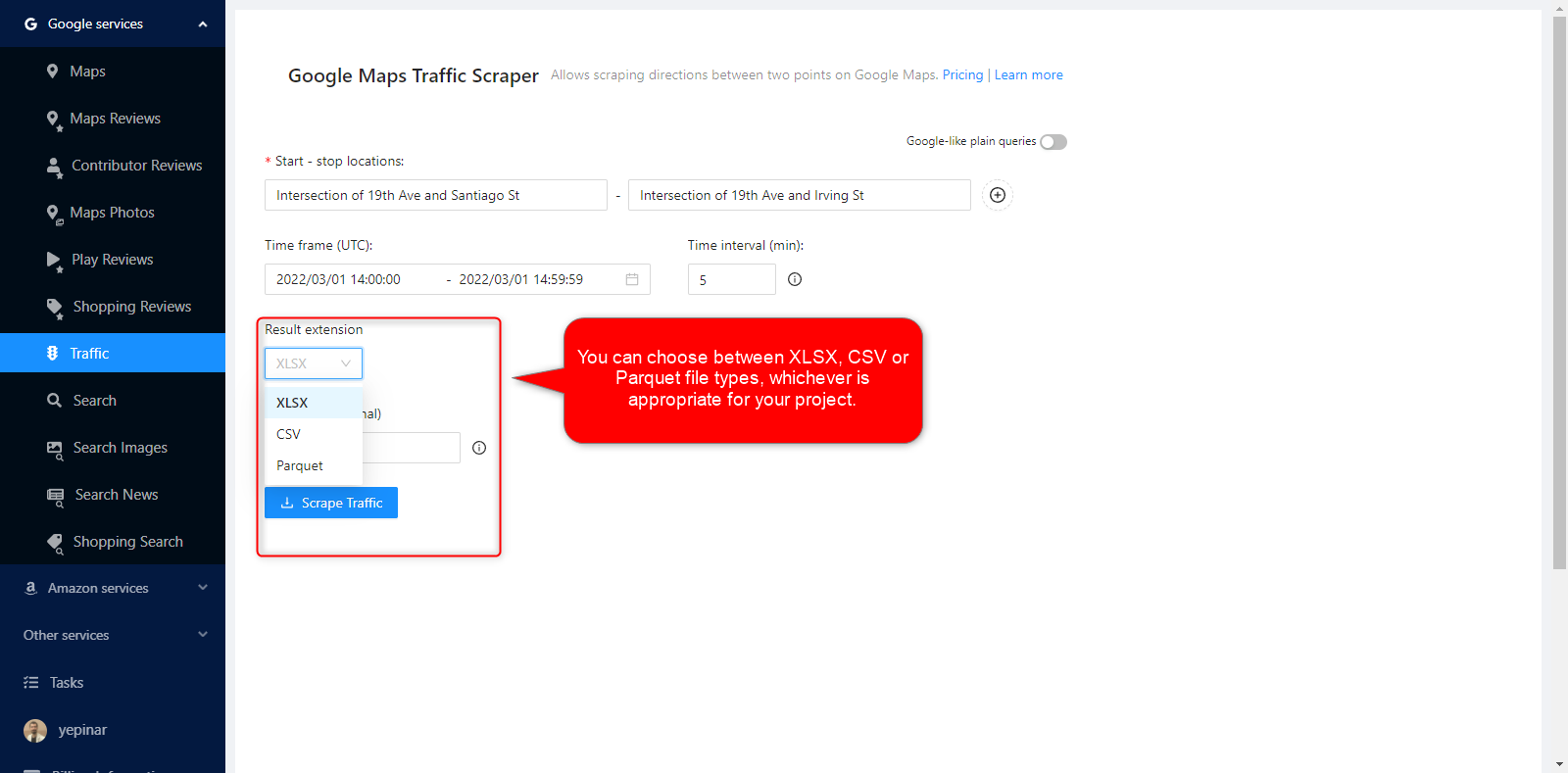
You can choose between XLSX, CSV, or Parquet file types, whichever is appropriate for your project.
कार्य टैग
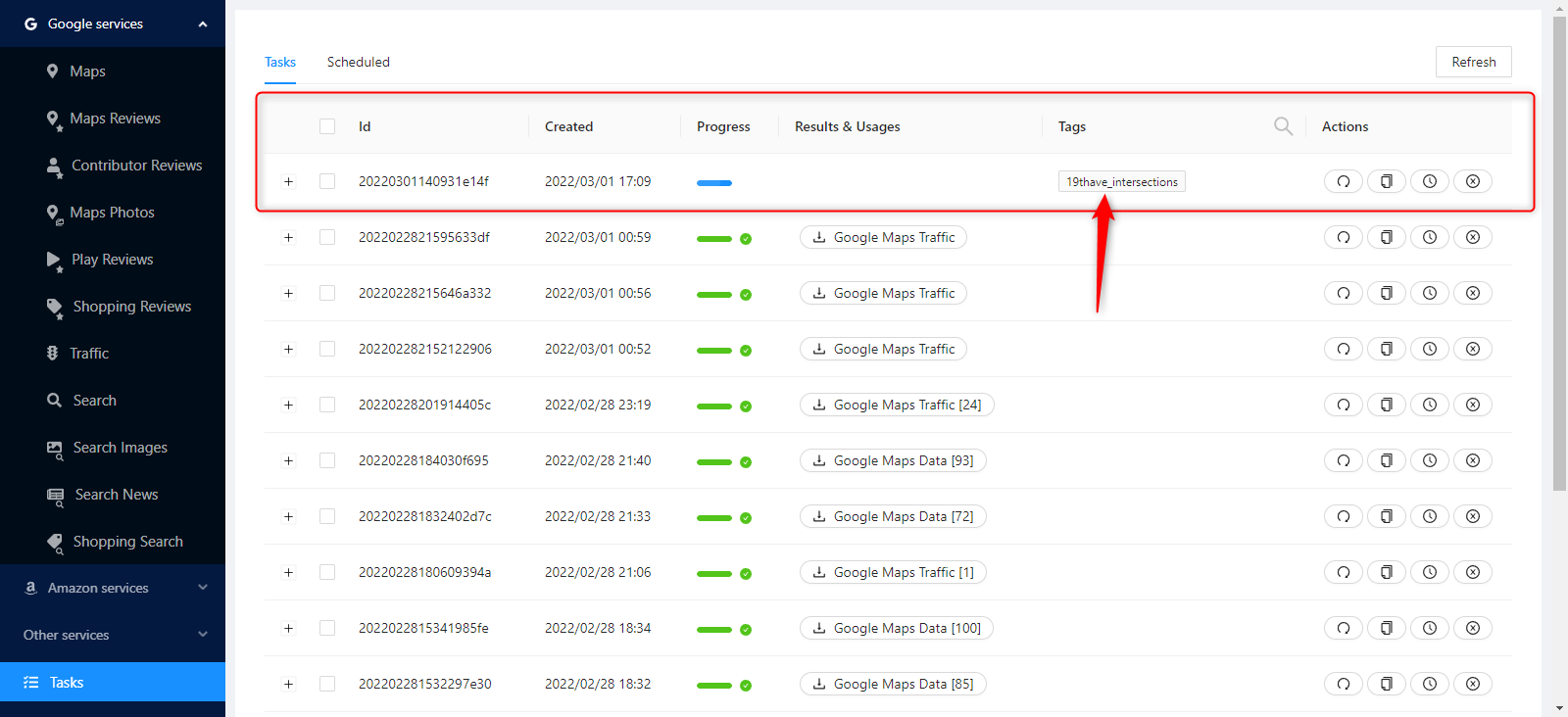
Any words can be used here. The main purpose is to track the results on the कार्य पृष्ठ।.

टास्क टैग्स ट्रैक करना आसान बनाते हैं।.
Final Check
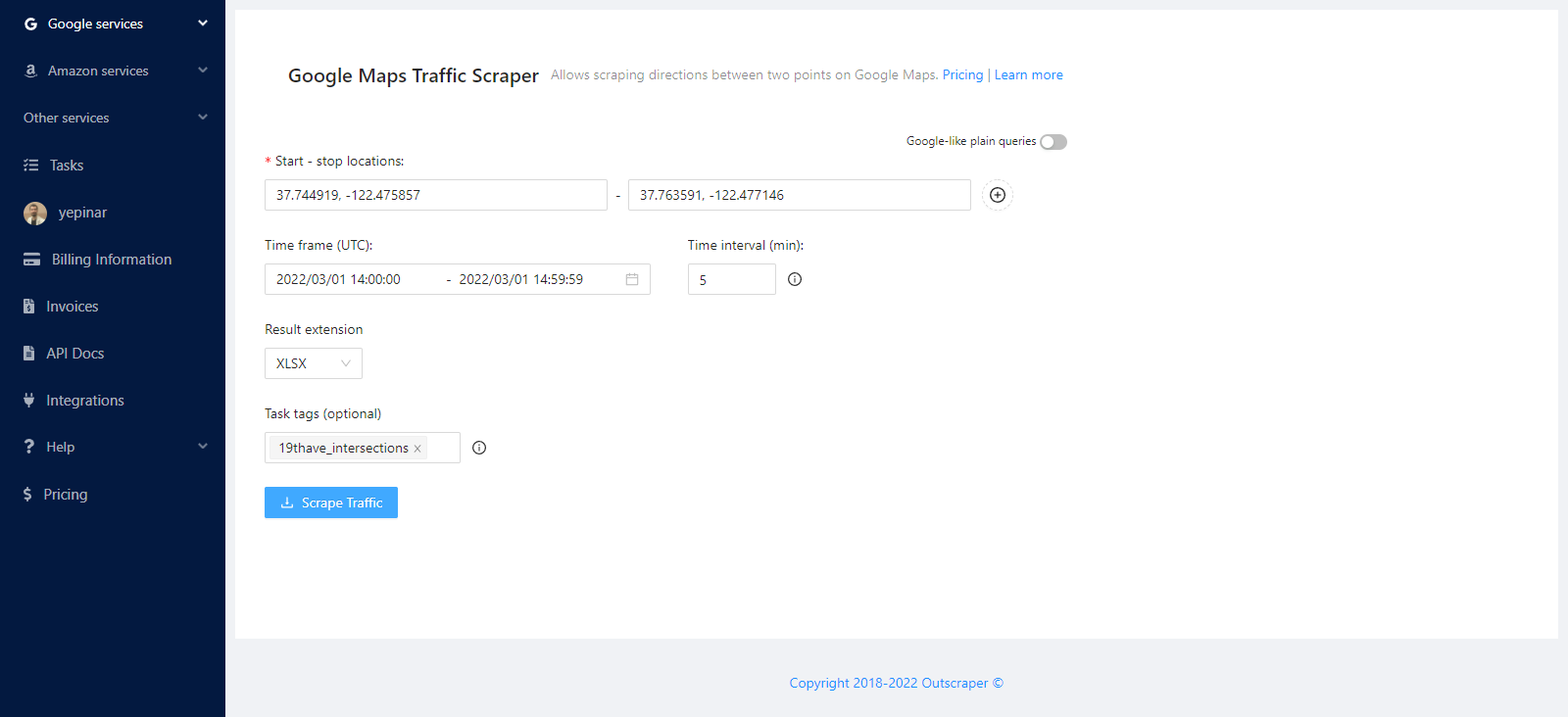
We recommend that you check all parameters one last time before confirming your task.
अपने कार्य की पुष्टि करें
A pop-up will appear when you press the scrape traffic button. The preview will be displayed in this pop-up, indicating the rough estimations of records and time.
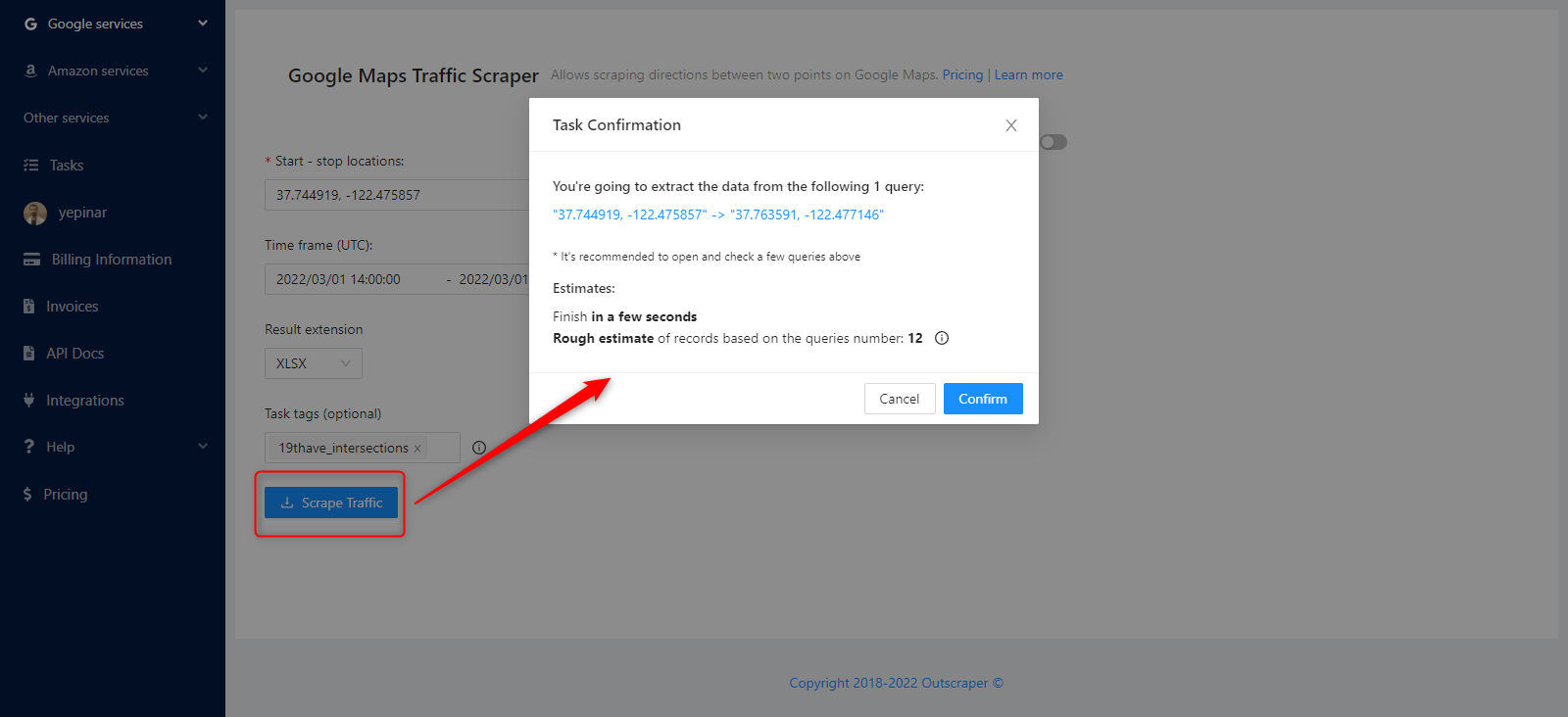
If you click on the link shown for the preview, you can see the route directly on Google Maps.

The task will then be started and sent by pressing the ‘Confirm button’.
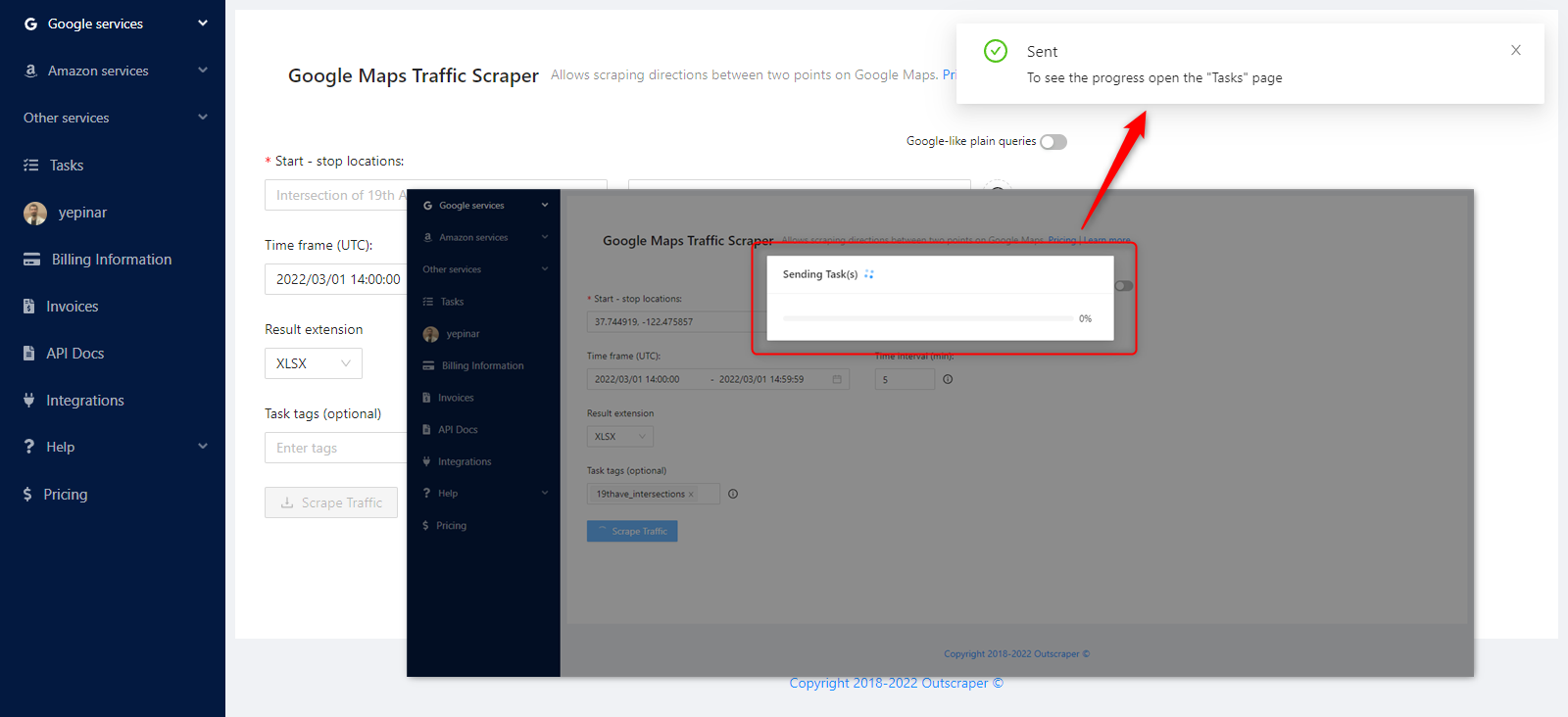
RESULT
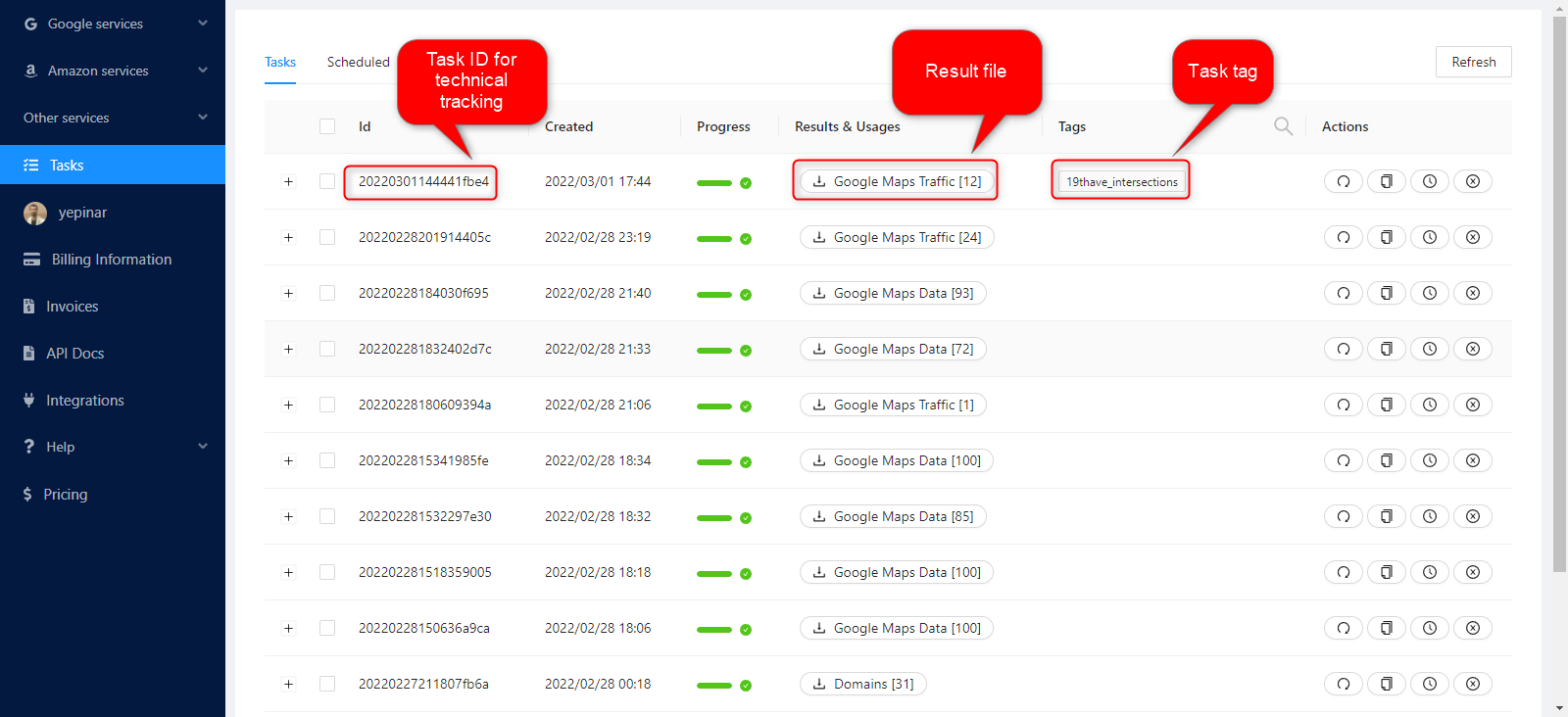
अपने कार्य की प्रगति पर नज़र रखें
You can track all of your progress on the कार्य पृष्ठ.
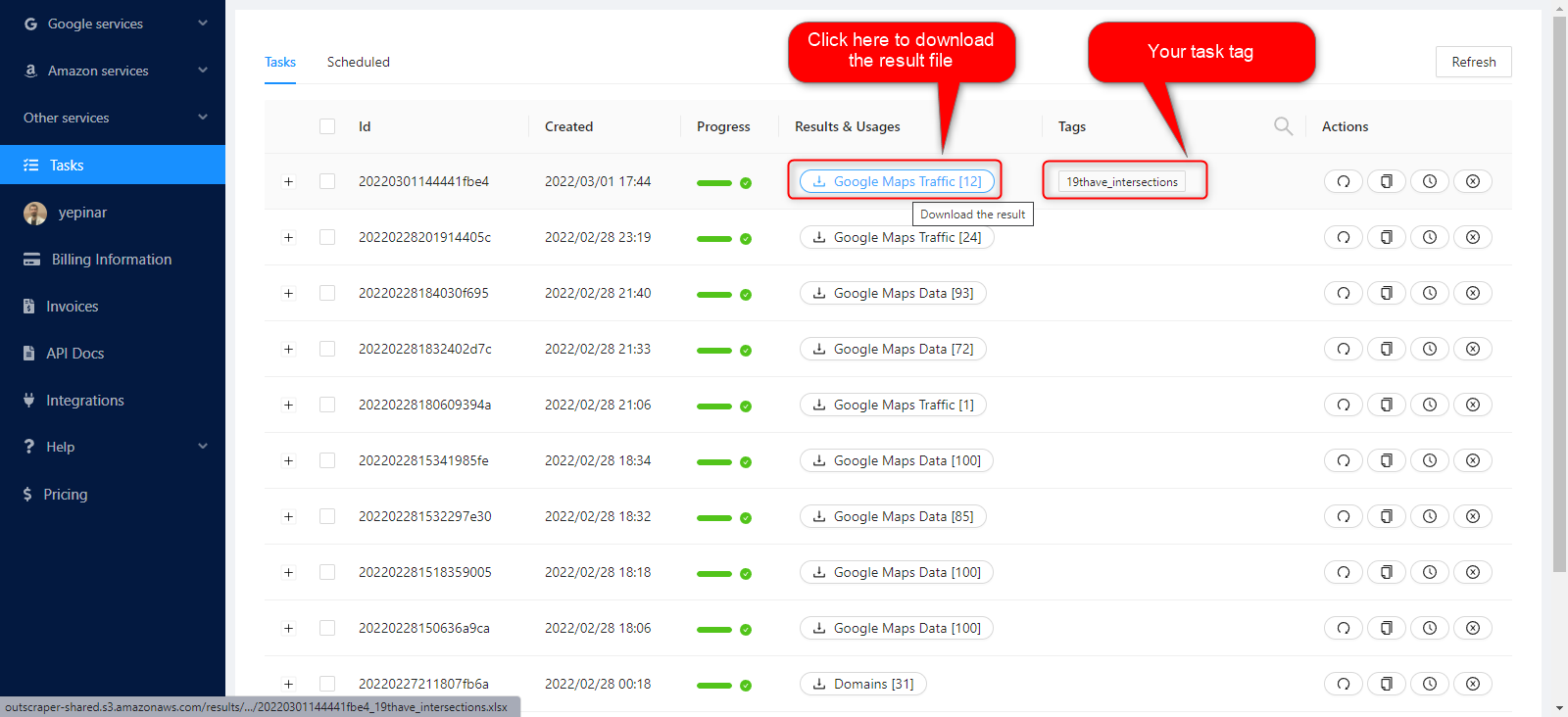
अपनी परिणाम फ़ाइल डाउनलोड करें
The task results of all services can be downloaded from this page. You can find and quickly download the task you have created.
All results are stored on servers for 30 days only. We recommend keeping the Result files on your disk for long periods.
अपनी परिणाम फ़ाइल की समीक्षा करें
The result files that you have downloaded as XLSX file types can be reviewed with a spreadsheet viewer.

This example task result file is in: 20220301144441fbe4_19thave_intersections
PRICING
मूल्य पृष्ठ और लागत कैलकुलेटर
Outscraper में कोई मासिक सदस्यता शुल्क नहीं है। आप केवल उसी के लिए भुगतान करते हैं जो आप उपयोग करते हैं।.
Please visit our pricing page for pricing details on our Google Maps Traffic scraping service.
मूल्य पृष्ठ: https://outscraper.com/pricing
There are three different tiers for pricing. These are the Free Tier, Medium Tier, and Business Tier. You can see them on the pricing page.
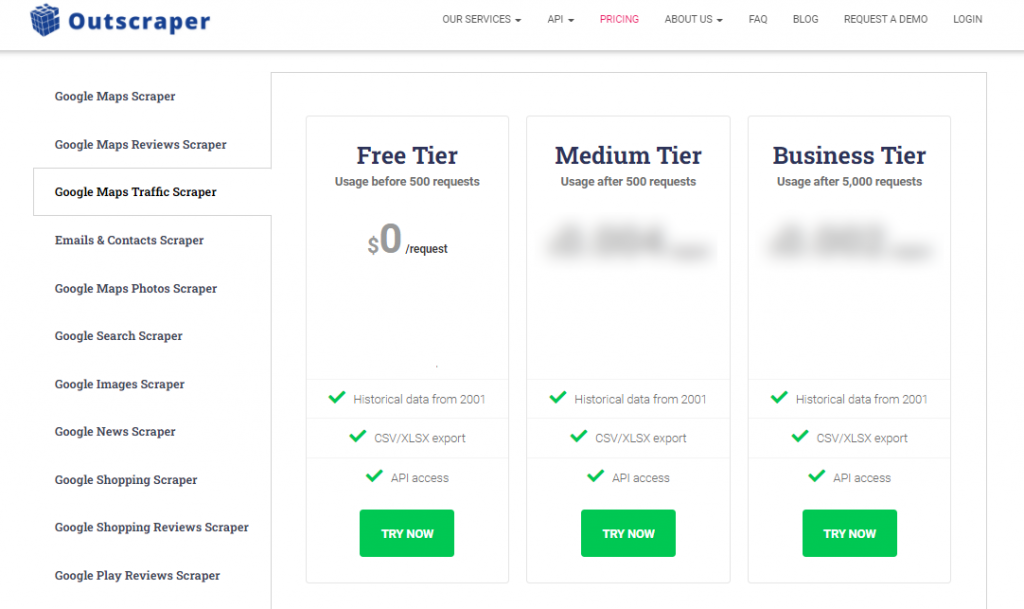
डैशबोर्ड का सेवा मूल्य निर्धारण उपकरण
After registration, the “Service pricing” tool can help you with pricing on the Google Maps Traffic Scraper service page on the Outscraper App Dashboard.
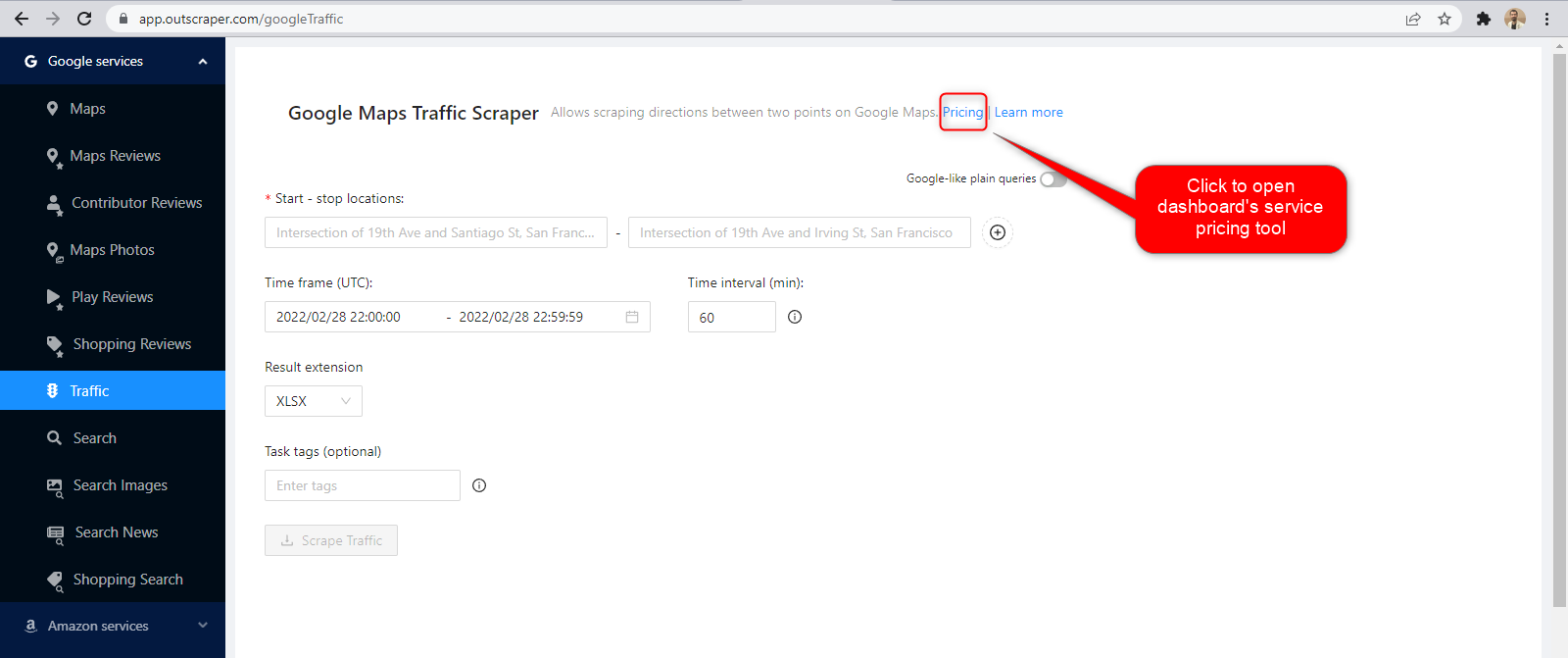
Service pricing tool can be found on the upper right section.
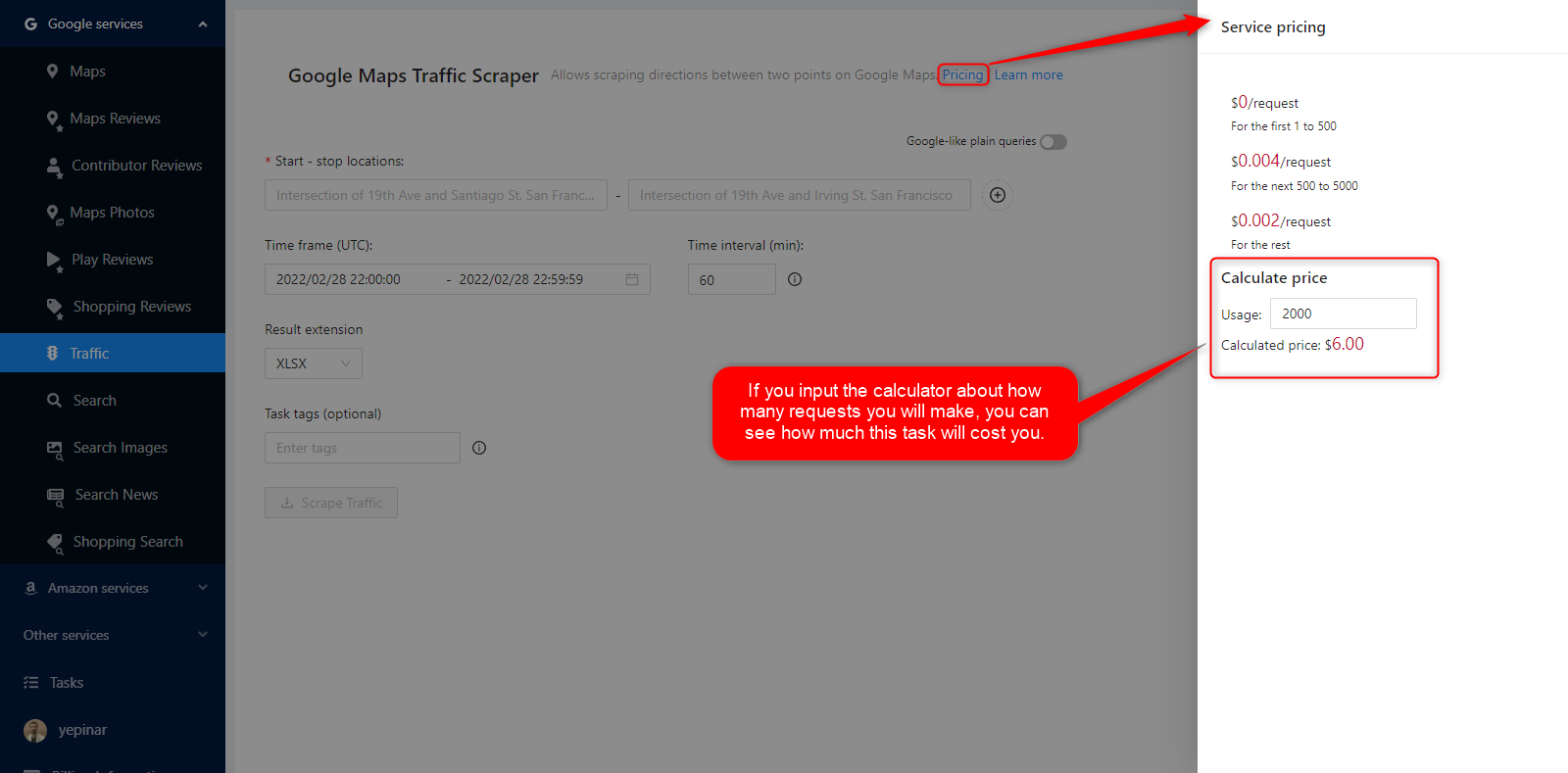
You will determine how much this task may cost by entering the number of requests you will make into a calculator. Please visit the ‘बिलिंग जानकारी‘ page to add credit or provide your credit card.
भुगतान के तरीके
फ्री टियर
Outscraper में प्रत्येक महीने आपको एक निश्चित मात्रा में मुफ्त टियर क्रेडिट्स मिलते हैं। ये क्रेडिट्स मूल्य निर्धारण पृष्ठ पर दिखाए अनुसार मासिक रूप से नवीनीकृत होते हैं।.
आप मूल्य निर्धारण पृष्ठ पर किसी विशेष सेवा के लिए आपके पास कितने मुफ्त क्रेडिट हैं, यह देख सकते हैं।.
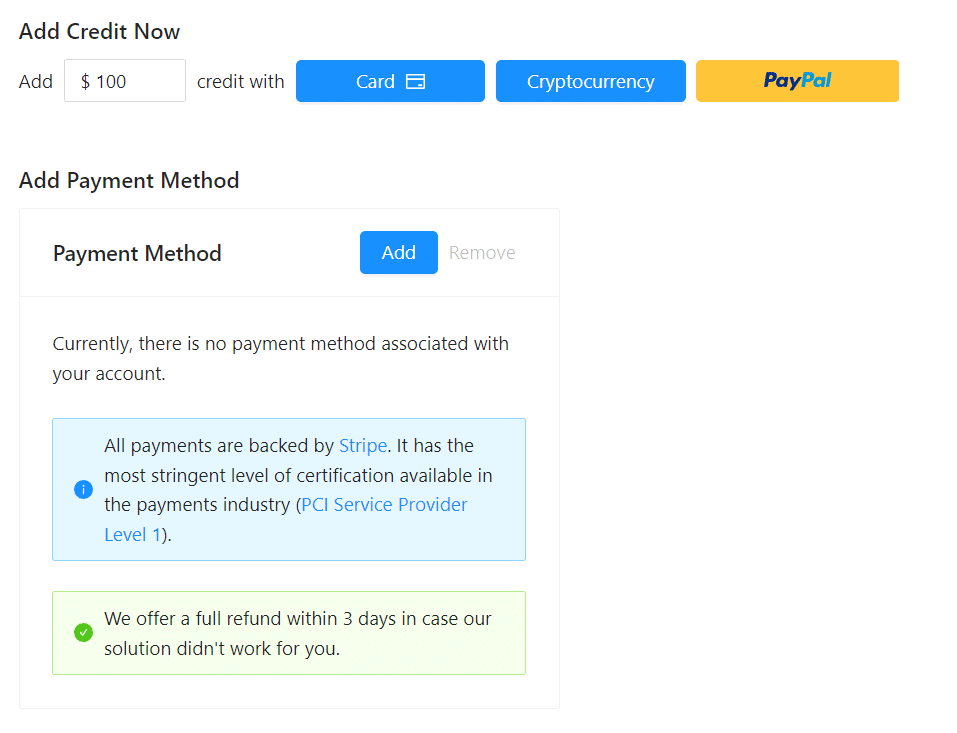
आप क्रेडिट जोड़कर प्रीपेड भुगतान विधि का उपयोग कर सकते हैं, या आप अपना क्रेडिट कार्ड जोड़कर अपनी बिलिंग अवधि के अंत में पोस्टपेड में भुगतान कर सकते हैं। कृपया भुगतान विधि निर्धारित करने के लिए कृपया बिलिंग जानकारी पृष्ठ पर जाएँ।
पूर्व-भुगतान - क्रेडिट जोड़ें
Outscraper का उपयोग शुरू करने के लिए अपने खाते में क्रेडिट जोड़ें। न्यूनतम सीमा 10 USD है। आप जितने चाहें उतने क्रेडिट जोड़ सकते हैं और जब चाहें उनका उपयोग कर सकते हैं।.
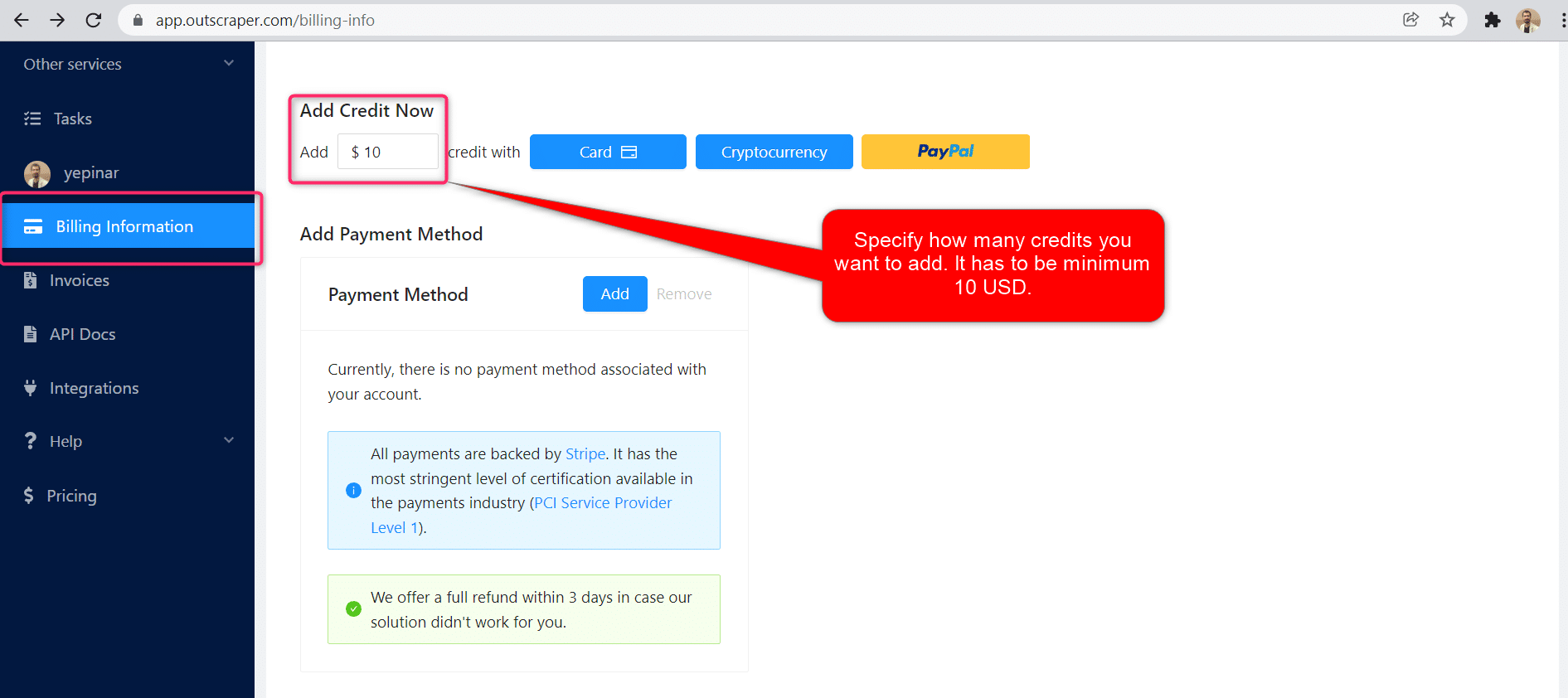
क्रेडिट कार्ड, क्रिप्टोकरेंसी, या PayPal द्वारा क्रेडिट जोड़े जा सकते हैं।.
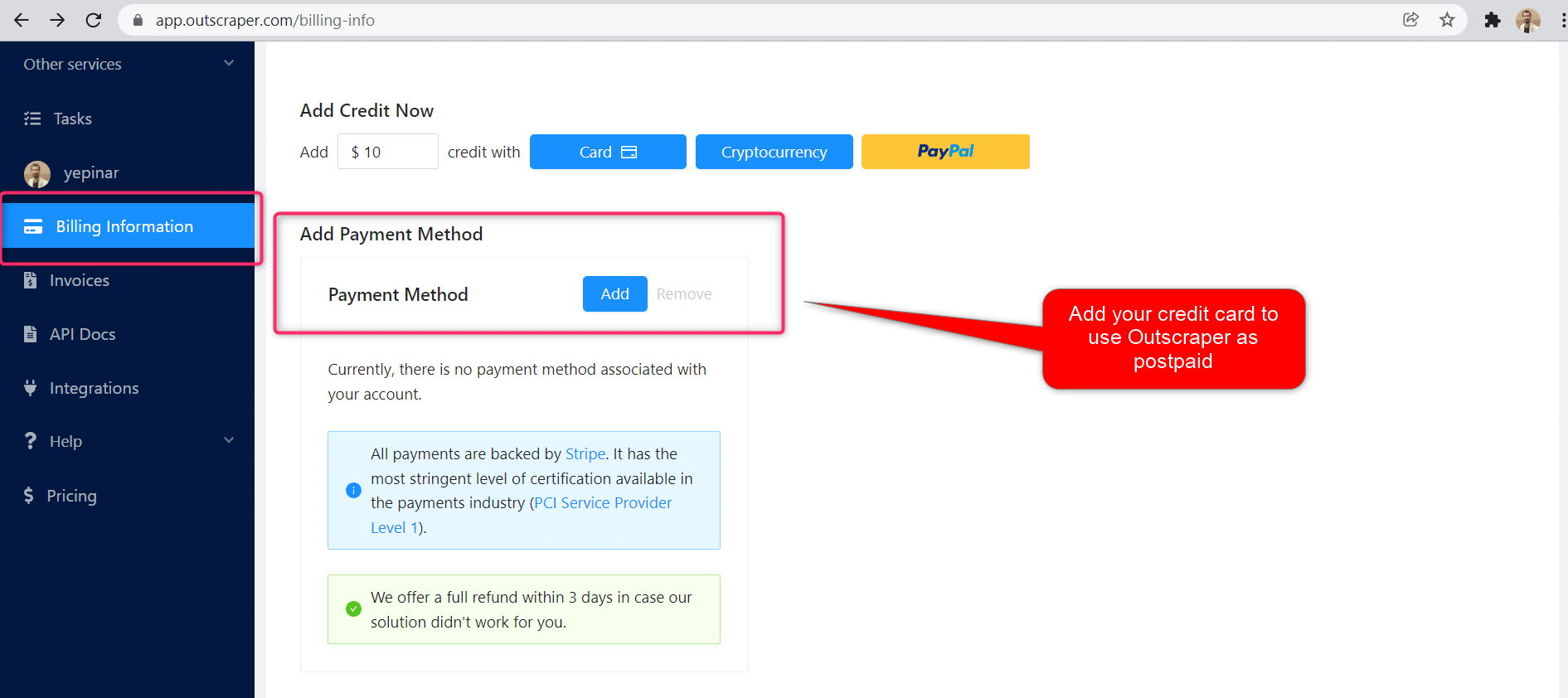
पोस्टपेड - क्रेडिट कार्ड जोड़ें
प्रीपेड तरीके में आप पहले भुगतान करते हैं और फिर इसका उपयोग करते हैं, लेकिन पोस्टपेड तरीके में आप एक क्रेडिट कार्ड प्रदान करते हैं और इसका उपयोग शुरू कर देते हैं। आप अपनी बिलिंग अवधि समाप्त होने पर भुगतान करेंगे।.
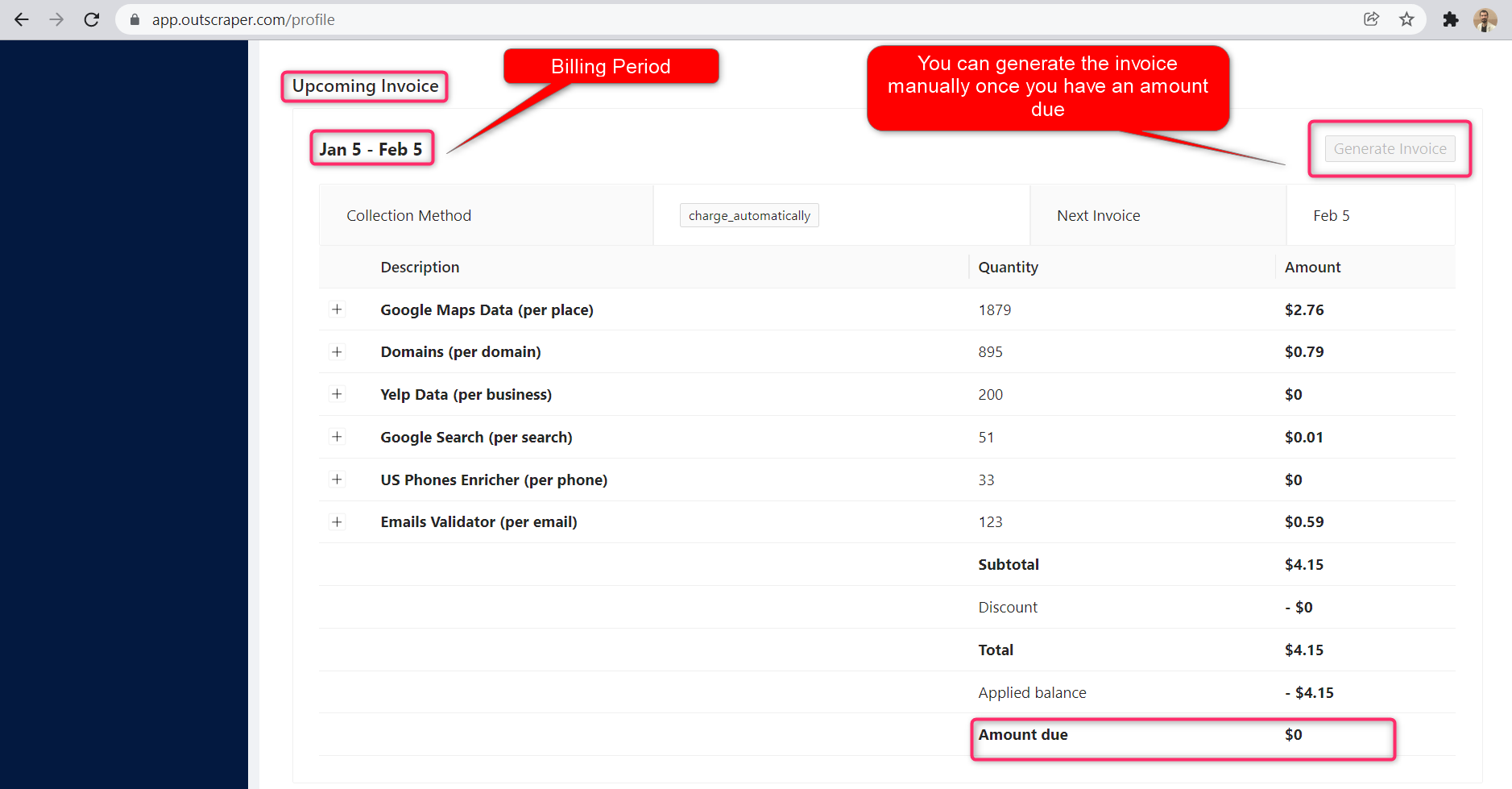
बिलिंग अवधि
बिलिंग अवधि की प्रारंभ और समाप्ति तिथियों की जानकारी प्रोफ़ाइल पेज पर मिल सकती है। आप वहाँ से आगामी चालान की राशि भी ट्रैक कर सकते हैं। यदि आप चाहें, तो देय राशि होने पर आप मैन्युअल रूप से इनवॉइस उत्पन्न कर सकते हैं।.
OUTSCRAPER GOOGLE MAPS TRAFFIC SCRAPER PRODUCT PAGE
OUTSCRAPER YOUTUBE CHANNEL
Follow us on YouTube

सामान्य प्रश्न
अक्सर पूछे जाने वाले प्रश्न और उत्तर
Google Maps provides traffic data specific to each region. When the start and end points are selected, the traffic for that region can be seen live. However, it is also possible to see historical traffic data on Google Maps. If you want to download this traffic data, you can use Outscraper Google Maps Traffic Extractor service.
You can scrape a lot of data from Google Maps with Outscraper data scraping services. Outscraper gives free credits every month as part of the “Free Tier”. With these credits, you can scrape data from Google Maps for free
You need to use an online service or tool for this. Outscraper Google Maps Data Scraper service is one of them. With Outscraper you can extract more than 40 data from Google Maps.



0 Comments