简而言之
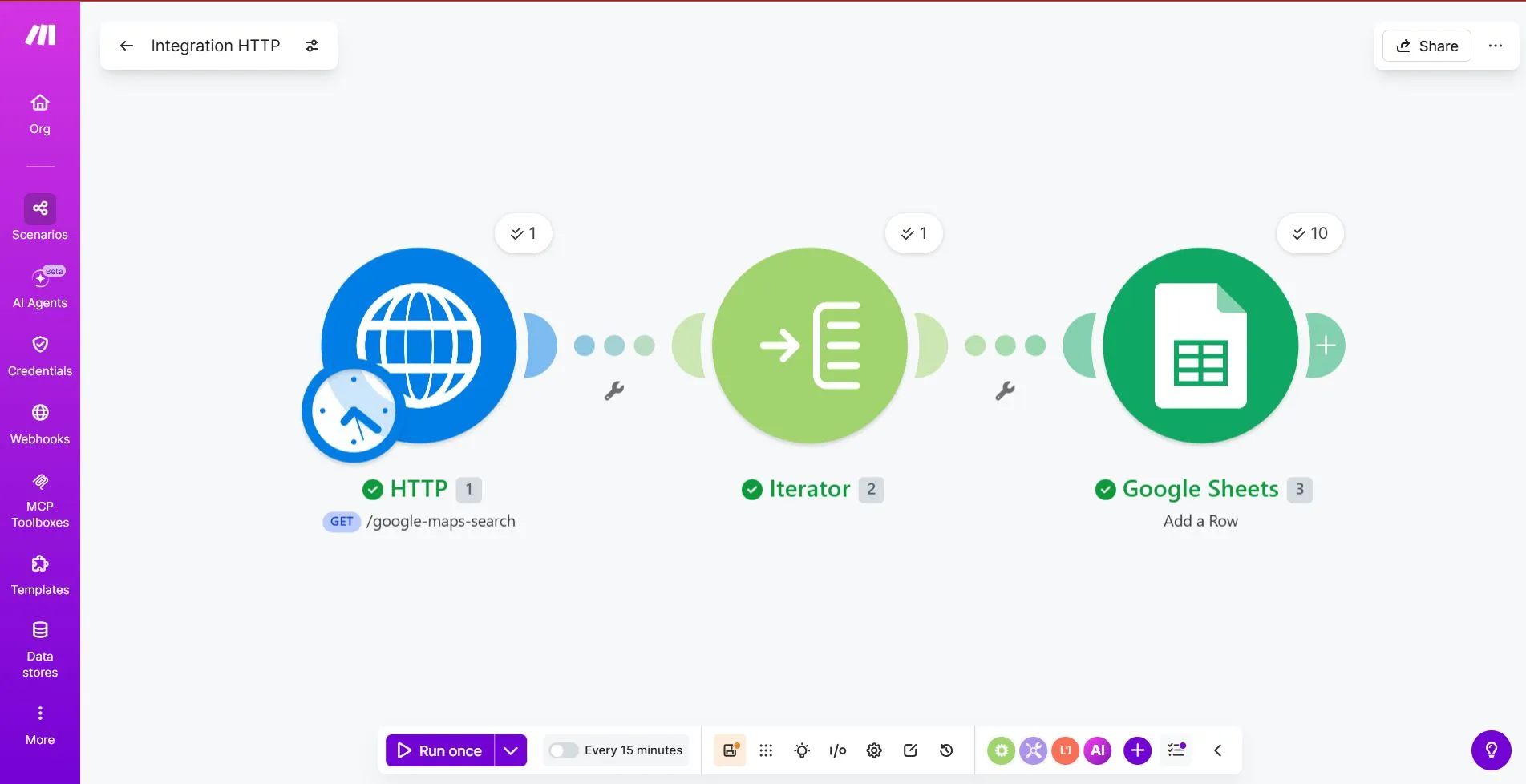
Outscraper的 Make.com 该集成可帮助团队实现 Google 地图潜在客户信息的自动化收集,无需手动复制或处理杂乱的 CSV 文件。该工作流将 Outscraper 的 Google 地图搜索 API 使用 HTTP 模块连接到 Make.com,通过 X-API-KEY 标题,使用迭代器将返回的商家记录分隔开,并将每家商家作为新行添加到 Google 表格中。.
该工作流的主要目的是将谷歌地图上的商家数据转化为一份经过整理的潜在客户名单。用户可以收集商家名称、地址、网站和电话号码等字段,然后利用电子表格进行销售推广、潜在客户开发、市场调研或本地客户开发。.
最重要的配置步骤是迭代器。Outscraper 可以在一个 API 响应中返回多家企业,但 Google 表格要求每行仅包含一家企业。迭代器会将响应拆分,以便分别处理每家企业。.
为了获得最佳效果,用户应先进行小规模测试(例如10条结果),检查数据是否映射正确,在Google表格中将电话号码格式化为纯文本,并在确认工作流运行正常后,再提高限制。.
Outscraper 获取最新的 Google 地图商业数据。Make.com 实现工作流自动化。Google 表格将潜在客户数据以整洁的行形式存储起来。.
目录
要将 Outscraper 与 Make.com 集成,请将 Outscraper Google 地图搜索 API 连接到 Make.com 的 HTTP 模块,并通过 X-API-KEY 标题,然后使用迭代器将每条业务记录作为单独的一行发送到 Google 表格中。.
当手动通过谷歌地图进行潜在客户调研效率过低,且导出CSV文件会带来额外的整理工作时,此工作流便派上用场。您无需手动复制企业名称、地址、网站和电话号码,而是可以构建一个简单的潜在客户流程,将最新 谷歌地图商家信息 将 Outscraper 的数据导入电子表格,供您的销售团队使用。.
一个常见的错误是在 HTTP 请求之后就停止了。. Outscraper 虽然一次 API 响应中可以返回多个 Google 地图商家,但 Google 表格要求每行仅包含一个商家。因此,这个面向初学者的工作流包含三个步骤:使用 HTTP 请求数据、使用 Iterator 解析结果,并将每个商家存储到 Google 表格中。.
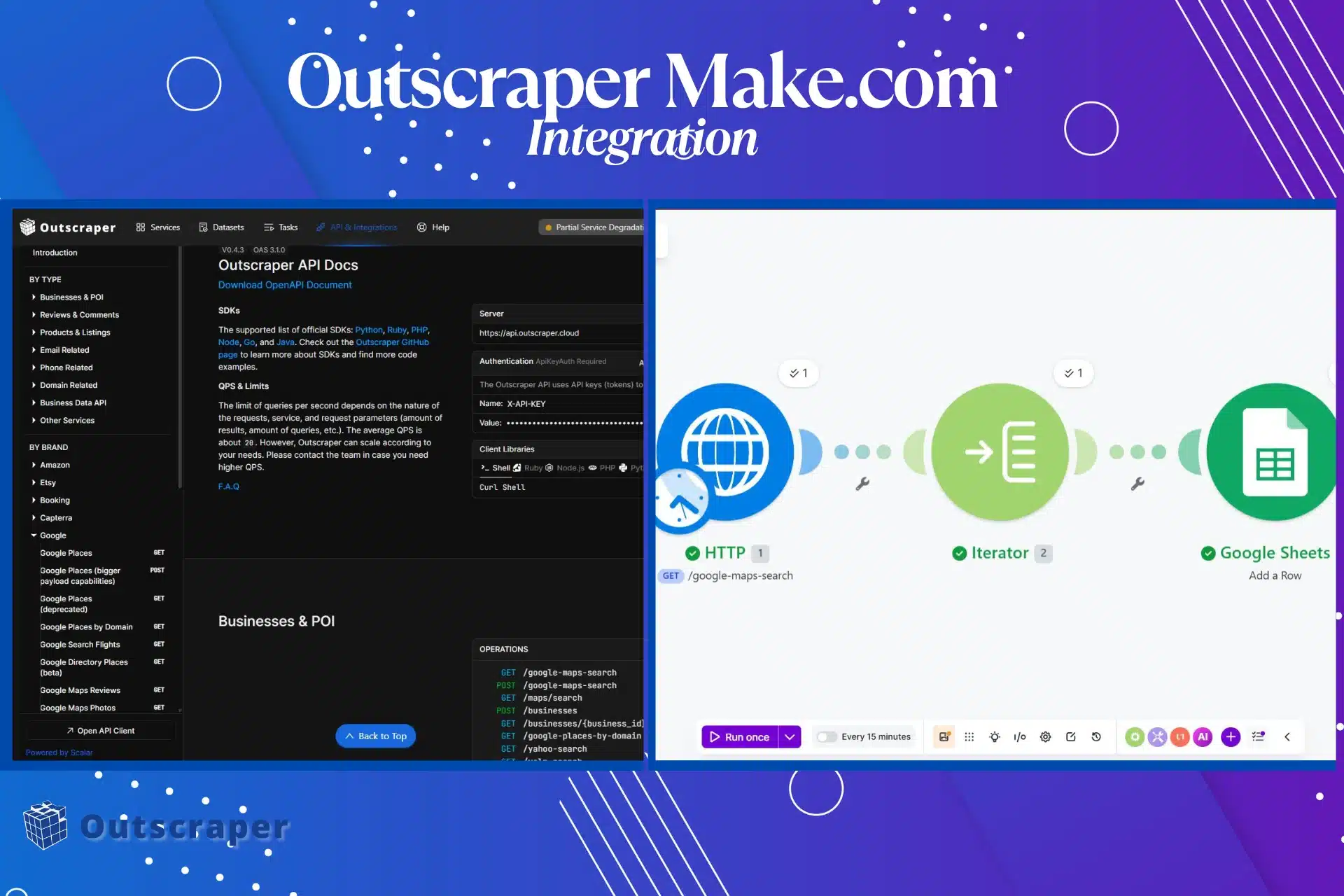
三步潜在客户流框架
1. 请求数据
Make.com 通过 HTTP 模块向 Outscraper 发送了一条 Google 地图搜索请求。.
2. 解析结果
Outscraper 可以在一个 API 响应中返回多家企业。Iterator 模块将这些结果分隔开来,以便 Make.com 能够一次处理一家企业。.
3. 存储每家企业
Google 表格会将每家企业作为新的一行进行处理。.
该框架使本教程能够聚焦于集成中最关键的部分:将业务数据转换为可用的潜在客户列表。.
重要设置说明: HTTP 模块将 Make.com 与 Outscraper 连接起来,但正是 Iterator 使得这些数据能在 Google 表格中被有效利用。如果没有 Iterator,您的工作流虽然能收到 API 响应,但可能无法为每家企业生成规范的行数据。.
开始之前
3. 用于管理潜在客户的 Google 表格
创建一个包含以下列的 Google 表格:
- 企业名称
- 地址
- 网站
- 电话号码
4. 一个搜索查询示例
在进行大规模数据抓取之前,先从一个具体的本地搜索查询开始。.
示例:
美国佛罗里达州迈阿密的餐厅
美国得克萨斯州奥斯汀的牙医
英国伦敦的商业清洁公司
美国得克萨斯州达拉斯的暖通空调承包商
在第一次测试中,请使用一个较小的限制值,例如 10 条结果. 这能为您提供足够的数据来检查工作流,同时又不会使请求过大。.
一旦基本设置正常运行,您就可以提高限制,并在以后添加更多字段,例如评分、评论、类别、来源查询、潜在客户状态或添加日期。.

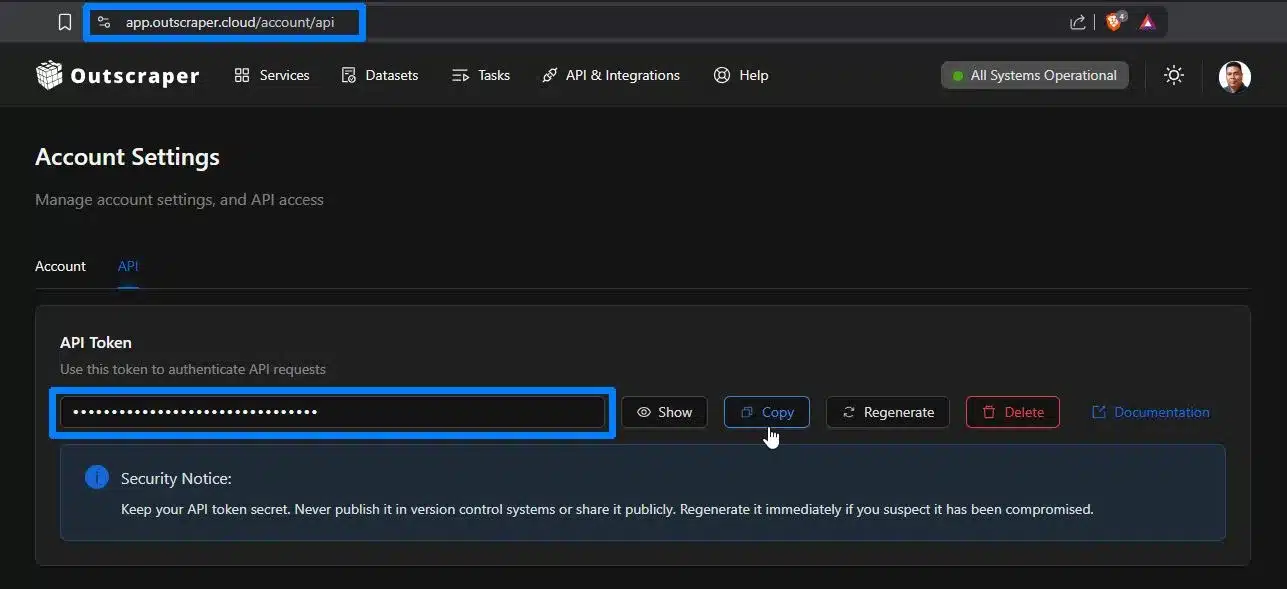
在将 Google 地图搜索 API 连接到 Make.com 之前,您需要拥有一个 Outscraper 账户和 API 密钥。先免费注册,复制您的 API 密钥,然后按照以下步骤操作。.
步骤 1:将 Make.com 连接到 Outscraper
第一步是创建一个 Make.com 场景,该场景能够向 Outscraper 发送请求。.
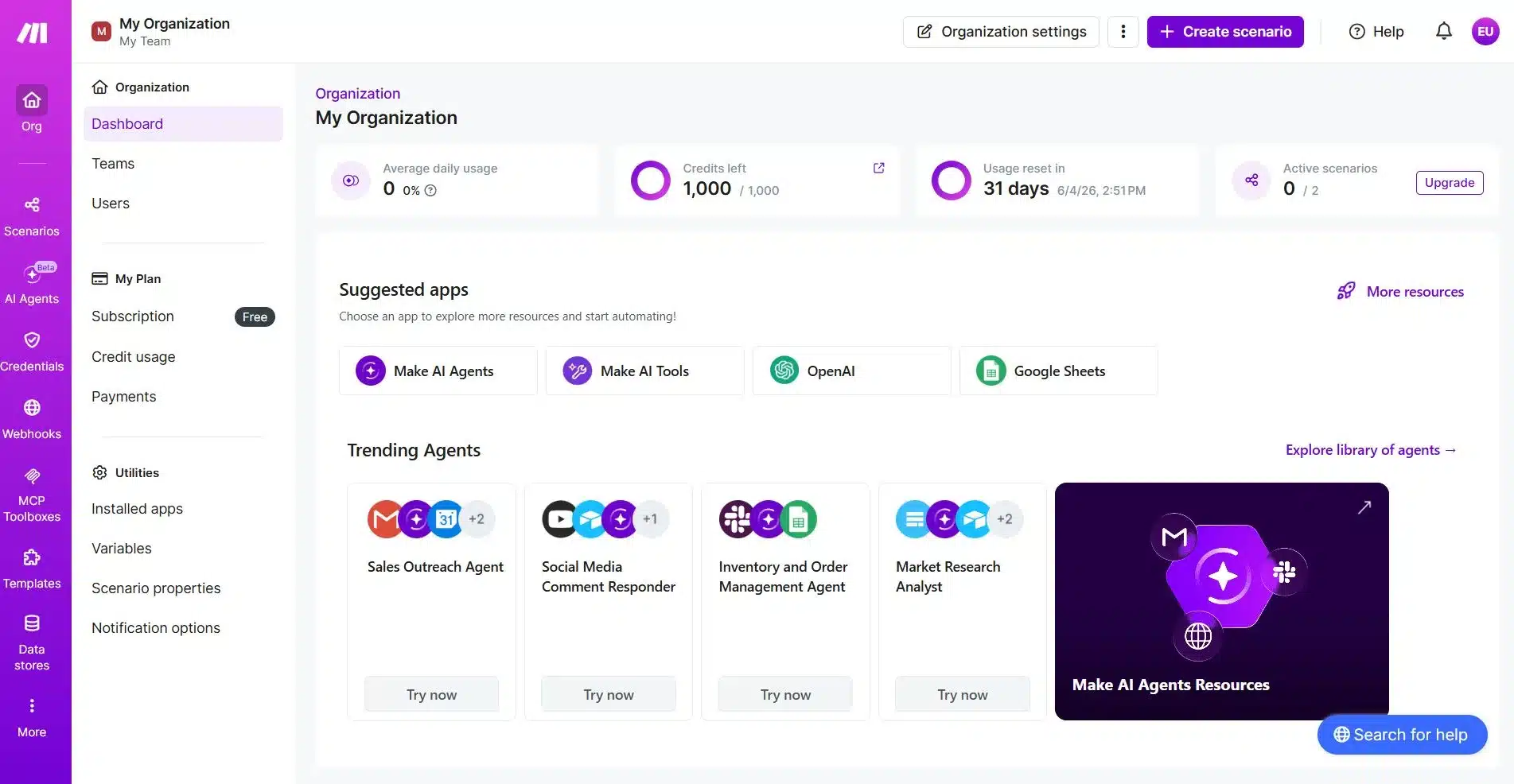
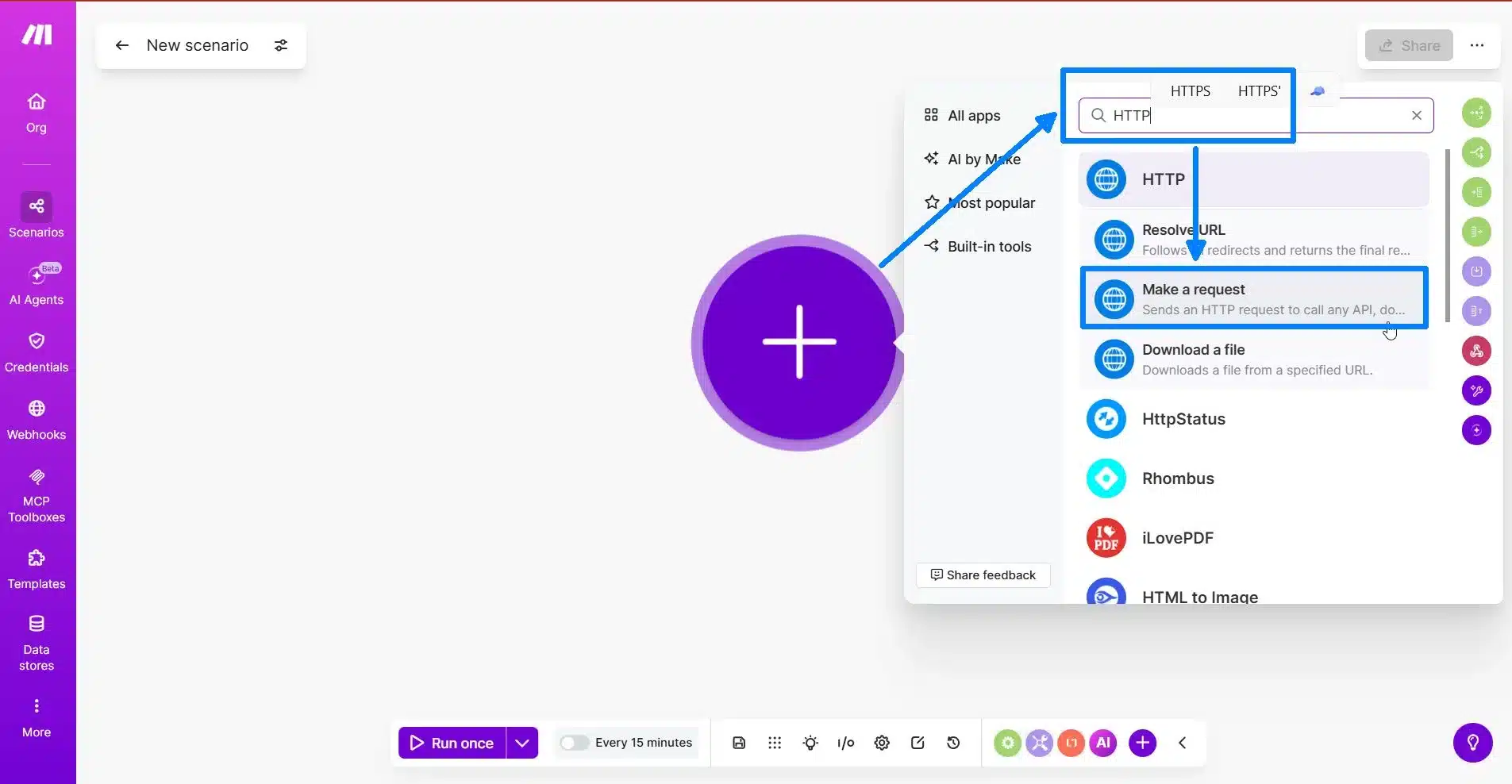
登录 Make.com 并创建一个新场景。点击加号按钮添加您的第一个模块。.
搜索 HTTP 并选择 提交请求.
该 HTTP 模块将使 Make.com 与 Outscraper API 建立连接。它是工作流中负责将您的 Google 地图搜索查询发送至 Outscraper 的部分。.
配置 HTTP 模块
在 HTTP 模块中,请从上到下填写请求设置。.
请使用以下设置:
| 场景 | 值 |
|---|---|
| 身份验证 | 未通过身份验证 |
| 方法 | GET |
| 网址 | https://api.outscraper.cloud/google-maps-search |
你可以查看 Outscraper 官方 API 文档 了解最新的端点、身份验证和参数详情。.
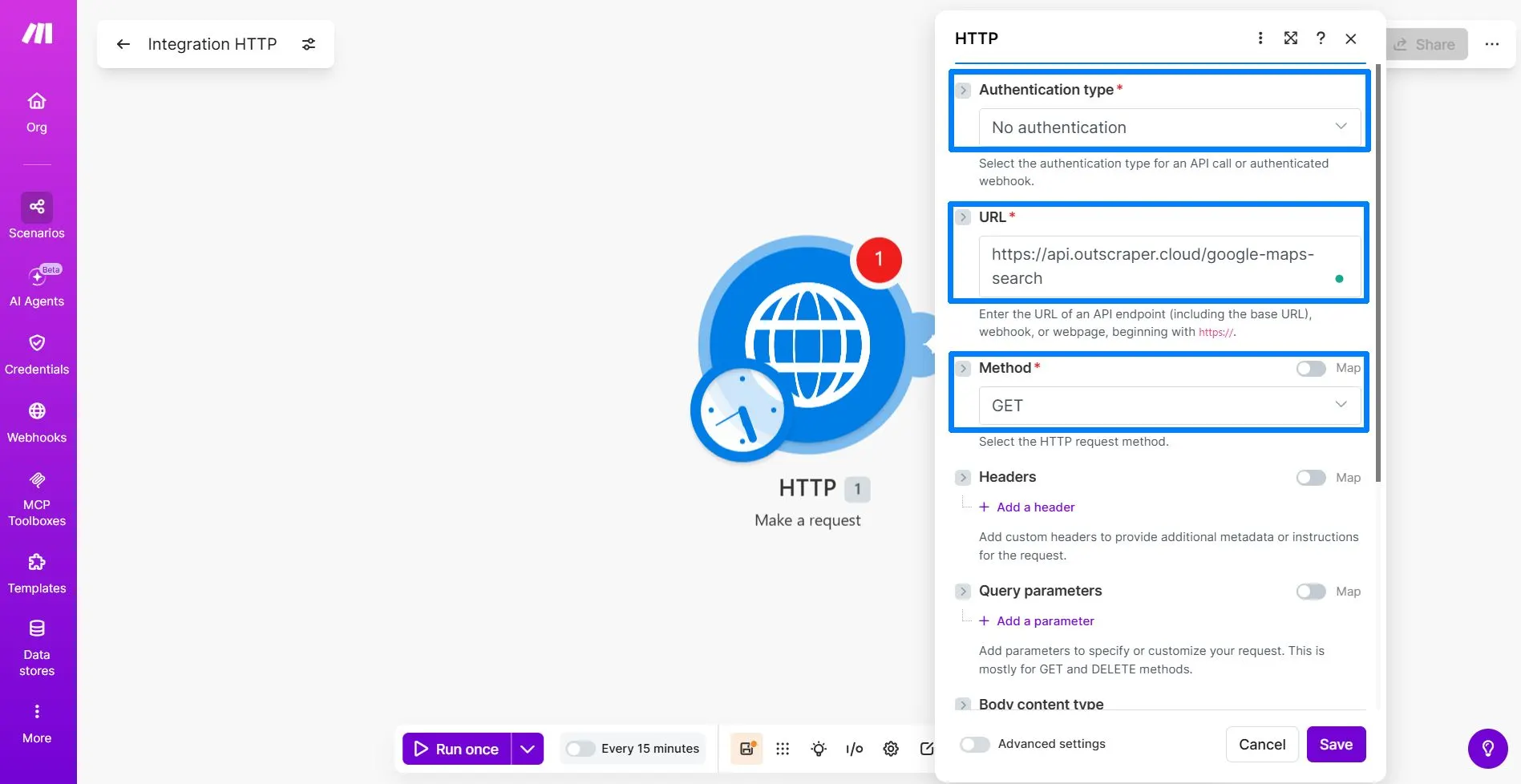
请选择“无身份验证”,因为您将在“标头”部分手动添加您的 Outscraper API 密钥。.
GET 方法会指示 Make.com 从 Outscraper API 请求数据。.
该 URL 会告诉 Make.com 应调用哪个 Outscraper 端点。在本教程中,请使用 Google 地图搜索端点。.
https://api.outscraper.cloud/google-maps-search
添加 API 密钥标头
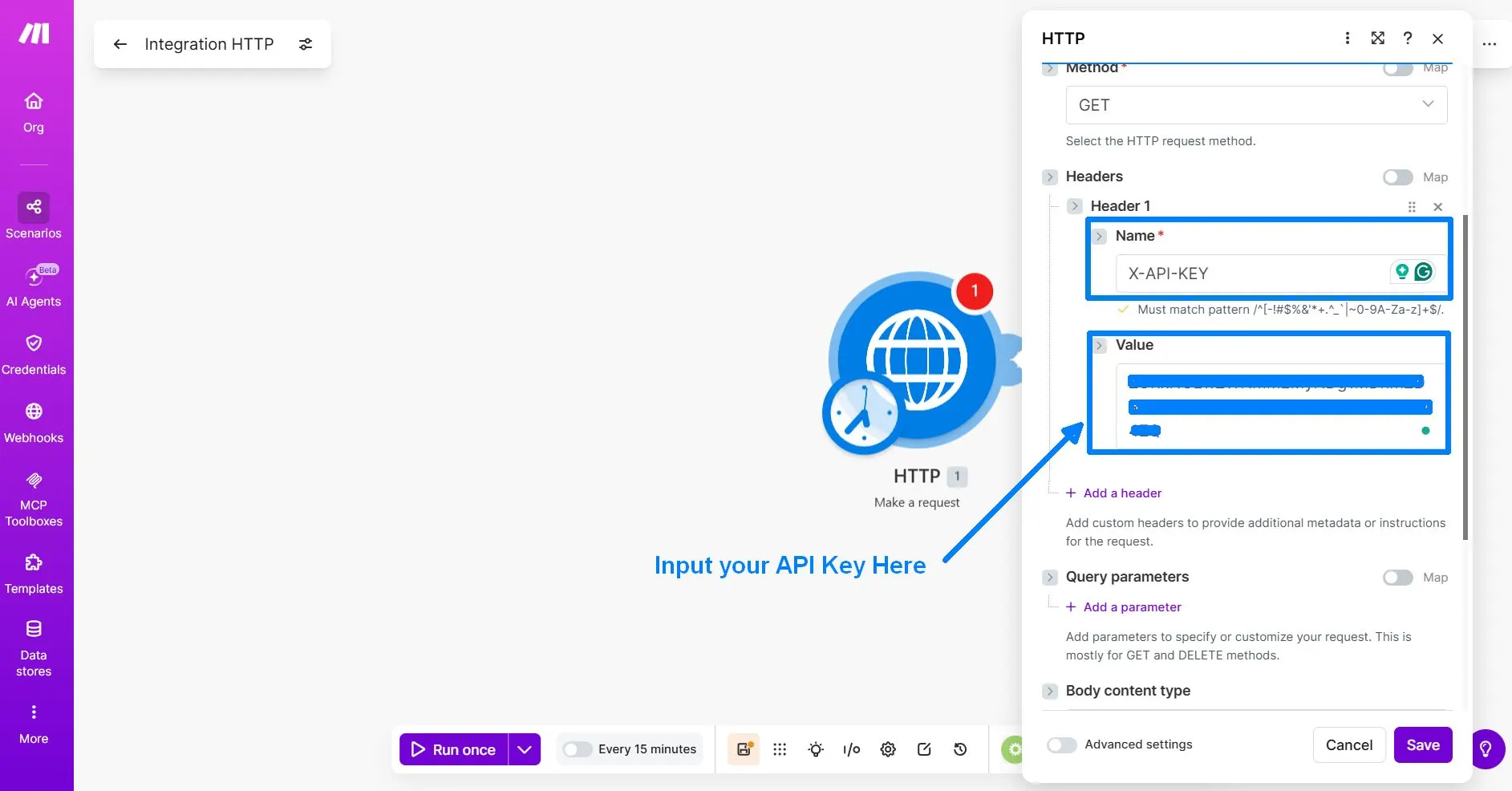
点击 添加标题. 这允许您添加一个自定义头部,以便在请求中发送您的 Outscraper API 密钥。.
请使用以下标题:
| 标题名称 | 标题值 |
|---|---|
X-API-KEY | 您的 Outscraper API 密钥 |
添加查询参数
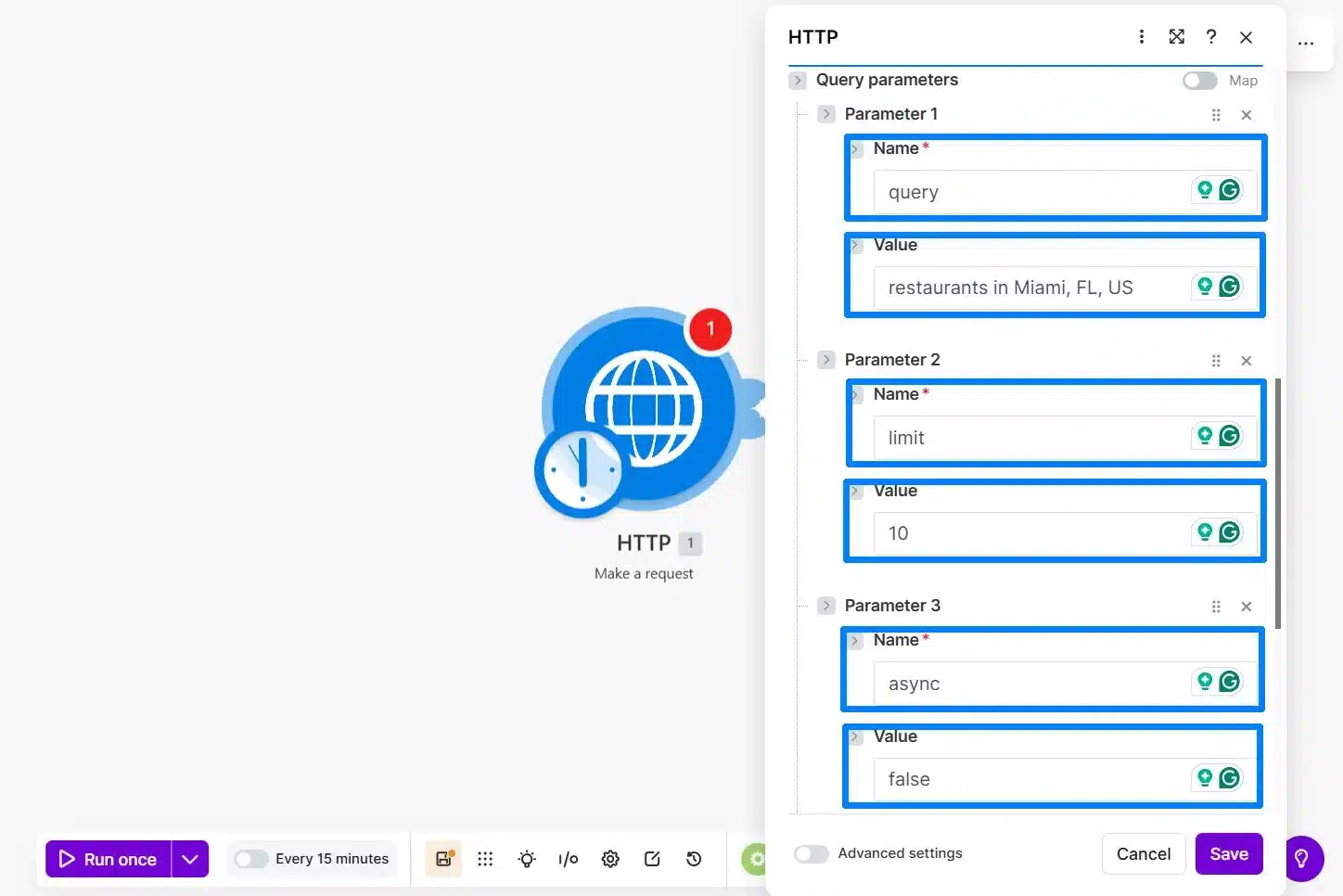
添加 API 密钥标头后,请为您的首次测试请求添加查询参数。这些参数会告知 Outscraper 搜索什么内容、返回多少条结果,以及请求应如何执行。.
对于这个面向初学者的工作流,请确保请求规模小且简单。使用一个本地搜索查询,仅返回 10 条结果,并将高级字段筛选功能留待以后使用。.
请使用以下参数:
| 参数 | 值 | 目的 |
|---|---|---|
query | restaurants in Miami, FL, US | 告诉 Outscraper 在谷歌地图上搜索什么。. |
limit | 10 | 控制首次测试运行时返回的企业数量。. |
async | false | 返回同一 Make.com 场景运行中的结果。. |
这 query 该参数用于告知 Outscraper 在 Google 地图上搜索什么内容。.
这 limit 该参数控制首次测试中返回的企业数量。.
这 async=false 该参数使工作流更易于测试,因为 Make.com 会在同一场景运行中等待结果。.
您可能会在响应中看到许多字段,例如 about, rating, reviews, working_hours, ,以及其他业务细节。这是正常的。您无需填写所有字段。稍后,当您添加 Google 表格模块时,只需将所需字段映射到您的表格中即可:
namefull_addresssitephone
面向高级用户的可选说明:
Outscraper 还支持一个 fields 如果您想将响应限制在特定字段内,请使用该参数。在本入门教程中,建议先省略该参数,待进行 Google 表格映射步骤时再选择字段,这样操作起来更简单。.
运行前的最终 HTTP 模块设置
在您点击之前 运行一次, 请检查 HTTP 模块中的最后几项设置。这些选项有助于 Make.com 正确接收并读取 Outscraper 的响应。.
请使用以下设置:
| 选项 | 推荐设置 | 简明解释 |
|---|---|---|
| 正文内容类型 | 留空 | 这是一个 GET 请求,因此无需发送请求正文。. |
| 解析响应 | 是的 | 这有助于 Make.com 解析 JSON 响应,并在后续显示您所需的字段。. |
| 分页类型 | 留空或无 | 此入门测试使用 limit=10, ,因此无需分页。. |
| 超时 | 300秒 | 这样,如果请求耗时较长,Outscraper 就有更多时间返回结果。. |
在第一次测试中,请保持请求规模较小。请使用 limit=10 并在增加订单量之前,确认 Make.com 能够接收企业名称、地址、网站和电话号码。.
运行第一次测试并检查响应
在检查完 HTTP 模块的最终设置后,请单击 运行一次 在 Make.com 上。.
Make.com 将通过 API 端点将您的请求发送至 Outscraper,, X-API-KEY 标头以及您之前添加的查询参数。.
如果配置正确,HTTP 模块应显示一个绿色对勾,并返回来自 Outscraper 的响应。打开 HTTP 模块的输出窗口,检查结果。.
首次测试若成功,应显示 Status Code: 200. 这意味着 Make.com 已成功从 Outscraper API 接收到了响应。.
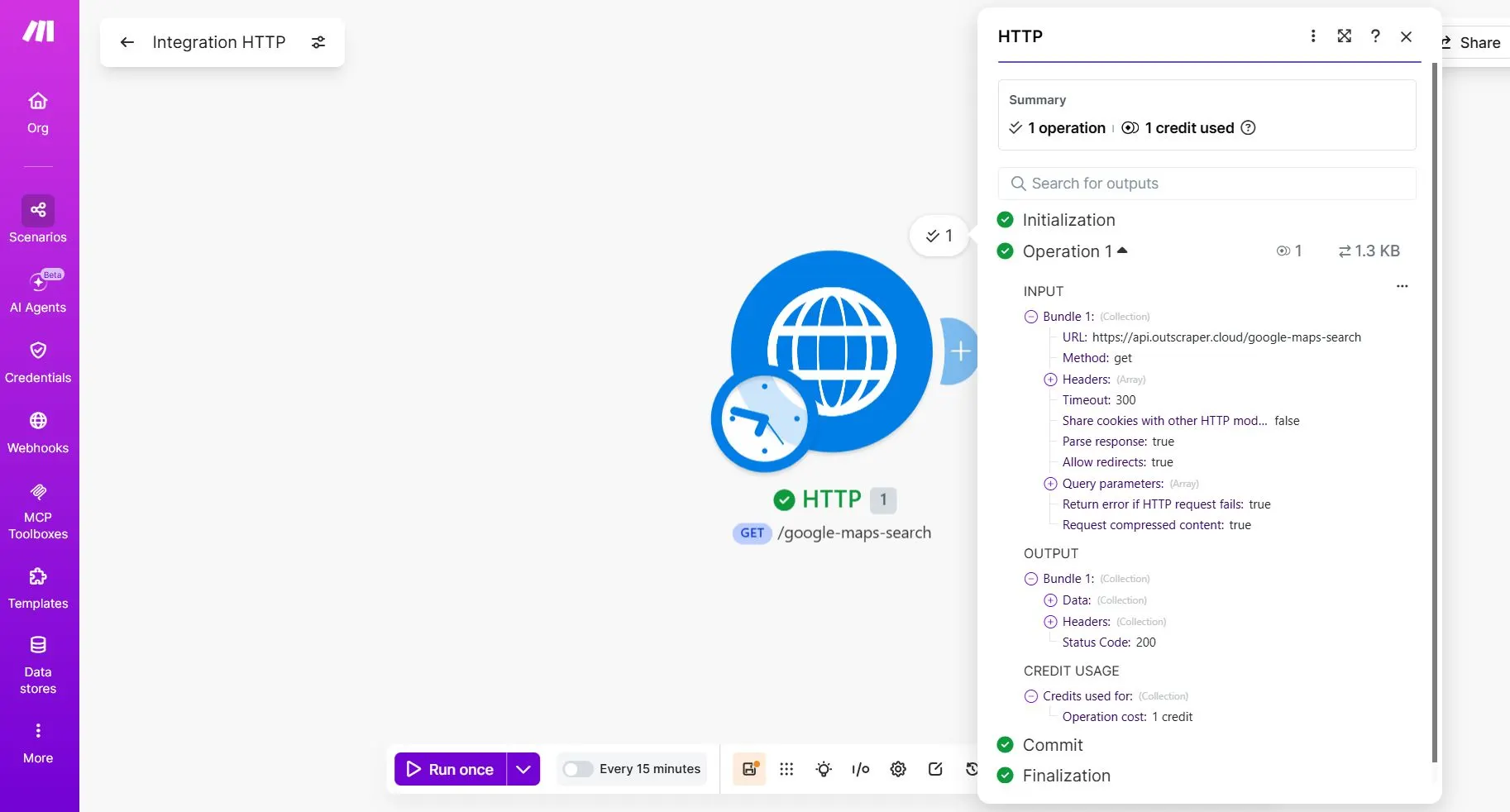
测试成功意味着什么
如果 HTTP 模块运行时未出现错误,并从 Outscraper 返回了有效的响应,则首次测试即为成功。.
请参考以下简明检查清单:
| 需要检查的内容 | 其含义 |
|---|---|
| HTTP 模块上的绿色勾号 | HTTP 模块已成功运行。. |
Status Code: 200 | Make.com 已成功从 Outscraper API 收到响应。. |
Parse response: true | Make.com 可以解析 JSON 响应,并在后续模块中使用返回的字段。. |
| 数据部分已提供 | Outscraper 响应中包含返回的数据,您可以展开并查看这些数据。. |
name, address 或者 full_address,
website 或者 site,以及 phone | 这些是您稍后将映射到 Google 表格中的字段。. |
确认请求成功后,展开 Data HTTP 模块输出中的该部分。.
请查找以下字段:
nameaddress或者full_addresssite或者websitephone
Make.com 显示的某些字段标签可能与 Outscraper API 的原始响应有所不同。请根据字段所包含的数据来选择相应的字段。.
| Google 表格中的列 | Outscraper 字段 |
|---|---|
| 企业名称 | name |
| 地址 | full_address |
| 网站 | site |
| 电话号码 | phone |
您还可以在一个 data 数组。这是正常的。Outscraper 可以在一个响应中返回多个企业,因此下一步是使用一个 迭代器 将这些业务拆分为单独的记录。.
在此阶段,请先不要连接 Google 表格。此处的目的是仅确认 Make.com 能否从 Outscraper 接收业务数据。.
一旦能在 HTTP 输出中看到业务记录,就说明 API 连接已建立。下一步是解析响应内容,以便 Make.com 能将每笔业务作为单独的一行进行处理。.
在构建迭代器步骤之前,请确保您的 Outscraper 请求返回的是真实的业务记录。.
步骤 2:使用迭代器拆分 Outscraper 的结果
在 HTTP 模块返回成功响应后,添加一个迭代器。此步骤将 Outscraper 的结果进行拆分,以便 Make.com 能够一次处理一笔业务。.
添加迭代器模块
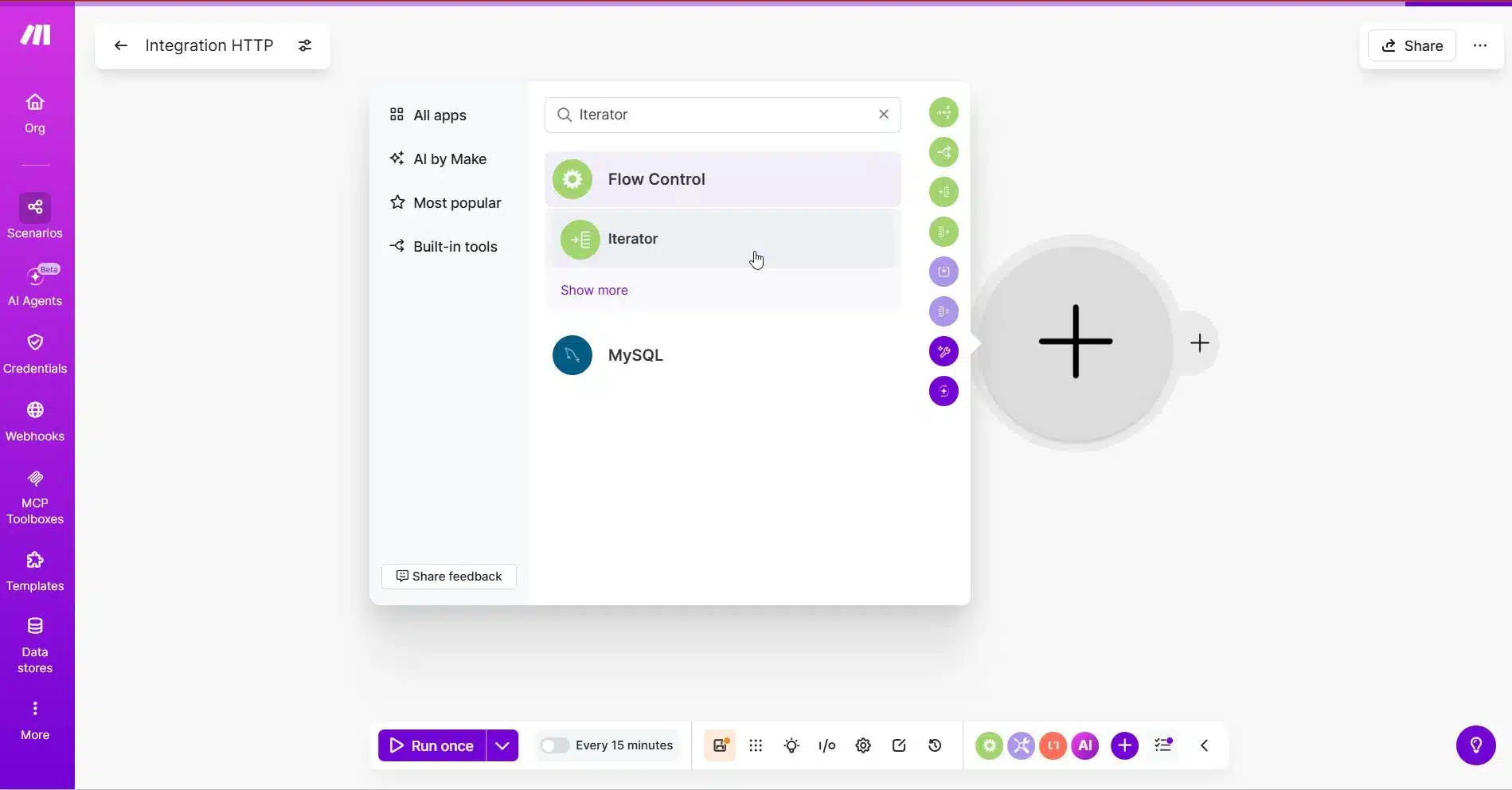
在 Make.com 中,点击 HTTP 模块后面的加号按钮。.
搜索 迭代器 然后选中它。.
迭代器应紧跟在HTTP模块之后。.
选择数组
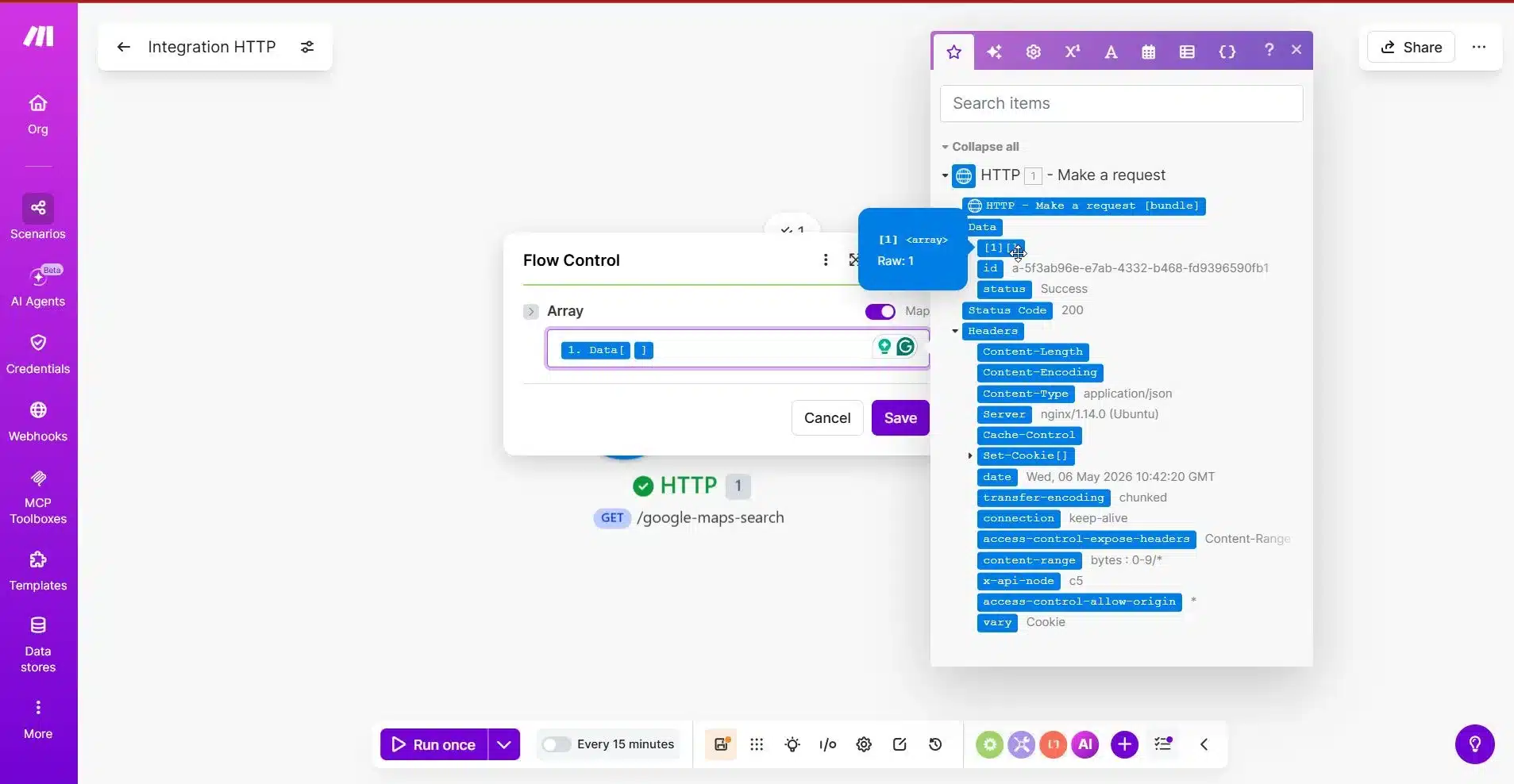
在 Iterator 模块中,Make.com 会要求提供 数组.
这是最重要的一点。.
从 HTTP 模块中选择包含业务结果的数组。.
对于 Outscraper,结果可能会出现在如下所示的嵌套结构中:
Data -> 1
因为 Outscraper 可以在嵌套的 data 数组,您可能需要展开 HTTP 模块的输出,并选择其中包含实际企业的内部数组。.
正确的数组是包含多个业务记录的那个。.
运行迭代器测试
选择数组后,点击 运行一次 再次。.
如果您的请求使用了:
limit = 10
那么,迭代器应创建最多 10捆.
每个捆绑包应代表一家企业。.
勾选“一个迭代器包”
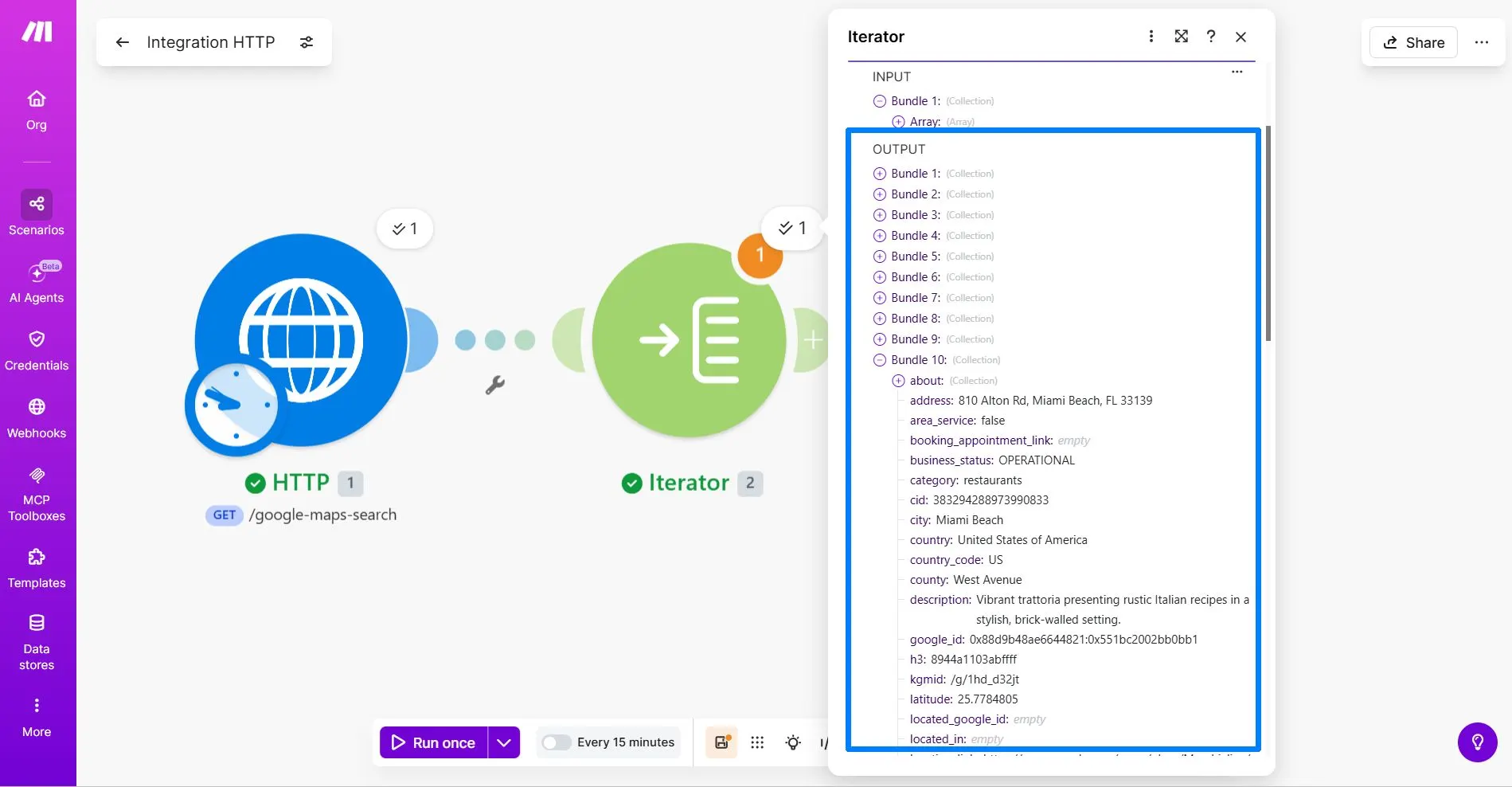
迭代器测试运行完成后,单击迭代器输出气泡,并打开一个包。.
请检查该资料包是否包含以下业务信息:
nameaddress或者full_addresssite或者websitephone
您可能还会看到许多其他字段,例如 about, rating, reviews,或 working_hours. 这是正常的。对于这个面向初学者的工作流程,只需关注您将在 Google 表格中使用的字段即可。.
| Google 表格中的列 | Outscraper 字段 |
|---|---|
| 企业名称 | name |
| 地址 | address 或者 full_address |
| 网站 | website 或者 site |
| 电话号码 | phone |
如果迭代器创建了多个捆绑包,且每个捆绑包中包含一家企业,则该配置运行正常。.
如果迭代器只创建一个捆绑包会怎样?
如果迭代器只创建了一个捆绑包,那你可能选错了数组。.
返回 Iterator 模块,并检查 数组 字段。选择其中的内部数组 Data 其中包含实际的业务记录。.
正确的数组应该生成多个捆绑包,而不仅仅是一个。.
由于您的测试使用了 limit = 10, 如果看到多达 10 个数据包,说明 Make.com 已正确分离了 Outscraper 的结果。.
一旦迭代器开始运行,下一步就是将每个数据包作为新行发送到 Google 表格中。.
一旦迭代器将结果分隔开来,即可将经过清理的业务记录发送至 Google 表格、您的 CRM 系统或其他销售工作流。建议从小规模开始,待数据行准确无误后再逐步扩大规模。.
Step 3: Send Each Business to Google Sheets
After the Iterator creates separate bundles, the next step is to send each business record into Google Sheets.
Each Iterator bundle represents one business. When you add the Google Sheets module after the Iterator, Make.com will use each bundle to create one new row in your spreadsheet.
Add the Google Sheets Module
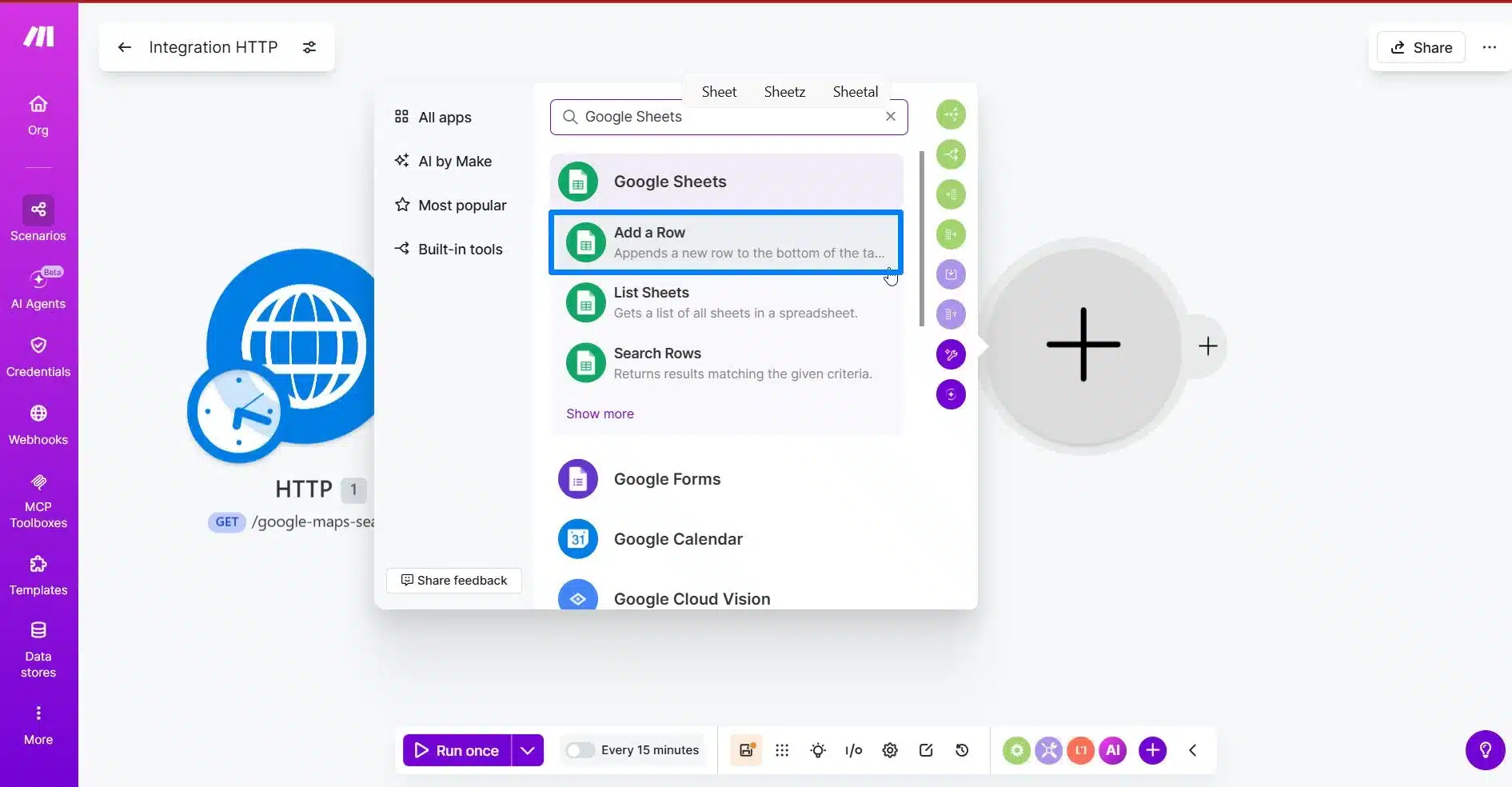
Click the plus button after the Iterator module.
搜索 Google 表格 并选择 Add a Row.
This module will add each business from the Iterator into your Google Sheet.
Connect Your Google Account with Make.com
If this is your first time using Google Sheets in Make.com, connect your Google account.
After connecting, choose the spreadsheet where you want to store your Outscraper leads.
Then choose the worksheet or tab that contains your lead columns.
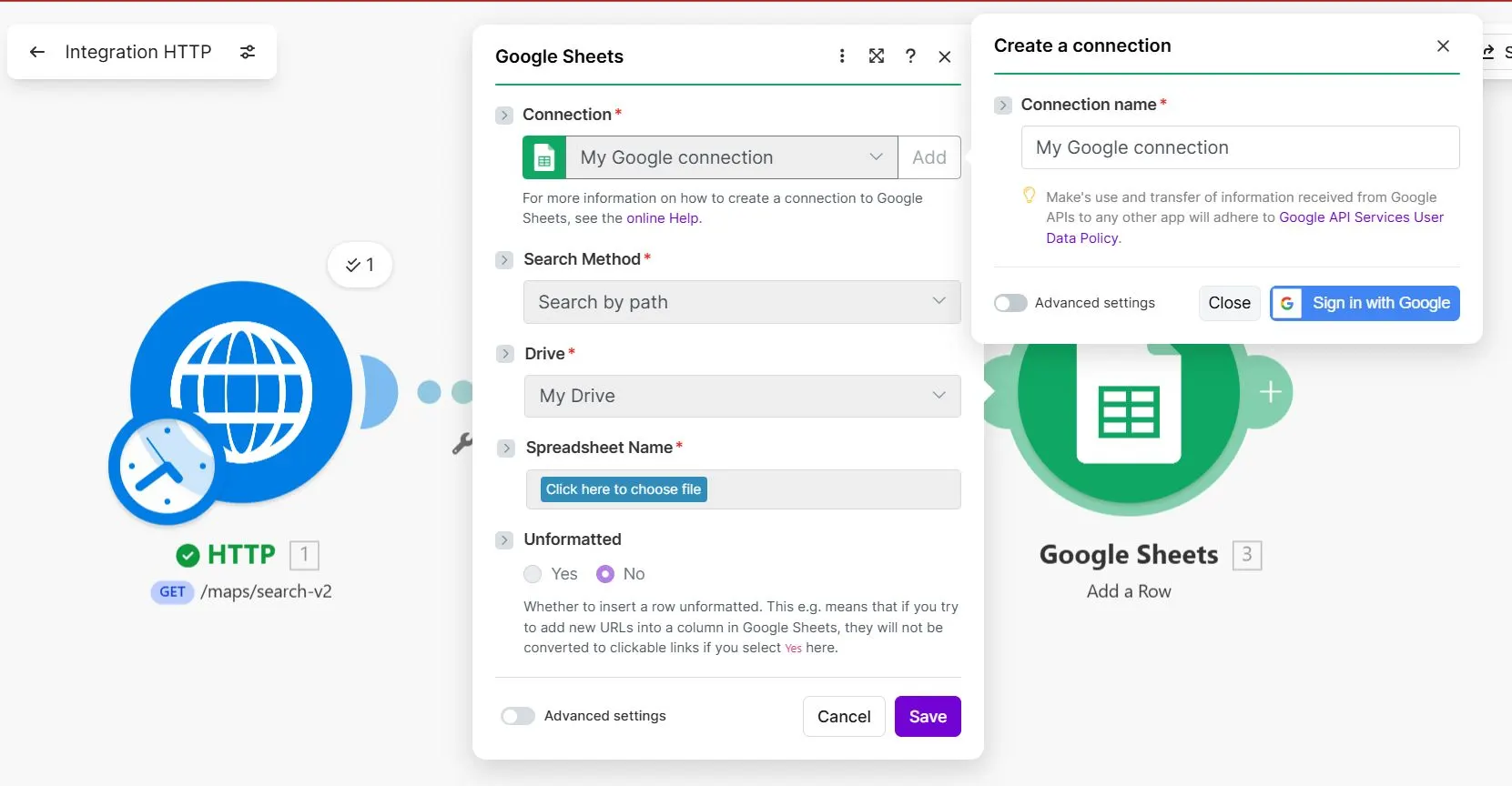
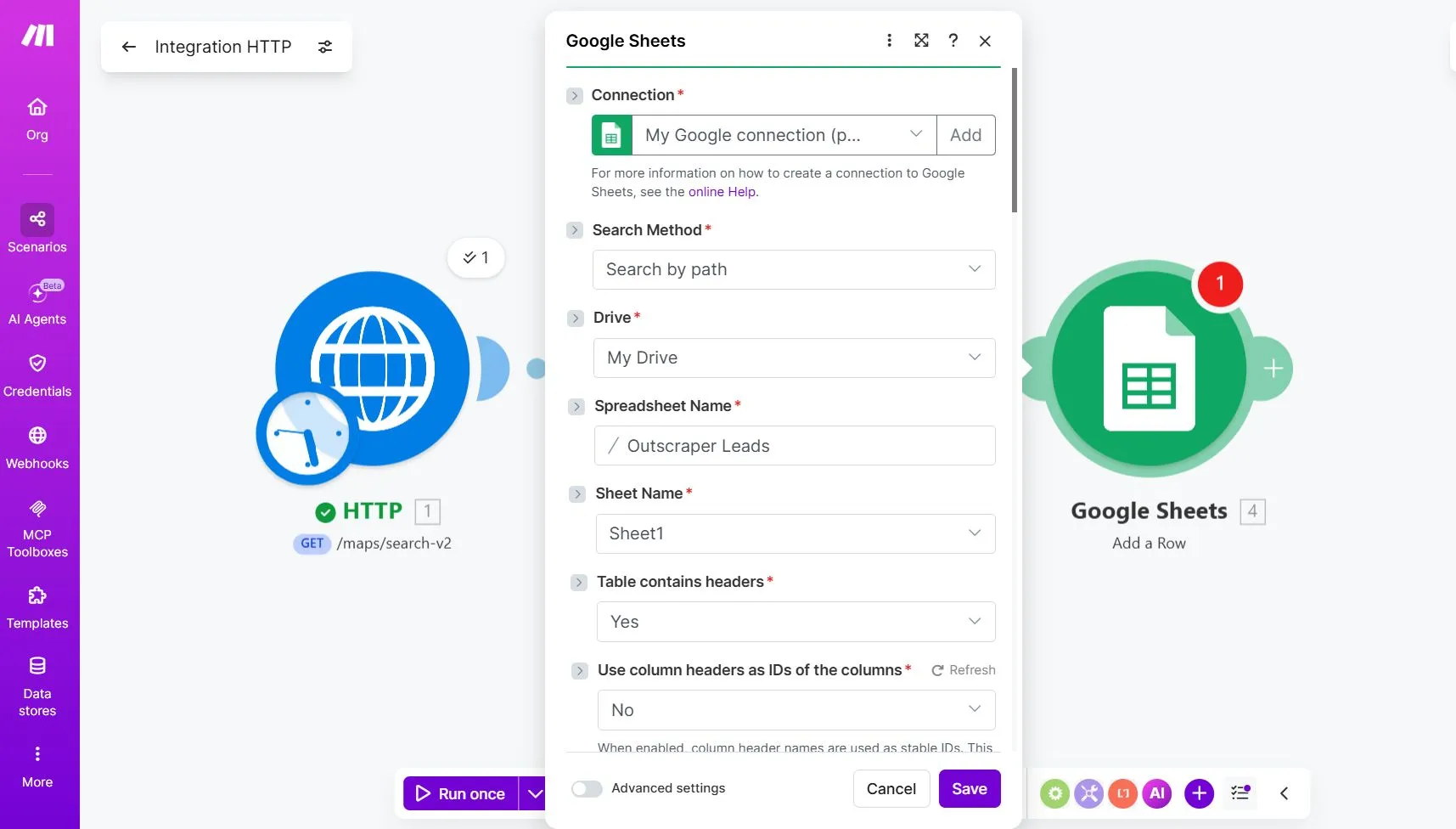
Before connecting Make.com to your Google account, make sure you have prepared the spreadsheet where your leads will be saved. For this tutorial, your Google Sheet should have these columns:
- 企业名称
- 地址
- 网站
- 电话号码
Map the Iterator Fields to Google Sheets
In the Google Sheets module, map each Google Sheets column to the matching field from the Iterator output.
In Make.com, the field names may appear slightly differently from the raw Outscraper API response. For example, the address field may appear as address 而不是 full_address, and the website field may appear as website 而不是 site.
Use the fields that match the data you see in your Iterator output.
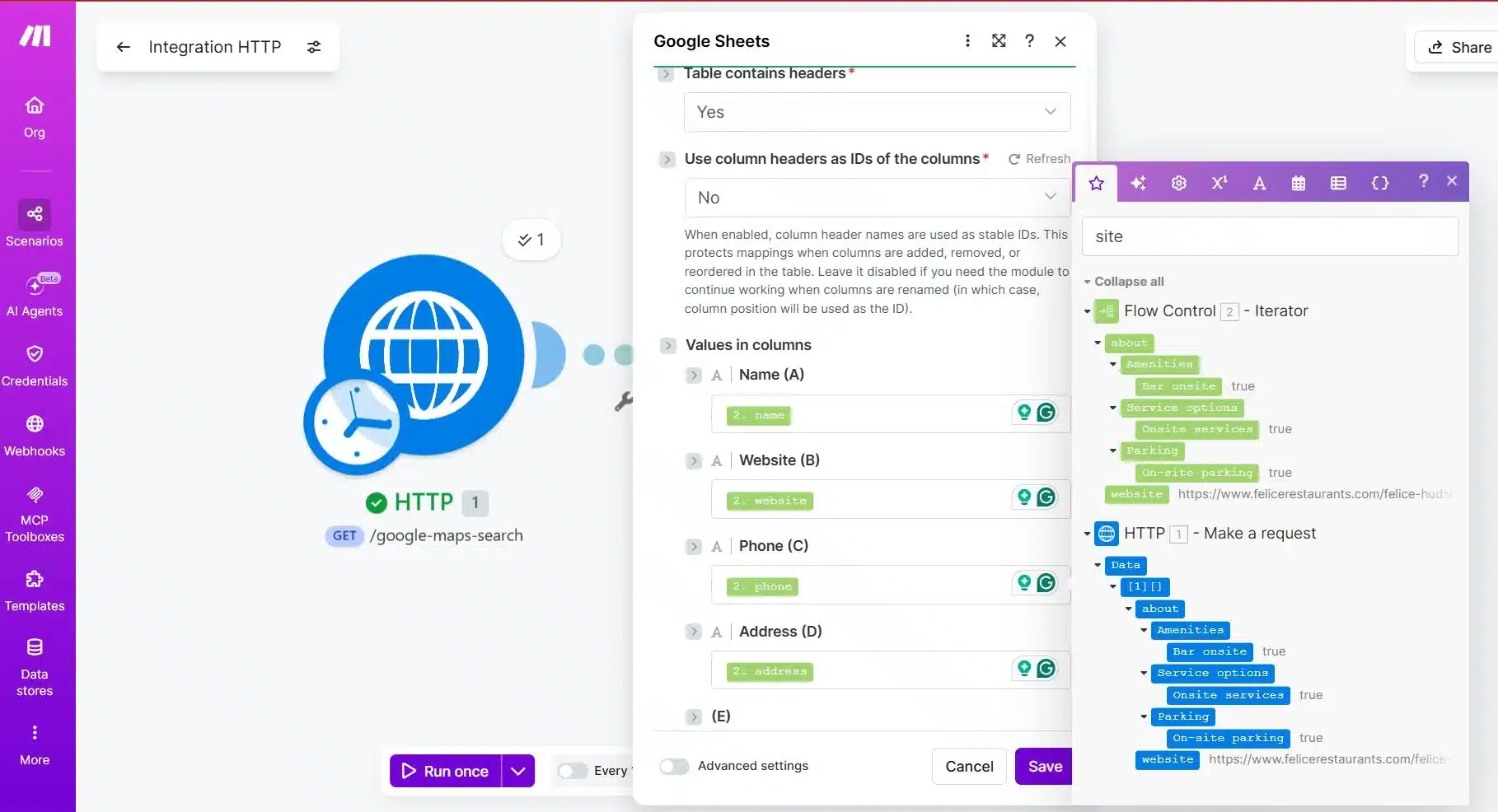
| Google 表格中的列 | Iterator Field |
|---|---|
| 企业名称 | name |
| 地址 | address |
| 网站 | website |
| 电话号码 | phone |
Mapping note:
The field labels in Make.com may not always match the raw Outscraper API field names exactly. For example, you may see address 而不是 full_address,或 website 而不是 site. Choose the field based on the data it contains, not only the label.
Make sure you select the fields from the Iterator module, not directly from the HTTP module. The Iterator is what separates each business record, so the Google Sheets module should use the Iterator output.
Run a Test for Outscraper and Make.com Integration
点击 运行一次 再次。.
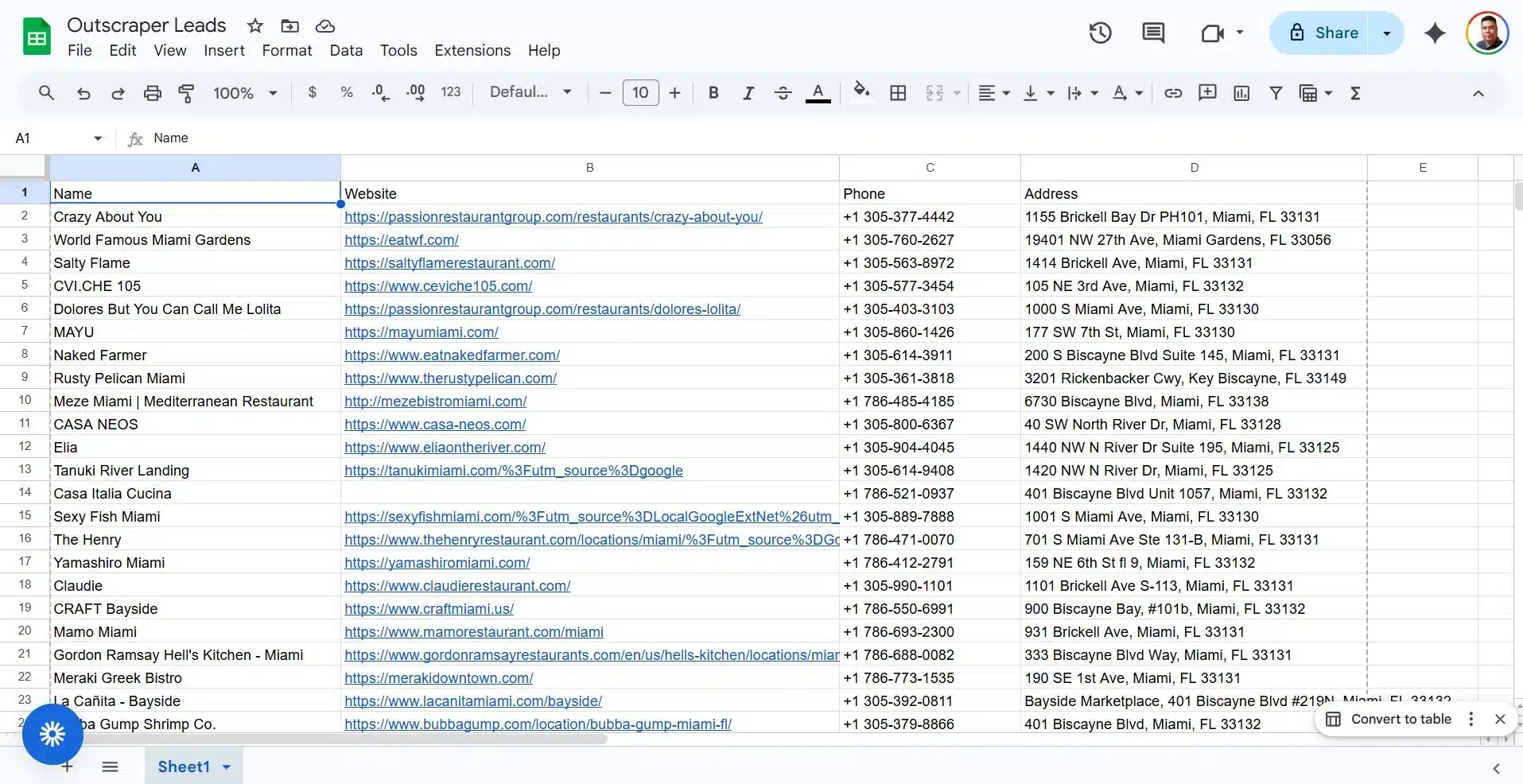
If the setup is correct, Make.com should add up to 10 rows to your Google Sheet because your test request uses limit = 10.
Check the spreadsheet and confirm that:
- Each business appears on a separate row
- Business names are in the Business Name column
- Addresses are in the Address column
- Websites are in the Website column
- Phone numbers are in the Phone Number column
If each bundle becomes one row, your Outscraper to Google Sheets workflow is working. After the initial test run with 10 businesses, I increased the limit to 50 for the next test.
Here are the results of Outscraper and Make.com Integration for our Lead Generation workflow.
Test, Fix, and Scale the Workflow
Once the data appears in Google Sheets, the main integration is already working. The next step is to check for small issues that can affect the quality of your lead list, such as phone number formatting, missing fields, or duplicate rows.
Do not scale the workflow right away. First, confirm that the test results are clean, each business appears on a separate row, and the columns match the data you expected. After that, you can increase the limit, test more search queries, and explore advanced options like webhooks or async requests later.
Protect Phone Numbers in Google Sheets
Before scaling the workflow, make sure your phone numbers are stored correctly in Google Sheets.
Phone numbers can break when a spreadsheet treats them as normal numbers. In some cases, Google Sheets may remove formatting, drop leading symbols, or convert long numbers into scientific notation.
To reduce this issue, format the phone number column as plain text.
In Google Sheets:
- 选择 电话号码 column.
- 去 Format.
- 选择 Number.
- 选择 纯文本.
If phone numbers are still changing after the column is formatted as plain text, you can add a single apostrophe before the mapped phone value in Make.com.
Once the rows appear correctly in Google Sheets, the basic Outscraper and Make.com integration is complete. You can now duplicate the scenario, change the search query, or increase the limit slowly after testing.
Quick Troubleshooting Notes
If the workflow does not behave as expected, check these common setup issues before changing the whole scenario.
| Issue | 需要检查的内容 |
|---|---|
| API request fails | Check the endpoint and make sure the X-API-KEY header contains your Outscraper API key. |
| Iterator creates only one bundle | Select the inner array inside Data that contains the business records. |
| Field names look different | Choose fields based on the data they contain. For example, you may see address 而不是 full_address,或 website 而不是 site. |
| Phone numbers look broken | Format the Phone Number column in Google Sheets as 纯文本. |
| Some cells are empty | Some businesses may not have a website, address, or phone number available. |
How to Scale the Workflow Safely
Once the basic workflow works, do not increase the volume too quickly. Start with small tests so you can check the results, fix mapping issues, and avoid creating messy rows in Google Sheets.
A simple scaling path looks like this:
| 阶段 | Suggested Limit | 需要检查的内容 |
|---|---|---|
| First test | 10 | Confirm the HTTP request, Iterator, and Google Sheets mapping work. |
| Small batch | 25 | Check if rows still appear clean and complete. |
| Larger test | 50 | Review speed, empty fields, and duplicate records. |
Use specific local queries instead of one broad search.
Instead of:
restaurants in Florida
Use smaller searches like:
restaurants in Miami, FL, USrestaurants in Miami Beach, FL, USrestaurants in Coral Gables, FL, US
This keeps each run easier to review and helps you build cleaner lead lists.
Note About Webhooks
Outscraper supports webhooks as an API option for advanced workflows. A webhook can send a callback when a task or request is finished, and Outscraper also supports async request result retrieval for larger API jobs.
However, this beginner tutorial does not use webhooks as a second setup method.
For this workflow, the simplest path is still:
- HTTP module
- 迭代器
- Google 表格
Use webhooks later when you are ready to build a more advanced workflow with async requests, callback URLs, and result retrieval.
For advanced workflows, you can also learn how to verify Outscraper webhook requests before using callback-based automations.
Once the workflow is tested, your Outscraper and Make.com integration is ready to use. Start with one search query, check the lead quality, and scale only after your Google Sheet is receiving clean rows.
Send fresh business data from Outscraper into Google Sheets or your CRM with Make.com. Start with a simple workflow, then scale when your lead list is clean.
常见问题
最常见的问题和答案
要将 Outscraper 与 Make.com 集成,请使用 Make.com 的 HTTP 模块调用 Outscraper Google 地图搜索 API。通过 X-API-KEY 设置请求头,配置查询参数,然后使用迭代器将结果拆分为单独的业务记录,再将其发送至 Google 表格。.
对于一次性潜在客户列表,请使用直接导出功能。当您只需手动下载并查看数据时,这种方式更为简便。.
若需实现自动化,请使用 Make.com。它可将 Outscraper 数据直接导入 Google 表格、CRM 系统、冷呼叫工具、冷邮件工具或其他应用程序,无需反复下载和上传。.
你需要一个迭代器,因为 Outscraper 可能会在一次 API 响应中返回多个企业。Google 表格要求每行仅包含一个企业,因此迭代器会将响应拆分为单独的数据包。随后,每个数据包都可以作为独立的一行添加到 Google 表格中。.
在此入门工作流中,请仅映射潜在客户列表所需的字段。使用 name 关于公司名称,, address 或者 full_address 关于地址,, website 或者 site 用于网站,以及 phone 用于“电话号码”。在 Make.com 中,具体标签可能有所不同,因此请根据字段所包含的数据来选择相应的字段。.
如果迭代器只创建了一个捆绑包,那你可能选错了数组。请返回迭代器模块,并选择其中的内部数组 Data 其中包含实际的业务记录。如果您的测试使用 limit=10, ,迭代器应最多创建 10 个数据包。.
如果 Google 表格将电话号码视为普通数字,这些号码可能会显示异常。这可能会导致较长的电话号码丢失格式、符号被删除,或者以科学记数法显示。.
为防止这种情况发生,请对 电话号码 列为 纯文本 在运行工作流之前。在 Google 表格中,选中电话号码列,然后转到 “格式” > “数字” > “纯文本”.
如果问题仍然存在,请在 Make.com 中将映射的电话号码值前添加一个单引号,这样 Google 表格就会将其视为文本。.