Özetle
Outscraper'nin Make.com Bu entegrasyon, ekiplerin manuel kopyalama veya zahmetli CSV temizleme işlemleri yapmadan Google Haritalar üzerinden potansiyel müşteri bilgilerini otomatik olarak toplamasına yardımcı olur. İş akışı, Outscraper’nin Google Haritalar Arama API'si HTTP modülünü kullanarak Make.com’a bağlanırken, API anahtarını X-API-KEY başlık, döndürülen işletme kayıtlarını bir Iterator ile ayırır ve her bir işletmeyi Google E-Tablolar’a yeni bir satır olarak ekler.
Bu iş akışının temel amacı, Google Haritalar’daki işletme verilerini temiz bir potansiyel müşteri listesine dönüştürmektir. Kullanıcılar, işletme adı, adres, web sitesi ve telefon numarası gibi alanları toplayabilir ve ardından bu elektronik tabloyu satış faaliyetleri, potansiyel müşteri oluşturma, pazar araştırması veya yerel müşteri arayışında kullanabilir.
En önemli kurulum adımı, Iterator’dur. Outscraper, tek bir API yanıtında birden fazla işletme döndürebilir; ancak Google E-Tablolar’da her satırda tek bir işletme bulunmalıdır. Iterator, yanıtı bölerek her bir işletmenin ayrı ayrı işlenmesini sağlar.
En iyi sonuçları elde etmek için kullanıcılar, 10 sonuç gibi küçük bir testle başlamalı, verilerin doğru şekilde eşleştirildiğini kontrol etmeli, telefon numaralarını Google E-Tablolar'da düz metin olarak biçimlendirmeli ve iş akışının doğru çalıştığını doğruladıktan sonra sınırı artırmalıdır.
İletişim Google Haritalar'dan güncel işletme verilerini alır. Make.com iş akışını otomatikleştirir. Google E-Tablolar, potansiyel müşteri bilgilerini düzenli satırlarda saklar.
İçindekiler
Outscraper’yi Make.com ile entegre etmek için, Outscraper Google Maps Arama API’sini Make.com’un HTTP modülüne bağlayın ve X-API-KEY başlığı ekledikten sonra, bir Iterator kullanarak her bir iş kaydını Google E-Tablolar’a ayrı bir satır olarak gönderin.
Bu iş akışı, Google Haritalar’da manuel olarak potansiyel müşteri araştırması yapmak çok zaman alıyorsa ve CSV dosyalarının dışa aktarılması fazladan temizleme işi yaratıyorsa faydalıdır. İşletme adlarını, adreslerini, web sitelerini ve telefon numaralarını manuel olarak kopyalamak yerine, yeni verileri aktaran basit bir potansiyel müşteri akışı oluşturabilirsiniz Google Haritalar işletme bilgileri Outscraper'den satış ekibinizin kullanabileceği elektronik tablolara.
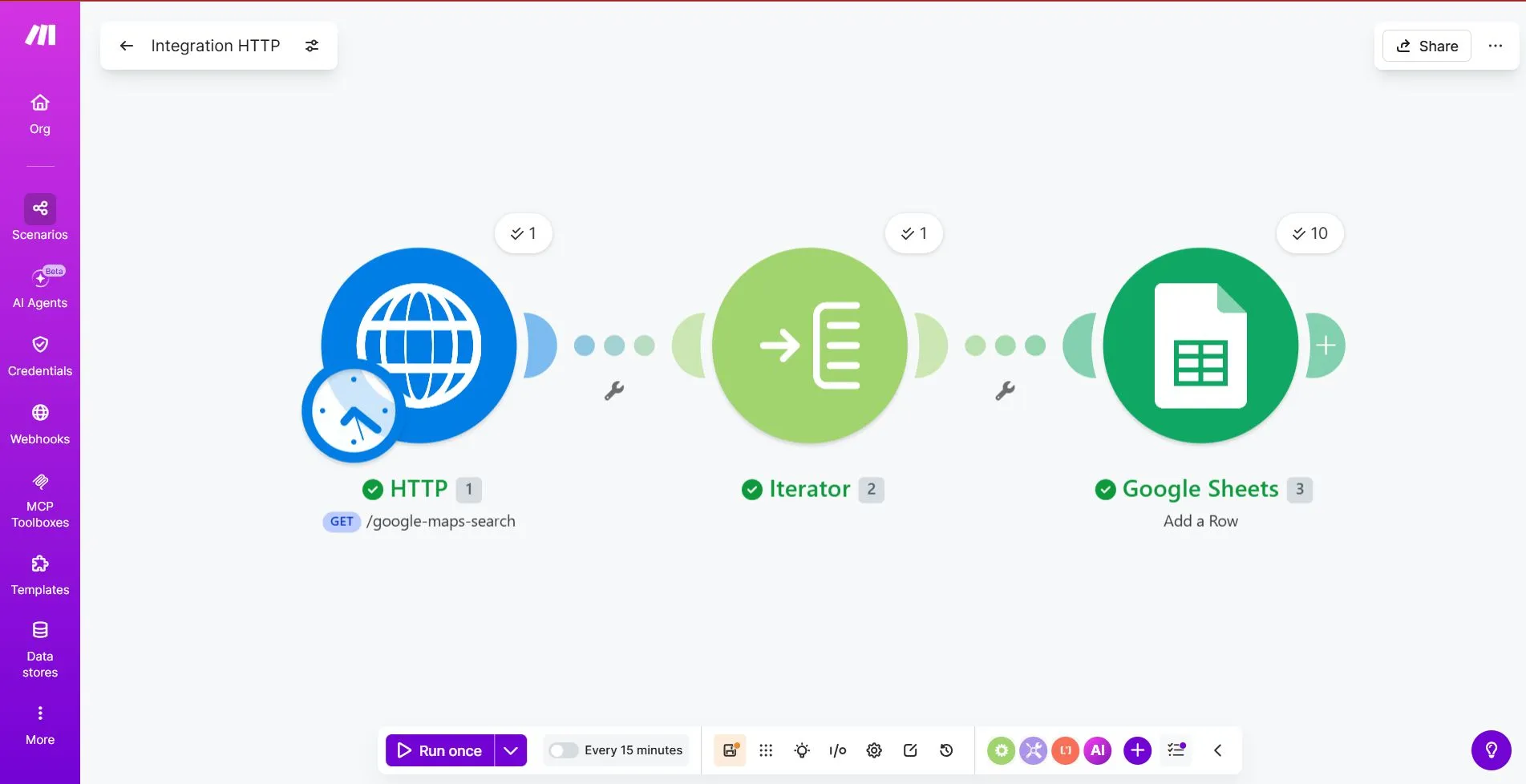
Sıkça yapılan bir hata, HTTP isteğinin ardından durmaktır. İletişim Tek bir API yanıtında birden fazla Google Haritalar işletmesi döndürülebilir, ancak Google E-Tablolar’da her satıra bir işletme gelmesi gerekir. Bu nedenle, bu yeni başlayanlara yönelik iş akışı üç adımdan oluşur: HTTP ile verileri istemek, Iterator ile sonuçları ayrıştırmak ve her bir işletmeyi Google E-Tablolar’da kaydetmek.
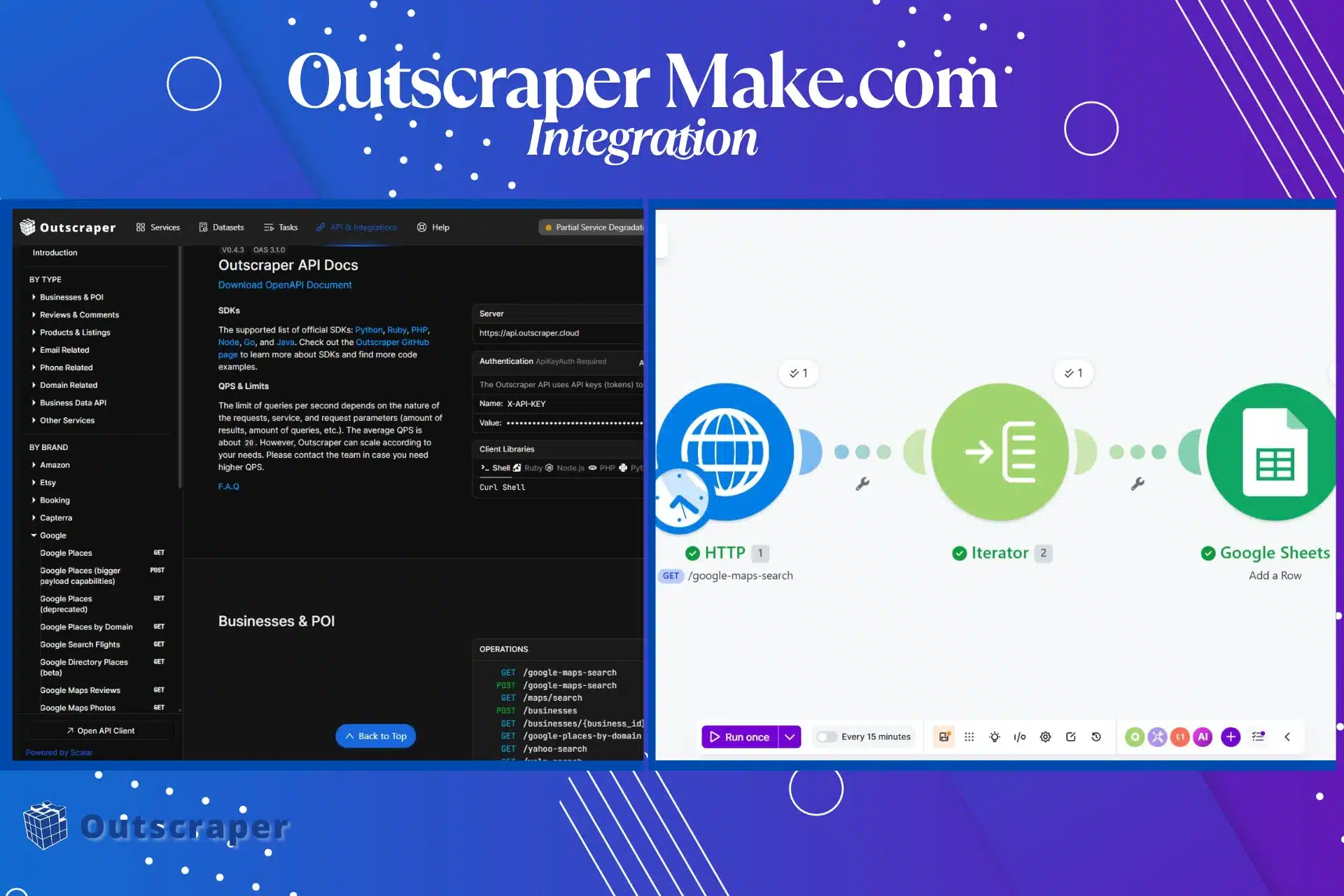
3 Adımlı Potansiyel Müşteri Akışı Çerçevesi
1. Verileri talep edin
Make.com, HTTP modülü aracılığıyla Outscraper’ye bir Google Haritalar arama isteği gönderir.
2. Sonuçları açın
Outscraper, tek bir API yanıtında birden fazla işletme sonucunu döndürebilir. Iterator modülü bu sonuçları birbirinden ayırır; böylece Make.com her seferinde tek bir işletmeyi işleyebilir.
3. Her bir işletmeyi kaydet
Google E-Tablolar, her bir işletmeyi yeni bir satır olarak alır.
Bu çerçeve, eğitimin entegrasyonun en önemli kısmına odaklanmasını sağlar: iş verilerini kullanılabilir bir potansiyel müşteri listesine aktarmak.
Önemli kurulum notu: HTTP modülü, Make.com’u Outscraper’ye bağlar; ancak verilerin Google E-Tablolar’da kullanılabilir hale gelmesini sağlayan Iterator’dur. Iterator olmadan, iş akışınız API yanıtını alabilir, ancak her bir işletme için düzgün satırlar oluşturamayabilir.
Başlamadan Önce
Make.com senaryosunu oluşturmadan önce, Outscraper API anahtarınızı ve basit bir Google E-Tablosu hazırlayın. Bu sayede kurulumun test edilmesi daha kolay hale gelir; çünkü başlangıçta yalnızca dört alanı kontrol etmeniz yeterlidir.
Outscraper’ye yeniyseniz, şununla başlayın: Google Haritalar Veri Kazıyıcı Make.com iş akışını oluşturmadan önce.
İhtiyacınız olacak şeyler:
1. Bir Outscraper hesabı. Kaydolun eğer yoksa.
2. Bir Make.com hesabı
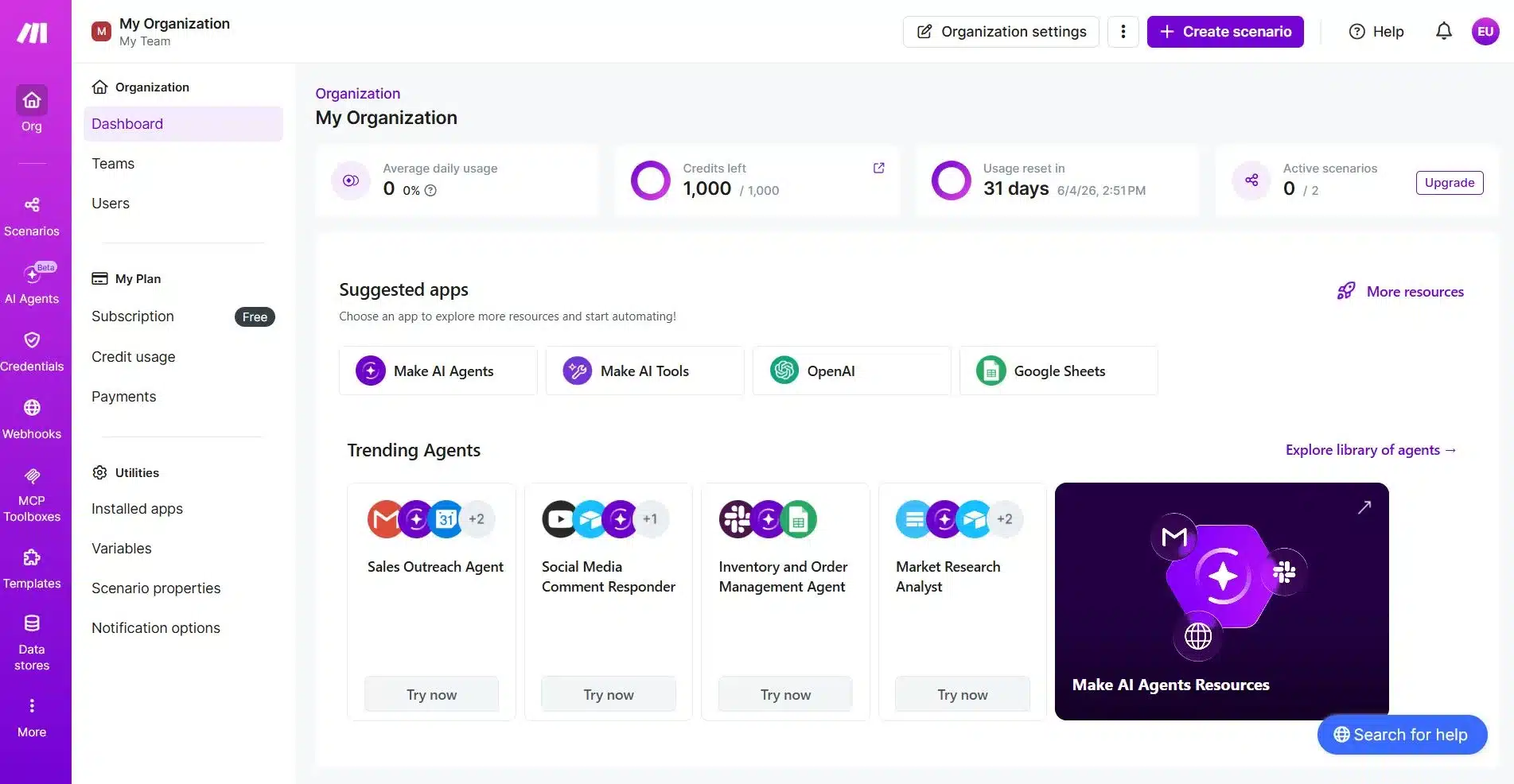
Şunları kullanacaksınız: Make.com otomasyon senaryosunu oluşturmak için. Bu yeni başlayanlara yönelik iş akışı için üç modüle ihtiyacınız var:
- HTTP
- İteratör
- Google E-Tablolar
3. Potansiyel müşterileriniz için bir Google E-Tablo
Aşağıdaki sütunları içeren bir Google E-Tablo oluşturun:
- İşletme Adı
- Adres
- İnternet sitesi
- Telefon Numarası
4. Örnek bir arama sorgusu
Daha kapsamlı bir veri toplama işlemi gerçekleştirmeden önce, belirli bir yerel arama sorgusuyla başlayın.
Örnekler:
Miami, FL, ABD'deki restoranlar
Austin, TX, ABD'deki diş hekimleri
Londra, Birleşik Krallık'taki ticari temizlik şirketleri
Dallas, TX, ABD'deki ısıtma, havalandırma ve iklimlendirme (HVAC) müteahhitleri
İlk denemenizde, örneğin şu gibi küçük bir sınır değeri kullanın: 10 sonuç. Bu, isteği çok büyük hale getirmeden iş akışını kontrol etmeniz için yeterli veri sağlar.
Temel kurulum çalışır hale geldiğinde, sınırı artırabilir ve daha sonra puan, yorumlar, kategori, kaynak sorgusu, potansiyel müşteri durumu veya eklenme tarihi gibi daha fazla alan ekleyebilirsiniz.

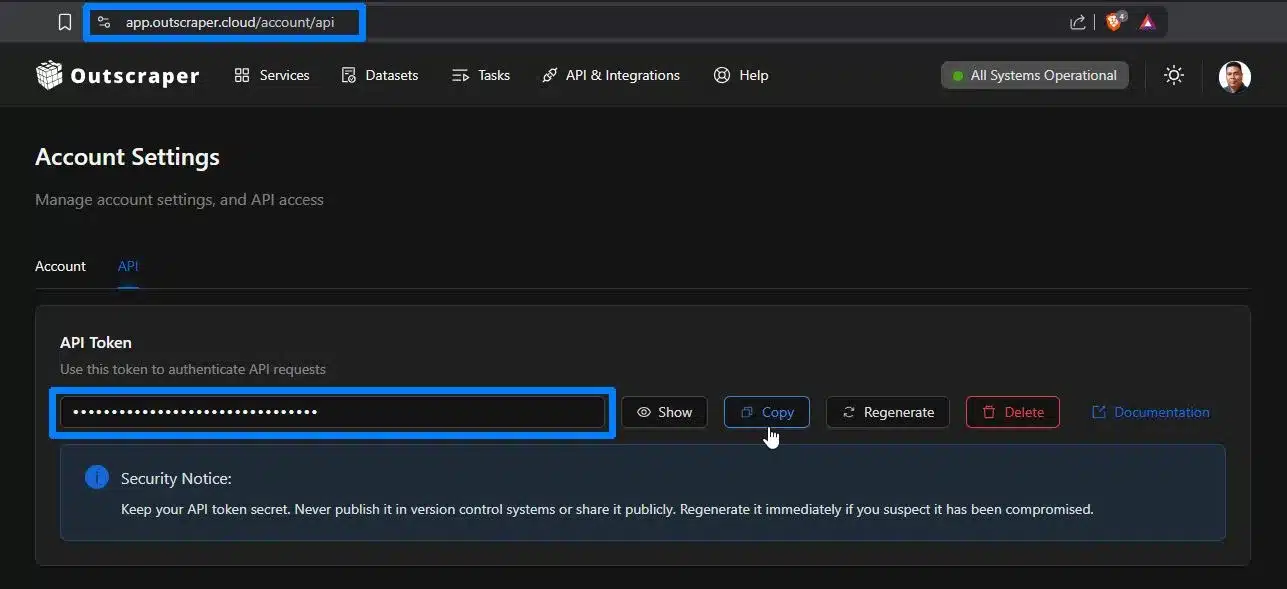
Google Maps Search API’sini Make.com’a bağlamadan önce bir Outscraper hesabı ve API anahtarına ihtiyacınız olacak. Ücretsiz olarak başlayın, API anahtarınızı kopyalayın, ardından aşağıdaki adımları izleyin.
1. Adım: Make.com'u Outscraper'ye bağlayın
İlk adım, Outscraper’ye istek gönderebilen bir Make.com senaryosu oluşturmaktır.
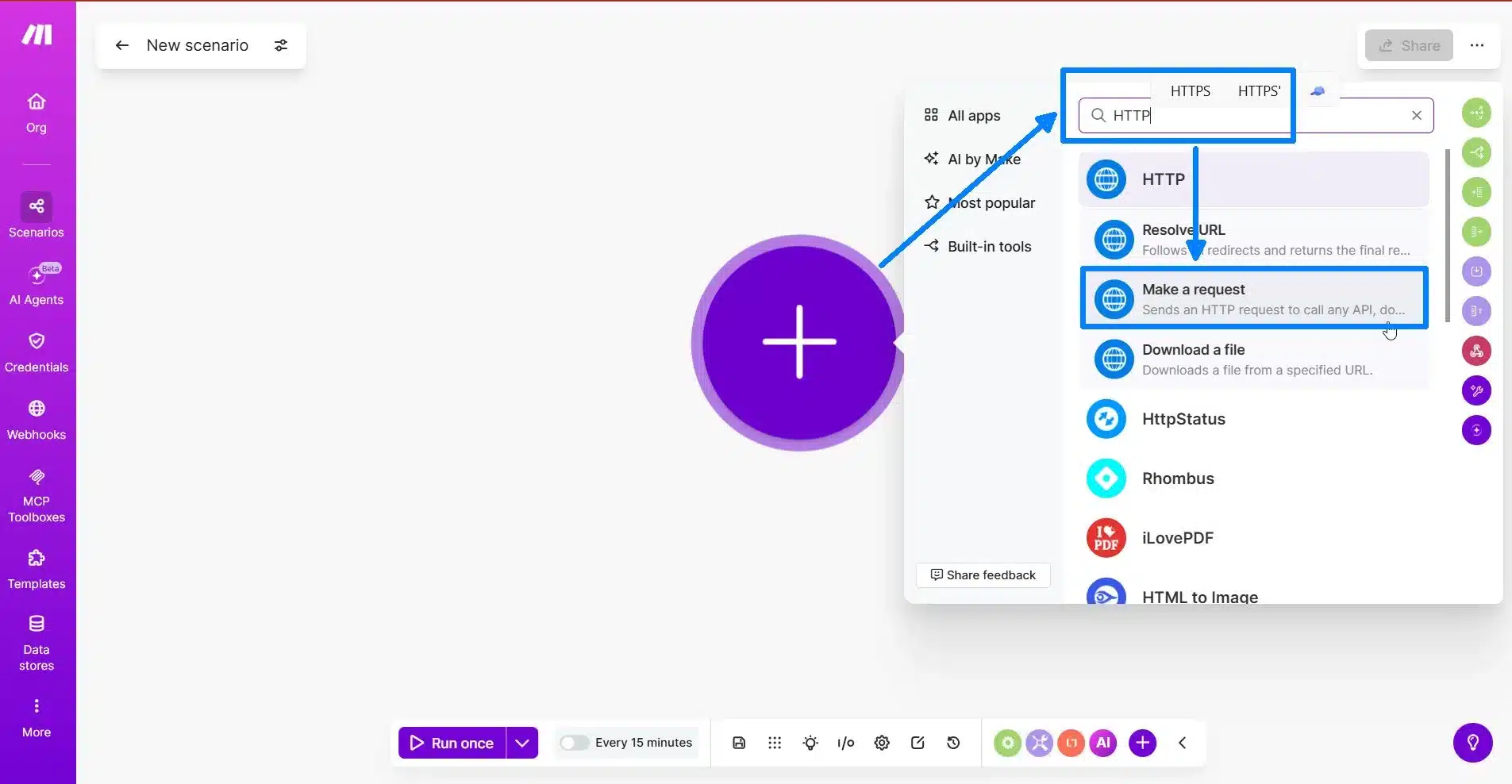
Make.com’a giriş yapın ve yeni bir senaryo oluşturun. İlk modülünüzü eklemek için artı düğmesine tıklayın.
Şunu ara: HTTP ve seçin Talepte bulunun.
Bu HTTP modülü, Make.com’u Outscraper API’sine bağlayacaktır. Bu, Google Haritalar arama sorgunuzu Outscraper’ye gönderen iş akışının bir parçasıdır.
HTTP Modülünü Yapılandırma
HTTP modülünde, istek ayarlarını yukarıdan aşağıya doğru doldurun.
Şu ayarları kullanın:
| Ortam | Değer |
|---|---|
| Kimlik Doğrulama | Kimlik doğrulama yok |
| Yöntem | AL |
| URL | https://api.outscraper.cloud/google-maps-search |
Kontrol edebilirsiniz resmi Outscraper API belgeleri En güncel uç nokta, kimlik doğrulama ve parametre bilgileri için.
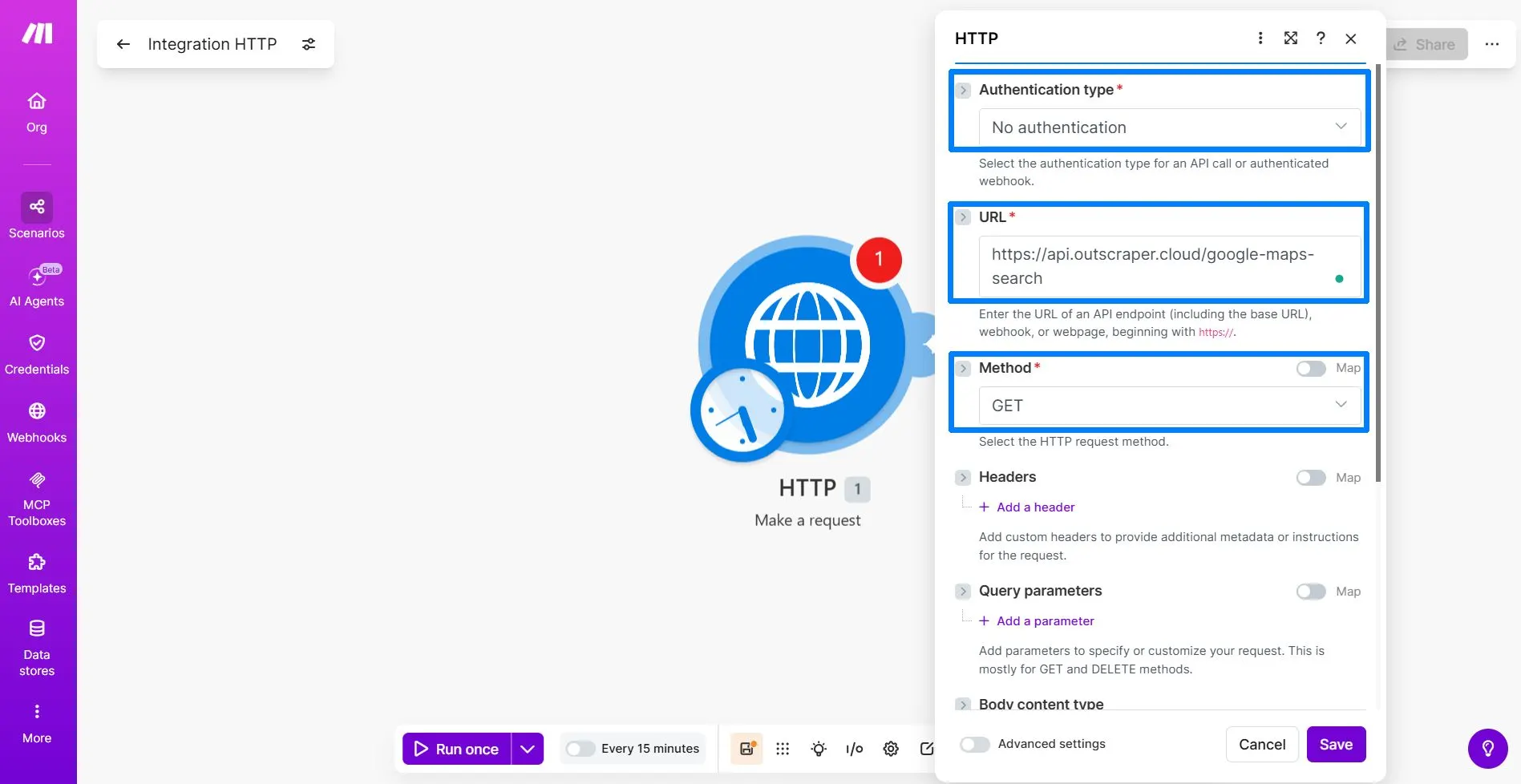
“Kimlik Doğrulama Yok” seçeneğini seçin; çünkü Outscraper API anahtarınızı “Başlıklar” bölümüne manuel olarak gireceksiniz.
GET yöntemi, Make.com’a Outscraper API’sinden veri talep etmesini söyler.
URL, Make.com’a hangi Outscraper uç noktasının çağrılması gerektiğini bildirir. Bu eğitimde Google Haritalar Arama uç noktasını kullanın.
https://api.outscraper.cloud/google-maps-search
API Anahtarı Başlığını Ekleyin
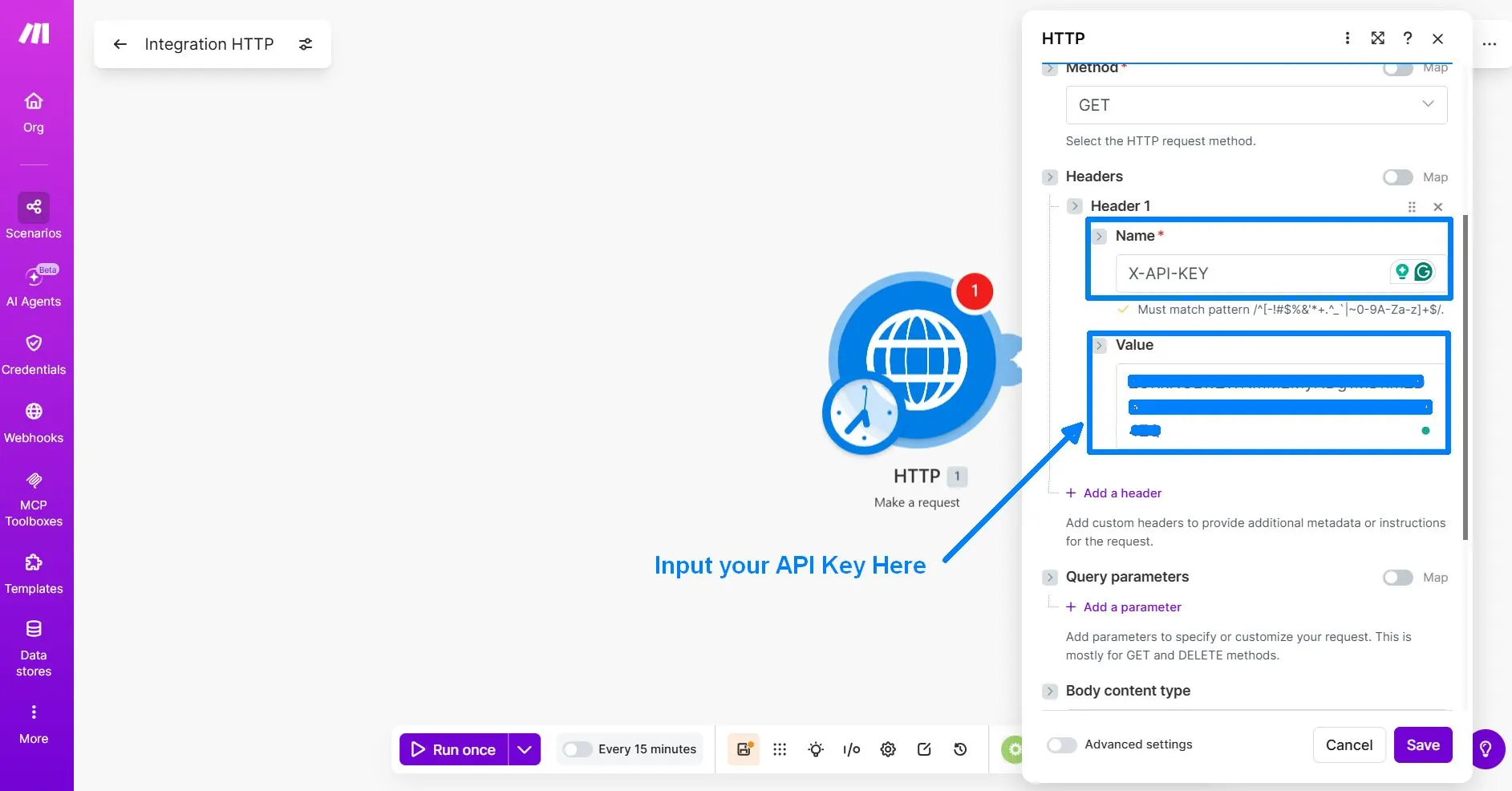
Tıkla Başlık ekle. Bu, istekle birlikte Outscraper API anahtarınızı gönderen özel bir başlık eklemenizi sağlar.
Bu başlığı kullanın:
| Başlık Adı | Başlık Değeri |
|---|---|
X-API-KEY | Outscraper API anahtarınız |
Sorgu Parametrelerini Ekleyin
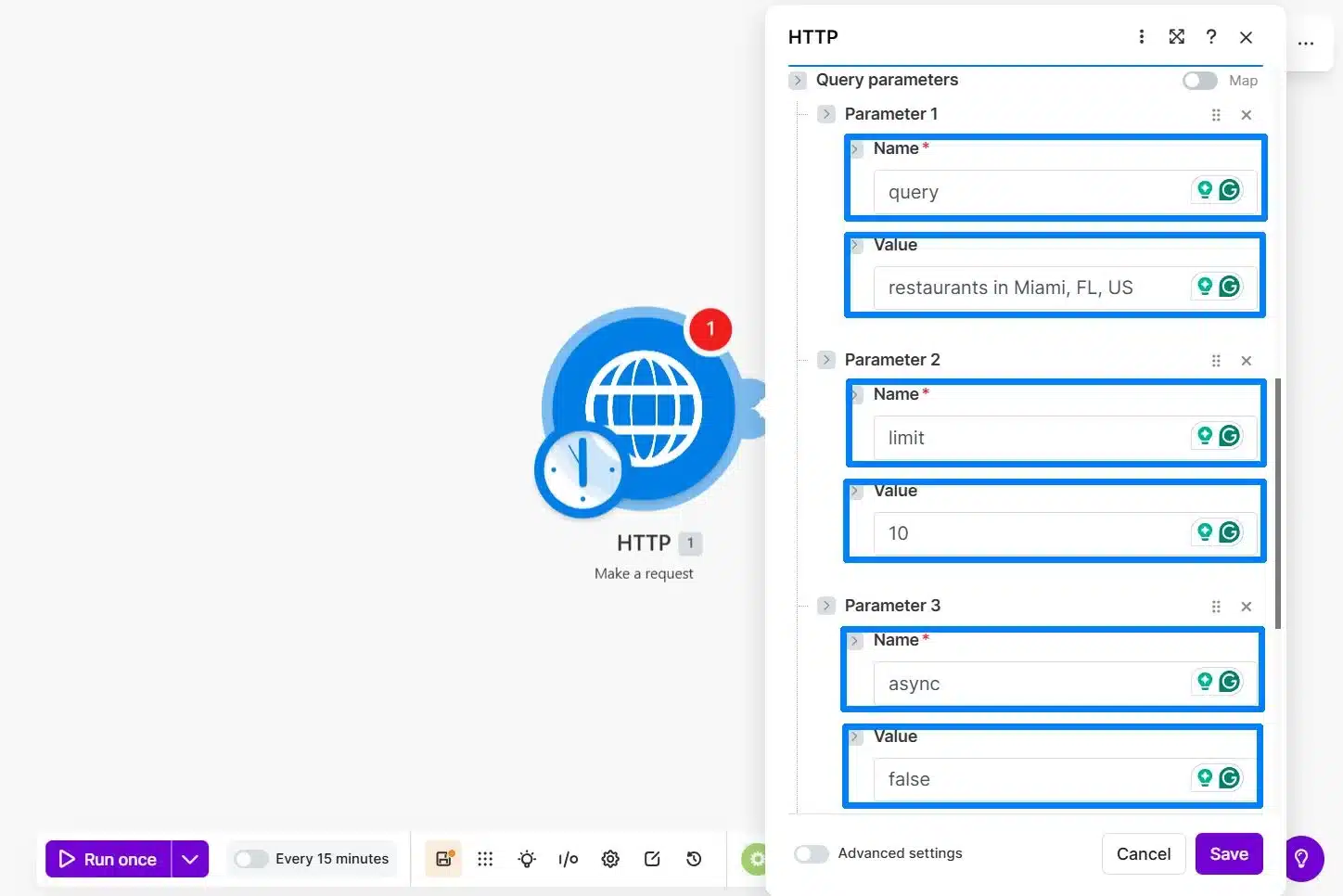
API anahtarı başlığını ekledikten sonra, ilk test isteğiniz için sorgu parametrelerini ekleyin. Bu parametreler, Outscraper’ye neyin aranacağını, kaç sonuç döndürüleceğini ve isteğin nasıl yürütülmesi gerektiğini bildirir.
Bu yeni başlayanlara yönelik iş akışında, isteği küçük ve basit tutun. Tek bir yerel arama sorgusu kullanın, yalnızca 10 sonuç döndürün ve gelişmiş alan filtrelemesini daha sonraya bırakın.
Şu parametreleri kullanın:
| Parametre | Değer | Amaç |
|---|---|---|
query | restaurants in Miami, FL, US | Outscraper’ye Google Haritalar’da neyi araması gerektiğini söyler. |
limit | 10 | İlk deneme çalıştırmasında kaç işletmenin döndürüleceğini belirler. |
async | false | Aynı Make.com senaryosu çalıştırmasında elde edilen sonuçları döndürür. |
NS query Bu parametre, Outscraper’ye Google Haritalar’da neyi araması gerektiğini belirtir.
NS limit Bu parametre, ilk testte kaç işletmenin döndürüleceğini belirler.
NS async=false Bu parametre, Make.com’un aynı senaryo çalıştırmasında sonuçları beklemesi nedeniyle iş akışının test edilmesini kolaylaştırır.
Yanıtta, örneğin aşağıdakiler gibi birçok alan görebilirsiniz: about, rating, reviews, working_hours, ve diğer iş bilgileri. Bu normaldir. Her alanı kullanmanız gerekmez. Daha sonra, Google E-Tablolar modülünü eklediğinizde, yalnızca e-tablonuz için gerekli olan alanları eşleştireceksiniz:
namefull_addresssitephone
Optional note for advanced users:
Outscraper also supports a fields parameter if you want to limit the response to specific fields. For this beginner tutorial, it is easier to leave it out first and choose the fields during the Google Sheets mapping step.
Final HTTP Module Settings Before Running
Before you click Run once, review a few final settings in the HTTP module. These options help Make.com receive and read the Outscraper response correctly.
Şu ayarları kullanın:
| Option | Recommended Setting | Simple Explanation |
|---|---|---|
| Body content type | Leave empty | This is a GET request, so you do not need to send a request body. |
| Parse response | Yes | This helps Make.com read the JSON response and show the fields you need later. |
| Pagination type | Leave empty or none | This beginner test uses limit=10, so pagination is not needed. |
| Timeout | 300 seconds | This gives Outscraper more time to return the results if the request takes longer. |
For the first test, keep the request small. Use limit=10 and confirm that Make.com can receive the business name, address, website, and phone number before increasing the volume.
Run the First Test and Check the Response
After reviewing the final HTTP module settings, click Run once in Make.com.
Make.com will send your request to Outscraper using the API endpoint, X-API-KEY header, and query parameters you added earlier.
If the setup is correct, the HTTP module should show a green check mark and return a response from Outscraper. Open the HTTP module output and check the result.
A successful first test should show Status Code: 200. This means Make.com successfully received a response from the Outscraper API.
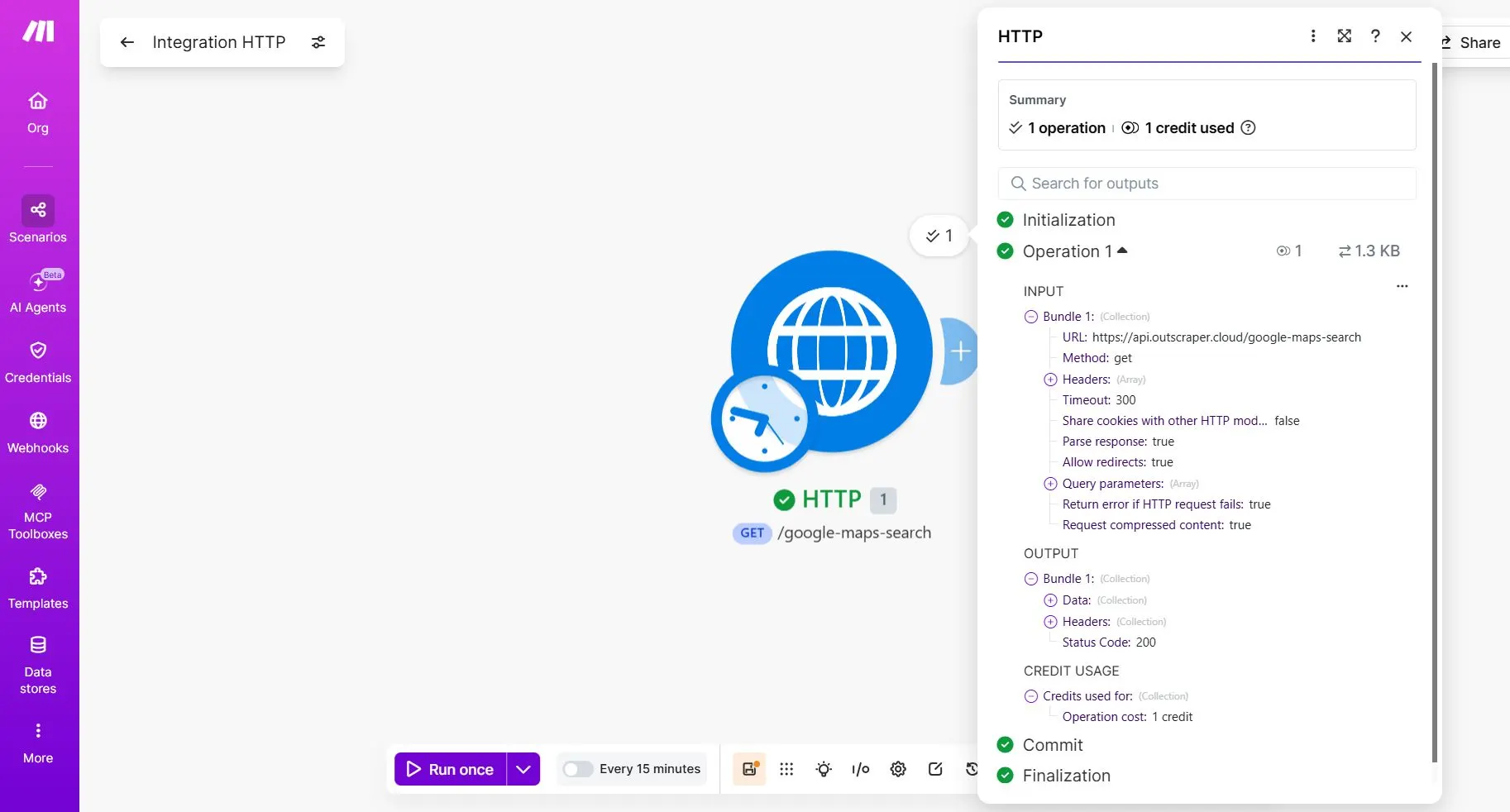
What a Successful Test Means
The first test is successful if the HTTP module runs without an error and returns a valid response from Outscraper.
Use this quick checklist:
| What to Check | What It Means |
|---|---|
| Green check mark on the HTTP module | The HTTP module ran successfully. |
Status Code: 200 | Make.com successfully received a response from the Outscraper API. |
Parse response: true | Make.com can read the JSON response and use the returned fields in the next modules. |
| Data section is available | The Outscraper response contains returned data that you can expand and inspect. |
name, address veya full_address,
website veya siteve phone | These are the fields you will map later into Google Sheets. |
After confirming the request is successful, expand the Data section in the HTTP module output.
Look for these fields:
nameaddressveyafull_addresssiteveyawebsitephone
Make.com may display some field labels differently from the raw Outscraper API response. Choose the field based on the data it contains.
| Google Sheets Column | Outscraper Field |
|---|---|
| İşletme Adı | name |
| Adres | full_address |
| İnternet sitesi | site |
| Telefon Numarası | phone |
You may also see the results inside a data array. This is normal. Outscraper can return several businesses in one response, so the next step is to use an İteratör to separate those businesses into individual records.
At this stage, do not connect Google Sheets yet. The goal is only to confirm that Make.com can receive business data from Outscraper.
Once you can see the business records in the HTTP output, the API connection is working. The next step is to unpack the response so Make.com can process each business as a separate row.
Before building the Iterator step, make sure your Outscraper request is returning real business records.
Step 2: Split Outscraper Results with an Iterator
After the HTTP module returns a successful response, add an Iterator. This step separates the Outscraper results so Make.com can process one business at a time.
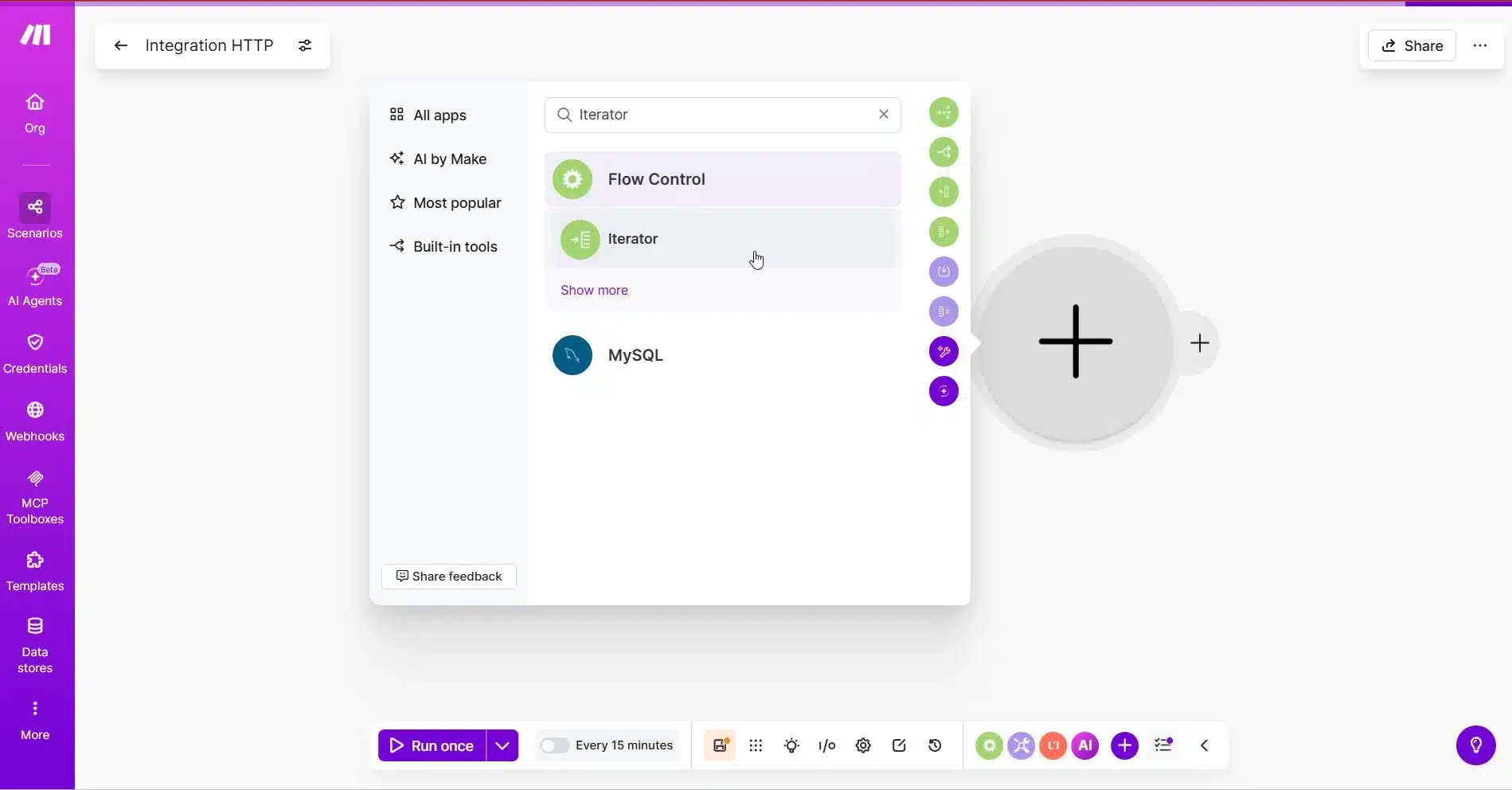
Add the Iterator Module
In Make.com, click the plus button after the HTTP module.
Şunu ara: İteratör and select it.
The Iterator should be placed immediately after the HTTP module.
Choose the Array
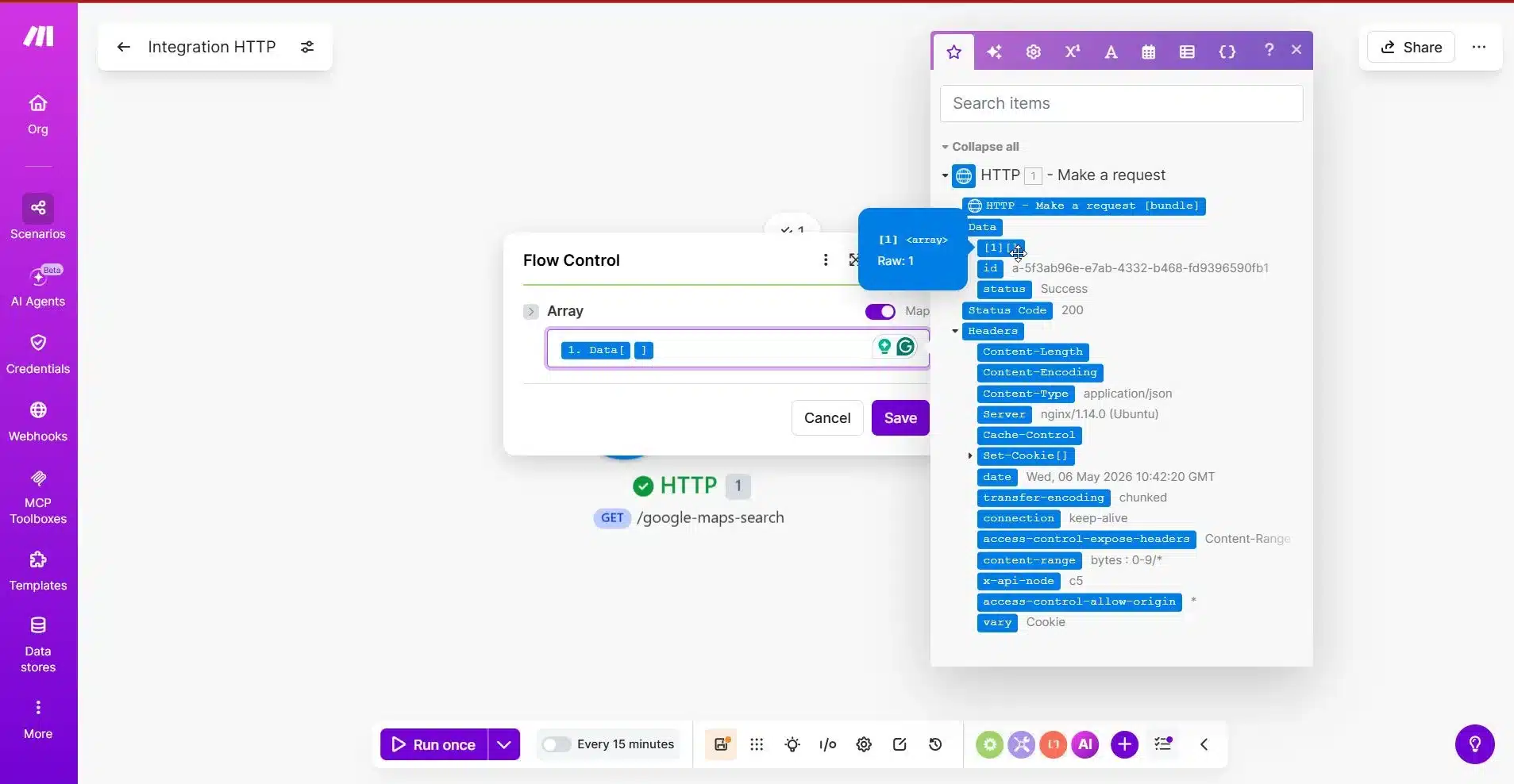
Inside the Iterator module, Make.com will ask for the Array.
This is the most important part.
Select the array from the HTTP module that contains the business results.
For Outscraper, the results may appear inside a nested structure like:
Data -> 1
Because Outscraper can return results inside a nested data array, you may need to expand the HTTP module output and choose the inner array that contains the actual businesses.
The correct array is the one that contains multiple business records.
Run the Iterator Test
After choosing the array, click Run once again.
If your request used:
limit = 10
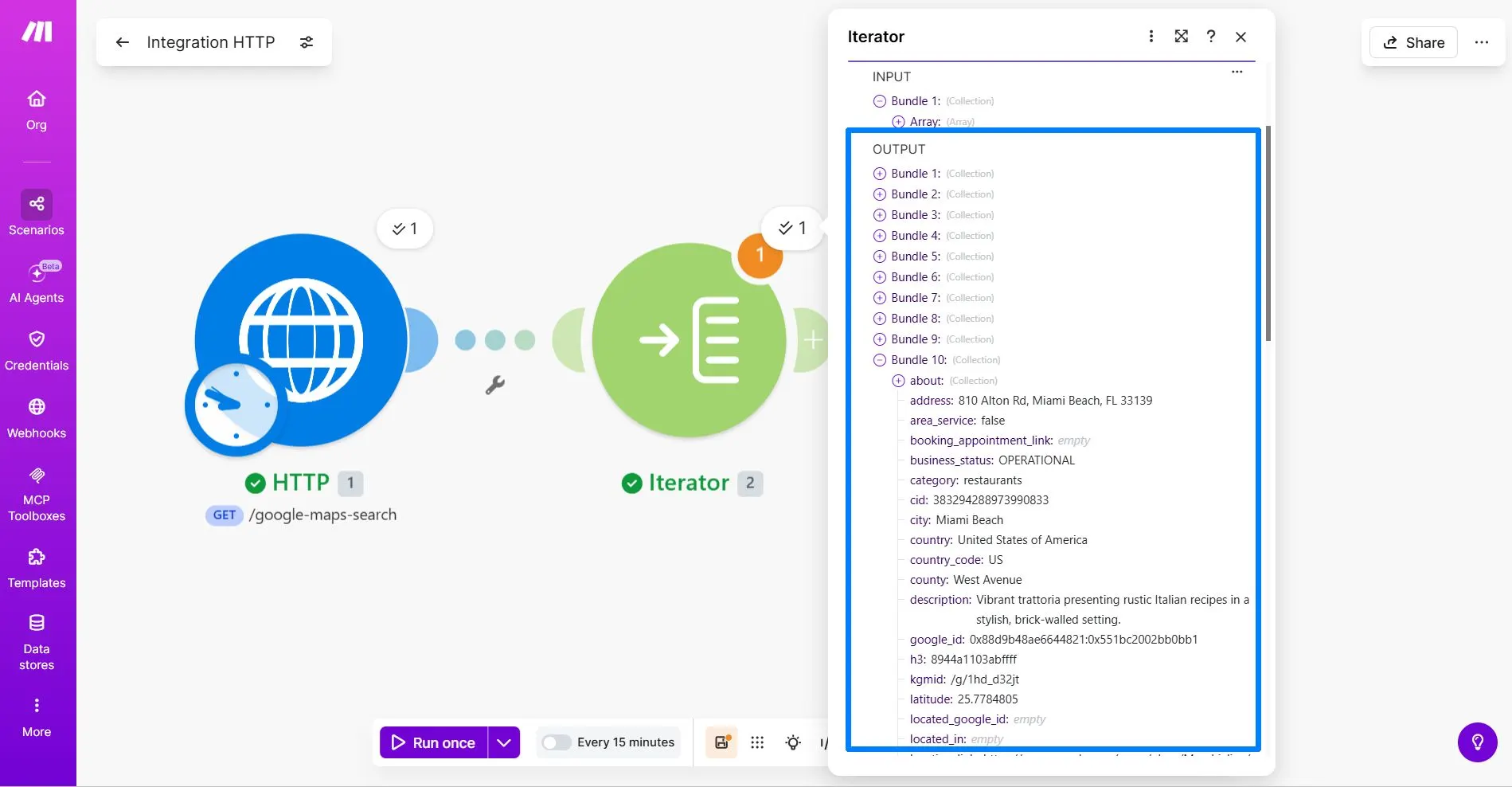
then the Iterator should create up to 10 bundles.
Each bundle should represent one business.
Check One Iterator Bundle
After the Iterator test runs, click the Iterator output bubble and open one bundle.
Check if the bundle contains business details such as:
nameaddressveyafull_addresssiteveyawebsitephone
You may also see many other fields, such as about, rating, reviewsveya working_hours. This is normal. For this beginner workflow, focus only on the fields you will use in Google Sheets.
| Google Sheets Column | Outscraper Field |
|---|---|
| İşletme Adı | name |
| Adres | address veya full_address |
| İnternet sitesi | website veya site |
| Telefon Numarası | phone |
If the Iterator creates multiple bundles and each bundle contains one business, the setup is working.
What If the Iterator Only Creates One Bundle?
If the Iterator only creates one bundle, you probably selected the wrong array.
Go back to the Iterator module and check the Array field again. Choose the inner array inside Data that contains the actual business records.
The correct array should create several bundles, not just one.
Since your test uses limit = 10, seeing up to 10 bundles means Make.com is correctly separating the Outscraper results.
Once the Iterator is working, the next step is to send each bundle into Google Sheets as a new row.
Once the Iterator separates the results, send clean business records into Google Sheets, your CRM, or another sales workflow. Start small, then scale when the rows look accurate.
Step 3: Send Each Business to Google Sheets
After the Iterator creates separate bundles, the next step is to send each business record into Google Sheets.
Each Iterator bundle represents one business. When you add the Google Sheets module after the Iterator, Make.com will use each bundle to create one new row in your spreadsheet.
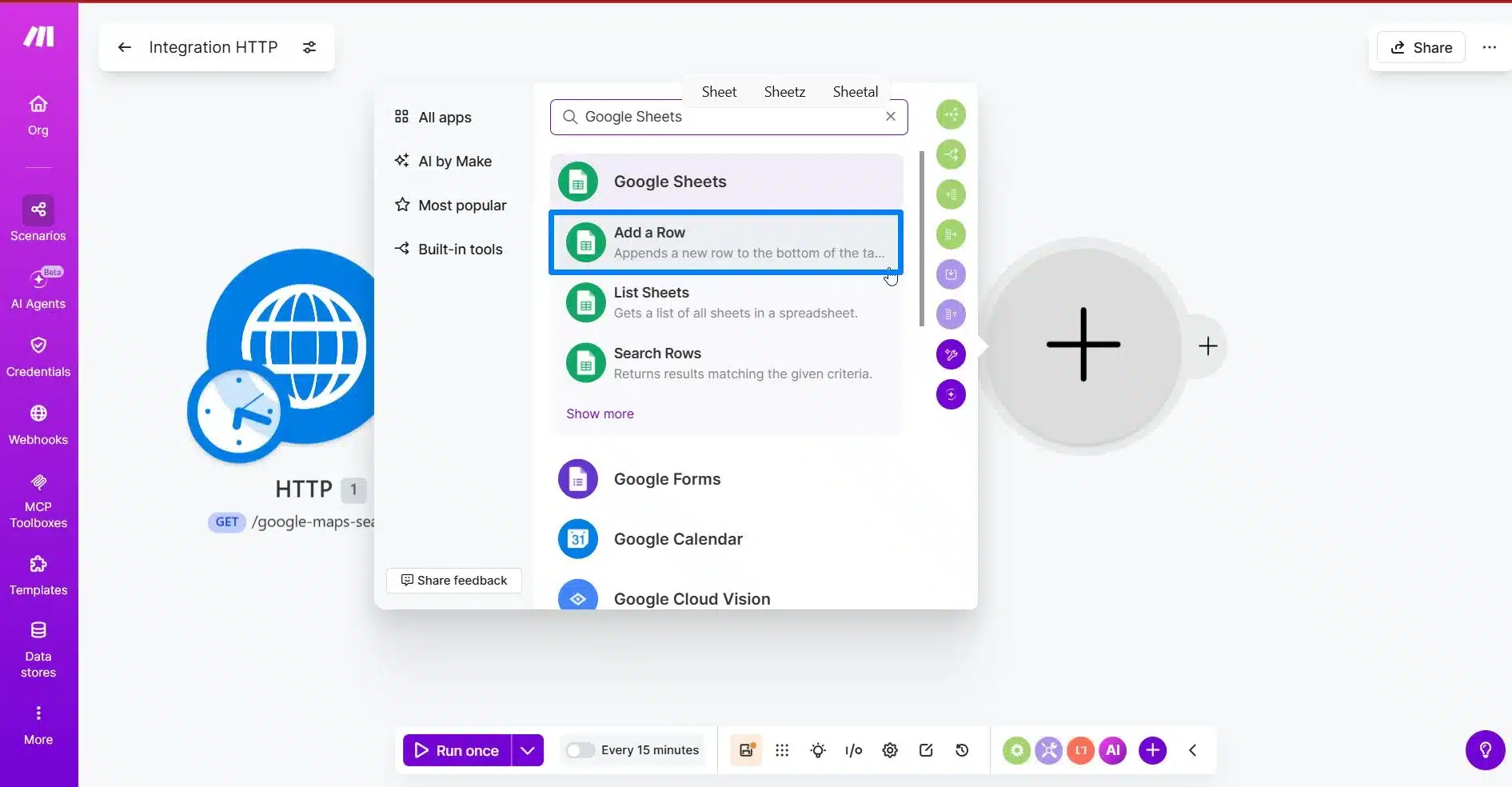
Add the Google Sheets Module
Click the plus button after the Iterator module.
Şunu ara: Google E-Tablolar ve seçin Add a Row.
This module will add each business from the Iterator into your Google Sheet.
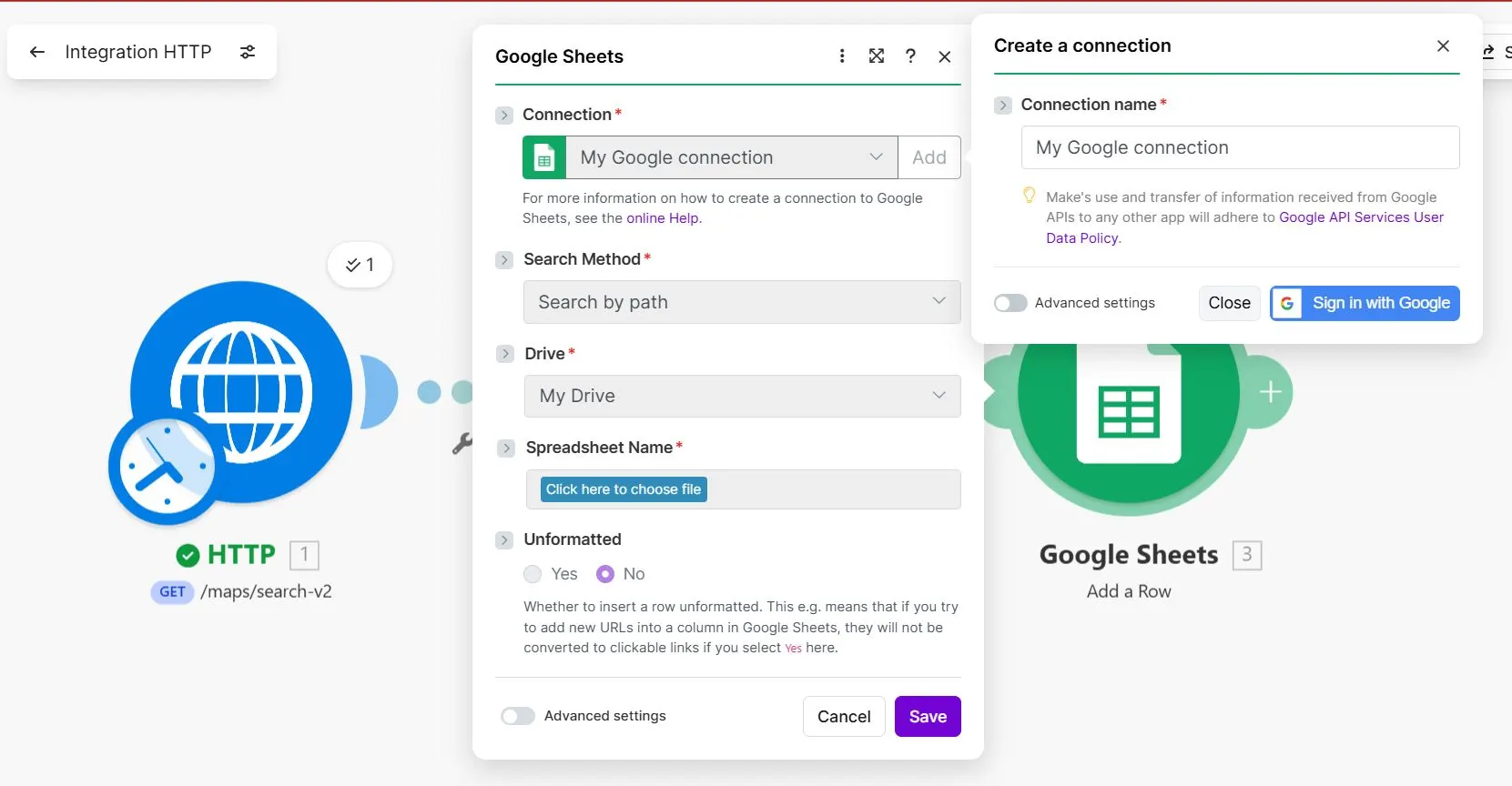
Connect Your Google Account with Make.com
If this is your first time using Google Sheets in Make.com, connect your Google account.
After connecting, choose the spreadsheet where you want to store your Outscraper leads.
Then choose the worksheet or tab that contains your lead columns.
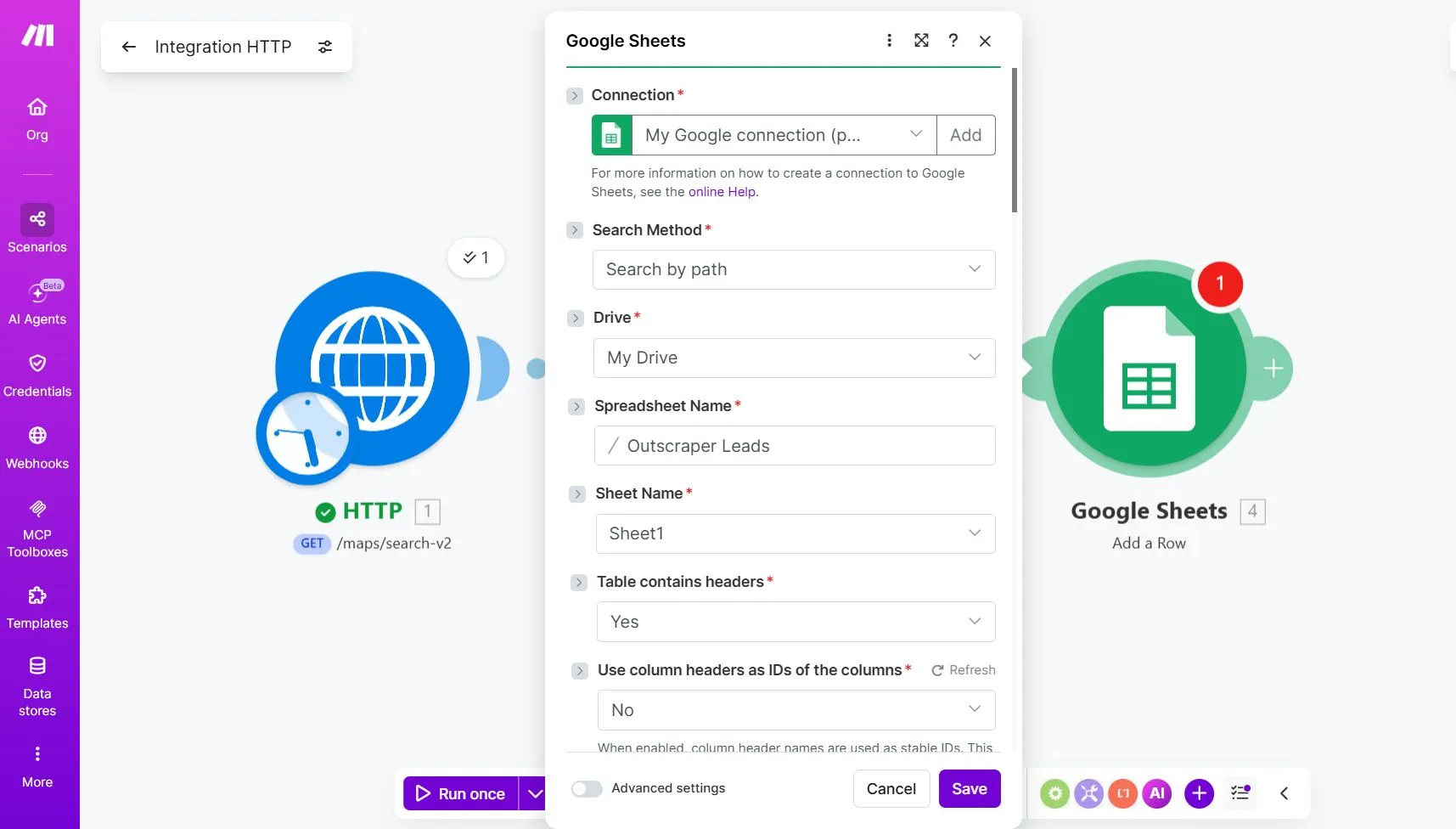
Before connecting Make.com to your Google account, make sure you have prepared the spreadsheet where your leads will be saved. For this tutorial, your Google Sheet should have these columns:
- İşletme Adı
- Adres
- İnternet sitesi
- Telefon Numarası
Map the Iterator Fields to Google Sheets
In the Google Sheets module, map each Google Sheets column to the matching field from the Iterator output.
In Make.com, the field names may appear slightly differently from the raw Outscraper API response. For example, the address field may appear as address yerine full_address, and the website field may appear as website yerine site.
Use the fields that match the data you see in your Iterator output.
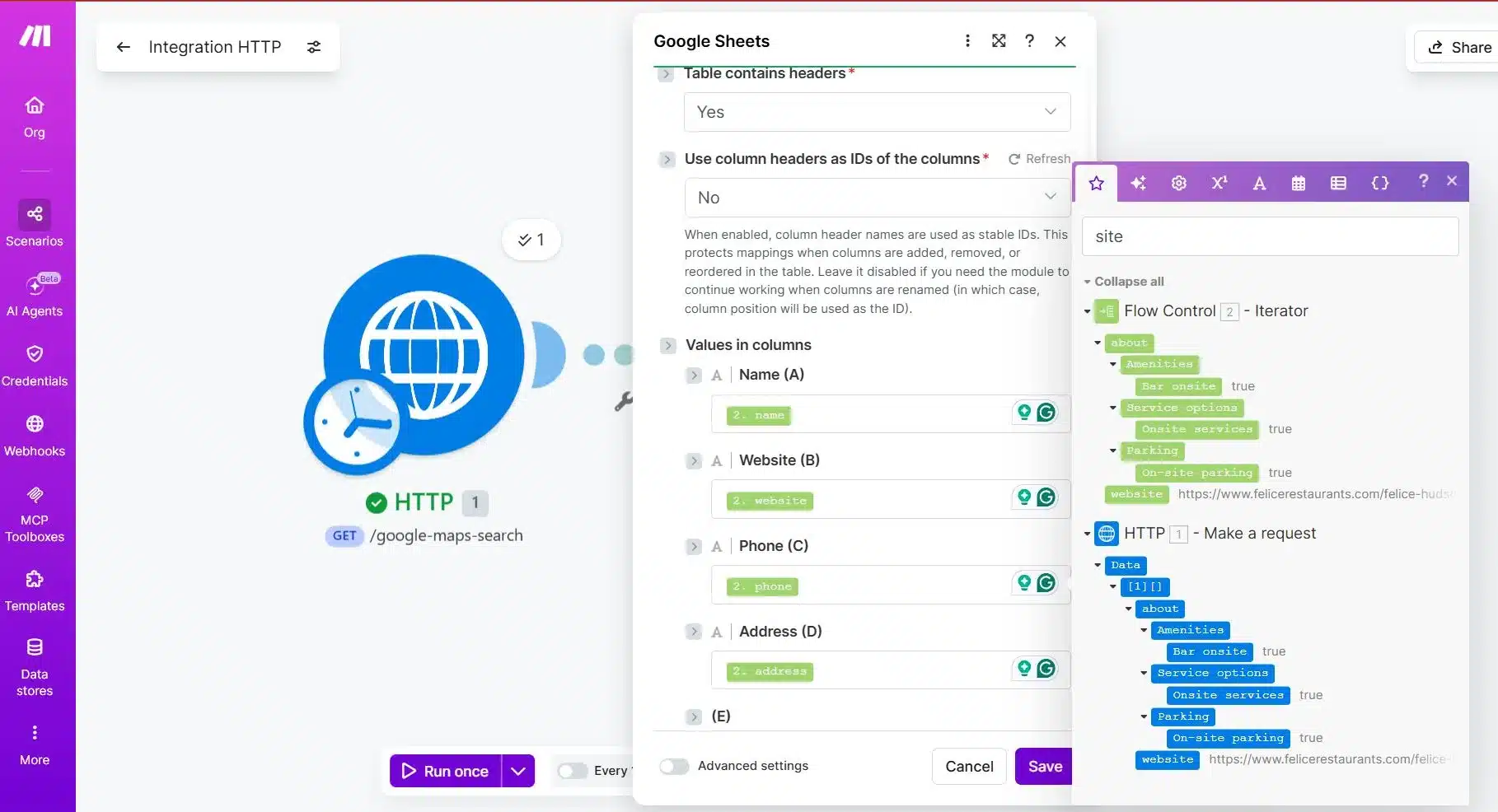
| Google Sheets Column | Iterator Field |
|---|---|
| İşletme Adı | name |
| Adres | address |
| İnternet sitesi | website |
| Telefon Numarası | phone |
Mapping note:
The field labels in Make.com may not always match the raw Outscraper API field names exactly. For example, you may see address yerine full_addressveya website yerine site. Choose the field based on the data it contains, not only the label.
Make sure you select the fields from the Iterator module, not directly from the HTTP module. The Iterator is what separates each business record, so the Google Sheets module should use the Iterator output.
Run a Test for Outscraper and Make.com Integration
Tıkla Run once again.
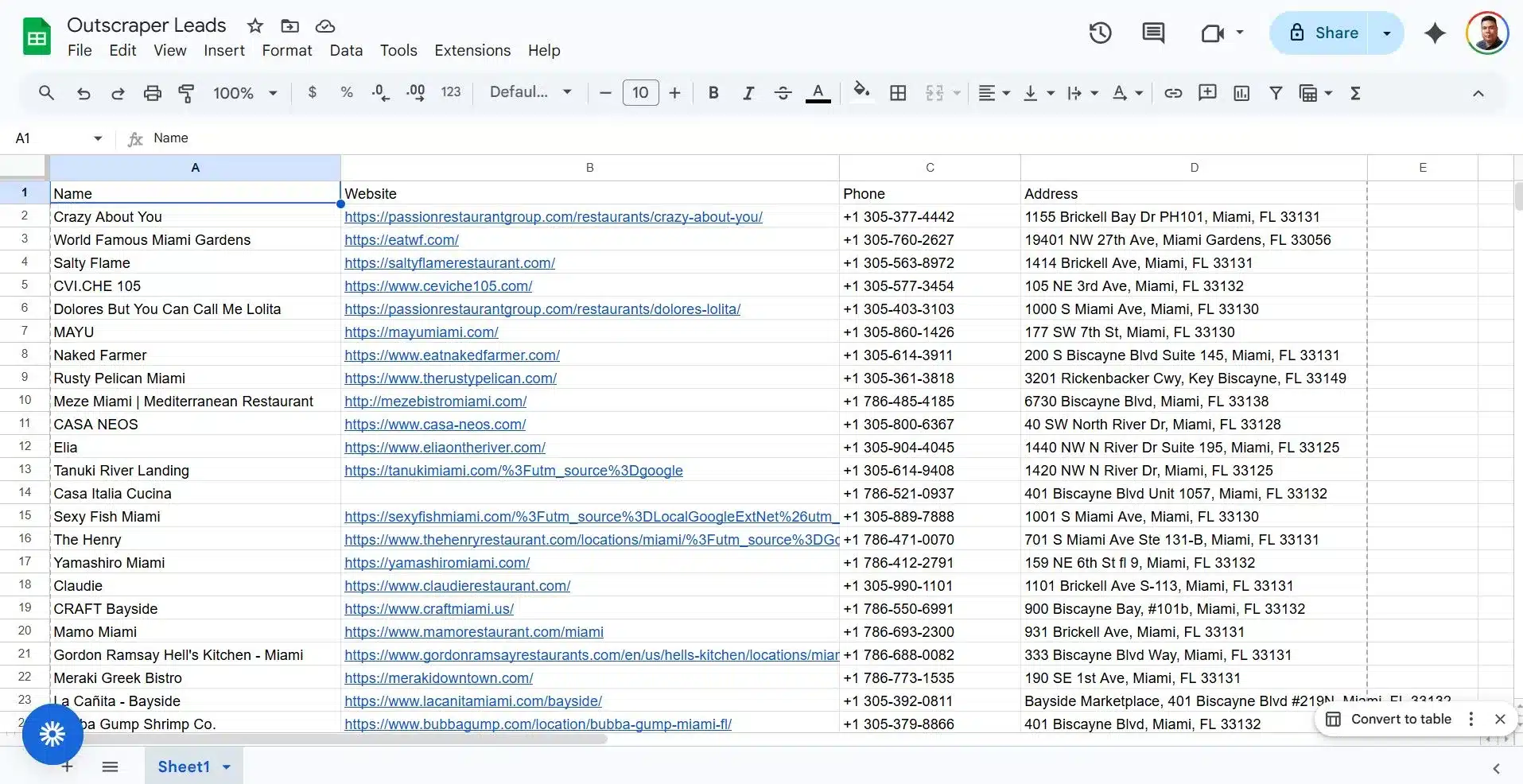
If the setup is correct, Make.com should add up to 10 rows to your Google Sheet because your test request uses limit = 10.
Check the spreadsheet and confirm that:
- Each business appears on a separate row
- Business names are in the Business Name column
- Addresses are in the Address column
- Websites are in the Website column
- Phone numbers are in the Phone Number column
If each bundle becomes one row, your Outscraper to Google Sheets workflow is working. After the initial test run with 10 businesses, I increased the limit to 50 for the next test.
Here are the results of Outscraper and Make.com Integration for our Lead Generation workflow.
Test, Fix, and Scale the Workflow
Once the data appears in Google Sheets, the main integration is already working. The next step is to check for small issues that can affect the quality of your lead list, such as phone number formatting, missing fields, or duplicate rows.
Do not scale the workflow right away. First, confirm that the test results are clean, each business appears on a separate row, and the columns match the data you expected. After that, you can increase the limit, test more search queries, and explore advanced options like webhooks or async requests later.
Protect Phone Numbers in Google Sheets
Before scaling the workflow, make sure your phone numbers are stored correctly in Google Sheets.
Phone numbers can break when a spreadsheet treats them as normal numbers. In some cases, Google Sheets may remove formatting, drop leading symbols, or convert long numbers into scientific notation.
To reduce this issue, format the phone number column as plain text.
In Google Sheets:
- Seçiniz Telefon Numarası column.
- git Format.
- Seçiniz Number.
- Choose Düz metin.
If phone numbers are still changing after the column is formatted as plain text, you can add a single apostrophe before the mapped phone value in Make.com.
Once the rows appear correctly in Google Sheets, the basic Outscraper and Make.com integration is complete. You can now duplicate the scenario, change the search query, or increase the limit slowly after testing.
Quick Troubleshooting Notes
If the workflow does not behave as expected, check these common setup issues before changing the whole scenario.
| Issue | What to Check |
|---|---|
| API request fails | Check the endpoint and make sure the X-API-KEY header contains your Outscraper API key. |
| Iterator creates only one bundle | Select the inner array inside Data that contains the business records. |
| Field names look different | Choose fields based on the data they contain. For example, you may see address yerine full_addressveya website yerine site. |
| Phone numbers look broken | Format the Phone Number column in Google Sheets as Düz metin. |
| Some cells are empty | Some businesses may not have a website, address, or phone number available. |
How to Scale the Workflow Safely
Once the basic workflow works, do not increase the volume too quickly. Start with small tests so you can check the results, fix mapping issues, and avoid creating messy rows in Google Sheets.
A simple scaling path looks like this:
| Sahne | Suggested Limit | What to Check |
|---|---|---|
| First test | 10 | Confirm the HTTP request, Iterator, and Google Sheets mapping work. |
| Small batch | 25 | Check if rows still appear clean and complete. |
| Larger test | 50 | Review speed, empty fields, and duplicate records. |
Use specific local queries instead of one broad search.
Instead of:
restaurants in Florida
Use smaller searches like:
restaurants in Miami, FL, USrestaurants in Miami Beach, FL, USrestaurants in Coral Gables, FL, US
This keeps each run easier to review and helps you build cleaner lead lists.
Note About Webhooks
Outscraper supports webhooks as an API option for advanced workflows. A webhook can send a callback when a task or request is finished, and Outscraper also supports async request result retrieval for larger API jobs.
However, this beginner tutorial does not use webhooks as a second setup method.
For this workflow, the simplest path is still:
- HTTP module
- İteratör
- Google E-Tablolar
Use webhooks later when you are ready to build a more advanced workflow with async requests, callback URLs, and result retrieval.
For advanced workflows, you can also learn how to verify Outscraper webhook requests before using callback-based automations.
Once the workflow is tested, your Outscraper and Make.com integration is ready to use. Start with one search query, check the lead quality, and scale only after your Google Sheet is receiving clean rows.
Send fresh business data from İletişim into Google Sheets or your CRM with Make.com. Start with a simple workflow, then scale when your lead list is clean.
SSS
SIKÇA SORULAN SORULAR
Outscraper’yi Make.com ile entegre etmek için, Make.com’un HTTP modülünü kullanarak Outscraper Google Haritalar Arama API’sini çağırın. Outscraper API anahtarınızı şu yol üzerinden ekleyin: X-API-KEY Başlığı girin, sorgu parametrelerinizi ayarlayın, ardından sonuçları Google E-Tablolara göndermeden önce bir Iterator kullanarak tek tek iş kayıtlarına ayırın.
Tek seferlik müşteri aday listeleri için doğrudan dışa aktarma özelliğini kullanın. Verileri yalnızca manuel olarak indirip gözden geçirmeniz gerektiğinde bu yöntem daha basittir.
Otomasyon istiyorsanız Make.com’u kullanın. Bu hizmet, Outscraper verilerini tekrar tekrar indirip yüklemeye gerek kalmadan Google E-Tablolar’a, CRM’lere, soğuk arama araçlarına, soğuk e-posta araçlarına veya diğer uygulamalara aktarmanıza olanak tanır.
Bir Iterator'a ihtiyacınız var çünkü Outscraper, tek bir API yanıtında birden fazla işletme bilgisi döndürebilir. Google E-Tablolar'da her satırda tek bir işletme olması gerektiğinden, Iterator yanıtı ayrı paketlere böler. Her paket daha sonra Google E-Tablolar'a ayrı bir satır olarak eklenebilir.
Bu yeni başlayanlar için iş akışında, potansiyel müşteri listeniz için gerekli olan alanları eşleştirin. Şunları kullanın: name "Şirket Adı" için, address veya full_address Adres için, website veya site web sitesi için ve phone Telefon numarası için. Make.com'da etiketlerin tam adı farklı görünebilir; bu nedenle, alanı içerdiği verilere göre seçin.
Iterator yalnızca bir paket oluşturuyorsa, muhtemelen yanlış diziyi seçmişsinizdir. Iterator modülüne geri dönün ve içindeki iç diziyi seçin Data gerçek iş kayıtlarını içeren. Testinizde limit=10, Iterator en fazla 10 paket oluşturmalıdır.
Google E-Tablolar telefon numaralarını normal sayılar olarak değerlendirirse, bu numaralar hatalı görünebilir. Bu durum, uzun telefon numaralarının biçimlendirmesinin bozulmasına, sembollerin kaybolmasına veya sayısal gösterim biçiminde görüntülenmesine neden olabilir.
Bunu önlemek için, Telefon Numarası sütun olarak Düz metin iş akışını çalıştırmadan önce. Google E-Tablolar’da telefon numarası sütununu seçin, ardından Biçim > Sayı > Düz metin.
Sorun devam ederse, Make.com'da eşleştirilen telefon numarasının önüne tek bir apostrof ekleyin; böylece Google E-Tablolar bunu metin olarak algılar.