TL;DR
Outscraper’s Make.com Dankzij deze integratie kunnen teams het verzamelen van leads via Google Maps automatiseren, zonder handmatig te hoeven kopiëren of CSV-bestanden te moeten opschonen. De workflow koppelt Outscraper’s Google Maps Search API naar Make.com via de HTTP-module, waarbij de API-sleutel wordt verzonden via de X-API-KEY header, scheidt de geretourneerde bedrijfsrecords met behulp van een Iterator en voegt elk bedrijf toe als een nieuwe rij in Google Sheets.
Het belangrijkste doel van de workflow is om bedrijfsgegevens uit Google Maps om te zetten in een overzichtelijke lijst met potentiële klanten. Gebruikers kunnen gegevens zoals bedrijfsnaam, adres, website en telefoonnummer verzamelen en de spreadsheet vervolgens gebruiken voor verkoopactiviteiten, het genereren van leads, marktonderzoek of het zoeken naar lokale potentiële klanten.
De belangrijkste stap bij het instellen is de Iterator. Outscraper kan meerdere bedrijven in één API-antwoord retourneren, maar Google Sheets heeft één bedrijf per rij nodig. De Iterator splitst het antwoord op, zodat elk bedrijf afzonderlijk wordt verwerkt.
Voor het beste resultaat raden we gebruikers aan om te beginnen met een kleine test, bijvoorbeeld met 10 resultaten, te controleren of de gegevens correct worden gekoppeld, telefoonnummers in Google Sheets als platte tekst op te maken en de limiet pas te verhogen nadat is bevestigd dat de workflow correct werkt.
Outscraper haalt actuele bedrijfsgegevens uit Google Maps op. Make.com automatiseert de workflow. Google Sheets slaat de leads op in overzichtelijke rijen.
Inhoudsopgave
Om Outscraper te integreren met Make.com, koppel je de Outscraper Google Maps Search API te koppelen aan de HTTP-module van Make.com en voeg je Outscraper API-sleutel toe via de X-API-KEY koptekst, en gebruik vervolgens een iterator om elk bedrijfsrecord als een afzonderlijke rij naar Google Sheets te verzenden.
Deze workflow is handig wanneer het handmatig zoeken naar leads via Google Maps te traag verloopt en CSV-exporten extra opschoonwerk met zich meebrengen. In plaats van bedrijfsnamen, adressen, websites en telefoonnummers handmatig over te nemen, kun je een eenvoudige leadstroom opzetten die nieuwe Bedrijfsgegevens van Google Maps van Outscraper naar spreadsheets die je verkoopteam kan gebruiken.
Een veelgemaakte fout is dat men stopt na het HTTP-verzoek. Outscraper kan in één API-antwoord meerdere bedrijven uit Google Maps weergeven, maar Google Sheets vereist één bedrijf per rij. Daarom bestaat deze workflow voor beginners uit drie stappen: de gegevens opvragen via HTTP, de resultaten ontpakken met Iterator en elk bedrijf opslaan in Google Sheets.
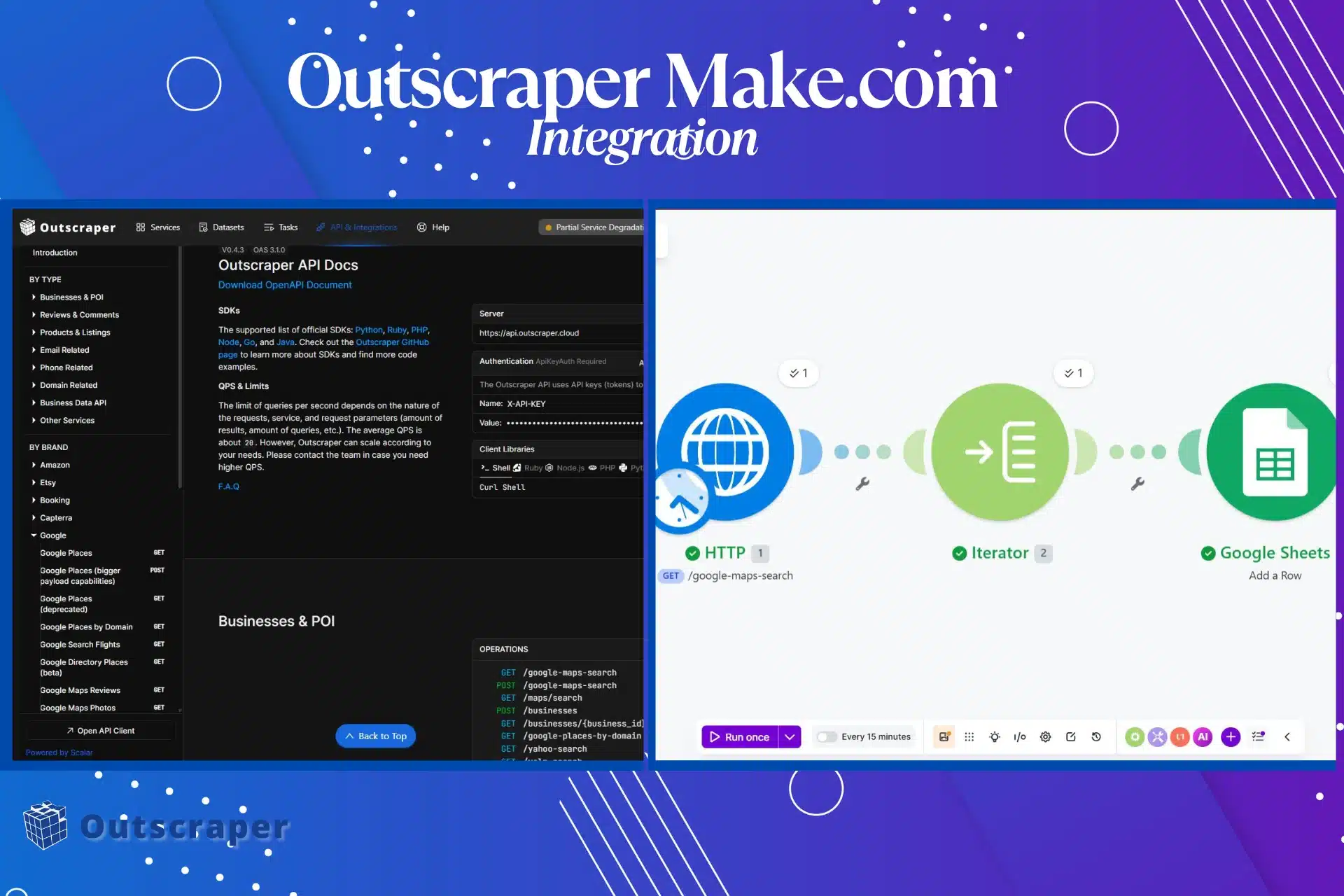
Het 3-stappenplan voor leadgeneratie
1. Vraag de gegevens op
Make.com stuurt via de HTTP-module een zoekopdracht in Google Maps naar Outscraper.
2. De resultaten analyseren
Outscraper kan meerdere bedrijven in één API-antwoord retourneren. De Iterator-module splitst deze resultaten op, zodat Make.com één bedrijf tegelijk kan verwerken.
3. Sla elk bedrijf op
Google Sheets neemt elk bedrijf op als een nieuwe rij.
Dankzij dit kader blijft de tutorial gericht op het belangrijkste onderdeel van de integratie: het omzetten van bedrijfsgegevens in een bruikbare lijst met leads.
Belangrijke opmerking over de installatie: De HTTP-module koppelt Make.com aan Outscraper, maar het is de Iterator die ervoor zorgt dat de gegevens bruikbaar zijn in Google Sheets. Zonder de Iterator ontvangt je workflow weliswaar het API-antwoord, maar lukt het niet om voor elk bedrijf nette rijen aan te maken.
Voordat u begint
Zorg ervoor dat je, voordat je het Make.com-scenario gaat bouwen, je Outscraper API-sleutel en een eenvoudig Google-spreadsheet bij de hand hebt. Dit maakt het testen van de opzet eenvoudiger, omdat je in eerste instantie slechts vier velden hoeft te controleren.
Als je nog niet bekend bent met Outscraper, begin dan met de Google Maps-krabber voordat je de Make.com-workflow opzet.
Je hebt het volgende nodig:
1. Een Outscraper-account. Aanmelden als je er geen hebt.
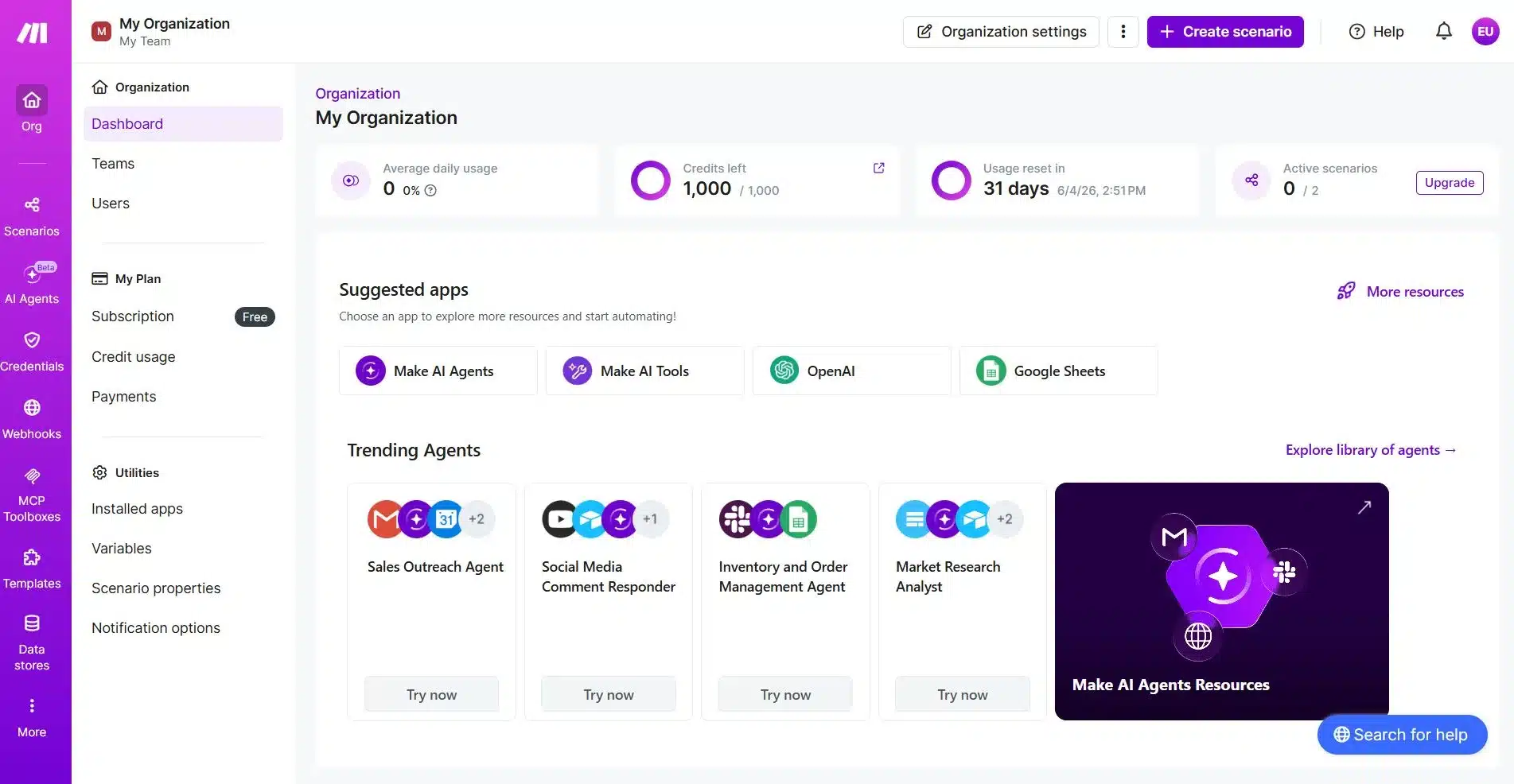
2. Een Make.com-account
Je gaat het volgende gebruiken: Make.com om het automatiseringsscenario op te zetten. Voor deze workflow voor beginners heb je drie modules nodig:
- HTTP
- Iterator
- Google Spreadsheets
3. Een Google-spreadsheet voor je leads
Maak een Google-spreadsheet aan met de volgende kolommen:
- Bedrijfsnaam
- Adres
- Website
- Telefoonnummer
4. Een voorbeeld van een zoekopdracht
Begin met een specifieke lokale zoekopdracht voordat je een grotere gegevensverzameling uitvoert.
Voorbeelden:
restaurants in Miami, FL, VS
tandartsen in Austin, TX, VS
schoonmaakbedrijven voor bedrijven in Londen, VK
HVAC-installateurs in Dallas, TX, VS
Gebruik voor je eerste test een kleine limiet, zoals 10 resultaten. Zo beschik je over voldoende gegevens om de workflow te controleren, zonder dat het verzoek te omvangrijk wordt.
Zodra de basisconfiguratie werkt, kun je de limiet verhogen en later meer velden toevoegen, zoals een beoordeling, recensies, categorie, zoekopdracht, leadstatus of toevoegdatum.

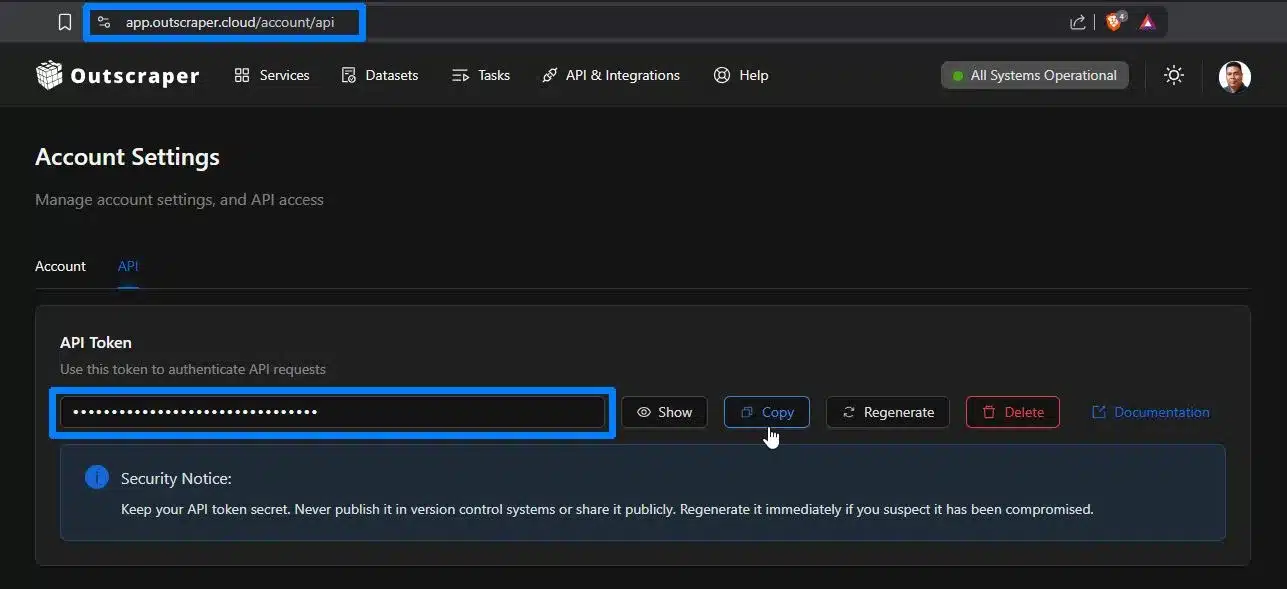
Je hebt een Outscraper-account en een API-sleutel nodig voordat je de Google Maps Search API aan Make.com kunt koppelen. Begin gratis, kopieer je API-sleutel en volg vervolgens de onderstaande stappen.
Stap 1: Koppel Make.com aan Outscraper
De eerste stap is het aanmaken van een Make.com-scenario waarmee een verzoek kan worden verzonden naar Outscraper.
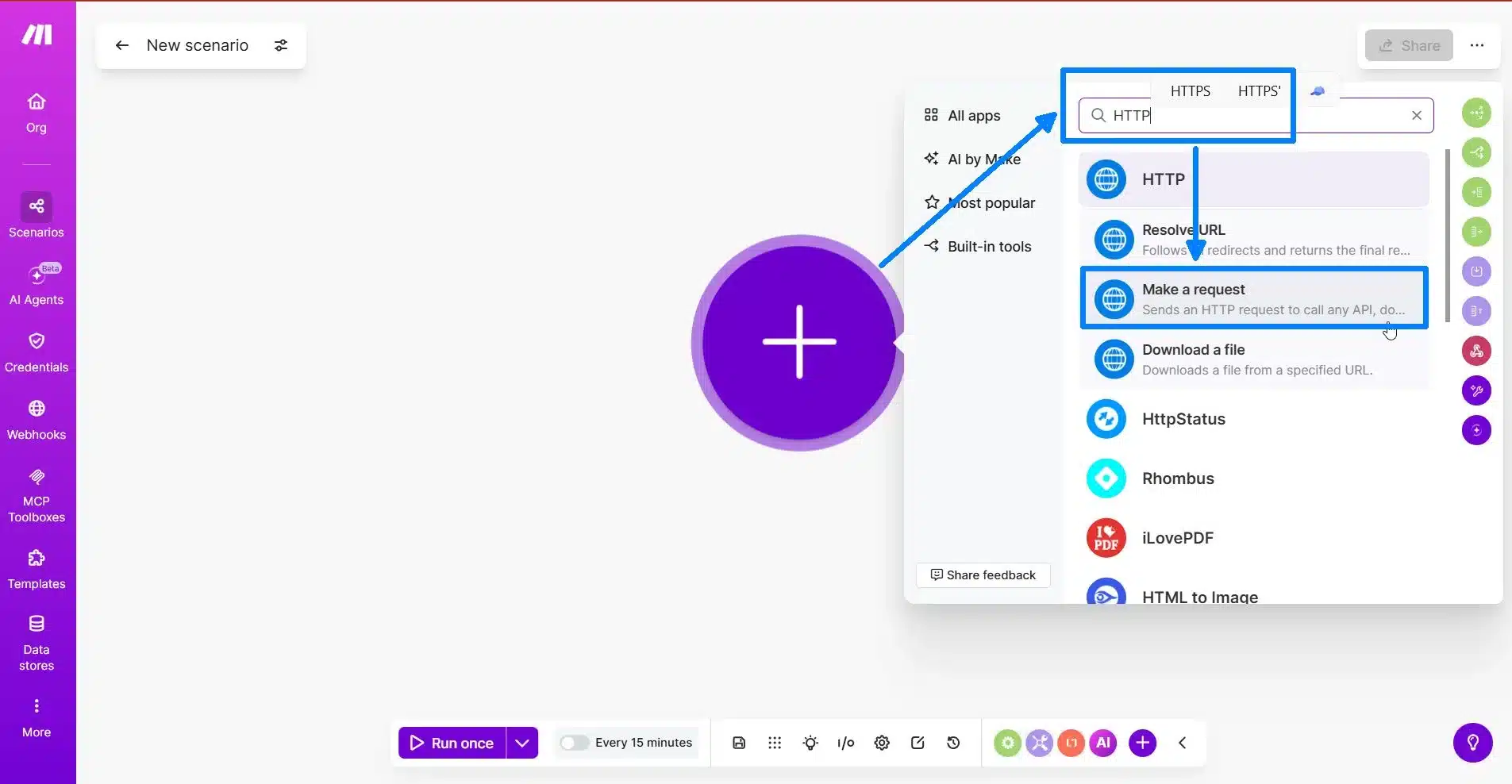
Log in op Make.com en maak een nieuw scenario aan. Klik op de plusknop om je eerste module toe te voegen.
Zoeken naar HTTP en kies Een verzoek indienen.
Deze HTTP-module koppelt Make.com aan de Outscraper API. Dit is het onderdeel van de workflow dat je zoekopdracht in Google Maps naar Outscraper verstuurt.
De HTTP-module configureren
Vul in de HTTP-module de verzoekinstellingen van boven naar beneden in.
Gebruik deze instellingen:
| Instelling | Waarde |
|---|---|
| Authenticatie | Geen authenticatie |
| Methode | GET |
| URL | https://api.outscraper.cloud/google-maps-search |
Je kunt de officiële Outscraper API-documentatie voor de meest recente informatie over eindpunten, authenticatie en parameters.
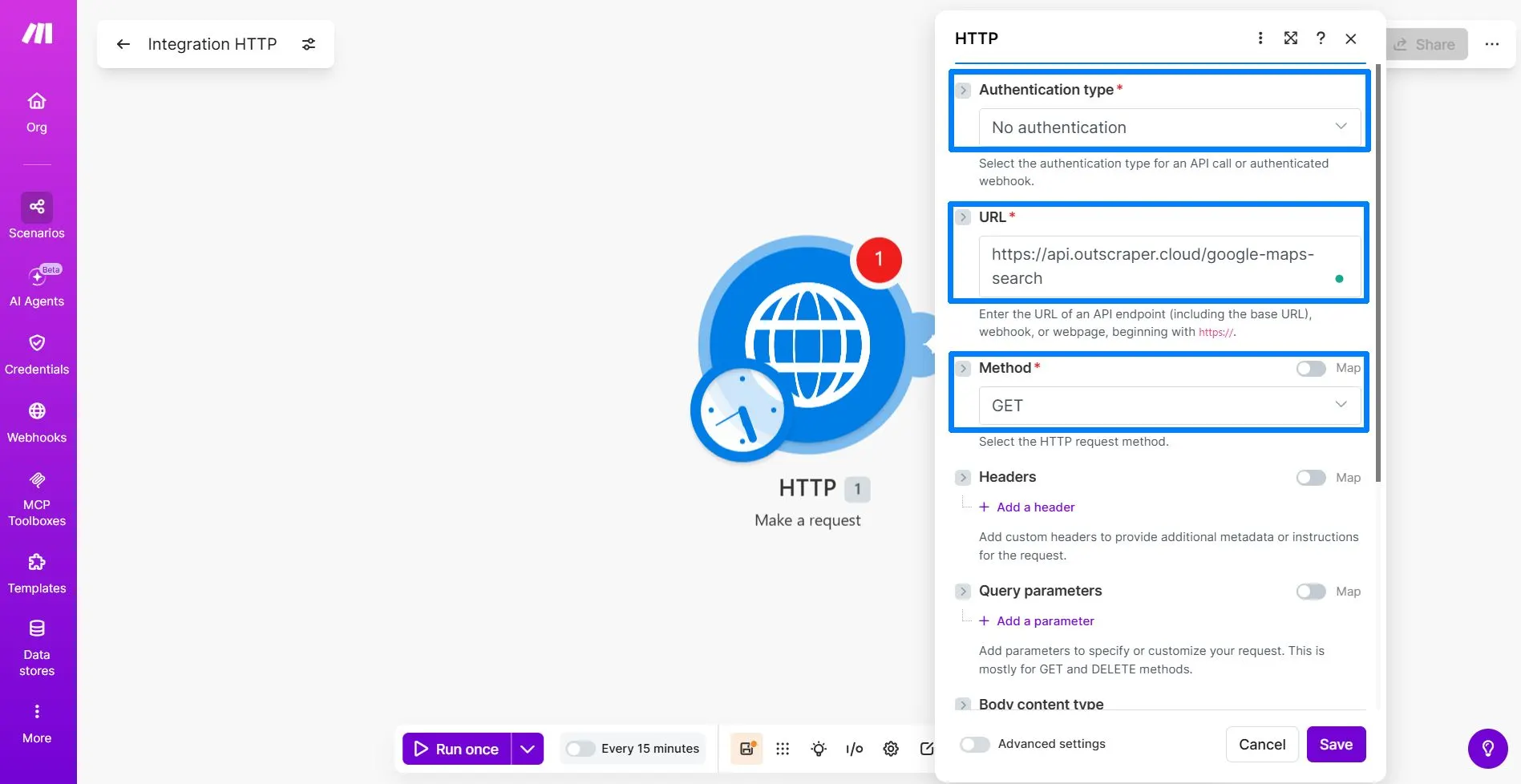
Kies ‘Geen authenticatie’, omdat je je Outscraper API-sleutel handmatig gaat toevoegen in het gedeelte ‘Headers’.
De GET-methode geeft Make.com de opdracht om gegevens op te vragen bij de Outscraper API.
De URL geeft aan Make.com door welk Outscraper-eindpunt moet worden aangeroepen. Gebruik voor deze tutorial het Google Maps Search-eindpunt.
https://api.outscraper.cloud/google-maps-search
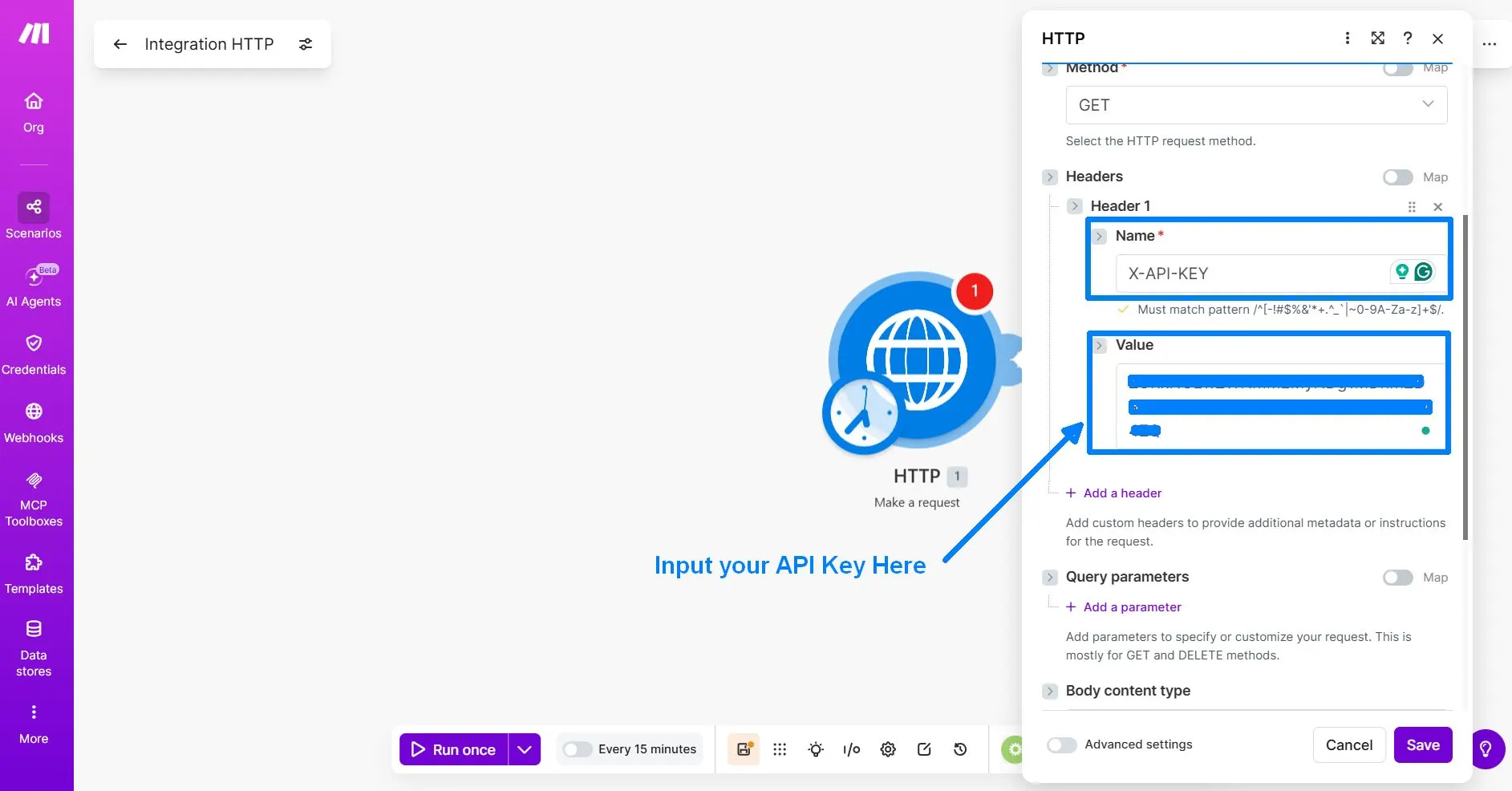
Voeg de API-sleutel-header toe
Klik Een koptekst toevoegen. Hiermee kun je een aangepaste header toevoegen waarmee je Outscraper API-sleutel samen met het verzoek wordt verzonden.
Gebruik deze koptekst:
| Naam van de koptekst | Waarde van de koptekst |
|---|---|
X-API-KEY | Uw Outscraper API-sleutel |
De queryparameters toevoegen
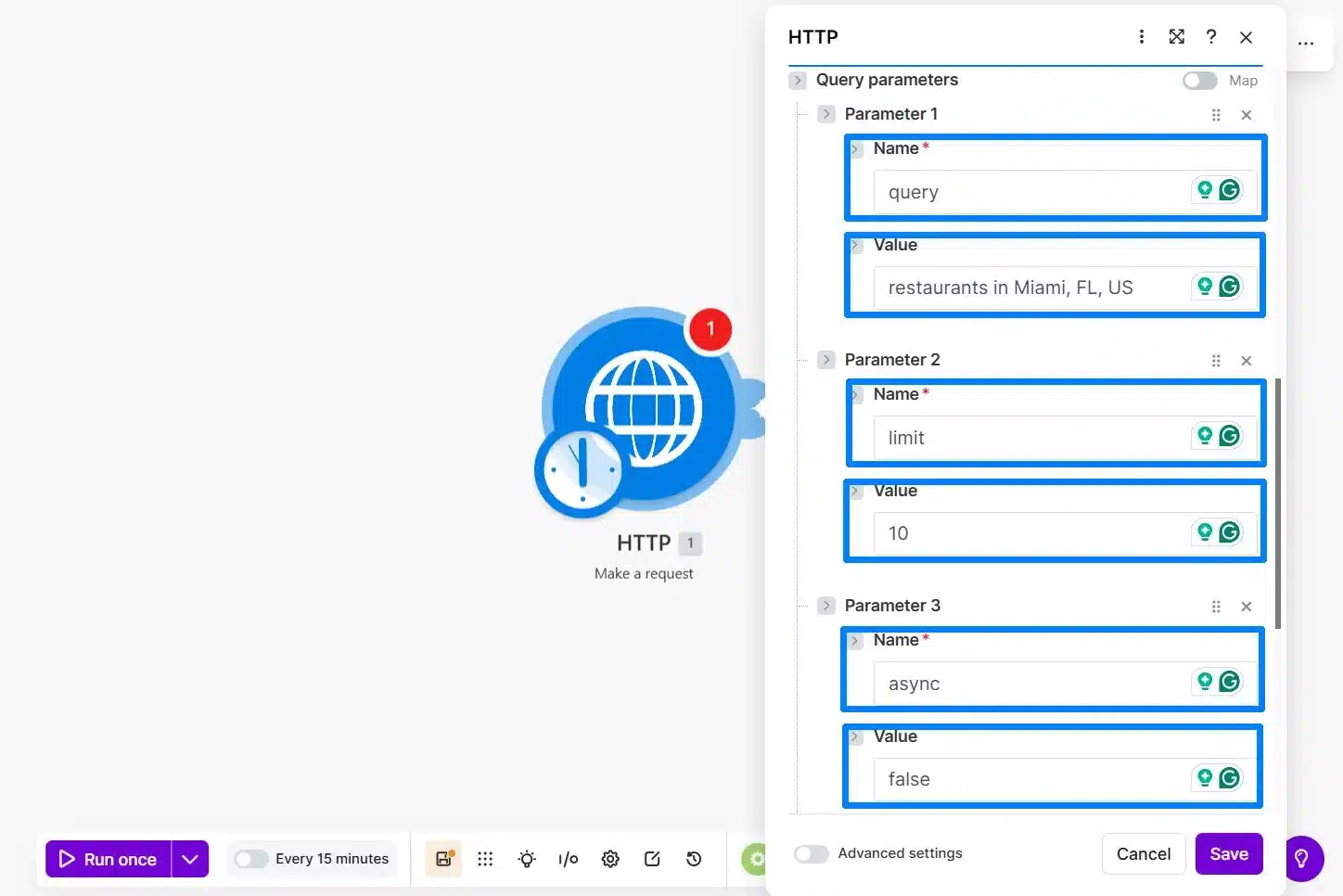
Nadat je de API-sleutel in de header hebt toegevoegd, voeg je de queryparameters voor je eerste testverzoek toe. Deze parameters geven aan Outscraper wat er moet worden gezocht, hoeveel resultaten er moeten worden geretourneerd en hoe het verzoek moet worden uitgevoerd.
Houd het verzoek voor deze workflow voor beginners klein en eenvoudig. Gebruik één lokale zoekopdracht, geef slechts 10 resultaten weer en bewaar geavanceerde filtering op velden voor later.
Gebruik deze parameters:
| Parameter | Waarde | Doel |
|---|---|---|
query | restaurants in Miami, FL, US | Geeft Outscraper aan wat er op Google Maps moet worden gezocht. |
limit | 10 | Bepaalt hoeveel bedrijven er bij de eerste testrun worden weergegeven. |
async | false | Geeft de resultaten weer van dezelfde scenario-uitvoering op Make.com. |
De query Deze parameter geeft aan Outscraper wat er op Google Maps moet worden gezocht.
De limit Deze parameter bepaalt hoeveel bedrijven er bij de eerste test worden weergegeven.
De async=false Deze parameter zorgt ervoor dat de workflow eenvoudiger te testen is, omdat Make.com in dezelfde scenario-uitvoering op de resultaten wacht.
In het antwoord zie je wellicht veel velden, zoals about, rating, reviews, working_hours, en andere bedrijfsgegevens. Dit is normaal. Je hoeft niet elk veld in te vullen. Later, wanneer je de Google Sheets-module toevoegt, koppel je alleen de velden die je voor je spreadsheet nodig hebt:
namefull_addresssitephone
Optionele opmerking voor gevorderde gebruikers:
Outscraper ondersteunt ook een fields parameter als je het antwoord wilt beperken tot bepaalde velden. Voor deze tutorial voor beginners is het makkelijker om deze parameter in eerste instantie weg te laten en de velden pas te selecteren tijdens de toewijzingsstap in Google Sheets.
Laatste instellingen voor de HTTP-module vóór het uitvoeren
Voordat je klikt Eenmalig uitvoeren, controleer nog een paar laatste instellingen in de HTTP-module. Deze opties zorgen ervoor dat Make.com het Outscraper-antwoord correct kan ontvangen en lezen.
Gebruik deze instellingen:
| Optie | Aanbevolen instelling | Eenvoudige uitleg |
|---|---|---|
| Type inhoud van het lichaam | Laat leeg | Dit is een GET-verzoek, dus je hoeft geen verzoektekst mee te sturen. |
| Antwoord parseren | Ja | Dit zorgt ervoor dat Make.com het JSON-antwoord kan lezen en later de velden kan weergeven die je nodig hebt. |
| Type paginering | Laat leeg of kies ‘geen’ | Deze beginnersproef maakt gebruik van limit=10, dus paginering is niet nodig. |
| Time-out | 300 seconden | Hierdoor krijgt Outscraper meer tijd om de resultaten terug te sturen als het verzoek meer tijd in beslag neemt. |
Houd het verzoek bij de eerste test kort. Gebruik limit=10 en controleer of Make.com de bedrijfsnaam, het adres, de website en het telefoonnummer kan ontvangen voordat u het volume verhoogt.
Voer de eerste test uit en controleer de reactie
Nadat u de definitieve instellingen van de HTTP-module hebt gecontroleerd, klikt u op Eenmalig uitvoeren op Make.com.
Make.com stuurt je verzoek naar Outscraper via het API-eindpunt, X-API-KEY header en de queryparameters die je eerder hebt toegevoegd.
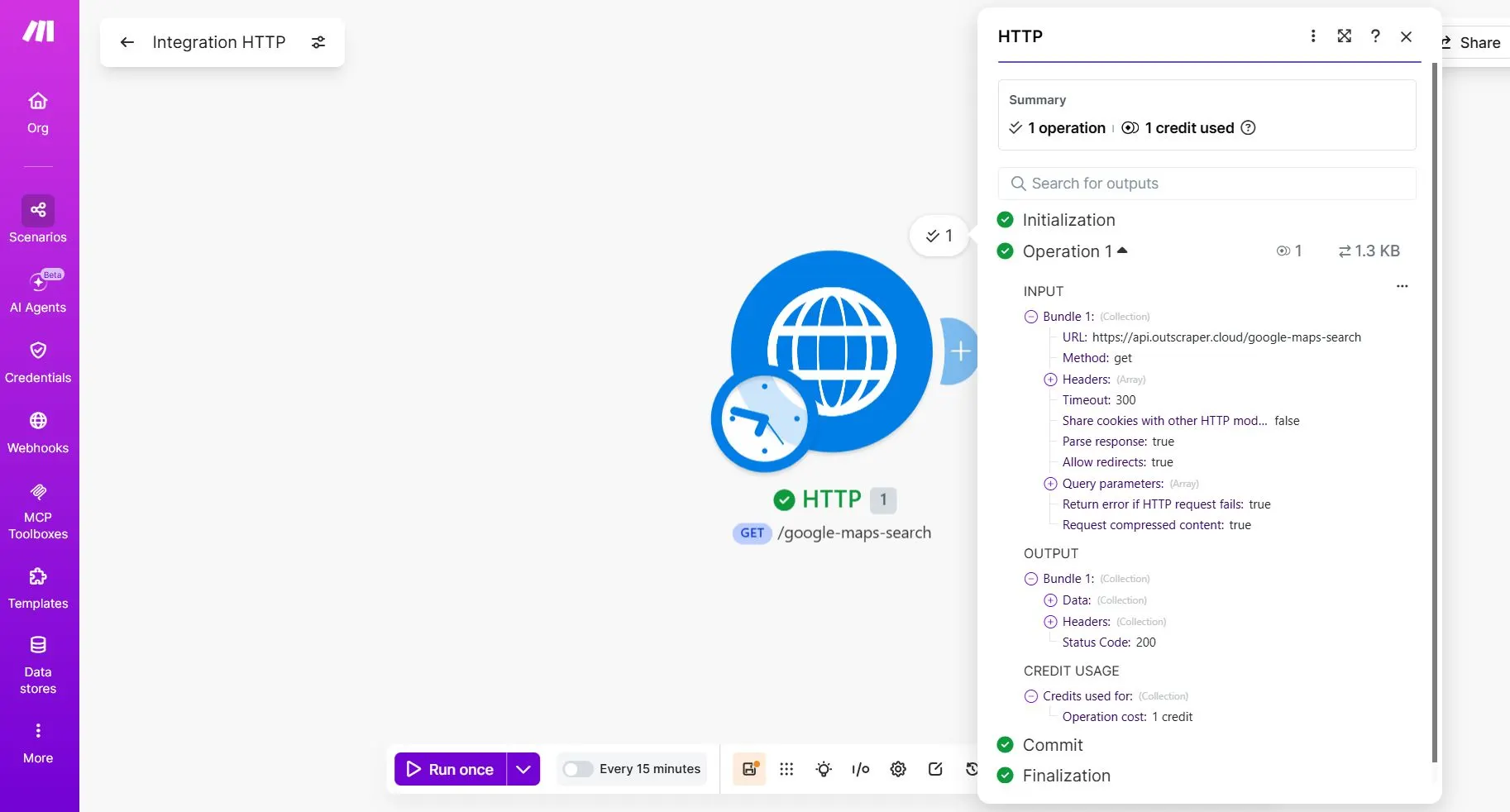
Als de configuratie correct is, zou de HTTP-module een groen vinkje moeten weergeven en een antwoord moeten terugsturen van Outscraper. Open de uitvoer van de HTTP-module en controleer het resultaat.
Een geslaagde eerste test zou het volgende moeten aantonen Status Code: 200. Dit betekent dat Make.com met succes een reactie heeft ontvangen van de Outscraper API.
Wat een geslaagde test inhoudt
De eerste test is geslaagd als de HTTP-module zonder fouten draait en een geldig antwoord retourneert van Outscraper.
Gebruik deze korte checklist:
| Wat je moet controleren | Wat dit betekent |
|---|---|
| Groen vinkje bij de HTTP-module | De HTTP-module is succesvol uitgevoerd. |
Status Code: 200 | Make.com heeft met succes een reactie ontvangen van de Outscraper API. |
Parse response: true | Make.com kan het JSON-antwoord lezen en de geretourneerde velden in de volgende modules gebruiken. |
| Het gegevensgedeelte is beschikbaar | Het Outscraper-antwoord bevat teruggestuurde gegevens die je kunt uitvouwen en bekijken. |
name, address of full_address,
website of siteen phone | Dit zijn de velden die je later in Google Sheets zult koppelen. |
Nadat je hebt gecontroleerd of het verzoek is gelukt, vouw je de Data sectie in de uitvoer van de HTTP-module.
Zoek naar deze velden:
nameaddressoffull_addresssiteofwebsitephone
Make.com kan sommige veldlabels anders weergeven dan in het ruwe Outscraper API-antwoord. Kies het veld op basis van de gegevens die het bevat.
| Kolom in Google Spreadsheets | Outscraper-veld |
|---|---|
| Bedrijfsnaam | name |
| Adres | full_address |
| Website | site |
| Telefoonnummer | phone |
Je kunt de resultaten ook bekijken in een data array. This is normal. Outscraper can return several businesses in one response, so the next step is to use an Iterator to separate those businesses into individual records.
At this stage, do not connect Google Sheets yet. The goal is only to confirm that Make.com can receive business data from Outscraper.
Once you can see the business records in the HTTP output, the API connection is working. The next step is to unpack the response so Make.com can process each business as a separate row.
Before building the Iterator step, make sure your Outscraper request is returning real business records.
Step 2: Split Outscraper Results with an Iterator
After the HTTP module returns a successful response, add an Iterator. This step separates the Outscraper results so Make.com can process one business at a time.
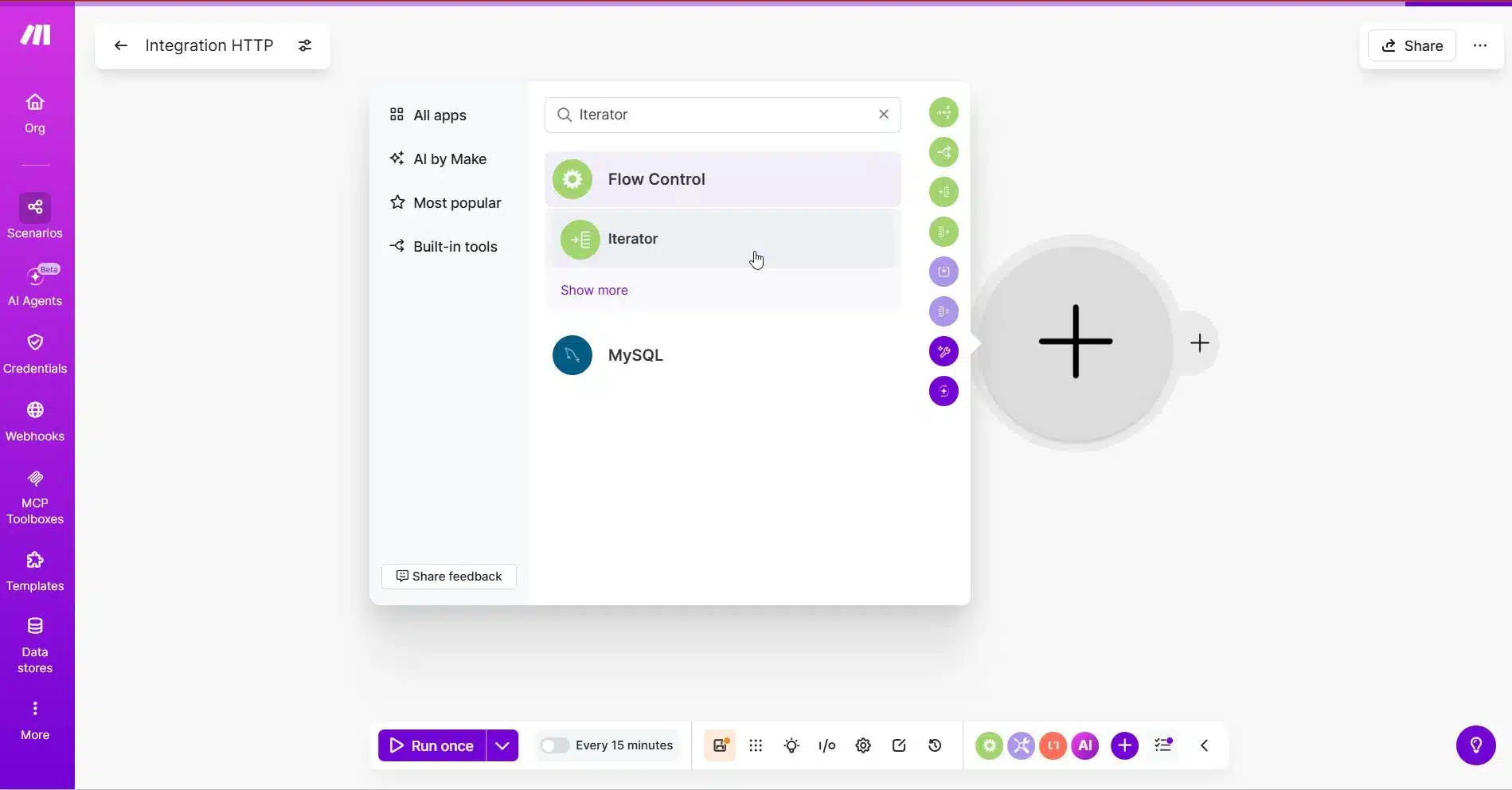
Add the Iterator Module
In Make.com, click the plus button after the HTTP module.
Zoeken naar Iterator and select it.
The Iterator should be placed immediately after the HTTP module.
Choose the Array
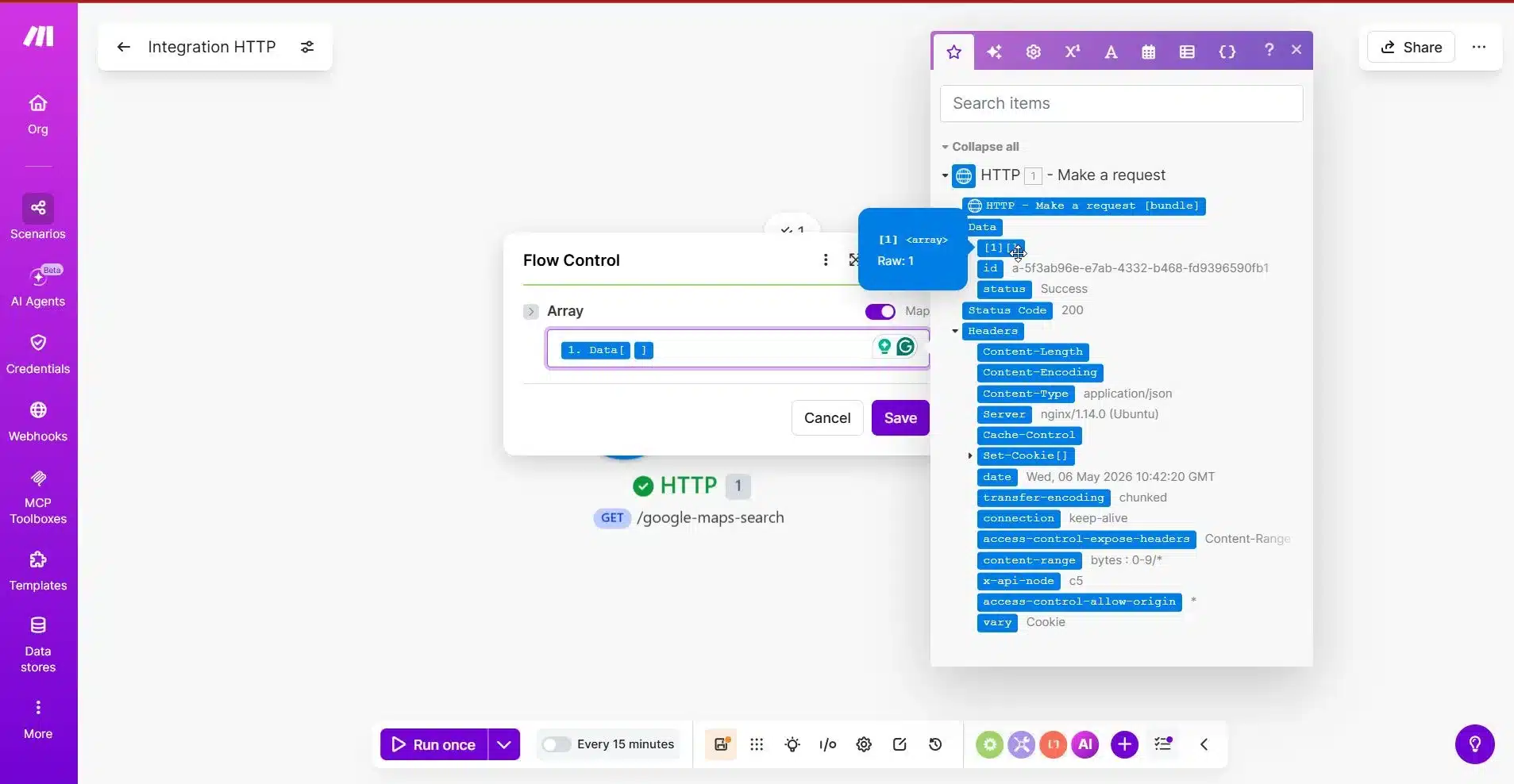
Inside the Iterator module, Make.com will ask for the Array.
This is the most important part.
Select the array from the HTTP module that contains the business results.
For Outscraper, the results may appear inside a nested structure like:
Data -> 1
Because Outscraper can return results inside a nested data array, you may need to expand the HTTP module output and choose the inner array that contains the actual businesses.
The correct array is the one that contains multiple business records.
Run the Iterator Test
After choosing the array, click Eenmalig uitvoeren again.
If your request used:
limit = 10
then the Iterator should create up to 10 bundles.
Each bundle should represent one business.
Check One Iterator Bundle
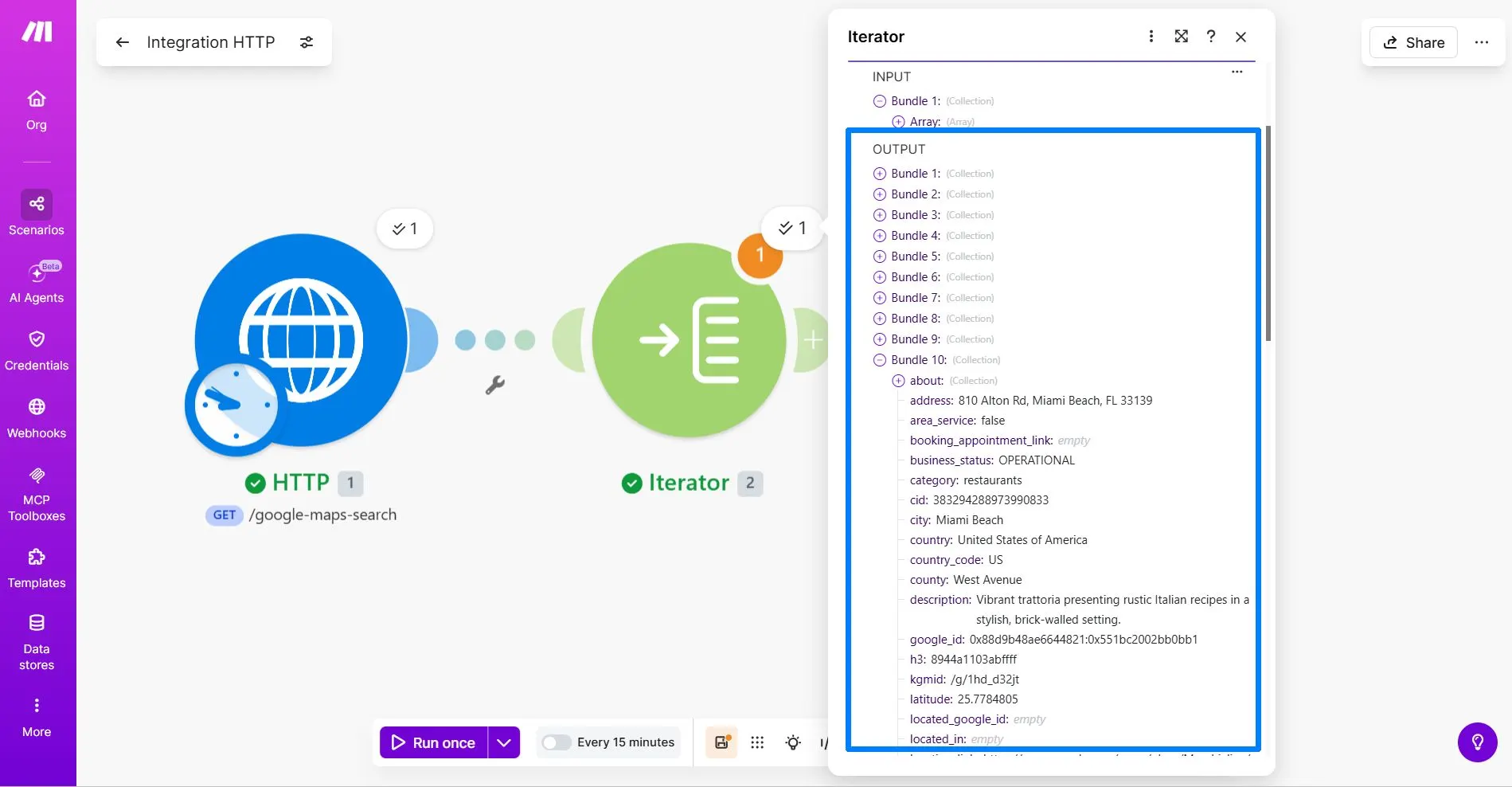
After the Iterator test runs, click the Iterator output bubble and open one bundle.
Check if the bundle contains business details such as:
nameaddressoffull_addresssiteofwebsitephone
You may also see many other fields, such as about, rating, reviewsof working_hours. This is normal. For this beginner workflow, focus only on the fields you will use in Google Sheets.
| Kolom in Google Spreadsheets | Outscraper-veld |
|---|---|
| Bedrijfsnaam | name |
| Adres | address of full_address |
| Website | website of site |
| Telefoonnummer | phone |
If the Iterator creates multiple bundles and each bundle contains one business, the setup is working.
What If the Iterator Only Creates One Bundle?
If the Iterator only creates one bundle, you probably selected the wrong array.
Go back to the Iterator module and check the Array field again. Choose the inner array inside Data that contains the actual business records.
The correct array should create several bundles, not just one.
Since your test uses limit = 10, seeing up to 10 bundles means Make.com is correctly separating the Outscraper results.
Once the Iterator is working, the next step is to send each bundle into Google Sheets as a new row.
Once the Iterator separates the results, send clean business records into Google Sheets, your CRM, or another sales workflow. Start small, then scale when the rows look accurate.
Step 3: Send Each Business to Google Sheets
After the Iterator creates separate bundles, the next step is to send each business record into Google Sheets.
Each Iterator bundle represents one business. When you add the Google Sheets module after the Iterator, Make.com will use each bundle to create one new row in your spreadsheet.
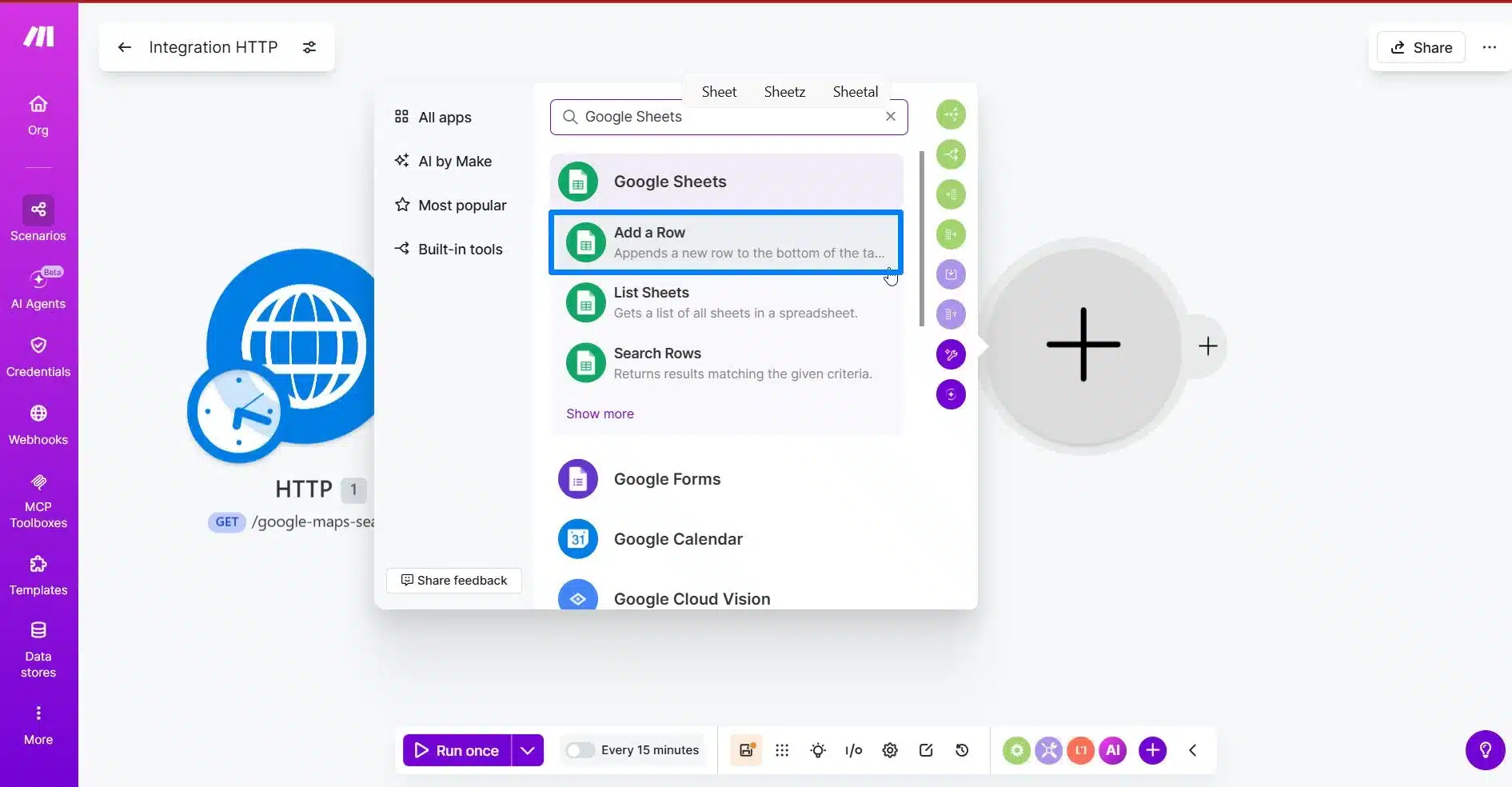
Add the Google Sheets Module
Click the plus button after the Iterator module.
Zoeken naar Google Spreadsheets en kies Add a Row.
This module will add each business from the Iterator into your Google Sheet.
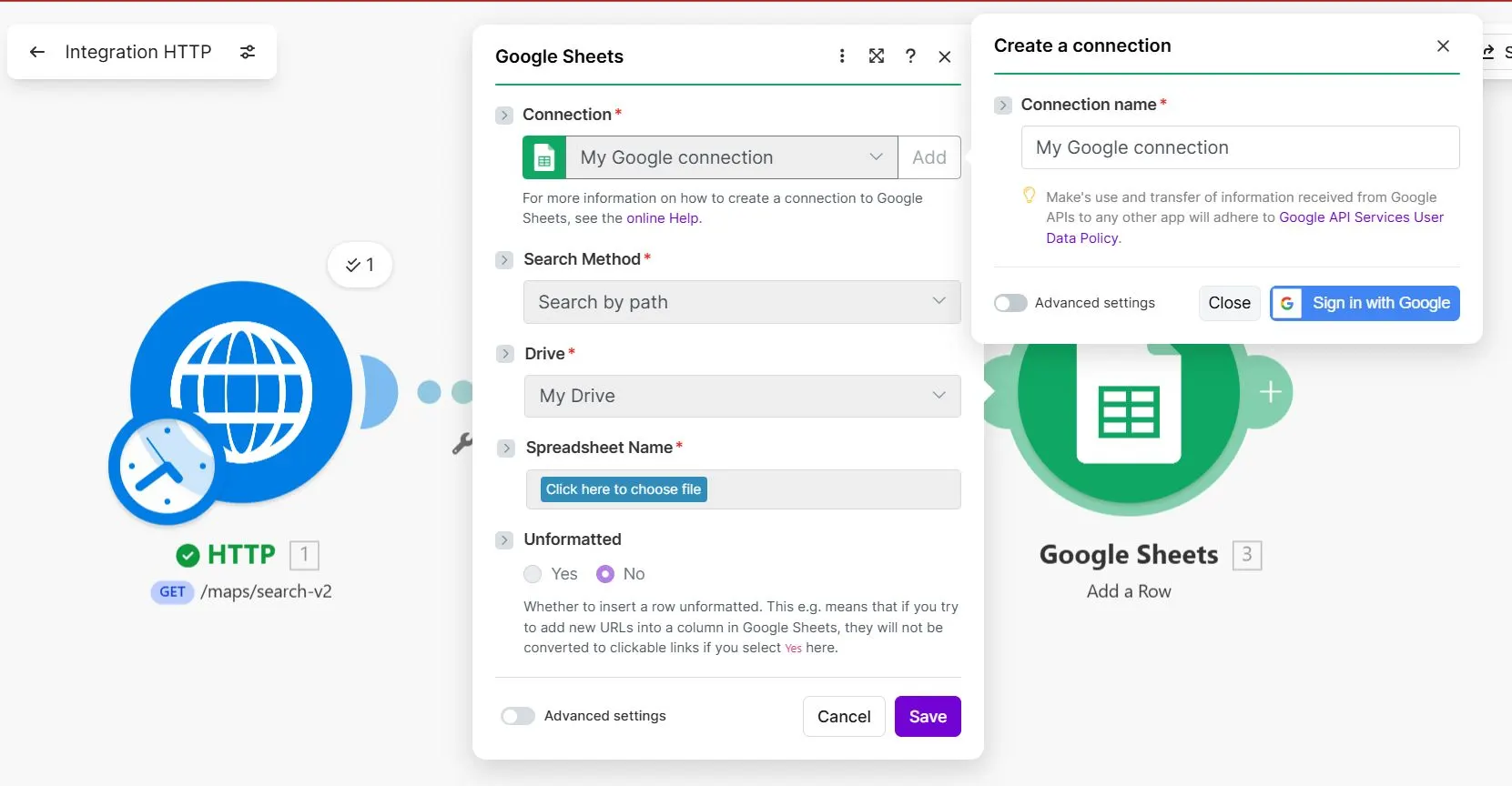
Connect Your Google Account with Make.com
If this is your first time using Google Sheets in Make.com, connect your Google account.
After connecting, choose the spreadsheet where you want to store your Outscraper leads.
Then choose the worksheet or tab that contains your lead columns.
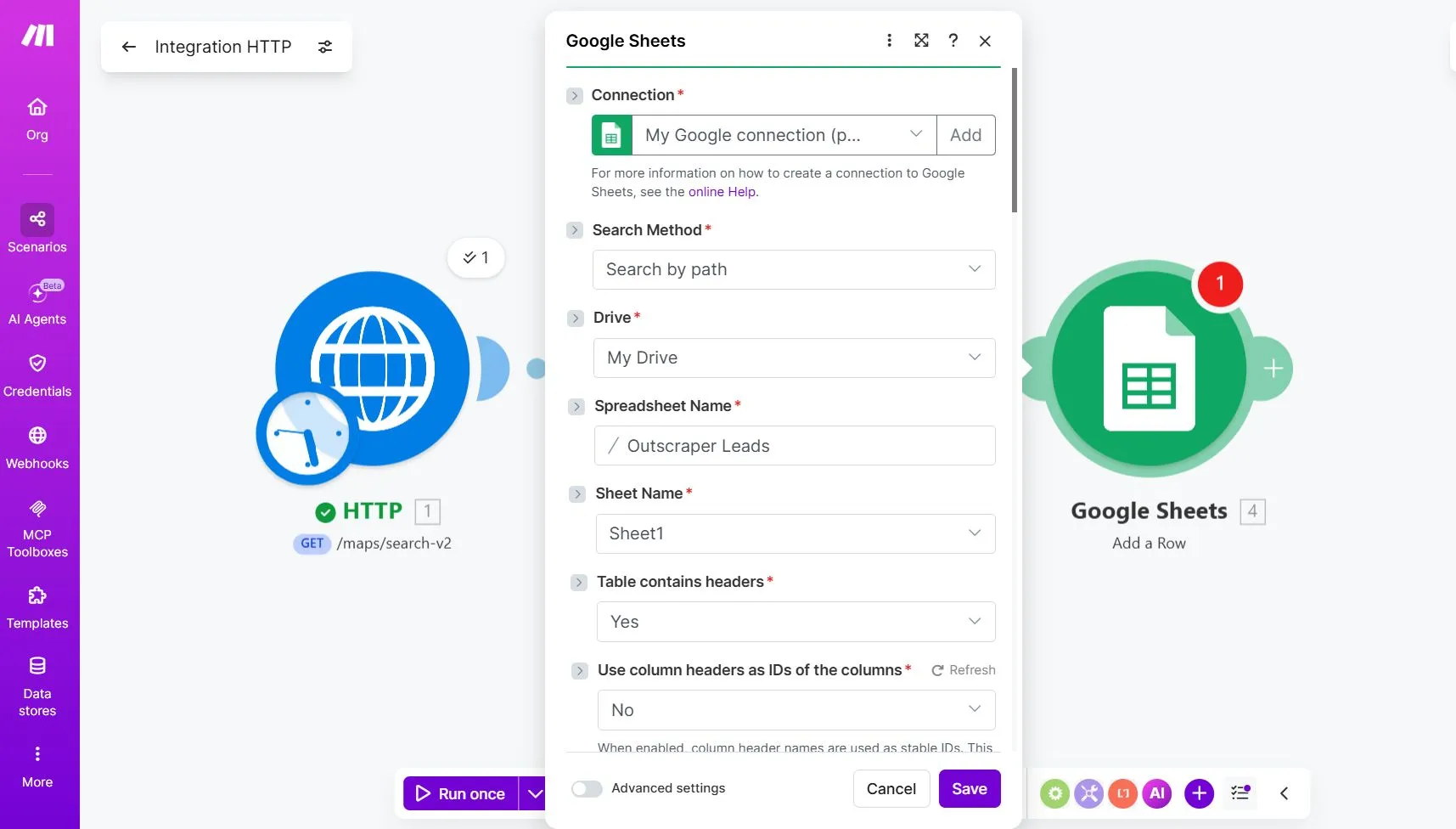
Before connecting Make.com to your Google account, make sure you have prepared the spreadsheet where your leads will be saved. For this tutorial, your Google Sheet should have these columns:
- Bedrijfsnaam
- Adres
- Website
- Telefoonnummer
Map the Iterator Fields to Google Sheets
In the Google Sheets module, map each Google Sheets column to the matching field from the Iterator output.
In Make.com, the field names may appear slightly differently from the raw Outscraper API response. For example, the address field may appear as address in plaats van full_address, and the website field may appear as website in plaats van site.
Use the fields that match the data you see in your Iterator output.
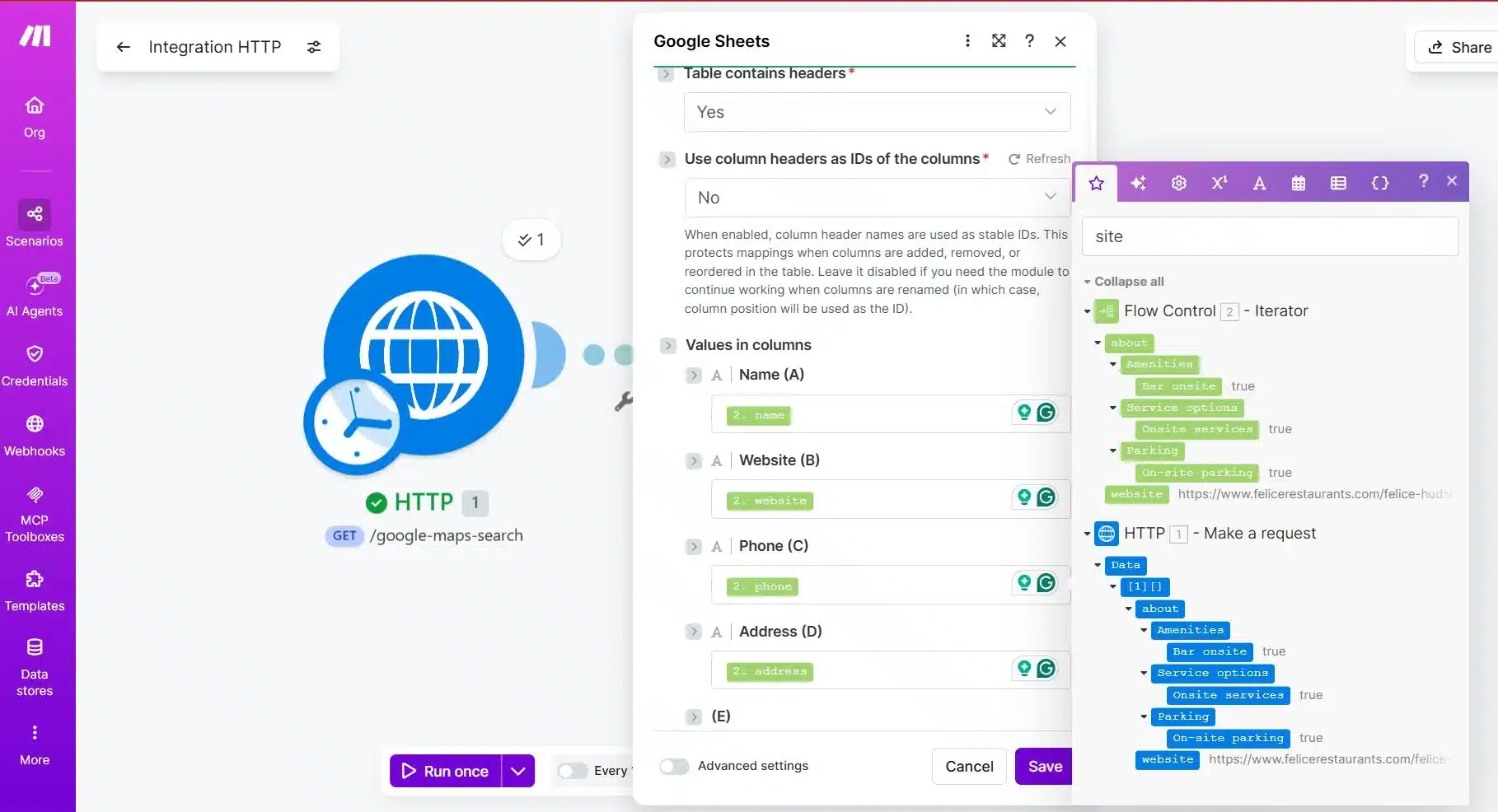
| Kolom in Google Spreadsheets | Iterator Field |
|---|---|
| Bedrijfsnaam | name |
| Adres | address |
| Website | website |
| Telefoonnummer | phone |
Mapping note:
The field labels in Make.com may not always match the raw Outscraper API field names exactly. For example, you may see address in plaats van full_addressof website in plaats van site. Choose the field based on the data it contains, not only the label.
Make sure you select the fields from the Iterator module, not directly from the HTTP module. The Iterator is what separates each business record, so the Google Sheets module should use the Iterator output.
Run a Test for Outscraper and Make.com Integration
Klik Eenmalig uitvoeren again.
If the setup is correct, Make.com should add up to 10 rows to your Google Sheet because your test request uses limit = 10.
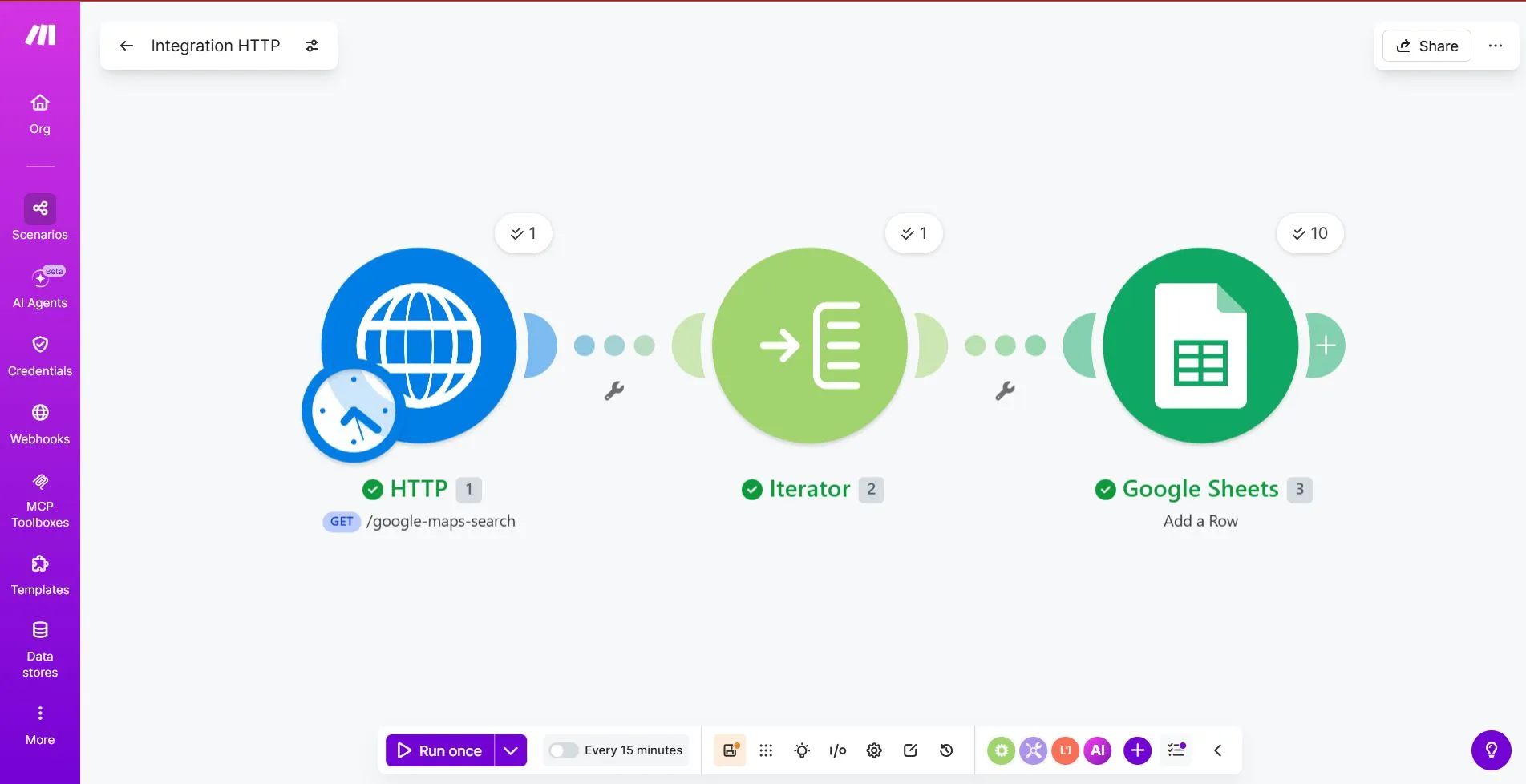
Check the spreadsheet and confirm that:
- Each business appears on a separate row
- Business names are in the Business Name column
- Addresses are in the Address column
- Websites are in the Website column
- Phone numbers are in the Phone Number column
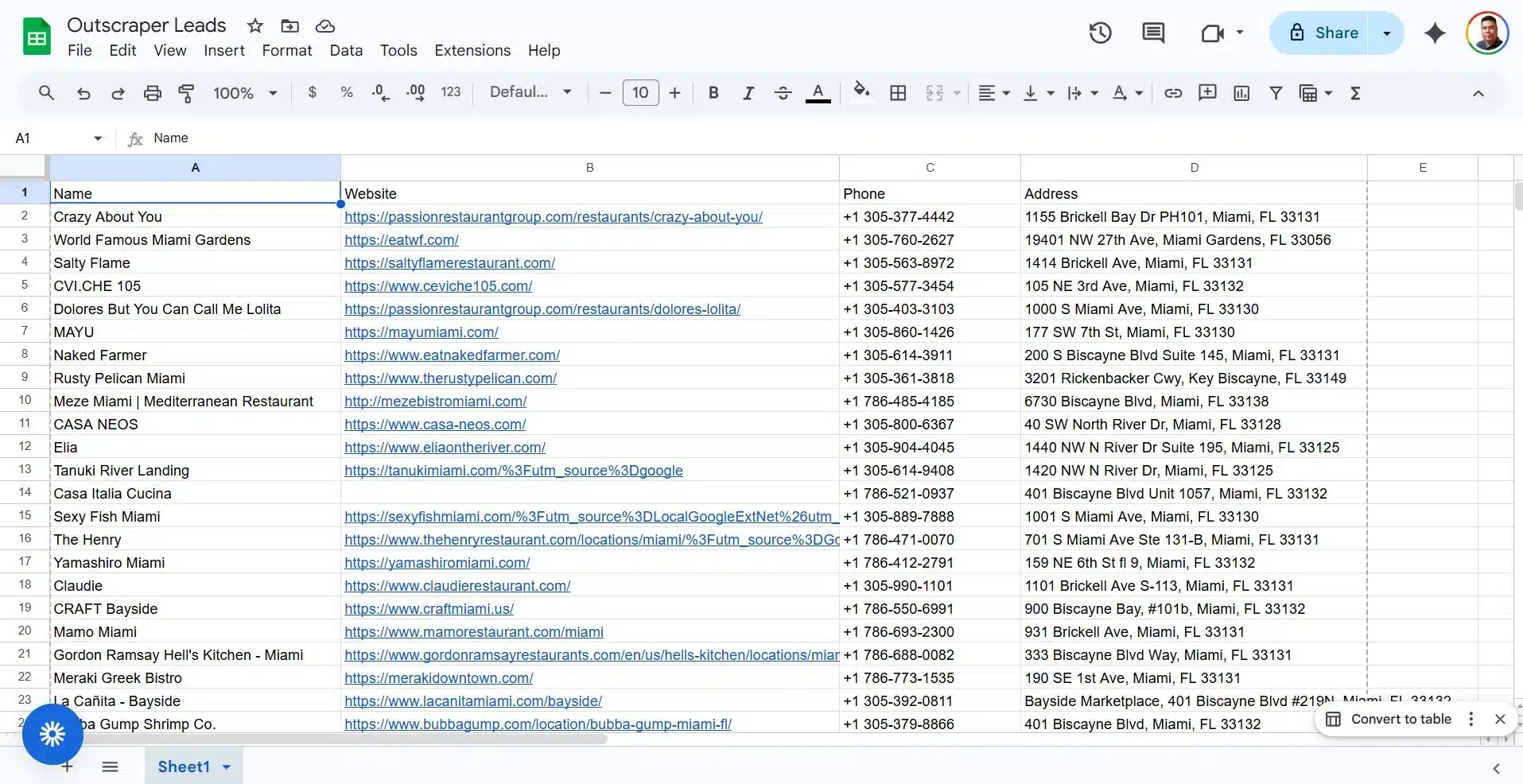
If each bundle becomes one row, your Outscraper to Google Sheets workflow is working. After the initial test run with 10 businesses, I increased the limit to 50 for the next test.
Here are the results of Outscraper and Make.com Integration for our Lead Generation workflow.
Test, Fix, and Scale the Workflow
Once the data appears in Google Sheets, the main integration is already working. The next step is to check for small issues that can affect the quality of your lead list, such as phone number formatting, missing fields, or duplicate rows.
Do not scale the workflow right away. First, confirm that the test results are clean, each business appears on a separate row, and the columns match the data you expected. After that, you can increase the limit, test more search queries, and explore advanced options like webhooks or async requests later.
Protect Phone Numbers in Google Sheets
Before scaling the workflow, make sure your phone numbers are stored correctly in Google Sheets.
Phone numbers can break when a spreadsheet treats them as normal numbers. In some cases, Google Sheets may remove formatting, drop leading symbols, or convert long numbers into scientific notation.
To reduce this issue, format the phone number column as plain text.
In Google Sheets:
- Selecteer de Telefoonnummer column.
- Ga naar Format.
- Selecteer Number.
- Choose Gewone tekst.
If phone numbers are still changing after the column is formatted as plain text, you can add a single apostrophe before the mapped phone value in Make.com.
Once the rows appear correctly in Google Sheets, the basic Outscraper and Make.com integration is complete. You can now duplicate the scenario, change the search query, or increase the limit slowly after testing.
Quick Troubleshooting Notes
If the workflow does not behave as expected, check these common setup issues before changing the whole scenario.
| Issue | Wat je moet controleren |
|---|---|
| API request fails | Check the endpoint and make sure the X-API-KEY header contains your Outscraper API key. |
| Iterator creates only one bundle | Select the inner array inside Data that contains the business records. |
| Field names look different | Choose fields based on the data they contain. For example, you may see address in plaats van full_addressof website in plaats van site. |
| Phone numbers look broken | Format the Phone Number column in Google Sheets as Gewone tekst. |
| Some cells are empty | Some businesses may not have a website, address, or phone number available. |
How to Scale the Workflow Safely
Once the basic workflow works, do not increase the volume too quickly. Start with small tests so you can check the results, fix mapping issues, and avoid creating messy rows in Google Sheets.
A simple scaling path looks like this:
| Podium | Suggested Limit | Wat je moet controleren |
|---|---|---|
| First test | 10 | Confirm the HTTP request, Iterator, and Google Sheets mapping work. |
| Small batch | 25 | Check if rows still appear clean and complete. |
| Larger test | 50 | Review speed, empty fields, and duplicate records. |
Use specific local queries instead of one broad search.
Instead of:
restaurants in Florida
Use smaller searches like:
restaurants in Miami, FL, USrestaurants in Miami Beach, FL, USrestaurants in Coral Gables, FL, US
This keeps each run easier to review and helps you build cleaner lead lists.
Note About Webhooks
Outscraper supports webhooks as an API option for advanced workflows. A webhook can send a callback when a task or request is finished, and Outscraper also supports async request result retrieval for larger API jobs.
However, this beginner tutorial does not use webhooks as a second setup method.
For this workflow, the simplest path is still:
- HTTP module
- Iterator
- Google Spreadsheets
Use webhooks later when you are ready to build a more advanced workflow with async requests, callback URLs, and result retrieval.
For advanced workflows, you can also learn how to verify Outscraper webhook requests before using callback-based automations.
Once the workflow is tested, your Outscraper and Make.com integration is ready to use. Start with one search query, check the lead quality, and scale only after your Google Sheet is receiving clean rows.
Send fresh business data from Outscraper into Google Sheets or your CRM with Make.com. Start with a simple workflow, then scale when your lead list is clean.
FAQ
Meest voorkomende vragen en antwoorden
Om Outscraper te integreren met Make.com, gebruik je de HTTP-module van Make.com om de Outscraper Google Maps Search API aan te roepen. Voeg je Outscraper API-sleutel toe via de X-API-KEY header, stel je zoekparameters in en gebruik vervolgens een Iterator om de resultaten op te splitsen in afzonderlijke bedrijfsrecords voordat je ze naar Google Sheets verstuurt.
Gebruik directe exporten voor eenmalige lijsten met leads. Dit is eenvoudiger wanneer je de gegevens alleen handmatig hoeft te downloaden en door te nemen.
Gebruik Make.com als je automatisering wilt. Hiermee kun je Outscraper-gegevens naar Google Sheets, CRM-systemen, tools voor cold calling, tools voor cold e-mailing of andere apps sturen zonder dat je deze steeds opnieuw hoeft te downloaden en te uploaden.
Je hebt een iterator nodig omdat Outscraper meerdere bedrijven in één API-antwoord kan retourneren. Google Sheets heeft één bedrijf per rij nodig, dus de iterator splitst het antwoord op in afzonderlijke bundels. Elke bundel kan vervolgens als een afzonderlijke rij aan Google Sheets worden toegevoegd.
Voor deze workflow voor beginners moet je alleen de velden in kaart brengen die nodig zijn voor je lijst met leads. Gebruik name voor de bedrijfsnaam, address of full_address voor het adres, website of site voor de website, en phone voor het telefoonnummer. De exacte labels kunnen er in Make.com anders uitzien, dus kies het veld op basis van de gegevens die het bevat.
Als de Iterator slechts één bundel aanmaakt, heb je waarschijnlijk de verkeerde array geselecteerd. Ga terug naar de Iterator-module en kies de binnenste array daarbinnen Data waarin de daadwerkelijke bedrijfsgegevens zijn opgeslagen. Als je test gebruikmaakt van limit=10, de Iterator moet maximaal 10 bundels aanmaken.
Telefoonnummers kunnen er verkeerd uitzien als Google Sheets ze als gewone getallen behandelt. Hierdoor kan bij lange telefoonnummers de opmaak verloren gaan, kunnen symbolen verdwijnen of kunnen ze in wetenschappelijke notatie worden weergegeven.
Om dit te voorkomen, moet je de Telefoonnummer kolom als Gewone tekst voordat je de workflow uitvoert. Selecteer in Google Spreadsheets de kolom met telefoonnummers en ga naar Opmaak > Getal > Gewone tekst.
Als het probleem zich blijft voordoen, voeg dan één apostrof toe vóór de toegewezen telefoonwaarde in Make.com, zodat Google Sheets deze als tekst behandelt.