目录
Outscraper Business Catalog helps sales teams, marketers, agencies, and researchers find, filter, review, and export business records from the Outscraper Platform.
You can choose a business category and location, apply filters such as business status and contact availability, review the matching records, and export only the data fields you need.
This can help when building prospect lists, checking local markets, or narrowing businesses before outreach. If your goal is prospecting, you can also read Outscraper’s guide to Google Maps lead generation for a broader look at building business lead lists from local data.
In this guide, I will show the full workflow using real estate agents in San Francisco as an example, from the first search to the final CSV download.
Quick Answer: How to Use Outscraper Business Catalog
- Open Data → Business Catalog and choose a business category.
- Select the target location by country, state, city, or neighborhood.
- Apply Advanced Filters to narrow the results.
- Review the matching businesses in Grid, Table, or Map view.
- Select the file format and columns, confirm checkout, and download the results.
Watch this one-minute summary to see how the workflow moves from a broad business search to a filtered export.
Choose a category and location, apply filters, review the matches, and export the business records you need.
What Is Outscraper Business Catalog?
Outscraper Business Catalog is a section of the Outscraper Web App where users can search, filter, review, and export business records.
It sits under the Data tab rather than the Services page. Users can choose a business category and location, then narrow the results using filters such as business status, contact availability, rating, reviews, postal code, dates, and other business attributes.
Business Catalog helps users move from a broad list of businesses to a more targeted set of records before export. This makes it useful for prospect research, lead list building, local market research, and other workflows that depend on structured business data.
If you need a broader workflow for organizing businesses by category and location, see how to build a local business database.
Business Catalog vs. the Services Page
这 服务 area contains Outscraper scraping and enrichment tools. Business Catalog focuses on searching and working with business records through the Data section of the Web App.
If you need to collect Google Maps business data directly, use Outscraper’s 谷歌地图抓取工具 服务。
For this guide, the workflow starts from Data → Business Catalog, where the search can be narrowed before the records are reviewed or exported.
Choose a business category and location, then narrow the records using Business Catalog filters.
How to Search and Filter Businesses in Outscraper Business Catalog
The search starts with two basic choices: what type of business you need and where you want to find it. You can then use Advanced Filters to narrow a broad result set before reviewing or exporting the records.
For this guide, we will search for real estate agents in San Francisco, California and then narrow the results to operational businesses with both an email and phone number.
Step 1: Open Data and Select Business Catalog
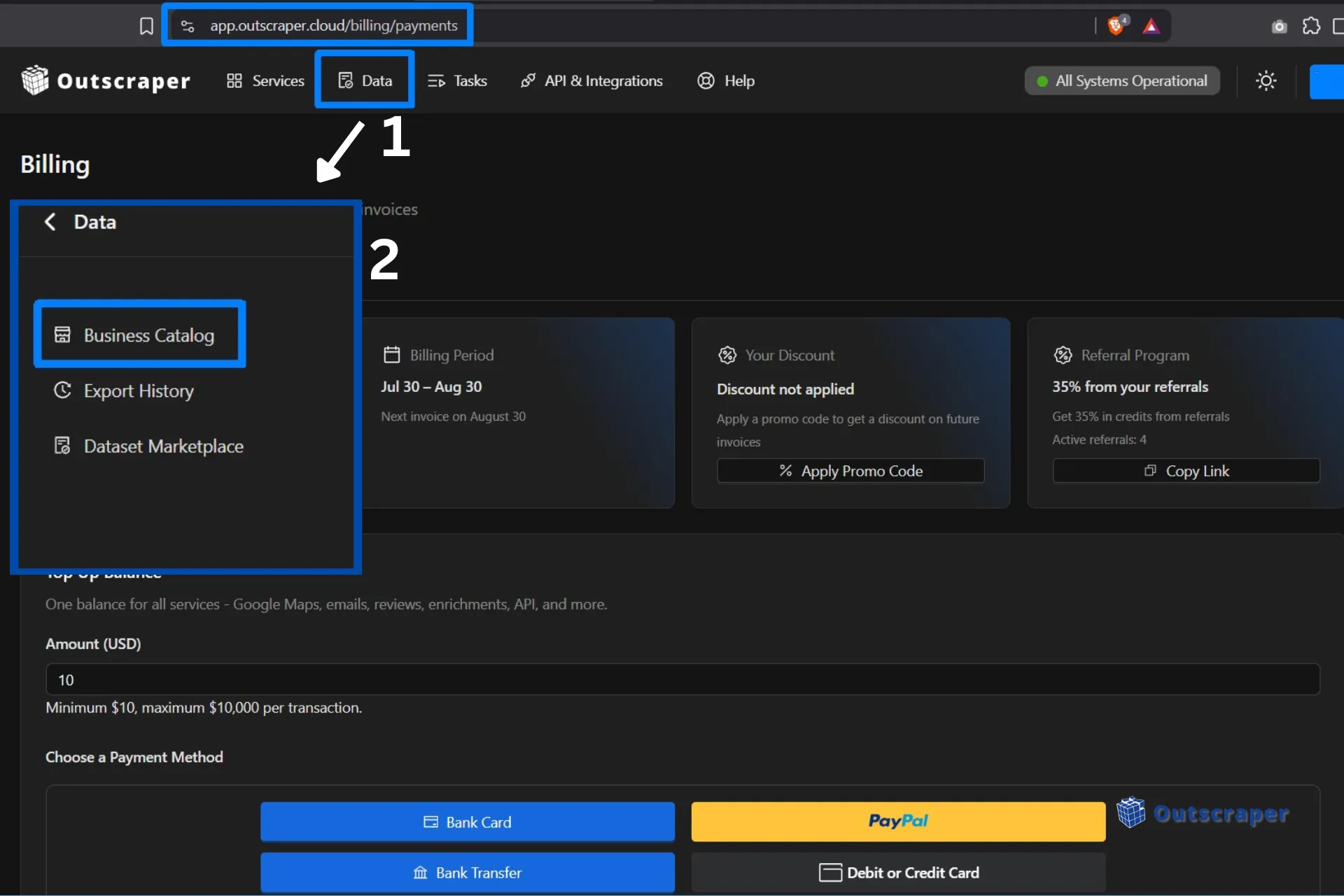
Log in to the Outscraper platform or sign up if you don’t have an account yet. Once inside, click Data in the main navigation, and select Business Catalog.
The Data menu also includes Export History and Dataset Marketplace, but this workflow starts from Business Catalog.
Step 2: Choose a Business Category
Use the 类别 field to select the type of business you want to find.
The category dropdown includes options such as Doctor, Dentist, Attorney, Real Estate Agency, Real Estate Agent, Restaurant, and Beauty Salon. You can also select the full list of business categories from Google Maps.
For this example, select Real Estate Agent.
Choosing the category first defines the market you want to research before you narrow it by location and other criteria.

Step 3: Choose the Location
Next, select the geographic area you want to search.
Business Catalog lets you narrow the location through:
- 国家
- 省
- City or Town
- Neighborhood or District
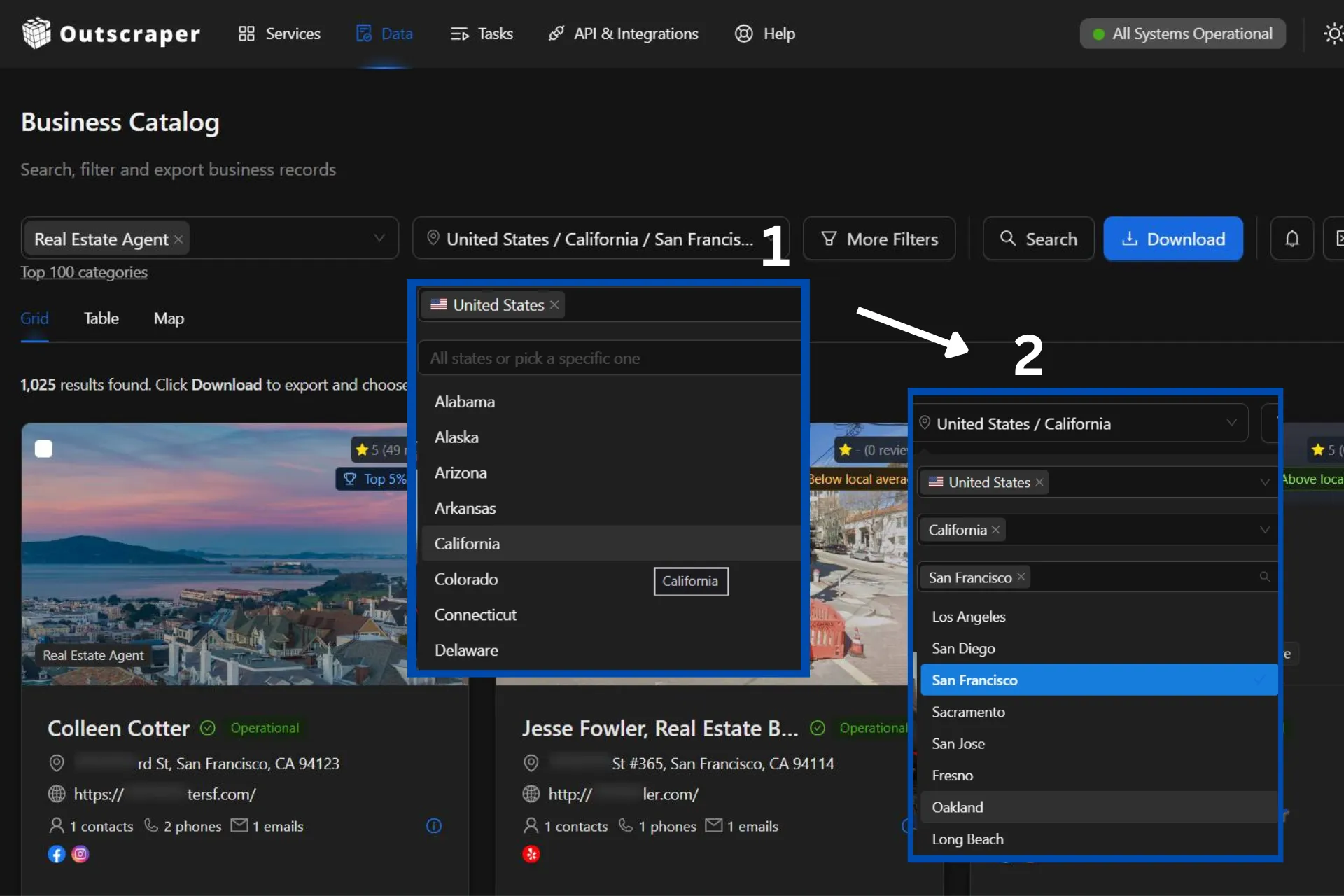
For this example, select:
United States → California → San Francisco
You can stop at a broader level if you need wider coverage. For example, selecting the United States and California without choosing a city would keep the search at the state level.
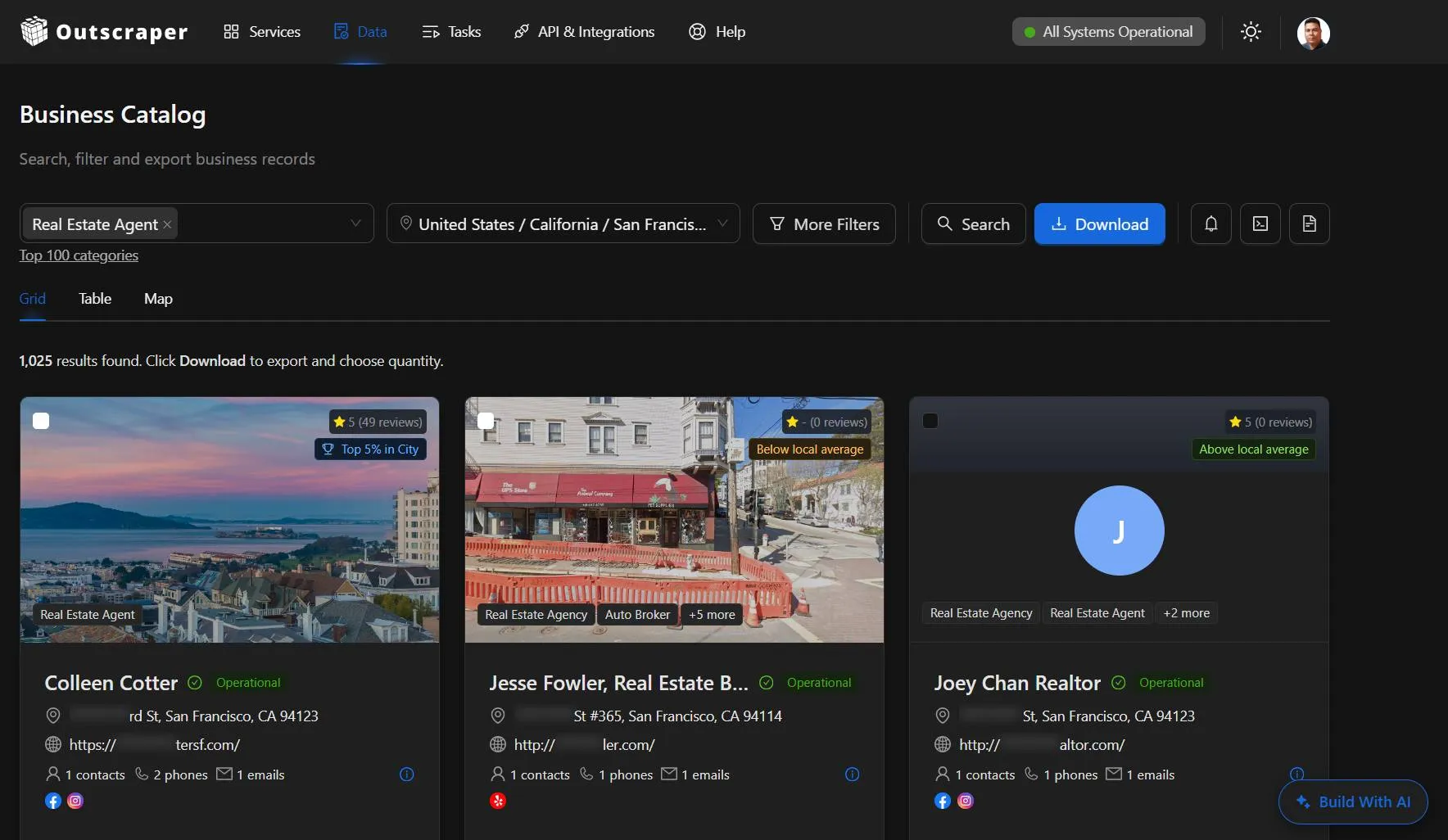
After selecting Real Estate Agent 和 San Francisco, the search returns 1,025 business records before any Advanced Filters are applied.
Step 4: Apply Advanced Filters
Click More Filters when the category and location search still returns more records than you need.
Advanced Filters can narrow results by:
- business name and status
- verification
- email and phone availability
- website availability
- rating and review count
- postal code and location type
- added and updated dates
- business attributes
- excluded categories
- non-business records
Under 业务状况, you can choose Operational, Temporarily Closed, 或者 Permanently Closed.
这 Email/Phone filter can narrow results based on contact availability, including businesses with an email, phone, or both.
If email availability is a key requirement for your list, see how to find business emails from Google Maps for a more focused contact data.
For this example, apply two filters:
- Business Status → Operational
- Email/Phone → With email and phone
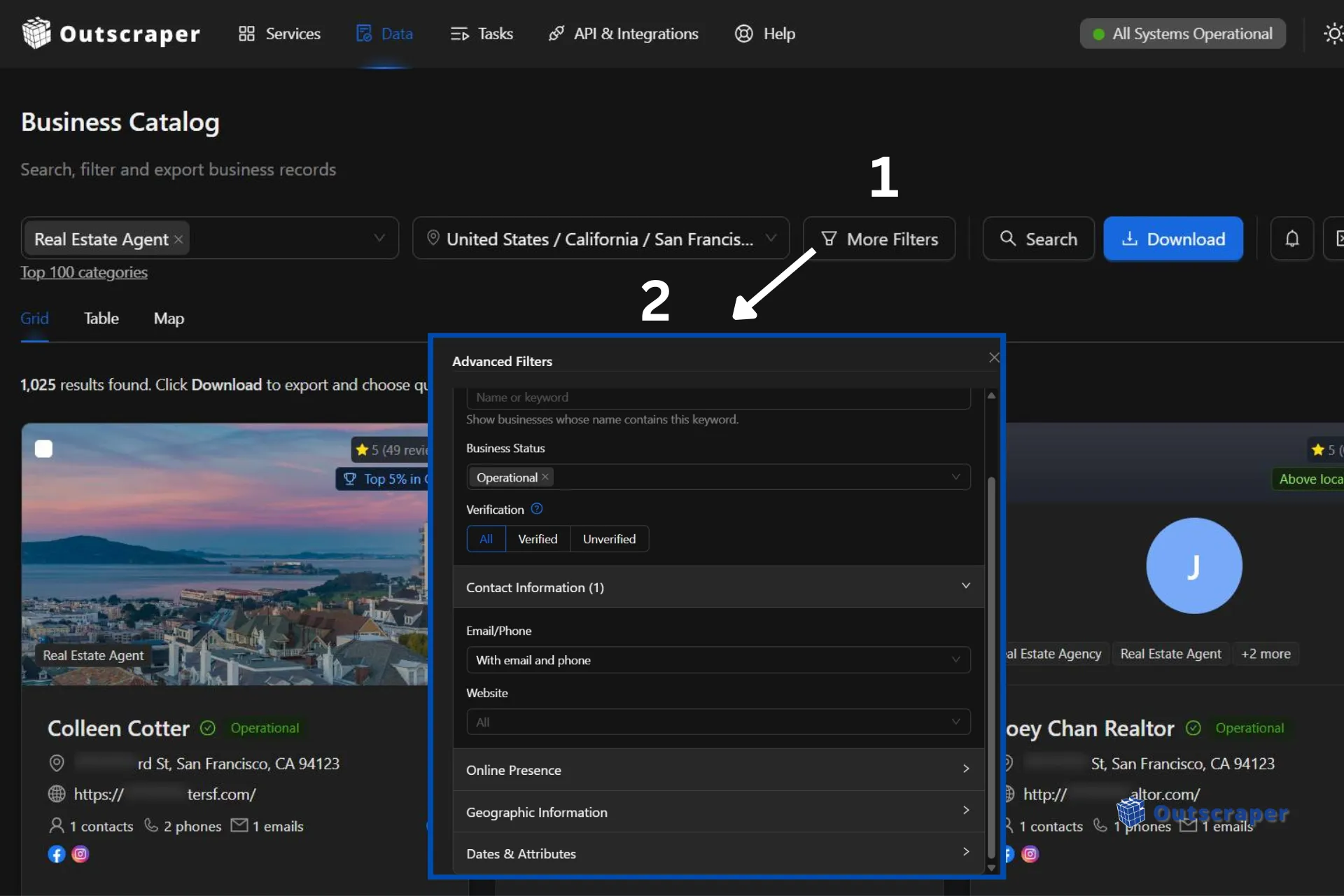
After applying these filters, the original 1,025 records drop to 694 matching businesses.
This reduces the list to businesses that match the selected status and contact criteria, making the results easier to review before export.
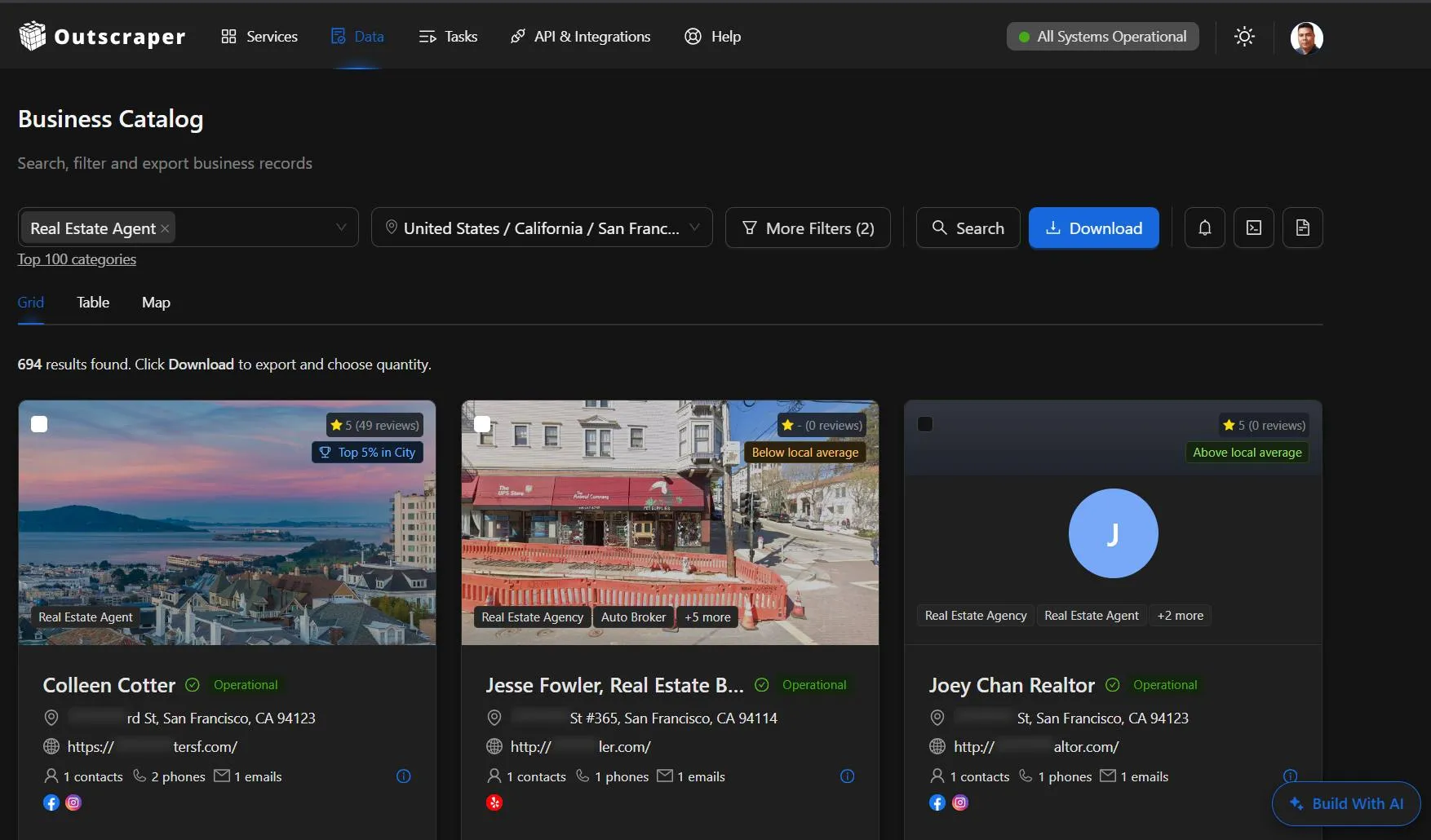

用 Outscraper Business Catalog to filter businesses by category, location, status, contact availability, ratings, reviews, and other criteria before choosing what to export.
Review and Reuse Your Business Catalog Results
After filtering the search, review the matching businesses before exporting them. This helps you check whether the records fit your purpose and whether the filters need another adjustment.
Review Records in Grid, Table, or Map View
Business Catalog provides Grid, Table, and Map views for reviewing the same filtered result set.
这 Grid view shows individual business cards with key details such as business status, contact availability, ratings, reviews, company information, and local comparison labels.
这 Table view organizes the records into columns such as Company, Address, Website, Contacts, Communication, and Business Info. This makes it easier to compare several businesses at once.
这 Map view places matching businesses on a map while keeping a scrollable list of records beside it. This can help when you want to see how the businesses are distributed across the selected area.

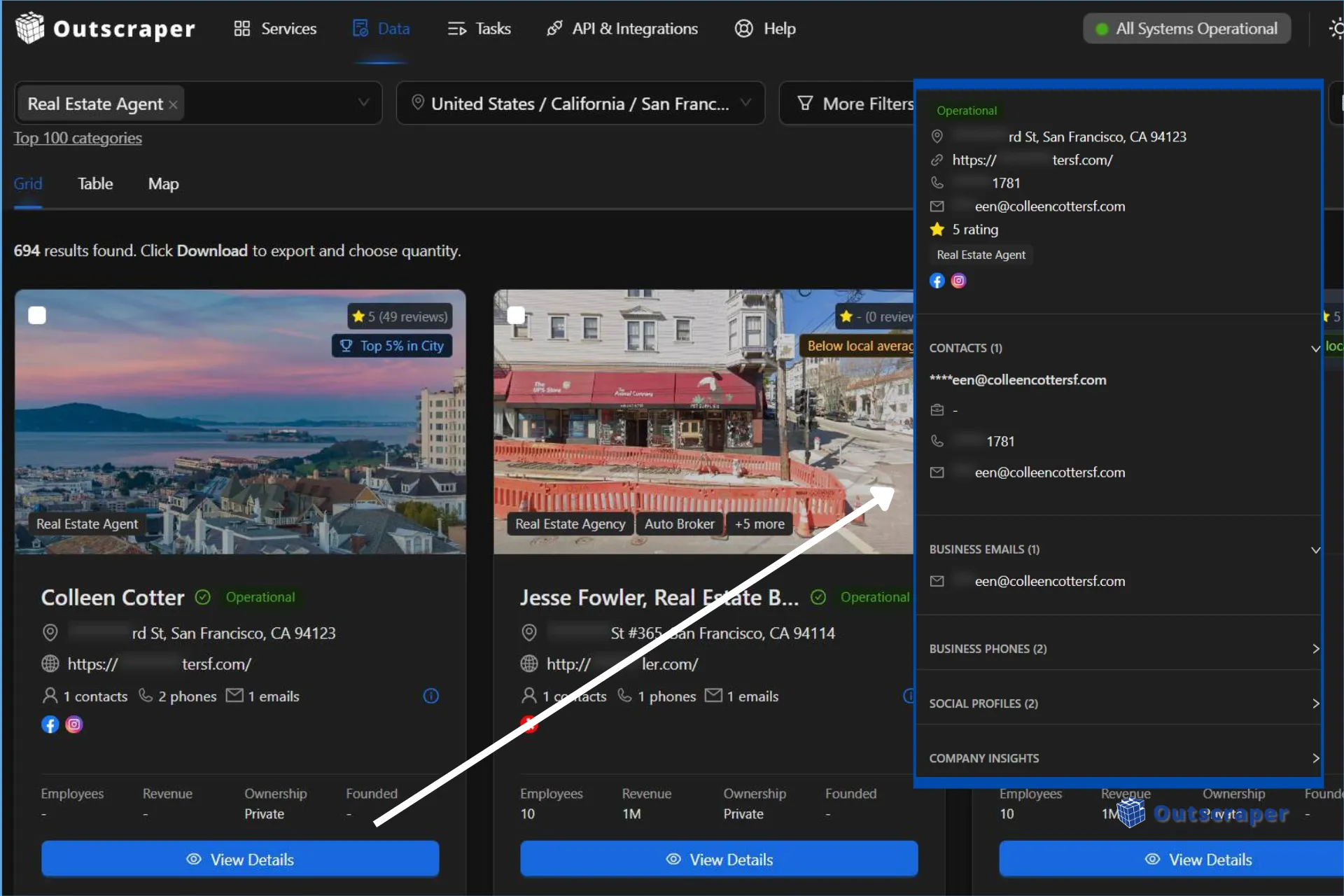
Open View Details for a Closer Record Check
If you want to inspect one business more closely, use **View Details** in Grid or Map view, or the eye icon in Table view.
The details panel can show a fuller business record, including:
- business overview
- business status
- 地址
- 网站
- phone
- 电子邮件
- rating
- category
- contacts
- business emails
- business phones
- social profiles
This gives you a closer look at the record before deciding whether it belongs in the final export.
Check Local Comparison Labels
Some records include local comparison labels such as Top 1% in State, Top 5% in State, Above local average,或 Below local average.
The tooltip explains how the business compares with similar businesses in the same area and shows the approximate size of the benchmark group.
For example, a Top 5% in State label means the business outperforms most similar businesses in that state based on the comparison shown in the tooltip.
These labels add extra context when reviewing records. The full benchmarking method is better covered in a separate article.
Get Weekly Catalog Updates
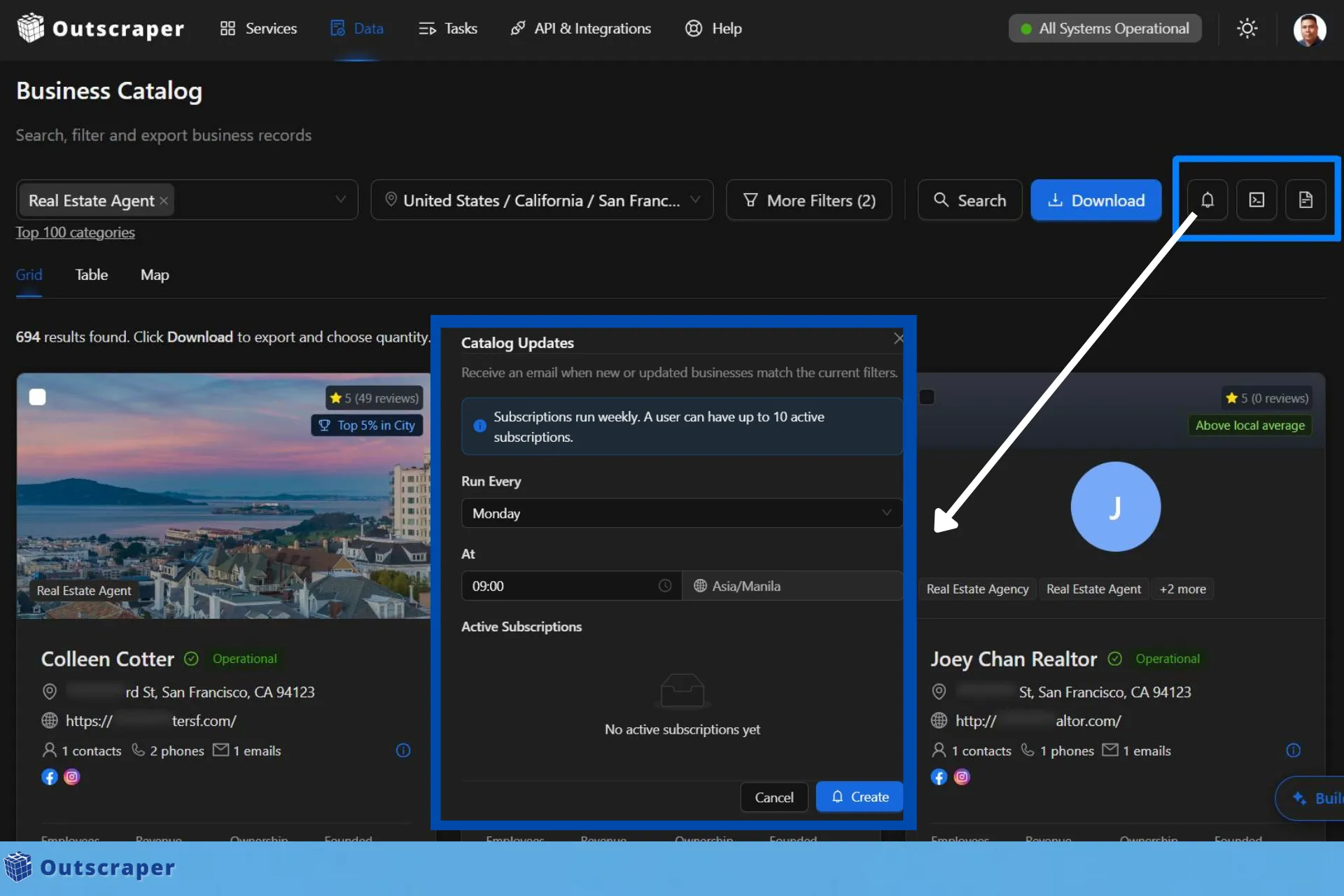
The bell icon next to 下载 opens Catalog Updates.
You can create a weekly email subscription for the current search so Outscraper can send an update when new or updated businesses match the active filters.
The settings let you choose the weekly run day and time, and the schedule uses the displayed timezone. A user can have up to 10 active subscriptions.
This is useful when you want to keep checking the same market without rebuilding the search each time.
Copy the Search as an API Request
Business Catalog also lets you copy the current search as an API request.
The generated request carries over the active search conditions, such as category, country, state, city, business status, and contact filters.
This gives technical users a way to build the search visually first, then continue the same search through the Outscraper API.
If you include an API example in the article, replace the real API key with a placeholder such as `YOUR_API_KEY`.
Open the Search in API Docs
这 Open in API Docs action opens the related Businesses & POI API documentation.
This is useful when you want to review the API endpoint after building the search in Business Catalog without turning the Web App workflow into a separate developer setup.
Built a search in Business Catalog and want to use the same workflow in code? Open the Businesses & POI API documentation to review the endpoint and request options.
Download and Customize Business Catalog Results
Once you are satisfied with the filtered records, click 下载 to prepare the export.
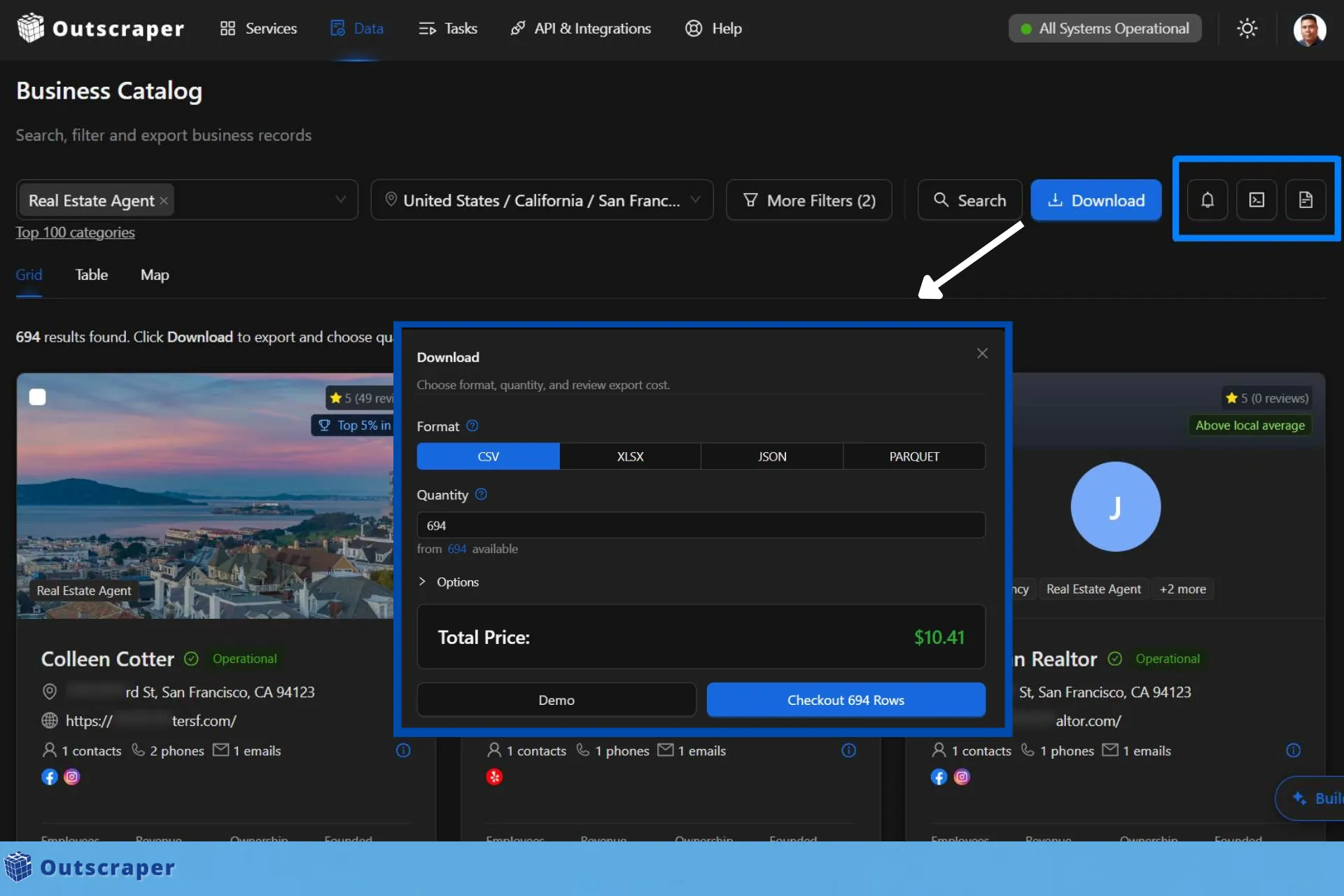
Before the file is created, Outscraper lets you choose the export format, number of rows, and other settings, then shows the total price before checkout.
Choose the Export Format and Quantity
The Download window supports these formats:
- CSV
- XLSX
- JSON
- PARQUET
For this example, select CSV.
You can also choose how many of the available records you want to export. The 跳过 option lets you leave out a specified number of results before the export begins.
In the real estate agent example, 694 records are available after applying the Operational and With email and phone filters.
The Download window shows the total price for the selected quantity before you continue.
Review the Price and Confirm Checkout
After checking the quantity and format, click the checkout button.
Outscraper then asks you to confirm the number of rows. You can choose OK to continue or Cancel to return to the Download window.
This confirmation step gives you another chance to check the export quantity before moving forward.
Choose the Columns to Export
After checkout, Outscraper opens the 下载结果 页。
From here, you can keep All Columns or customize the exported fields. The current interface provides 69 selectable columns covering areas such as:
- business identity
- 联系方式
- company information
- 地点
- ratings and reviews
- local comparison data
- website details
- platform IDs
- added and updated dates
You do not need to include every field.
For this example, the CSV uses a smaller set of columns for business and prospect research, including:
- name
- business status
- 网站
- phone
- 电子邮件
- full name
- 职称
- company employees
- company estimated revenue
- company founded year
- 地址
- rating
- reviews
- added date
- updated date
Selecting only the fields you need can make the final file easier to review and use.
If you need additional company or contact data after building the list, Outscraper enrichment features can help add more context to the records.

Download the Final File
The Download Results page also shows the number of rows and the selected file format.
After choosing the columns and confirming the format, click **Download Results** to save the final file.
The page also displays an expiration time for the prepared export, so it is useful to download the file while it is still available.
What the Downloaded CSV Looks Like
The downloaded CSV contains both business-level and contact-level fields.
Business-level fields can include details such as business name, status, website, employee count, estimated revenue, address, rating, reviews, and record dates.
Contact-level fields can include the contact name, job title, email, and phone-related data.
In this example, the export contains **694 businesses**, but the CSV can contain more rows when a business has multiple contact records. In those cases, the business information can repeat while the contact-level fields differ.
This is worth checking before uploading the file to a CRM or using it for outreach, especially if you need one row per business rather than one row per contact.

Outscraper Business Catalog Workflow Checklist
Use this checklist to review the full workflow before exporting your results:
- Choose the business category you want to research.
- Set the target location by country, state, city, or neighborhood.
- Apply Advanced Filters that match the purpose of your search.
- Review the filtered records in Grid, Table, or Map view.
- Open individual records when you need a closer look before export.
- Choose the export format, quantity, and columns you need.
- Confirm the checkout and download the final results.
In the example used in this guide, a search for real estate agents in San Francisco returned 1,025 records. Filtering for operational businesses with both an email and phone number reduced the list to 694 matching businesses before export.
用 Outscraper Business Catalog to search businesses by category and location, narrow the results with Advanced Filters, review matching records, and export the fields you need for prospecting or research.
常见问题
最常见的问题和答案
Outscraper Business Catalog is a section of the Outscraper Web App for searching, filtering, reviewing, and exporting business records.
开放式 Data → Business Catalog, choose a business category and location, apply filters, review the results, then select the records and fields you want to export.
You can filter businesses by status, email and phone availability, website, rating, reviews, postal code, location type, dates, attributes, and other criteria.
Yes. Business Catalog supports CSV, XLSX, JSON,以及 PARQUET. You can also choose which columns are included before downloading the file.
Yes. You can copy the current Business Catalog search as an API request or open the related Businesses & POI API documentation from the Web App.