Mục lục
Outscraper webhooks let developers, lead generation agencies, and automation teams receive task completion notifications without repeatedly checking the dashboard or polling the API.
When you’re running multiple scraping tasks to collect business data, waiting for completion emails or manually checking task statuses adds unnecessary steps to your workflow. Delayed email notifications can also hold up the next stage of data processing, especially when your team depends on timely results for client projects, lead generation, or internal applications.
Instead of relying on those manual checks, you can configure a webhook URL in Outscraper’s API & Integrations dashboard. When a task or request finishes, Outscraper sends an HTTP POST request containing a JSON payload to your configured endpoint. Your receiving application can then use the notification to continue the workflow.
The setup starts with a callback URL that can receive Outscraper’s task completion requests. Once that endpoint is configured, you can test the connection and prepare your application or automation tool to handle incoming notifications.
Quick Answer: How to Set Up Outscraper Webhooks
- Create a webhook receiver URL using your application or an automation tool.
- Open API & Integrations → Integrations in your Outscraper dashboard.
- Enter the callback URL in the Webhook field and save it.
- Run a test task and check whether your endpoint receives an HTTP POST request.
- Review the JSON payload and configure the next action in your workflow.
Run a Google Maps Scraper task, collect business data, and use webhooks to receive a notification when your results are ready.
How Outscraper Webhooks Work
Outscraper webhooks send an HTTP POST request to a configured URL when a task or request finishes. The request contains a JSON body that your application or automation tool can receive and process.
This allows developers and automation teams to respond to completed scraping tasks without repeatedly requesting their status through the API.
From Task Completion to Webhook Notification
The workflow involves four main stages:
- Start a scraping task. Submit a task through Outscraper and allow it to process the requested data.
- Outscraper finishes the task. Once processing ends, Outscraper sends an HTTP POST request to the configured webhook URL.
- Your endpoint receives the notification. A webhook listener, such as an application endpoint or an n8n Webhook node, receives the JSON payload.
- Process the notification. Your application reads the task information and uses it to determine the next action, such as retrieving the completed dataset.

For example, a lead generation agency collecting Google Maps business data can use the completion notification to start its next data-processing step instead of assigning someone to monitor the task manually.
If you use n8n to manage automation workflows, Outscraper also provides an official n8n node. See the Outscraper n8n installation guide to learn how to add it to your workflow.
The webhook notification and the scraped dataset serve different purposes. The notification tells your receiving application that processing has finished; the actual data retrieval process depends on the task response and available result fields.
A completed Outscraper task can include information about its status and where to access the results. In our Google Maps Scraper test, the webhook payload contained trạng thái, results_location, results_location_json, và usages.
Các trạng thái field showed SUCCESS, while results_location pointed to the CSV output and results_location_json identified the JSON results endpoint. The usages field reported information about the completed scraping task.
For a basic explanation of the underlying technology, see what a webhook is.
Method 1: Set Up Outscraper Webhooks in the Dashboard
Outscraper allows you to configure a webhook directly from your dashboard without writing code. You only need a callback URL from the application or automation platform where you want to receive task completion notifications.
Step 1: Open the Webhook Settings
- Sign in to your Outscraper dashboard.
- Nhấp vào API & Integrations in the navigation menu.
- Select Tích hợp.
- Find the Webhook section.
The Webhook section contains a URL field where you can enter the address that will receive notifications from Outscraper.
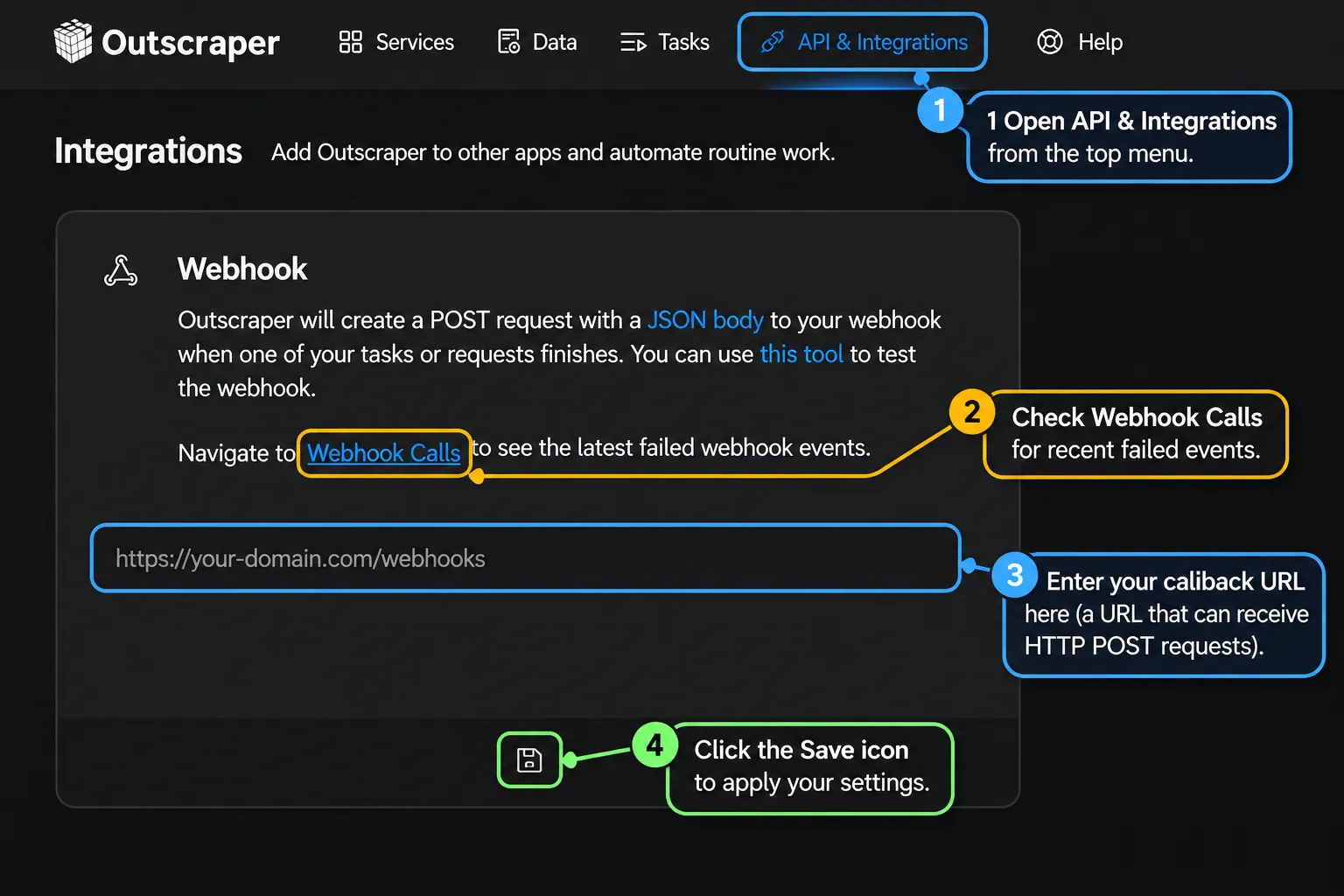
The Webhook field requires a callback URL from an application or automation platform that can receive HTTP POST requests.
For example, you can create a webhook endpoint in Make and copy its URL into the Outscraper Webhook field. Replace the placeholder address with your own callback URL before saving the configuration.
Step 2: Add Your Webhook URL
If you’re using Make, create a scenario with the Webhooks → Custom webhook module. Add a new webhook, give it a name, and copy the generated URL. You can then use this address as the callback URL in Outscraper.
- Copy the webhook URL from your receiving application or automation platform.
- Paste the URL into the Webhook field.
- Nhấp vào Lưu icon to save your configuration.
Once saved, the URL is configured to receive task completion notifications from Outscraper.
Step 3: Receive Task Completion Notifications
When an Outscraper task or request finishes, Outscraper sends an HTTP POST request containing a JSON body to your configured callback URL.
Your receiving application can read the notification and use the task information to retrieve completed scraping results or start another processing step.
Example: Receiving an Outscraper Webhook in Make
To test the connection, we created a Custom webhook in Make and entered its URL in the Outscraper Integrations settings.
We then ran a Google Maps Scraper task using the query coffee shops in San Francisco, California, with a maximum of five results and no enrichment services selected.
If you’re new to collecting Google Maps business data, follow Outscraper’s Google Maps Scraper tutorial to prepare your first scraping task before testing webhook delivery.

After the task finished, Make received the webhook notification. The request log confirmed:
- Request method: POST
- Task status:
SUCCESS - Records reported: 5
- HTTP response:
200
The notification also included results_location và results_location_json, which provided CSV and JSON result locations for the completed task.
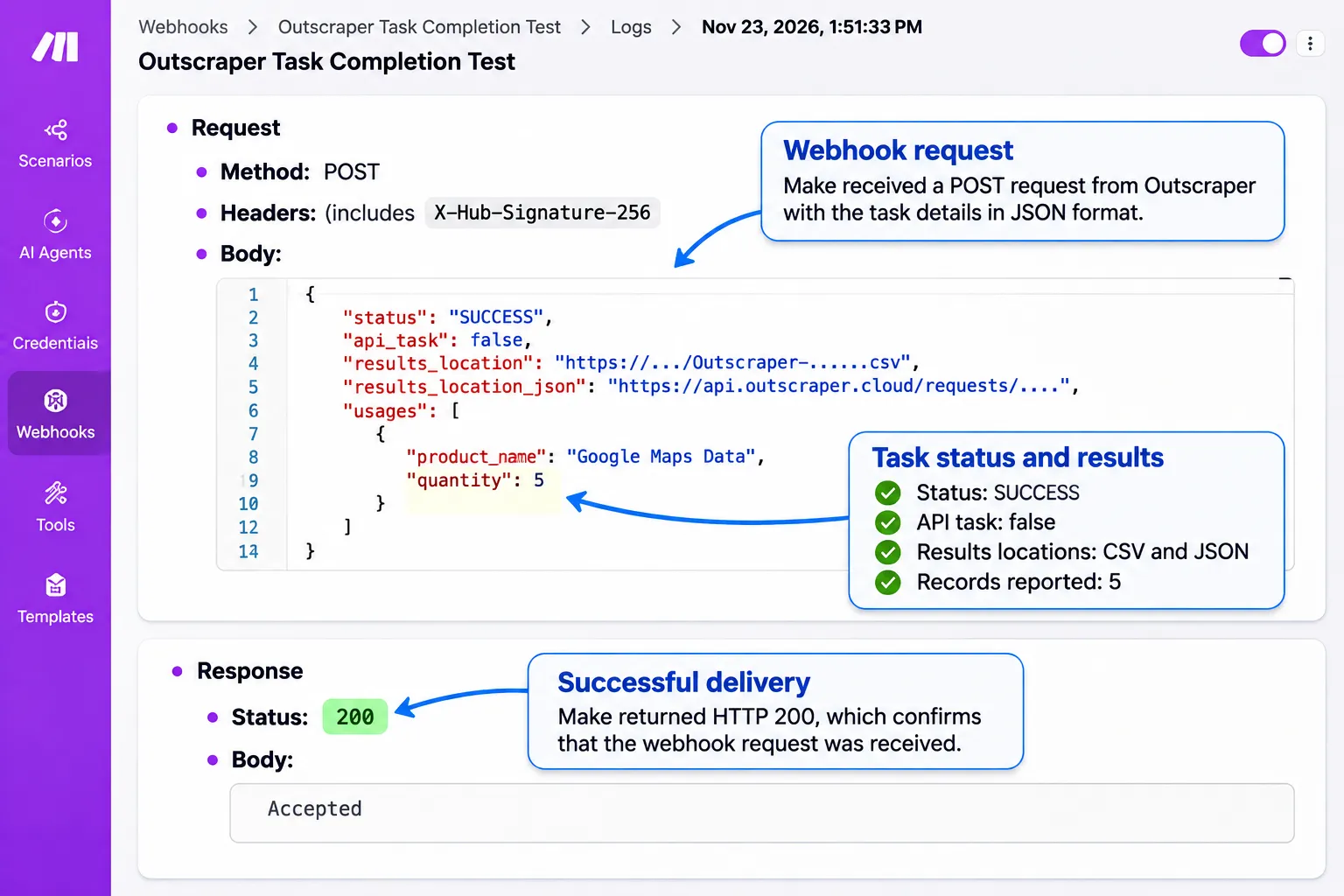
This confirms that Outscraper successfully delivered the completion notification to Make. Retrieving and processing the dataset would require an additional step in the receiving workflow.
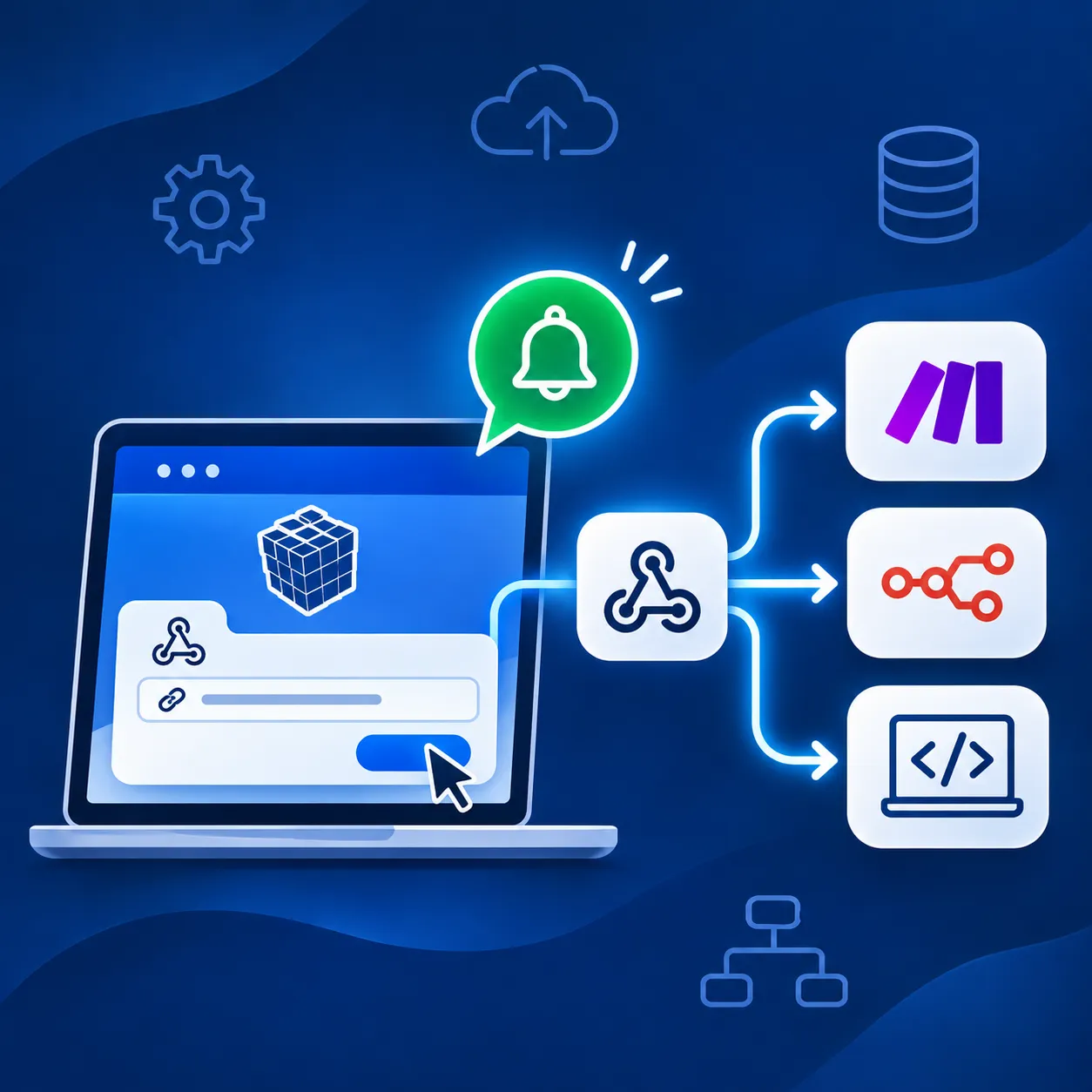
Send Outscraper task completion notifications to Make, n8n, or your own application using webhooks. Configure your callback URL and start connecting completed tasks to your next processing step.
Method 2: Configure Outscraper Webhooks Through the API
The Outscraper API lets developers assign a webhook URL to individual scraping requests. This is useful for developers and automation teams that need different tasks to send completion notifications to different applications.
Unlike the dashboard method, the API lets you specify the callback URL using the webhook parameter. When this parameter is included, it overrides the webhook URL saved in the Outscraper Integrations settings.
Step 1: Prepare Your API Key and Callback URL
Before submitting a request, you’ll need:
- Outscraper API key: Used to authenticate requests to the Outscraper API.
- Webhook callback URL: The address of your application or automation tool that will receive the task completion notification.
Your callback URL must accept HTTP POST requests with a JSON body. Keep your API key private and never include it in a public webhook URL.
Step 2: Submit an API Request With a Webhook URL
The Google Maps Search API supports the webhook parameter alongside async=true, which submits a task for processing without keeping the original HTTP connection open until the results are ready.
The following cURL example submits a request to collect up to 20 restaurant listings in Brooklyn and specifies where Outscraper should send the completion notification.
					curl -G "https://api.outscraper.com/google-maps-search" \
  -H "X-API-KEY: YOUR_API_KEY" \
  --data-urlencode "query=restaurants, Brooklyn, NY, USA" \
  --data-urlencode "limit=20" \
  --data-urlencode "async=true" \
  --data-urlencode "webhook=https://example.com/webhooks/outscraper"
Thay thế YOUR_API_KEY with your Outscraper API key and https://example.com/webhooks/outscraper with your actual receiving endpoint before running the request.
The important parameters are:
| Parameter | Purpose |
|---|---|
query | Defines the businesses and location to search. |
limit | Sets the maximum number of places returned for the query. |
async=true | Submits the task for asynchronous processing. |
webhook | Specifies the callback URL for the completion notification. |
For more supported parameters, see the Outscraper Google Maps Search API documentation.
Step 3: Receive the Notification and Retrieve the Results
When you submit an asynchronous request, Outscraper can return an HTTP 202 Accepted response containing a request ID, task status, and results location.
An example response from the API documentation is:
					{
  "id": "your-request-id",
  "status": "Pending",
  "results_location": "https://api.outscraper.cloud/requests/your-request-id"
}
Các Pending status means the request has been accepted for processing. It does not mean the scraping task has finished.
Once the task or request finishes, Outscraper sends an HTTP POST request with a JSON body to the callback URL specified in the webhook tham số.
The following example from Outscraper’s webhook verification documentation shows a successful completion notification:
					{
  "id": "your-request-id",
  "user_id": "your-user-id",
  "status": "SUCCESS",
  "api_task": true,
  "results_location": "https://api.outscraper.cloud/requests/your-request-id",
  "quota_usage": [
    {
      "product_name": "Google Maps Data",
      "quantity": 1
    }
  ]
}
The initial API response confirms that Outscraper accepted the task, while the webhook notification tells your application that processing has finished.
Your application can use the results_location URL to retrieve the completed dataset. Follow the Outscraper Request Results documentation for the required API authentication and result retrieval instructions.
For example, a lead generation application can use the completion notification to retrieve business records and begin preparing them for further processing without repeatedly checking the task status.
If you’re building an application that uses business records, see how to build a location-based app with Google Maps data and Supabase for an example of using Outscraper data in an application workflow.
Webhook payload fields can vary between tasks. In our dashboard-initiated Google Maps Scraper test, the notification included api_task: false, separate CSV and JSON result locations, and a usages array. Check the fields returned by your own request before using them in an automated workflow.

Use the Outscraper API to run scraping tasks, configure webhook notifications, and retrieve results for your application.
How to Secure Outscraper Webhooks
Outscraper signs every webhook request using your API key and HMAC-SHA256. This allows your receiving application to check whether the notification came from Outscraper and whether its contents were changed.
Each webhook request includes an X-Hub-Signature-256 header containing the signature.
Verify Incoming Webhook Signatures
To verify an Outscraper webhook:
- Read the original JSON payload received by your webhook endpoint.
- Calculate the HMAC-SHA256 signature using your Outscraper API key and the raw request body.
- Compare the signatures using a timing-safe comparison. The calculated signature must match the value in the
X-Hub-Signature-256header. - Handle the result. Process the notification if the signatures match. Otherwise, reject the request with HTTP
401 Unauthorized.
For working Python, Node.js, and PHP examples, follow Outscraper’s webhook signature verification tutorial.
Keep your Outscraper API key private and avoid exposing it in webhook URLs, screenshots, or public code.
Troubleshooting Outscraper Webhooks and Failed Deliveries
A webhook notification may fail to reach your application if the callback URL is incorrect, the receiving server is unavailable, or the endpoint cannot process the incoming HTTP POST request.
When this happens, start by checking the callback URL and the webhook delivery records in Outscraper.
Check Failed Webhook Calls in Outscraper
The Outscraper dashboard includes a Webhook Calls link for reviewing recent failed webhook events.
To find it:
- Sign in to your Outscraper dashboard.
- Mở ra API & Integrations → Integrations.
- Locate the Webhook section.
- Nhấp vào Webhook Calls to review recent failed deliveries.
You can also refer to the Outscraper Webhook Calls API documentation for the available endpoint details.
Common Webhook Problems and What to Check
| Problem | Những điều cần kiểm tra |
|---|---|
| No webhook notification received | Confirm that the callback URL is correct and accessible from the internet. |
| Receiving endpoint returns an error | Check your application's server logs and HTTP response status. |
| Webhook signature verification fails | Confirm that you're using the correct Outscraper API key and the original request body. |
| Task finishes but results aren't processed |
Check whether your application reads the webhook payload and retrieves the dataset using results_location. |
Handle Webhook Requests Without Delays
Your receiving application should acknowledge valid webhook requests promptly rather than waiting for a large dataset to finish downloading or processing.
In our Make test, the receiving endpoint returned HTTP 200 with an Accepted response after receiving the Outscraper webhook. This confirms that Make accepted the notification, but it does not mean the scraped dataset was automatically downloaded or processed. Those actions require additional steps in the receiving workflow.
For applications that support background jobs, a practical approach is to verify the incoming notification, record the task information, return a successful HTTP response, and process the dataset separately.
If the receiving server is temporarily unavailable, check the failed webhook records and use the request information to determine whether the task results still need to be retrieved.
This helps separate webhook delivery problems from errors that occur later during data processing.
Final Checklist: Test Your Outscraper Webhook Setup
Before using Outscraper webhooks in your automated workflow, confirm that the following steps are complete:
- Prepare your callback URL. Make sure your application or automation platform can receive HTTP POST requests.
- Configure the webhook. Save the callback URL in Outscraper’s Integrations dashboard or specify it using the API
webhooktham số. - Run a test task. Submit a small scraping request and wait for it to finish.
- Confirm webhook delivery. Check that your receiving endpoint gets the JSON notification and returns a successful HTTP response.
- Verify and handle the results. Check the webhook signature, identify the completed task, and confirm that your workflow can retrieve the results.
If a notification fails, use Webhook Calls in Outscraper to review recent failed events.
Stop checking task statuses manually. Sign up for Outscraper, configure your webhook URL, and receive completion notifications directly in your application or automation workflow.
Câu hỏi thường gặp
Các câu hỏi và câu trả lời thường gặp nhất
Không. You can configure a webhook URL directly in the Outscraper dashboard. Automation platforms such as Make can receive notifications without requiring you to build your own receiving application.
Đúng vậy. When using the Outscraper API, you can specify a callback URL through the webhook parameter. This overrides the webhook URL saved in your dashboard settings for that request.
Outscraper sends a JSON notification containing task information, including its completion status. Depending on the task, the payload may also include result locations and usage information.
Check that your callback URL is correct and that your receiving endpoint accepts HTTP POST requests. You can also open Webhook Calls in the Outscraper Integrations dashboard to review recent failed deliveries.
No. A webhook notifies your receiving application when a task finishes. Your application or automation workflow must handle any additional steps needed to retrieve and process the results.