Оглавление
We pulled more than 3,000 business records using a basic scraper for a custom data extraction project. For the first few days it worked but then the structure change. Request failed, key fields disappeared, and the dataset became unreliable.
This is the core problem with manual scraping: it doesn’t fail once but it fails continuously.
That’s why more teams are shifting toward custom data extraction using APIs instead of maintaining fragile scripts. The API management market is projected to reach $15.88 billion by 2027, reflecting this move toward stable, programmatic data access as businesses move away from manual data collection.
Instead of maintaining fragile scripts, you can connect directly to tools like API Outscraper and request structured business data wherenever you need it. You don’t have to deal with proxies, CAPTCHAs, or constant fixes.
How to Start a Custom Data Extraction with Outscraper API
To start a custom data extraction, you don’t need to build your own scraper infrastructure. The fastest way is to connect directly to the Outscraper API and let it handle data collection, anti-blocking, and scaling.
Most developers get stuck at this stage because they try to solve proxy rotation, headers, and request limits manually. That usually leads to 403 errors and unstable scripts.
With Outscraper, you can skip that entire layer and focus on extracting structured data. Before sending your first request, it helps to understand one basic idea: what an API does.
Step 1: Understand What the Outscraper API Does
An Application Programming Interface (API) is a way for one application to ask another application for data. In simple terms, your script sends a request, and the API sends it back the results.
With Outscraper, that means you can request business data from sources like Google Maps without building your own scraper from scratch.
You only need to understand these 5 simple concepts before getting started:
Get data automatically
Extract business data from Google Maps
Where requests are sent
What you search
Clean data you can use (names, addresses, phones, websites)
Step 2: Generate Your API Key
1. Войти to your Outscraper account. Подписаться if you don’t have an account yet.
2. Go to your profile dashboard.
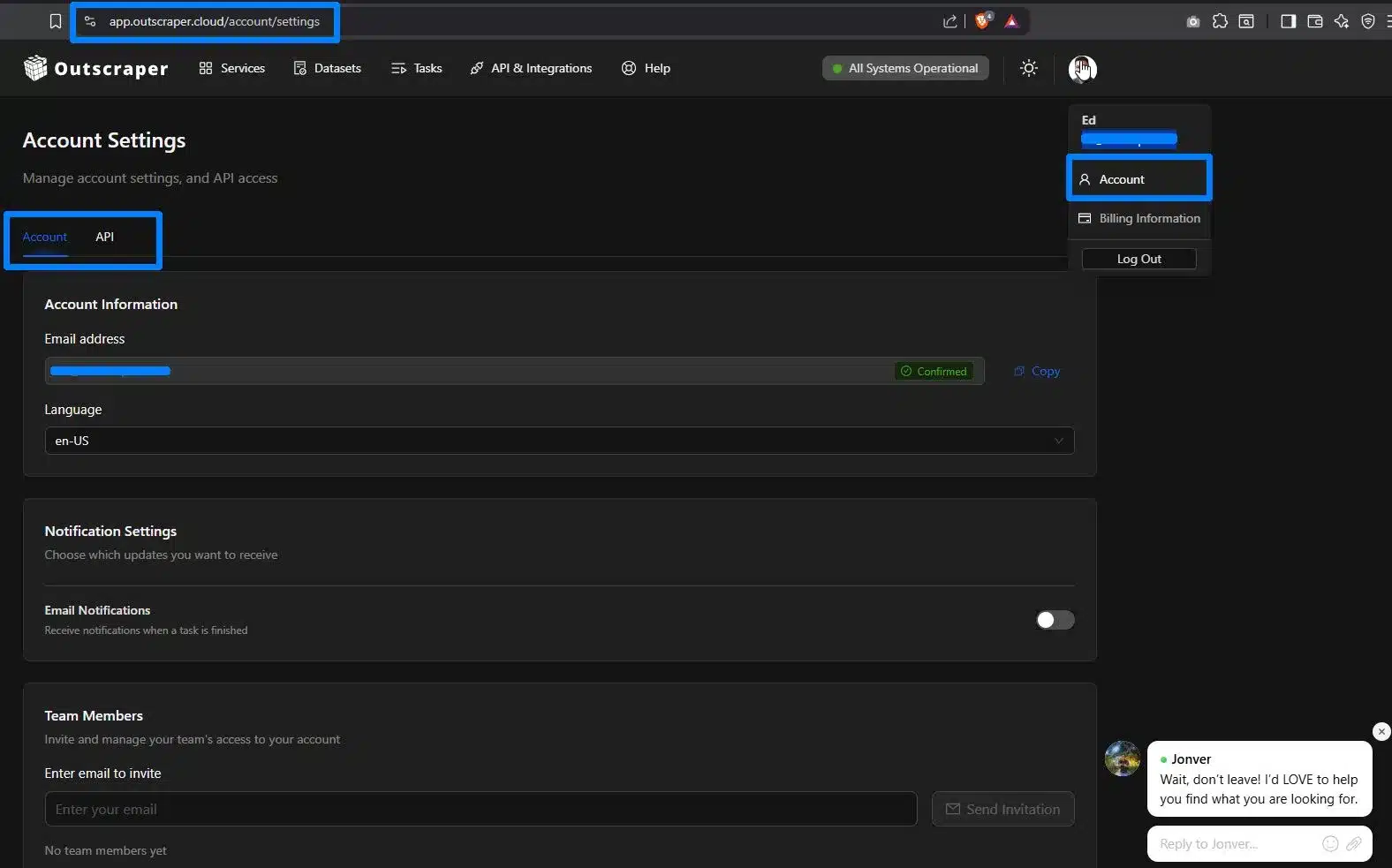
What’s inside your Outscraper account dashboard
3. Copy your Ключ API
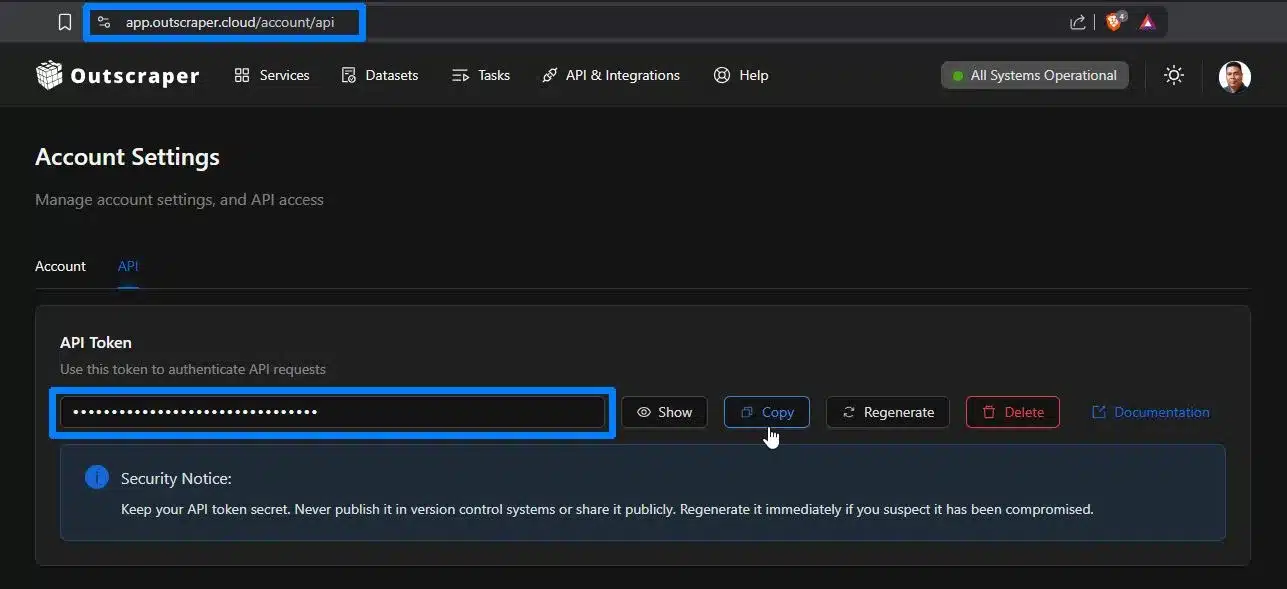
Copying your exclusive API Key to start your Custom Data Extraction tool
This key controls your usage and billing, so keep it secure.
Step 3: Set up and Run Your First Request
Now that you understand the basics and have your API key, the next step is to send your first request.
To do this, you only need three things:
- сайт endpoint
- your API key
- one search query
Your First Request (Simple Example)
Here’s a basic setup:
Endpoint
https://api.outscraper.cloud/google-maps-search
Запрос
restaurants, Manhattan, NY, USA
Limit
3
Async
false
What This Means
- search for restaurants in Manhattan
- return up to 3 results
- send the results back immediately
Run Your First Python Example
You can test this using Python on your computer or in tools like Jupyter Notebook or Google Colab.
-
Install Python
Download and install Python from:
https://www.python.org/downloads/
After installation, open your terminal or command prompt and run:
python --version
This confirms Python is installed correctly. -
Install the requests library
Run this command:
pip install requests
If you prefer not to install anything, you can also run this in Google Colab or Jupyter Notebook.
Before running the script, make sure Python is installed.
Open Command Prompt and run:
python --version
If you see a version number, you're ready to proceed.

You’ve seen how it works. Now try it with your own query and get structured business data instantly.
How to Run Python on Your Local Computer
You can copy the script below and run it using Command Prompt (Windows) or Terminal (Max/Linux).
Note: Replace the “YOUR_API_KEY” with your personal Outscraper API key.
					import requests

url = "https://api.outscraper.cloud/google-maps-search"

headers = {
    "X-API-KEY": "YOUR_API_KEY"
}

params = {
    "query": "restaurants, Manhattan, NY, USA",
    "limit": 3,
    "async": "false"
}

response = requests.get(url, headers=headers, params=params)

print("HTTP status:", response.status_code)

data = response.json()
print("API status:", data.get("status"))

places = data.get("data", [])

if places and len(places) > 0:
    for place in places[0]:
        print("Name:", place.get("name"))
        print("Address:", place.get("address"))
        print("Phone:", place.get("phone"))
        print("Website:", place.get("website"))
        print("-" * 30)
else:
    print("No places found.")
- Copy the code (script) into a Notepad and save the file as outscraper.py
- Открытым Command Prompt and make sure the requests library was installed
- Open the folder where your file is saved
- Open Python IDLE and Run Module
You should see the structured results printed in your terminal.
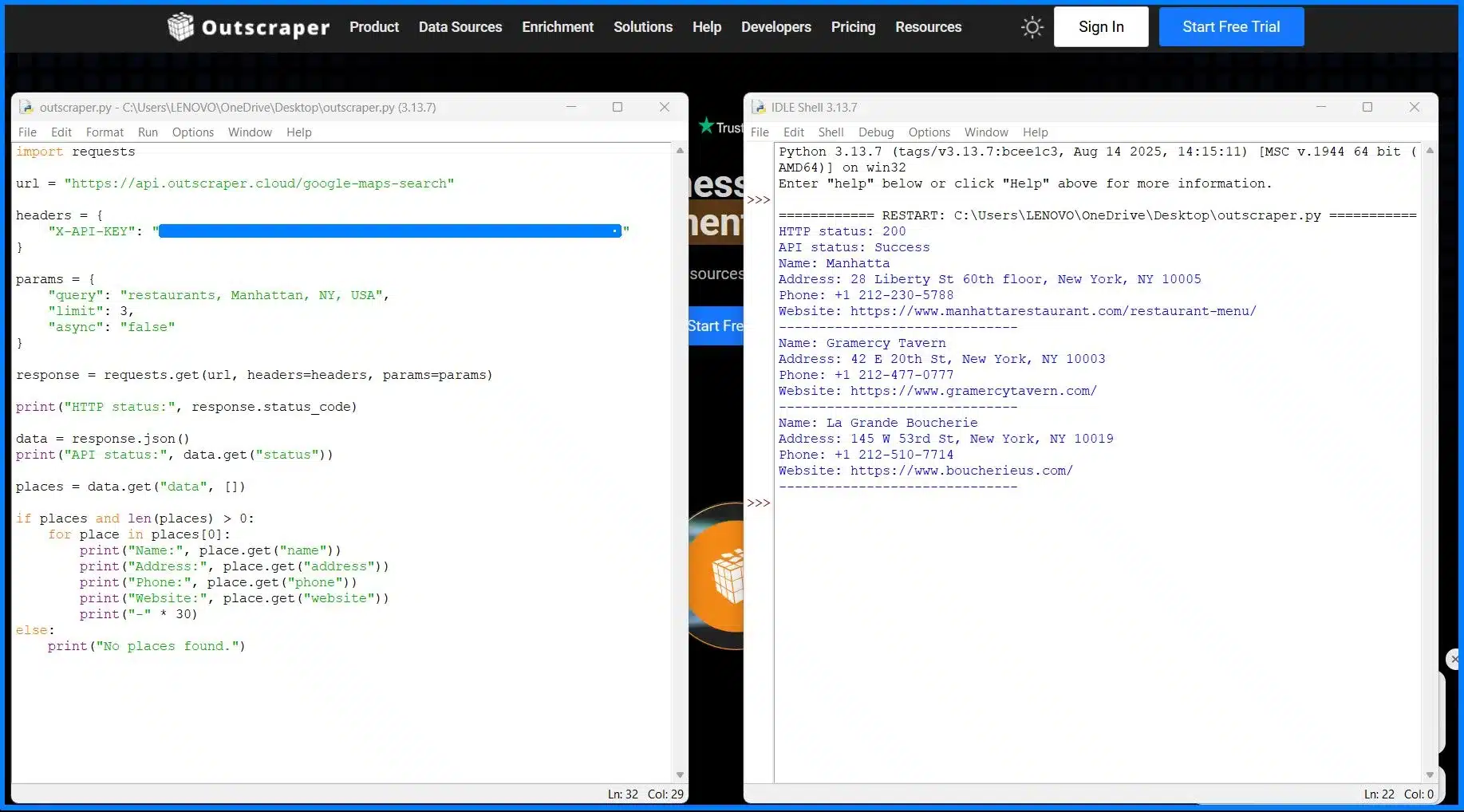
When you don’t want to download Python IDLE and prefer to just use the Windows terminal for custom data extraction, you can do it also. Make sure you’re in the right path.

If nothing happens, and it doesn’t work, check this first:
If your script runs but nothing appears, don’t worry. This is a common beginner issue.
-
Python is waiting for input
If you see..., press Enter again to run the command. -
Check if the request worked
Run:print(response.status_code)
You should see 200. -
Check API response status
Run:print(response.json().get("status"))You should see Success. -
The output is too large
print(response.json())returns a lot of data. Instead, extract only what you need. -
Access the correct data structure
The results are inside:data["data"][0]
-
Still nothing?
Try printing the number of results:print(len(response.json().get("data", [])))
Tip: It’s easier to run your code as a file (python script.py) instead of typing everything in the Python console.
What Happens Next
- Your query is sent to the Outscraper API
- The API processes the request.
- You received structured results (business data).
Start small. Use one query, a low limit, and async=false. Once it works, you can scale later.
Step 4: Understand the Output from Your First Request
After your first request, Outscraper returns data in JSON format.
Here’s a simple way to understand the structure of the response.
Shows if the request worked
Contains the business results
The request identifier
Structured data returned by the API
One business = one record. Each label like
name или phone = one field.At this point, your request is working and you’re getting structured results. If you want to move those structured results into an application, see how to build a location-based app with Google Maps data and Supabase using a JSON-to-database workflow.
The next step is not to collect more data but to collect the “right” data. This is where where most beginners waste API credits.
Let’s fix that.
You’ve run your first request locally. Now extract real business data at scale without managing scripts or infrastructure.
Ways to Define Your Data Extraction Logic (Without Wasting API Credits)
Most beginners try to collect everything at once. Instead, use this simple framework:
The 3-Step Outscraper Data Extraction Method
A simple way to collect only the data you need without wasting API credits.
Search for businesses using specific queries, categories, and locations.
Keep only relevant data by refining parameters and selecting useful fields.
Add emails, social profiles, and additional details to turn data into leads.
Don’t collect everything at once. Start small, refine your data, then enrich only what matters.
Running the API is easy. The real value comes from choosing the right data to collect. If you don’t define this early, you will
- Collect irrelevant data
- Waste API credits
- Spend more time cleaning your results
Start by focusing only on the data you need.
1. Set Your Search Parameters
Broad searches return messy results. Instead of “shops in New York.”
Use more specific queries:
- Category Filtering – “dentists in New York”
- Location Targeting – Specific areas or coordinates
- Review Filtering – Focus on high-quality or recent data.
More precise queries = cleaner data + fewer wasted credits.
2. Only Collect Data You Will Use
The API returns a lot of fields, but you don’t need all of them.
For example:
- Генерация лидерства = name, address, phone number (NAP), website
- Outreach = email social profiles
- Analysis = ratings, reviews.
Start small. Add more fields only when needed.
3. Enrich Data in a Second Step
Basic results are just the starting point. You can run a second step to enrich your data:
- Emails = extracted from the business website
- Профили в социальных сетях = data from social networking site or professional networking.
This turns a simple list into a usable lead database.
Think in Steps, Not One Big Request
Instead of collecting everything at once:
- Find businesses
- Filter results
- Enrich selected leads
This keeps your workflow efficient and reduces unnecessary API usage.
Collecting too much data too early leads to higher costs and unstructured datasets. Start with a small, focused query and expand only when needed.

Use structured queries and filters to extract only the data you need and avoid wasting API credits.
How to Scale Custom Data Scraping with Batching and Parallel Requests
Running a single request works for testing. It does not work for scaling.
As your data grows, the main challenges are:
- Too many API calls
- Slow request execution
To scale efficiently, you need to reduce both.
Here’s how a scalable data extraction workflow looks:
Run one request → slow and limited for large datasets
Group multiple queries in one request → fewer API calls
Use limit and filters → faster and cleaner results
Run requests in the background and execute multiple requests at once
1. Send Multiple Queries in One Request
Outscraper allows you to send multiple queries in a single request using the запрос parameter.
Instead of sending separate requests, you can group them together.
According to the documentation, batching supports arrays of queries in one request, which reduces network overhead and improves speed.
2. Control How Much Data You Collect
Use the предел parameter to control how many results each query returns.
- Smaller Limit – Faster response
- Larger Limit – More data but slower
Start small, then increase only when needed.
3. Keep Results Clean
When using multiple queries, results may overlap.
Use:
- dropDuplicates – Remove duplicates
- totalLimit – Cap total results
This keeps your dataset usable.
4. Use Parallel Requests in Your Code
Batching and async are handled by the API.
Parallel execution is handled by your code.
Instead of waiting for one request to finish, you can run multiple requests at the same time to speed up your workflow.
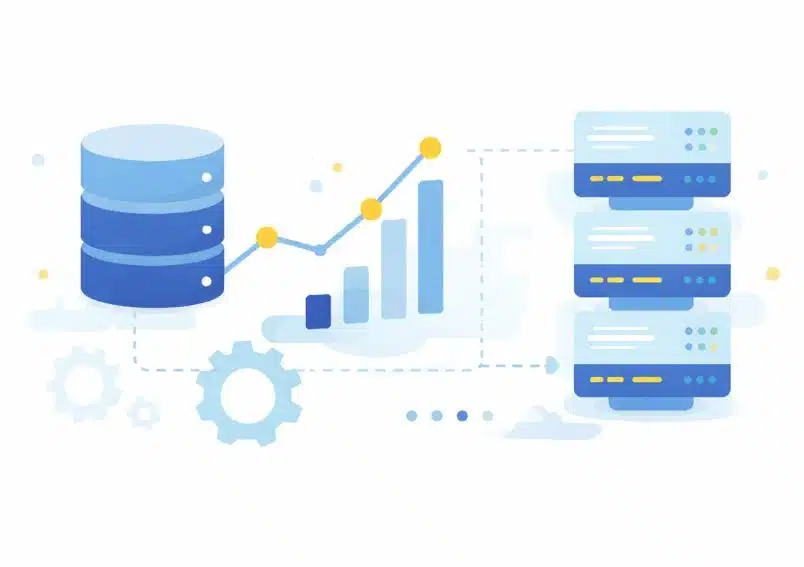
Use batching, async requests, and parallel, execution to handle large datasets efficiently.
Automating Data Extraction Workflows with Webhooks
When you run large requests, your script will eventually timeout. This usually happens when you start batching queries or using enrichments.
Instead of waiting for the response, use async=true with a webhook.
Setup
- Add async=true to your request
- Add a webhook URL
- Send the request and let it run
Outscraper will process the task in the background and send the results to your server once it’s complete.
When using webhooks, always test your endpoint with a small request first before running large jobs.
"async": true,
"webhook": "https://yourserver.com/webhook"
This prevents failed deliveries and makes debugging easier before scaling your workflow.
Common Mistake
Running a large requests with async=false.
This keeps the connection open and increases the risk of timeouts or failed requests.
Use webhooks to automate your data pipeline and verify request signatures to ensure every response is authentic and secure.
How to Turn Raw Data into Lead Generation and AI Workflows
Most data extraction projects fail after one step. You collect the data, so you should use it.
If your results stay in JSON or a text file, they won’t generate leads or power any system. The real value comes from turning raw output into something usable.
Prepare Data for Your CRM
Raw API results are not ready for sales use. Before implementing into a CRM, you need to clean and structure the data.
Focus on:
- Field Mapping – match API fields to CRM columns (name – company name, phone – contact number).
- Remove Incomplete Records – Skip businesses without websites or contact data.
- Deduplicate Results – Avoid duplicate leads from overlapping queries.
Validate Contact Data Before Outreach
Not all extracted data is usable.
Before running campaigns:
- Verify Email Addresses
- Remove invalid or risky emails
- Keep only deliverable contacts
This prevents:
- High bounce rates
- Spam issues
- Damaged sender reputation
Turn Data Into a Lead List
At this stage, your goal is simple. Just convert structured data into a usable list.
A basic lead list includes:
- Business name
- Веб-сайт
- Эл. адрес
- Phone Number
This is what your sales team or outreach tools use.
Use Data for AI Automation
Once your data is clean, you can use it beyond lead generation.
Examples:
- AI Enrichment – Categorized business by industry or intent.
- Lead Enrichment – Prioritize high-value prospects.
- Automated Outreach – trigger email or CRM workflows.
The same dataset can power both:
- Sales pipelines
- AI-driven workflows
Most issues don’t happen during data extraction but they happen when you try to use the data inside your CRM or outreach tool.
Start with a small dataset and test your full pipeline (extraction → CRM → outreach) before scaling. Most issues appear after integration, not during extraction.
From Script to Production
At this point, you already have everything you needed to run a production-ready workflow:
- Structured 1ueries
- Controlled data extraction
- Scalable requests
- Automated delivery with webhooks
The difference between a test script and a production system is consistency. Once your pipeline is stable, you can run it continuously and integrate it into your existing tools.
Most teams don’t fail at extraction, most of them fail at turning it into a repeatable system.
Skip building scrapers from scratch. Use Outscraper API to extract, scale, and automate your data pipeline.
Frequently Asked Questions
Custom data extraction using an API means sending structured requests to a service like Outscraper to retrieve business data (such as names, addresses, and websites) without building your own scraper.
Instead of handling proxies or CAPTCHAs, the API returns clean, structured results you can use immediately.
Basic knowledge of Python or APIs helps, but you don’t need advanced development skills.
This guide shows how to run your first request using a simple script. You can also use tools like Google Colab to test without installing anything locally.
This is one of the most common issues. It usually happens when:
- the query is too broad or unclear
- the request did not execute properly
- the results are not being accessed correctly in the JSON response
Start with a simple query and small limit, then expand once it works.
To scale efficiently:
- send multiple queries in one request
- control results using the limit parameter
- использовать async=true for larger jobs
- run parallel requests in your code
Scaling is about reducing both API calls and waiting time.
After extracting data:
- map fields to your CRM (name, phone, website)
- remove incomplete or duplicate records
- validate email addresses before outreach
Most issues happen after extraction, when preparing data for actual use.