Spis treści
W ramach niestandardowego projektu ekstrakcji danych pobraliśmy ponad 3 000 rekordów biznesowych za pomocą prostego narzędzia do scrapingu. Przez pierwsze kilka dni wszystko działało, ale potem zmieniła się struktura danych. Żądania kończyły się niepowodzeniem, zniknęły kluczowe pola, a zbiór danych stał się niewiarygodny.
Oto główny problem związany z ręcznym zbieraniem danych: nie kończy się to jednorazową porażką, lecz powtarza się nieustannie.
Właśnie dlatego coraz więcej zespołów przechodzi na niestandardowe pozyskiwanie danych za pomocą interfejsów API zamiast utrzymywać zawodne skrypty. Przewiduje się, że rynek zarządzania interfejsami API osiągnie $15,88 mld do 2027 r., co odzwierciedla tendencję w kierunku stabilnego, programowego dostępu do danych w miarę jak przedsiębiorstwa odchodzą od ręcznego gromadzenia danych.
Zamiast zajmować się kruchymi skryptami, możesz połączyć się bezpośrednio z narzędziami takimi jak Outscraper API i pobieraj ustrukturyzowane dane biznesowe zawsze, gdy ich potrzebujesz. Nie musisz zajmować się serwerami proxy, kodami CAPTCHA ani ciągłym wprowadzaniem poprawek.
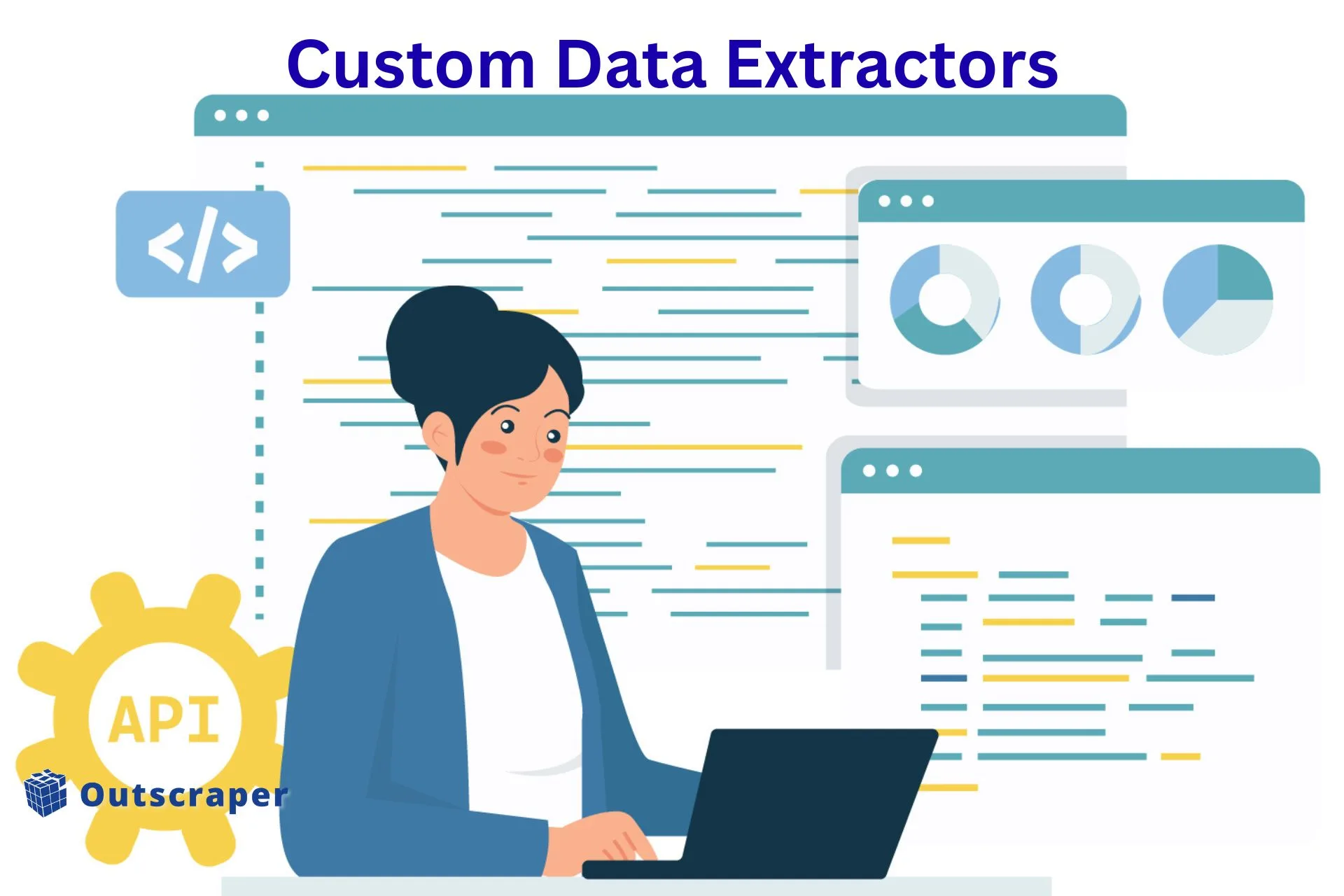
Jak uruchomić niestandardowe pozyskiwanie danych za pomocą interfejsu API Outscraper
Aby rozpocząć niestandardowe pozyskiwanie danych, nie musisz budować własnej infrastruktury do scrapingu. Najszybszym sposobem jest bezpośrednie połączenie się z interfejsem API Outscraper i powierzenie mu zadania gromadzenia danych, zapobiegania blokowaniu oraz skalowania.
Większość programistów utknie na tym etapie, ponieważ próbują ręcznie rozwiązać kwestie związane z rotacją serwerów proxy, nagłówkami i limitami żądań. Zazwyczaj prowadzi to do błędów 403 i niestabilnego działania skryptów.
Dzięki Outscraper możesz pominąć całą tę warstwę i skupić się na pozyskiwaniu danych ustrukturyzowanych. Przed wysłaniem pierwszego żądania warto zrozumieć jedną podstawową zasadę: jak działa dane API.
Krok 1: Zapoznaj się z działaniem interfejsu API Outscraper
Interfejs programowania aplikacji (API) to sposób, w jaki jedna aplikacja może zwrócić się do innej aplikacji o udostępnienie danych. Mówiąc prościej, skrypt wysyła żądanie, a API zwraca mu wyniki.
Dzięki Outscraper możesz pobierać dane biznesowe ze źródeł takich jak Google Maps bez konieczności tworzenia własnego narzędzia do scrapowania od podstaw.
Zanim zaczniesz, wystarczy, że zapoznasz się z tymi 5 prostymi pojęciami:
Pobieraj dane automatycznie
Pobieranie danych biznesowych z Google Maps
Gdzie wysyłane są wnioski
Co szukasz
Czyste dane, z których można korzystać (nazwiska, adresy, numery telefonów, strony internetowe)
Krok 2: Wygeneruj swój klucz API
1. Zaloguj się na Twoje konto Outscraper. Zapisz się jeśli nie masz jeszcze konta.
2. Przejdź do swojej pulpit nawigacyjny profilu.
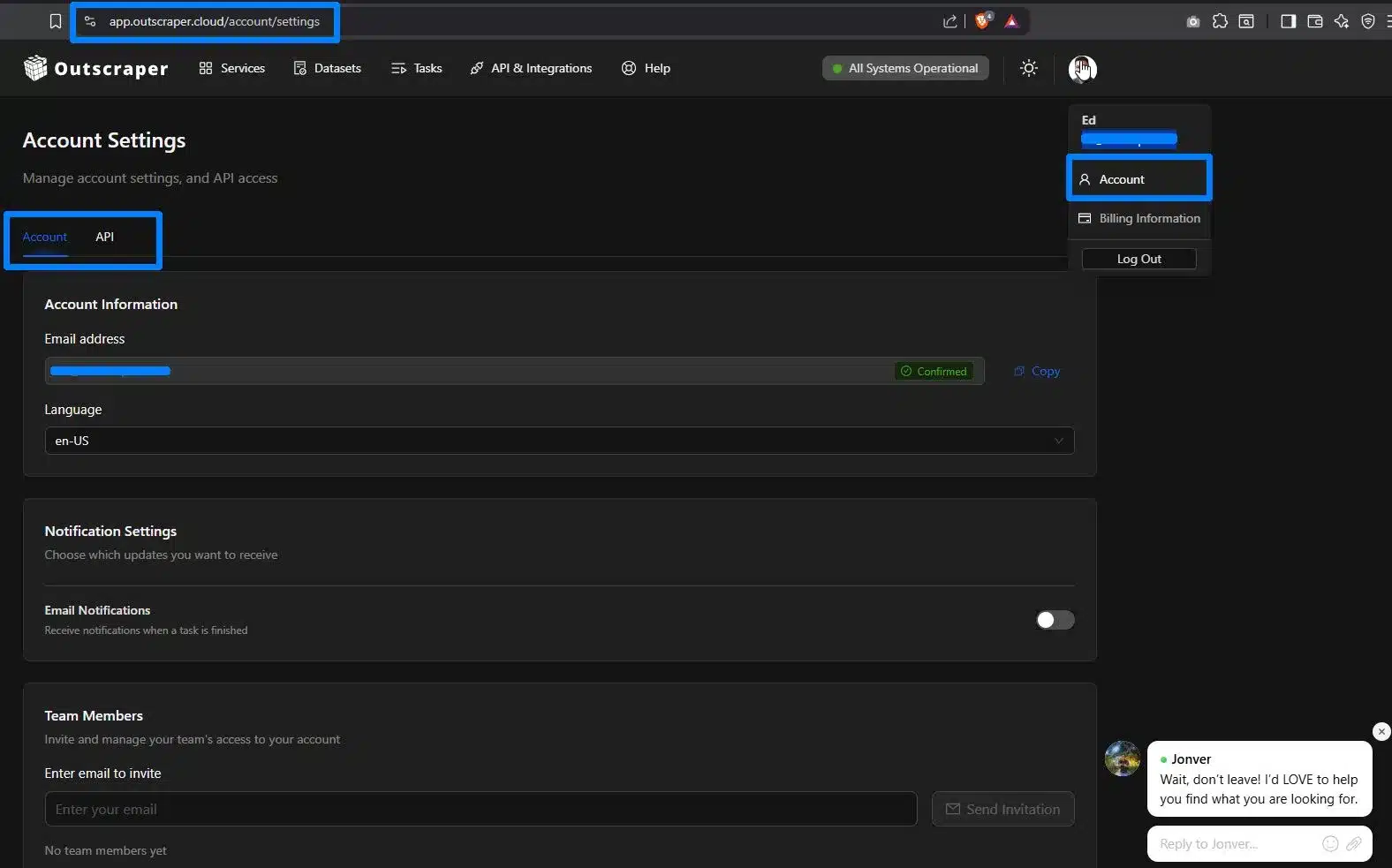
Co znajdziesz na pulpicie nawigacyjnym swojego konta Outscraper
3. Skopiuj swój Klucz API
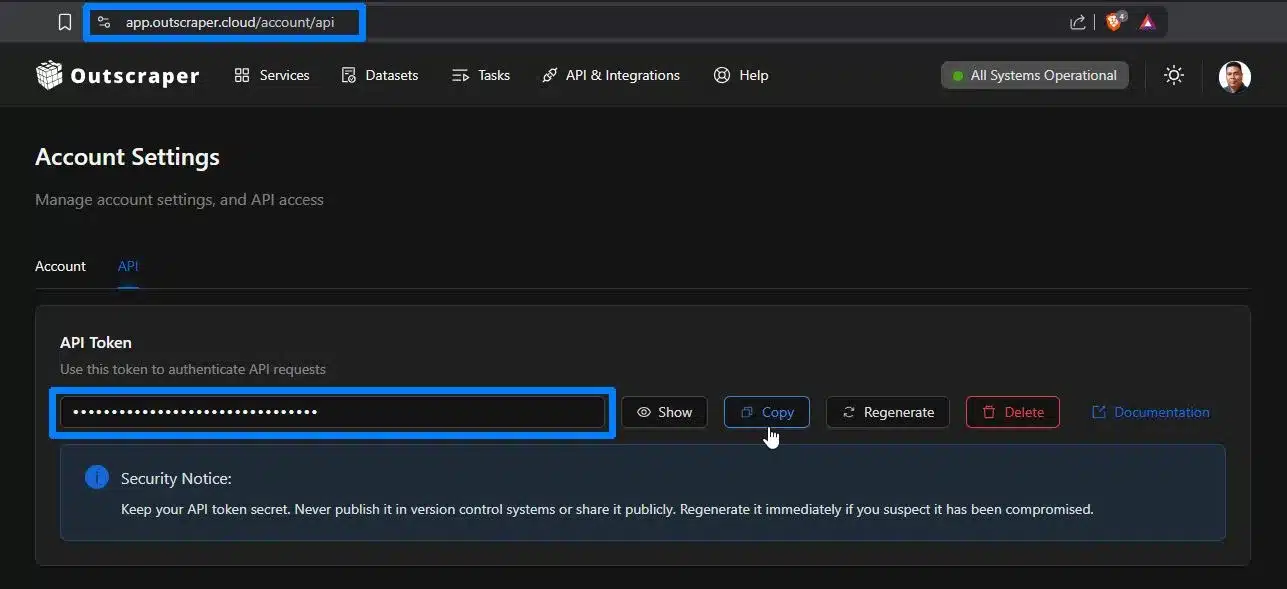
Skopiuj swój unikalny klucz API, aby uruchomić narzędzie do niestandardowego pozyskiwania danych
Ten klucz służy do zarządzania korzystaniem z usługi i rozliczeniami, dlatego należy go bezpiecznie przechowywać.
Krok 3: Skonfiguruj i uruchom swoje pierwsze żądanie
Skoro znasz już podstawy i masz swój klucz API, następnym krokiem jest wysłanie pierwszego żądania.
Aby to zrobić, potrzebujesz tylko trzech rzeczy:
- ten punkt końcowy
- Twój klucz API
- jedno zapytanie wyszukiwania
Twoje pierwsze żądanie (prosty przykład)
Oto podstawowa konfiguracja:
Punkt końcowy
https://api.outscraper.cloud/google-maps-search
Zapytanie
restauracje, Manhattan, Nowy Jork, USA
Limit
3
Asynchroniczny
false
Co to oznacza
- wyszukiwanie restauracji na Manhattanie
- zwróć maksymalnie 3 wyniki
- proszę niezwłocznie przesłać wyniki
Uruchom swój pierwszy przykład w języku Python
Możesz to przetestować za pomocą języka Python na swoim komputerze lub w narzędziach takich jak Jupyter Notebook czy Google Colab.
-
Zainstaluj Pythona
Pobierz i zainstaluj Pythona ze strony:
https://www.python.org/downloads/
Po zakończeniu instalacji otwórz terminal lub wiersz poleceń i uruchom:
python --version
To potwierdza, że Python został poprawnie zainstalowany. -
Zainstaluj bibliotekę requests
Wprowadź następujące polecenie:
pip install requests
Jeśli nie chcesz niczego instalować, możesz również uruchomić ten kod w Google Colab lub Jupyter Notebook.
Przed uruchomieniem skryptu upewnij się, że Python jest zainstalowany.
Otwórz wiersz poleceń i wpisz:
python --version
Jeśli widzisz numer wersji, możesz kontynuować.

Wiesz już, jak to działa. Teraz wypróbuj to na własnym zapytaniu i natychmiast uzyskaj uporządkowane dane biznesowe.
Jak uruchomić Pythona na swoim komputerze
Możesz skopiować poniższy skrypt i uruchomić go za pomocą Wiersza poleceń (Windows) lub Terminala (Mac/Linux).
Uwaga: Zastąp “YOUR_API_KEY” swoim osobistym kluczem API Outscraper.
					import requests

url = "https://api.outscraper.cloud/google-maps-search"

headers = {
    "X-API-KEY": "YOUR_API_KEY"
}

params = {
    "query": "restaurants, Manhattan, NY, USA",
    "limit": 3,
    "async": "false"
}

response = requests.get(url, headers=headers, params=params)

print("HTTP status:", response.status_code)

data = response.json()
print("API status:", data.get("status"))

places = data.get("data", [])

if places and len(places) > 0:
    for place in places[0]:
        print("Name:", place.get("name"))
        print("Address:", place.get("address"))
        print("Phone:", place.get("phone"))
        print("Website:", place.get("website"))
        print("-" * 30)
else:
    print("No places found.")
- Skopiuj kod (skrypt) w Notatniku i zapisać plik jako outscraper.py
- otwarty Wiersz poleceń i upewnij się, że biblioteka requests została zainstalowana
- Otwórz folder, w którym zapisano plik
- Uruchom Python IDLE i Uruchom Moduł
W terminalu powinny pojawić się wyniki w postaci tabelarycznej.
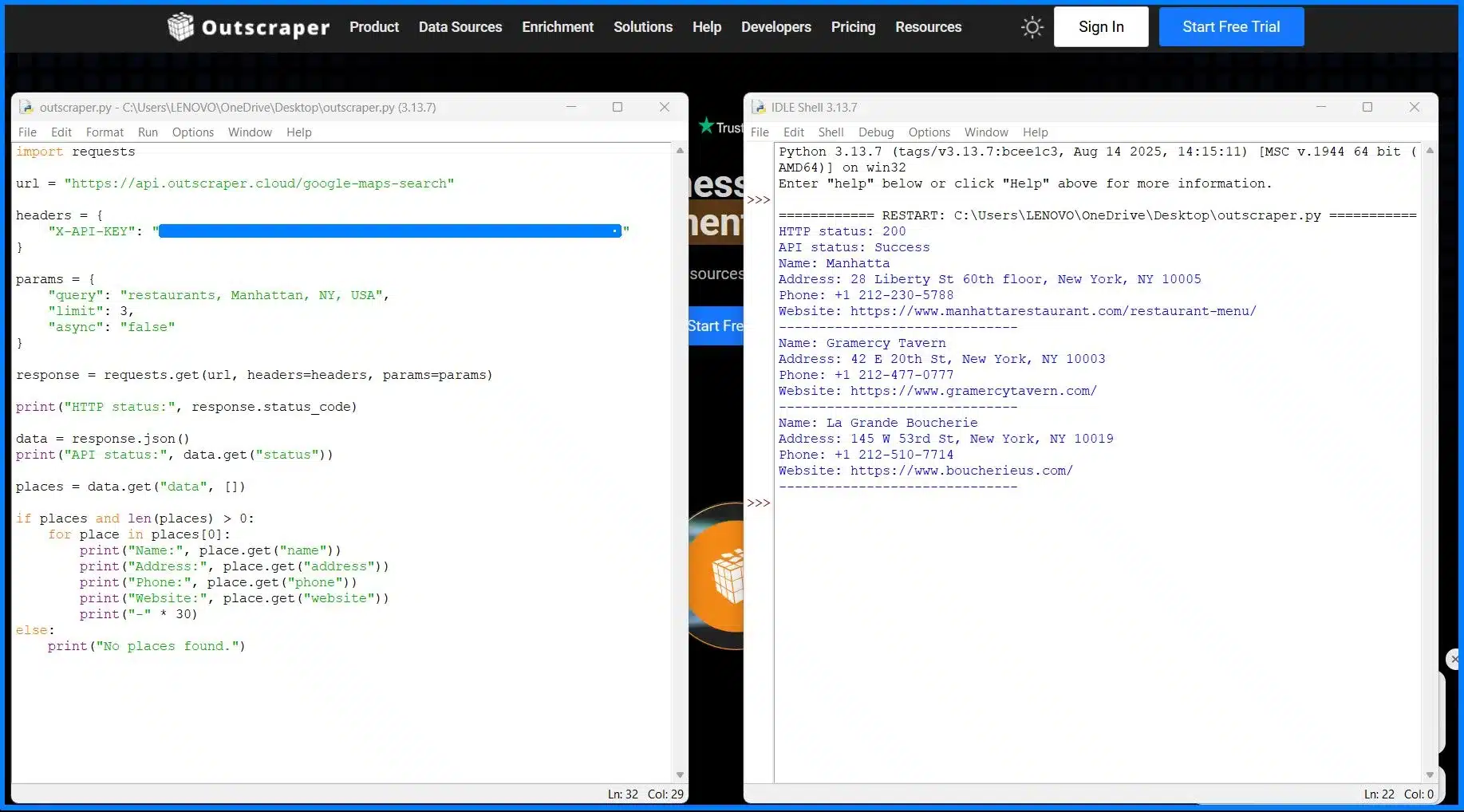
Jeśli nie chcesz pobierać programu Python IDLE i wolisz po prostu korzystać z terminala systemu Windows do ręcznego wyodrębniania danych, również możesz to zrobić. Upewnij się, że znajdujesz się we właściwej ścieżce.

Jeśli nic się nie dzieje i to nie działa, najpierw sprawdź to:
Jeśli skrypt działa, ale nic się nie wyświetla, nie martw się. To częsty problem początkujących.
-
Python czeka na dane wejściowe
Jeśli zauważysz, że..., naciśnij Wprowadź dane ponownie aby uruchomić polecenie. -
Sprawdź, czy żądanie się powiodło
Uruchom:print(response.status_code)
Powinieneś zobaczyć 200. -
Sprawdź status odpowiedzi API
Uruchom:print(response.json().get("status"))Powinieneś zobaczyć Sukces. -
Wynik jest zbyt duży
print(response.json())returns a lot of data. Instead, extract only what you need. -
Access the correct data structure
The results are inside:data["data"][0]
-
Still nothing?
Try printing the number of results:print(len(response.json().get("data", [])))
Tip: It’s easier to run your code as a file (python script.py) instead of typing everything in the Python console.
What Happens Next
- Your query is sent to the Outscraper API
- The API processes the request.
- You received structured results (business data).
Start small. Use one query, a low limit, and async=false. Once it works, you can scale later.
Step 4: Understand the Output from Your First Request
After your first request, Outscraper returns data in JSON format.
Here’s a simple way to understand the structure of the response.
Shows if the request worked
Contains the business results
The request identifier
Structured data returned by the API
One business = one record. Each label like
name lub phone = one field.At this point, your request is working and you’re getting structured results. If you want to move those structured results into an application, see how to build a location-based app with Google Maps data and Supabase using a JSON-to-database workflow.
The next step is not to collect more data but to collect the “right” data. This is where where most beginners waste API credits.
Let’s fix that.
You’ve run your first request locally. Now extract real business data at scale without managing scripts or infrastructure.
Ways to Define Your Data Extraction Logic (Without Wasting API Credits)
Most beginners try to collect everything at once. Instead, use this simple framework:
The 3-Step Outscraper Data Extraction Method
A simple way to collect only the data you need without wasting API credits.
Search for businesses using specific queries, categories, and locations.
Keep only relevant data by refining parameters and selecting useful fields.
Add emails, social profiles, and additional details to turn data into leads.
Don’t collect everything at once. Start small, refine your data, then enrich only what matters.
Running the API is easy. The real value comes from choosing the right data to collect. If you don’t define this early, you will
- Collect irrelevant data
- Waste API credits
- Spend more time cleaning your results
Start by focusing only on the data you need.
1. Set Your Search Parameters
Broad searches return messy results. Instead of “shops in New York.”
Use more specific queries:
- Category Filtering – “dentists in New York”
- Location Targeting – Specific areas or coordinates
- Review Filtering – Focus on high-quality or recent data.
More precise queries = cleaner data + fewer wasted credits.
2. Only Collect Data You Will Use
The API returns a lot of fields, but you don’t need all of them.
Na przykład:
- Generowanie leadów = name, address, phone number (NAP), website
- Outreach = email social profiles
- Analysis = ratings, reviews.
Start small. Add more fields only when needed.
3. Enrich Data in a Second Step
Basic results are just the starting point. You can run a second step to enrich your data:
- Emails = extracted from the business website
- Social Profiles = data from social networking site or professional networking.
This turns a simple list into a usable lead database.
Think in Steps, Not One Big Request
Instead of collecting everything at once:
- Find businesses
- Filter results
- Enrich selected leads
This keeps your workflow efficient and reduces unnecessary API usage.
Collecting too much data too early leads to higher costs and unstructured datasets. Start with a small, focused query and expand only when needed.

Use structured queries and filters to extract only the data you need and avoid wasting API credits.
How to Scale Custom Data Scraping with Batching and Parallel Requests
Running a single request works for testing. It does not work for scaling.
As your data grows, the main challenges are:
- Too many API calls
- Slow request execution
To scale efficiently, you need to reduce both.
Here’s how a scalable data extraction workflow looks:
Run one request → slow and limited for large datasets
Group multiple queries in one request → fewer API calls
Use limit and filters → faster and cleaner results
Run requests in the background and execute multiple requests at once
1. Send Multiple Queries in One Request
Outscraper allows you to send multiple queries in a single request using the zapytanie parameter.
Instead of sending separate requests, you can group them together.
According to the documentation, batching supports arrays of queries in one request, which reduces network overhead and improves speed.
2. Control How Much Data You Collect
Użyj limit parameter to control how many results each query returns.
- Smaller Limit – Faster response
- Larger Limit – More data but slower
Start small, then increase only when needed.
3. Keep Results Clean
When using multiple queries, results may overlap.
Use:
- dropDuplicates – Remove duplicates
- totalLimit – Cap total results
This keeps your dataset usable.
4. Use Parallel Requests in Your Code
Batching and async are handled by the API.
Parallel execution is handled by your code.
Instead of waiting for one request to finish, you can run multiple requests at the same time to speed up your workflow.
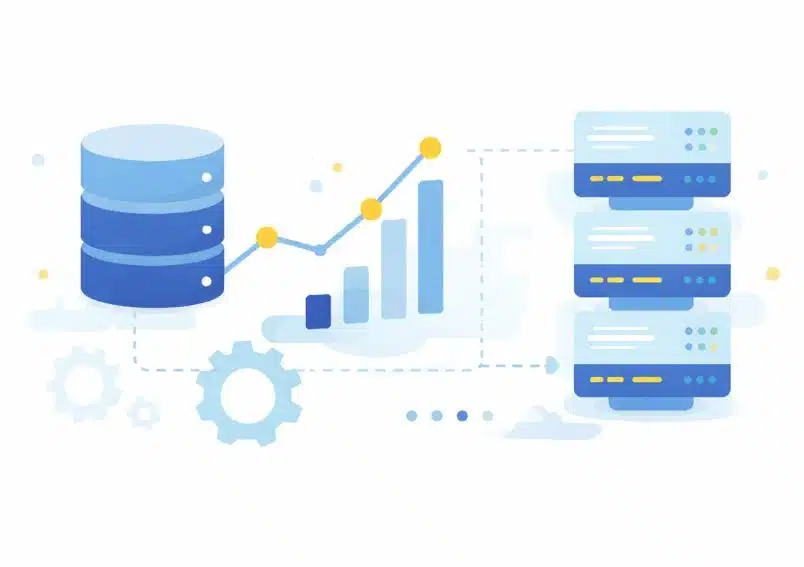
Use batching, async requests, and parallel, execution to handle large datasets efficiently.
Automating Data Extraction Workflows with Webhooks
When you run large requests, your script will eventually timeout. This usually happens when you start batching queries or using enrichments.
Instead of waiting for the response, use async=true with a webhook.
Setup
- Add async=true to your request
- Add a webhook URL
- Send the request and let it run
Outscraper will process the task in the background and send the results to your server once it’s complete.
When using webhooks, always test your endpoint with a small request first before running large jobs.
"async": true,
"webhook": "https://yourserver.com/webhook"
This prevents failed deliveries and makes debugging easier before scaling your workflow.
Common Mistake
Running a large requests with async=false.
This keeps the connection open and increases the risk of timeouts or failed requests.
Use webhooks to automate your data pipeline and verify request signatures to ensure every response is authentic and secure.
How to Turn Raw Data into Lead Generation and AI Workflows
Most data extraction projects fail after one step. You collect the data, so you should use it.
If your results stay in JSON or a text file, they won’t generate leads or power any system. The real value comes from turning raw output into something usable.
Prepare Data for Your CRM
Raw API results are not ready for sales use. Before implementing into a CRM, you need to clean and structure the data.
Focus on:
- Field Mapping – match API fields to CRM columns (name – company name, phone – contact number).
- Remove Incomplete Records – Skip businesses without websites or contact data.
- Deduplicate Results – Avoid duplicate leads from overlapping queries.
Validate Contact Data Before Outreach
Not all extracted data is usable.
Before running campaigns:
- Verify Email Addresses
- Remove invalid or risky emails
- Keep only deliverable contacts
This prevents:
- High bounce rates
- Spam issues
- Damaged sender reputation
Turn Data Into a Lead List
At this stage, your goal is simple. Just convert structured data into a usable list.
A basic lead list includes:
- Nazwa firmy
- Strona internetowa
- Phone Number
This is what your sales team or outreach tools use.
Use Data for AI Automation
Once your data is clean, you can use it beyond lead generation.
Examples:
- AI Enrichment – Categorized business by industry or intent.
- Lead Enrichment – Prioritize high-value prospects.
- Automated Outreach – trigger email or CRM workflows.
The same dataset can power both:
- Sales pipelines
- AI-driven workflows
Most issues don’t happen during data extraction but they happen when you try to use the data inside your CRM or outreach tool.
Start with a small dataset and test your full pipeline (extraction → CRM → outreach) before scaling. Most issues appear after integration, not during extraction.
From Script to Production
At this point, you already have everything you needed to run a production-ready workflow:
- Structured 1ueries
- Controlled data extraction
- Scalable requests
- Automated delivery with webhooks
The difference between a test script and a production system is consistency. Once your pipeline is stable, you can run it continuously and integrate it into your existing tools.
Most teams don’t fail at extraction, most of them fail at turning it into a repeatable system.
Skip building scrapers from scratch. Use Outscraper API to extract, scale, and automate your data pipeline.
Frequently Asked Questions
Niestandardowe pozyskiwanie danych za pomocą interfejsu API polega na wysyłaniu ustrukturyzowanych żądań do serwisu takiego jak Outscraper w celu pobrania danych biznesowych (takich jak nazwy, adresy i strony internetowe) bez konieczności tworzenia własnego narzędzia do scrapingu.
Zamiast zajmować się serwerami proxy czy testami CAPTCHA, interfejs API zwraca przejrzyste, uporządkowane wyniki, z których można od razu skorzystać.
Pomocna jest podstawowa znajomość języka Python lub interfejsów API, ale nie są wymagane zaawansowane umiejętności programistyczne.
W tym przewodniku pokazano, jak wykonać pierwsze żądanie za pomocą prostego skryptu. Można również skorzystać z narzędzi takich jak Google Colab, aby przeprowadzić testy bez konieczności instalowania czegokolwiek na komputerze.
To jedna z najczęstszych usterek. Zazwyczaj pojawia się, gdy:
- zapytanie jest zbyt ogólne lub niejasne
- żądanie nie zostało poprawnie wykonane
- wyniki nie są poprawnie odczytywane w odpowiedzi JSON
Zacznij od prostego zapytania i niewielkiego limitu, a gdy wszystko będzie działać, zwiększ je.
Aby skutecznie skalować:
- wysyłanie wielu zapytań w jednym żądaniu
- wyniki kontroli z wykorzystaniem parametru granicznego
- użycie async=true w przypadku większych zleceń
- uruchamiaj równoległe żądania w swoim kodzie
Skalowanie polega na ograniczeniu zarówno liczby wywołań API, jak i czasu oczekiwania.
Po wyodrębnieniu danych:
- przypisz pola do systemu CRM (imię i nazwisko, numer telefonu, strona internetowa)
- usunąć niekompletne lub zduplikowane rekordy
- sprawdź poprawność adresów e-mail przed nawiązaniem kontaktu
Większość problemów pojawia się po wyodrębnieniu danych, podczas ich przygotowywania do faktycznego wykorzystania.